Within Power Automate, it has been possible to run scripts in Excel using the Run Script action. Did you know that there is a Run Scripts from SharePoint library action too?
Run scripts in Excel
Table of Contents
Office scripts are similar to Macros. They offer the availability to run some VBA code within your Excel file. The main difference between Office Scripts and Macros is that Office Scripts only support functionality that is available within cloud environments. This means that your Excel file can live within SharePoint and Macros scripts can still run.
Creating an Excel with an Office Script
When you open your Excel file in Excel Online, you will notice the Automate tab. In my Excel file I created a script called colour the current cell yellow.
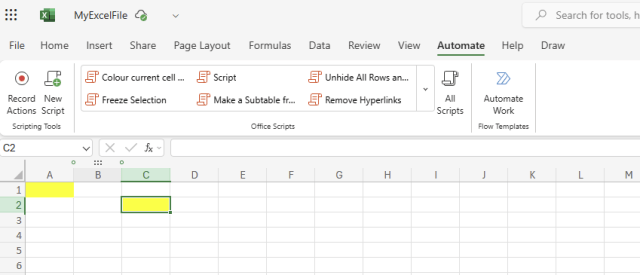
When you click on the script the code editor will appear. You could now update the script if needed. However, I’m going to save a copy of the script.

I can now select a location where I want my script to appear. Most likely you would want your scripts to sit in a different location, away from your Excel data. In this example I’m going to place it in the same place as it makes screenshots a bit easier.

When we now have a look at the document library, we can find an .xlsx file and a .osts file.

We can open the osts file in any editor as shown below.

Run script from SharePoint Library in Power Automate
Within Power Automate, we can now create a flow that uses either the Run Script or the Run Script from SharePoint Library action.
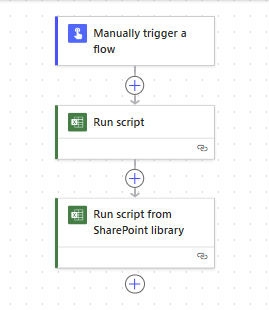
First I’m going to have a look at Run Script. With the Run Script you can select you site and library before you select the Excel file. Then within that Excel the various scripts can be selected. This is all ok when you have one Excel file with some scripts, but if you have many Excel files with many scripts, then it becomes harder to manage the scripts and Excel files.

Run script from SharePoint library
The .osts file that we created earlier we can use using the Run script from SharePoint library action. As shown below you can have the Excel and the script file in the same location, however you could also place your scripts in a different location so that you can secure your scripts in a different way.

Other Excel actions
If you need some help with other Excel actions, you might also want to check out my post Replace the Excel Online connector with the Microsoft Graph API.
Discover more from SharePains
Subscribe to get the latest posts sent to your email.