If you have worked with the Excel Online connector in Power Automate then you will most likely know the pains of this connector. In this post I’m giving an easy way to replace the connector with the much more reliable Microsoft Graph API alternative.
The pains of the Excel connector
Table of Contents
The Excel connector most often isn’t too bad until you put it under a bit of pressure.
Some of the issues are:
- Throttling error, also known as 429 errors
- Action’s retry isn’t great
- Very unclear error messages
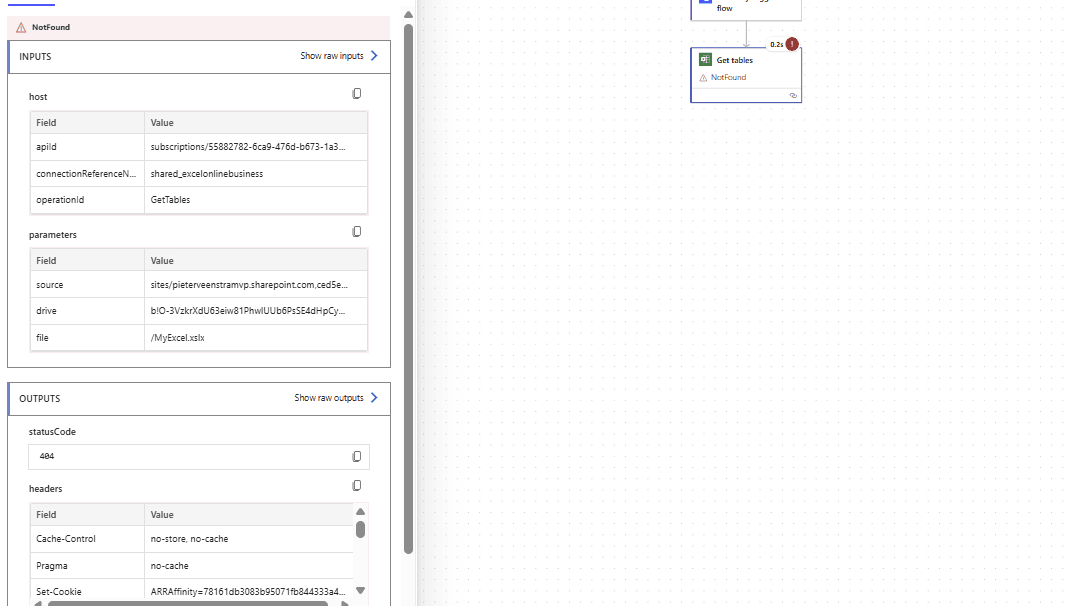
Some of the common error message are:
Action ‘List_rows_present_in_a_table’ failed: Graph API request failed. Error code is ‘InvalidSession’. Error message is ‘The target session is invalid.’.
Or
Action ‘List_rows_present_in_a_table’ failed: Graph API is unable to open the workbook.
Or
Graph API request failed. Error code is ‘itemNotFound’. Error message is ‘Item not found’
From the above messages we can see that the Graph API is being used by the Excel connector however the Excel connector gives us a lot more errors than direct Graph API calls. The biggest problem with the Excel connector in my experience is that it fails randomly.
Now, random doesn’t really exist in software development. Random behaviour merely means that we haven’t figured out the pattern to a problem yet.
The Graph API equivalent
The Microsoft Graph API offers us end points that will give us similar functionality compared to the Excel Online connector, however the performance is a lot better, especially when we are pushing the connector to its throttling limits.
For detailed limitations please have a look at the Excel Online connector documentation
The downloadable solution
At the end of this post there will be a link to a downloadable solution. This solution is not meant for production but merely to get you started. This solution includes a copy of the examples in this post. If you need additional actions to be covered then please let me know.
Initialize Connection to a file
The first flow in the solution is the Initialize Connection flow
The flow takes three parameters.
- Site URL
- Library (This is the name of the Library e.g. Documents)
- Workbook (The file name e.g. 1234.xlsx)

The flow returns three pieces of information that we will need for any future actions.
- Site ID
- Library ID
- Item ID

The other flows in the solution are:
- Excel List Tables
- Excel Get Workbook Application
- Excel Get Table Range
- Excel Get Table
- Excel Get Data in Table
- Excel Get Table Row
- Calculate Workbook Application
- Excel Create Table Row
Excel – List Tables
The Excel List Tables action will ask you to supply the Site ID, Library ID and the Item ID as we retrieved when we initially connected to the Excel file in SharePoint. And then we simply connect to the Graph API end point.

Performance
As mentioned earlier performance due to 429 errors. In the screenshot below, you can se two flows runs where on the left I’ve used child flows and the Invoke and HTTP request action. On the right I used the Excel Online connector. I only asked the flow to read the same Excel file 300 times, which is just enough to make the Excel connector struggle a little bit.

Some thoughts
Now should you replace every Excel action with a Microsoft Graph API call? Not really, I would only replace the Excel connector if it causes any inconsistent behaviours in your flows, which is most likely when you have high volumes of Excel files to process.
Also this is not a reason to start using Excel as your database. However there are many business that use Excel as a temporary solution that may be a little less temporary as expected.
If you would like to use flows described in this post then please download the solution below.
Discover more from SharePains
Subscribe to get the latest posts sent to your email.
A main motivation to use the Excel connector is it doesn’t require a premium licence – which the http connector requires.
Still it’s an interesting technique when data is stored in excel.
I wrote this post following some work I did with a client who has nearly 2000 Excel files to process. Some of these flows run overnight using a service account that does have a premium licence. I agree that in some situations we might have to work with the less reliable non-premium connectors.