In this post I will look at the options to extend Power Apps with code.
Options to extend Power Apps
Table of Contents
When the Power Platform doesn’t do what you want it to do you could switch over to for example SPFx to build your apps, but why?
Don’t we all like the Power Apps platform? Just because there is a control or a data connection that doesn’t exist we shouldn’t need to move away from the low-code platform that we all like to use.
When you want to create a new connector, you can create a custom connector and then use this connector to connect into datasources that currently aren’t supported as part of the platform.
But what if it isn’t a connector that you are after and you want to create a new control?
In this post I will go through the steps.
Installing the Microsoft Power Apps CLI
All you need to do is follow this link https://aka.ms/PowerAppsCLI.
That will download the Power Apps CLI for you.

And within 30 seconds you should see the Completed installation message.
Create a component with code
We will need to start by using the Developer Command prompt for VS 20XX or Developer PowerShell for VS 20XX. Any version from 2017 is supported.
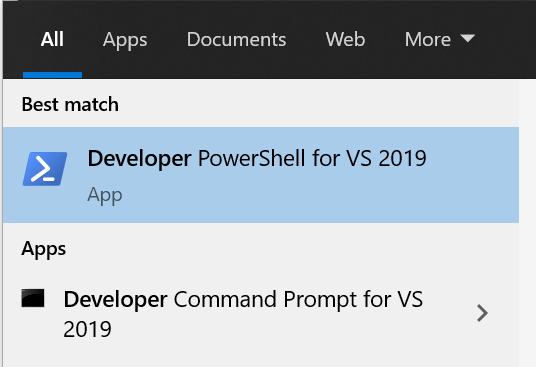
I’m going to use the PowerShell version
The first steps are to create a folder and then move to that folder
mkdir mycustomcomponent
cd mycustomcomponent
Now we need to create the basic component project. According to the documentation I need to use the following command
pac pcf init --namespace <specify your namespace here> --name <Name of the code component> --template <component type>Ok, for a nocoder this will already be confusing.
Looking at the help for the pcf command we have three things to supply.
Usage: init --namespace --name --template

  --namespace     The namespace for the component (alias: -ns)
  --name          The name for the component (alias: -n)
  --template      Choose a template for the component (alias: -t)

                  Values: field, dataset
To create my componenet I will use the following command
pac pcf init --namespace myCustomComponent --name MyCustomComponent --template fieldYou could now get the following message.
The PowerApps component framework project was successfully created in ‘C:\Users\Pieter.Veenstra\source\repos\myCustomComponent’.
You can now open this folder in your favourite editor and make all the changes that you want.
I’m going to use visual Studio Code.

For anybody who has been playing around with the SharePoint Framework, to create modern SharePoint web parts, yes this is again a type script based solution.
For all the low coders, this might look a bit scary in the beginning but you will get the hang of it. Or you could always ask for some help in the community. Feel free to contact me if you need help.
Before we do any coding, we will need to collect all the dependencies fro component development. this will need to be done every time you create a new component.
Install the component
The next step is to run the install command.
npm installIf this results in the following message then you will need to install npm first.
If you need to install npm then please follow the step on the npm site. You will now need to restart your Powershell window, to make sure that npm is found.
Once npm install works you will find that all the dependencies needed by your component will we collected.
Now we are ready to do the development. in Visual Studio code you will now find all updates added to the project. You can see that node_modules has been added as a folder with many subfolders.
Building the component
To build the component we need to use the following command
npm run buildIf you are seeing the following then all is working:
Package the component
We are nearly done now! Are you feeling excited yet?
First we need to create a new folder in the component folder that we have been using so far
mkdir deployment
cd deployment
Then we can run the package command
pac solution init --publisher-name "Pieter Veenstra" --publisher-prefix pvYou could now see the following
now we need to make sure that this package can find the solution using the following command
pac solution add-reference --path C:\Users\Pieter.Veenstra\source\repos\myCustomComponentnow there is just one command left
msbuild /t:build /restoreIf you now get errors like:

then you will need to install the .Net developer pack.
https://learn.microsoft.com/en-us/dotnet/framework/install/guide-for-developers
Once that is all sorted out you should get the following success message.

In my \myCustomComponent\deployment\bin\Debug folder I now see a deployment.zip file. This is the Solution file that we need to import our component
Import a solution

I can now select my deployment.zip file

Once the solution has been imported I had to publish the customization that were imported.

Enable the component framework for canvas apps
To make the component work you will need to enable the component framework for canvas apps.
In the power platform admin center go to Settings -> Features and enable the following option

Then in your app that you want to use your component you will need to enable the Components feature.

Now within your app select the Import component option form the Custom menu.

Then under the Code tab we will find our component.

And our component is now imported.
Adding the component to the app
In the insert section you can now find the component that we created.

Once the custom component is selected it is now available in the app

Ok, this component isn’t very exciting but then i didn’t want to clutter this post with any development.
Please do follow my blog and you will be notified of my next posts about creating custom components for Power Apps.
Next reading
Do you want to know how to develop code components? Then please read Developing code components in Power Apps.
Discover more from SharePains
Subscribe to get the latest posts sent to your email.