When you create flows inside a solution you might have noticed these Environment Variables. What are they and what can you do with them?
Environment Variables in dynamic content
Table of Contents
Recently these brown iconed Environment variables started to appear in Power Automate.

When we hover over the Environment Variable we can see that the function parameters is used for this.

When you read through the documentation of the parameters function things don’t get much clearer

How do Environment variables work?
First of all environment variables can be created within solutions only and also flows only find environment variables within solutions. So for example in my default solution there is a Should the Peek Button Be Showed [sic]

This environment variable appears in my flows as noticed earlier.
In your own solutions you can create new environment varibales.

These variabales can be plain text but also yes/no, decimals, json or even a datasource.

Well that creates a lot of options for us.
Data source type Environment Variables
A Decimal number. Text and Yes/No are hardly interesting. Yes of course you can set these variables and they are great to use, but how about a Datasource as an environment variable?
When I configure my SharePoint site like this as an environment variable:

Then that means that in my flow I can reference the variable instead of any hard coded urls. So that makes flow like this possible. Using the SharePoint list url without any selection of the drop down values.

Ok, that is great, but we need to put this to the real test. Using a trigger. in the past I managed to add settings to my flows using a number of compose actions or a select action near the top of my flow. But these variables that live outside my flow are so much better.
Even the editing experience is really good here!
Notice that I only set the Site address and i’m getting a drop-down with available lists! So the flow editor is environment variables aware.
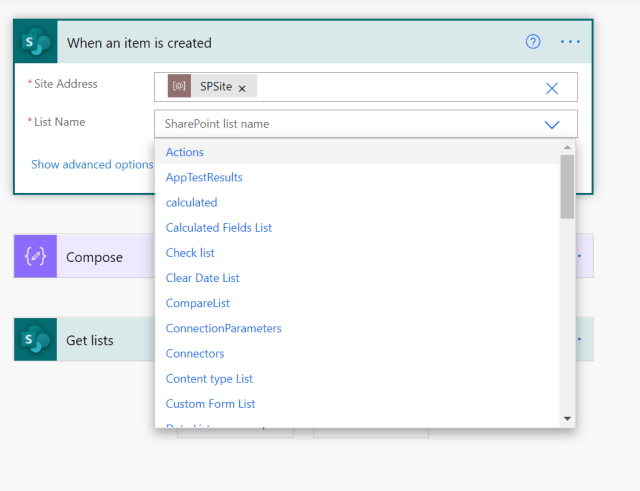
You can now use this to set for example your SharePoint url or anything else that makes up the difference between your development, test and production environment. Such as who to send emails to.
Imagine creating a flow that emails senior managers in your organisation. You wouldn’t want them to receive your tests in development.
But,… I hear you say. Do I need environments?
YES.
I would always recommend using multiple environments. I’ve seen many times in the past where people pre or post fixed the names of their flows with DEV or TEST or PROD. Multiple environments makes things so much easier. And now that you can use environment variables on triggers and actions it should be a lot easier to move your flows as part of a solution.
How about Power Apps?
Well my next post is ready already.
Environment Variables in Power Apps
Discover more from SharePains
Subscribe to get the latest posts sent to your email.
Thanks for sharing, but is there a way to move your Default environment flows and apps into your new environment without redevelopment.
Yes, there is, you could export the flows and then import the flows into environments. This can be done manually. You could also consider the approach mentioned in the following post:
https://sharepains.com/2021/06/29/export-and-import-solutions-power-automate/
You should really consider putting your flows and apps into solutions so that you can export solutions between one environment and the other.
Thank for this valuable info. Does this feature require a specific version or permissions. This menu does not appear for me
Hi Steve, can you check the uodate frequency in your environment? This has to be set to frequent and then it will appear within a day or so.
Hey,
How would you use environment variables when deploying a flow from one environment to another? Would you change the value before exporting the solution? Or would you export and then change the value of the datasource variable…?
Hi Sara,
You can deploy variables as part of solutions, however the values will remain unique to each environment. Personally I create an unmanaged solution next to the real solution that contains just the variables. In there I maintain the values of the variables.
Love this approach. Thank you for the explanation and suggested patterns!
I created the environment variables solution and then the real solution but the flows in the real solution don’t see the environment variables. Is it a ‘wait for it’ thing?
Hi Zach, that should all be pretty instant. Did you include your environment variables in both solution? Also did you publish your solution?
i only included them in the Env Vars solution, not the functional solution. Should they be there too?
Yes I published w/in the environment. I have not exported/imported yet.
I put them in both solutions
Then do the values go in both? Do I clear them out before I export?
Deploy then with the solutions and uodate the values using the environment variables only solution. As that one is unmanaged it will let you edit the variables. In the main solution you can’t edit them as that one will be managed.
ok. This is working in my commercial cloud but not in my client’s gov cloud. wondering if there it’s not available to them yet.
Thanks for your help!
Can you check for the client environment what the update frequency is set to? You can find this in the Admin Center -> Selected Environment -> Refresh Cadence. This needs to be set to Frequent. Once set to Frequent it will update within the next 24 hours.
it is set to frequent. I confirmed all settings in settings details match my tenant.
Ok, that is odd. I might need to have a more detailed look at this. Please feel free to open a chat on this site.
Nice Article, I noticed my env variables show up in manual trigger flow but not automate flows like “When an item is created”. any idea why?
Hi Danish,
I’ve noticed that you have to save your flow first for the environment variables to appear.
How would one store a list view as an environment variable? I’ve tried a variable containing the list view’s GUID, but the flow won’t save when I insert the variable in the “Limit Columns by View” field of any SharePoint actions in the flow.
Hi Andy,
That option doesn’t exist
Hi, Pieter.
I kept digging around on Google and finally found the answer. One can utilize an environment variable to store a list view, but it must be formatted properly.
In my environment variable, this time I pasted in the GUID wrapped in curly braces, like this: {xxxx-xxx-xx-xxx-xxx}. I then edited the flow and selected that environment variable for the “Limit Columns by View” field of a SharePoint action. All the properties in the SharePoint action resolved, and then I saved the flow without errors. I just tested the flow and it worked as expected. Yay!
Looking back at your response, it appears you thought I was looking for the data type that would hold the GUID. I should have mentioned I was using a text variable.
Great article Pieter
Do you know how to extract variables and their values for documentation purpose?
Michal Ziemba
Hi Michal, you can find the variable and their values in Dataverse tables.