
For a long time it has been struggle to have nested galleries when you have high volume of data. But not with Named Formulas in Power apps.
Nested Galleries
In the below example you can see how we have two nested galleries. One gallery will show some data and the nested gallery will show data related to the record in the parent gallery.
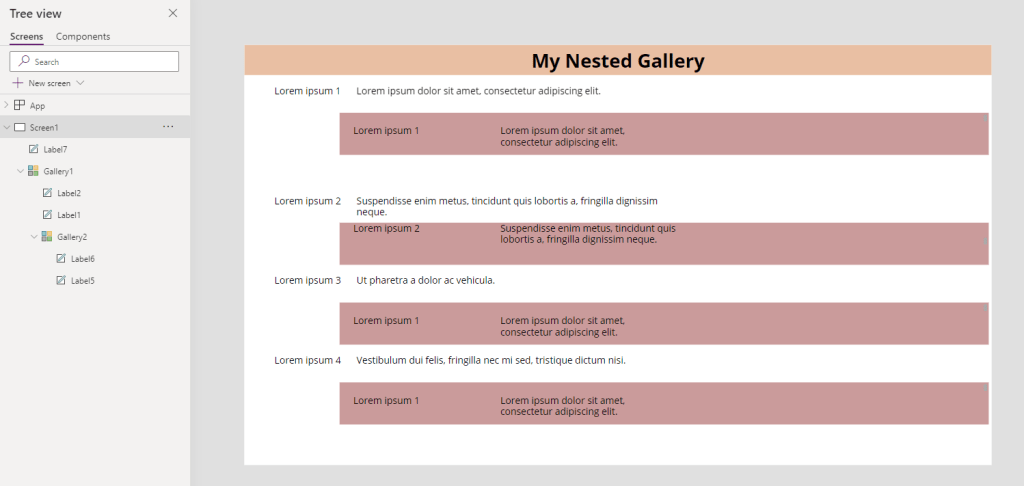
For galleries showing small amounts of data this isn’t too much of a problem. You will find that your app will present small amounts of data as expected.
But then you put your app in production and more data is loaded and your app will run very very sloooooowwww!
How do we fix this? Well for a long time the recommendation has been to avoid nested galleries. Most likely if you search online for performance and nested galleries you will come across articles recommending the “give up”-approach.
But there is no need for this. We can make this work. For one of my clients recently we had an app that would load about 4000 items in the parent gallery and then load data into the child gallery. Needless to say this app didn’t perform.
Reading more than 2000 items from a data source
The first problem is that we need to be able to read more than 2000 records from our data source. The existing approach was as shown below:
 Concurrent(
        ClearCollect(colRisk1, Filter(Risks, R_ID < 2000)),
        ClearCollect(colRisk2, Filter(Risks, R_ID >=2000 And R_ID < 4000)),
        ClearCollect(colRisk3, Filter(Risks, R_ID >=4000 And R_ID < 6000)),
        ClearCollect(colRisk4, Filter(Risks, R_ID >=6000 And R_ID < 8000)),
        ClearCollect(colRisk5, Filter(Risks, R_ID >=8000 And R_ID < 10000)),
        ClearCollect(colRisk6, Filter(Risks, R_ID >=10000 And R_ID < 12000)),
        ClearCollect(colRisk7, Filter(Risks, R_ID >=12000 And R_ID < 14000)),
        ClearCollect(colRisk8, Filter(Risks, R_ID >=14000 And R_ID < 16000)),
        ClearCollect(colRisk9, Filter(Risks, R_ID >=16000 And R_ID < 18000)),
        ClearCollect(colRisk10,Filter(Risks, R_ID >=18000 And R_ID < 20000))
    );
ClearCollect(
    colRisk, colRisk1, colRisk2, colRisk3, colRisk4, colRisk5, colRisk6, colRisk7, colRisk8, colRisk9, colRisk10
);
So to ensure that all items can be read, there the records are read 2000 records at a time. Once up to 20000 records have been read the collections are merged into one collection which is then used in the gallery.
This approach is very slow. The main problem is that as Power Apps presents the data to the user, the child galleries are triggering their reading of data from the data sources.
Moving towards Named Formulas
Named formulas are a bit like formulas in Excel. You don’t have to worry about if the values have been updated or not. Named Formulas always give you the current values of your data.
Within the Named Formulas we can replicate the above approach a bit.

Within the Formulas property we can specify the following 10 Named Formulas:
nfcolRisk1 = Filter(Risks, R_ID < 2000 );
nfcolRisk2 = Filter(Risks, R_ID >=2000 And R_ID < 4000);
nfcolRisk3 = Filter(Risks, R_ID >=4000 And R_ID < 6000);
nfcolRisk4 = Filter(Risks, R_ID >=6000 And R_ID < 8000);
nfcolRisk5 = Filter(Risks, R_ID >=8000 And R_ID < 10000);
nfcolRisk6 = Filter(Risks, R_ID >=10000 And R_ID < 12000);
nfcolRisk7 = Filter(Risks, R_ID >=12000 And R_ID < 14000);
nfcolRisk8 = Filter(Risks, R_ID >=14000 And R_ID < 16000);
nfcolRisk9 = Filter(Risks, R_ID >=16000 And R_ID < 18000);
nfcolRisk10= Filter(Risks, R_ID >=18000 And R_ID < 20000);
Then within the App.OnStart (or whenever you need it) we can create the collection that holds all the data stored within the above Named Formulas:
ClearCollect(
    colRisk, nfcolRisk1, nfcolRisk2, nfcolRisk3, nfcolRisk4, nfcolRisk5, nfcolRisk6, nfcolRisk7, nfcolRisk8, nfcolRisk9, nfcolRisk10
);
Set(varCount, CountRows(colRisk));
Now we can now use this colRisk collection within the nested galleries and the app will perform a lot better than before. However, we still need to do one more little step in the named formulas configuration:
nfMainScreenGalleryItems = Search(Filter(colRISK, ....)The above named formula will read all of the data from our collection. And it will even give us the option to apply any filtering and search functions that we may need. Please note that I left out the filter and search details in the above expression.
Further improvements with paging
The above use of named Formulas will help a lot, but as we scroll through galleries there will still be the limitations that the Child galleries have to catch up as you scroll through your galleries in your canvas app.
To improve this last bit you could introduce paging. Within our gallery we can set the items to the following code to display 5 items on a page:
LastN(FirstN( nfMainScreenGalleryItems ),
    varCurrentPage * 5
),5)
And then add an arrow up and then arrow down. Where ethe OnSelect of the arrow up is set to
Set(varCurrentPage, varCurrentPage - 1)And the OnSelect of the Arrow Down is set to :
Set(varCurrentPage, varCurrentPage + 1)This does of course mean that users can’t just scroll through all the results. But the data load experience will be a lot better.
Some thoughts
The Named Formula example in this post was written with an app that used SQL Server as a data source. Other data sources may behave different. Please do feel free to try out this method and let me know if this works for your Power Apps.
Pieter Veenstra

Is your business still running on paper trails, sprawling Excel files, or ageing Access databases? There's a better way — and I can show you exactly what it looks like. I'm the Technical Director of Vantage 365, a Microsoft solutions consultancy working with clients across the UK, the Netherlands, and worldwide. For over 30 years I've been turning messy, manual business processes into clean, automated systems that save time, reduce errors, and give teams the visibility they need to make better decisions. SharePains is not just any blog run by a Microsoft MVP. Have you ever used Try-Catch in Power Automate? The original post about Try-Catch in Power Automate can still be found on this site, https://sharepains.com/2018/02/07/try-catch-finally-in-power-automate-flow/ Or have you ever used the Pieter’s method to avoid variables and speed up your flows? https://sharepains.com/2020/03/11/pieters-method-for-advanced-in-flows/ You can contact me using contact@sharepains.com


Very well done with this article!