

One of my favourite actions in Power Automate is the HTTP action. However, it is a premium feature, while many of the Graph API endpoints offer standard actions that can be used without additional cost. The ability to efficiently integrate and automate tasks using these actions is essential for maximizing productivity in any workflow.
Understanding the differences between these actions and when to use them can help you optimize your workflows and reduce unnecessary expenditures on premium licenses.
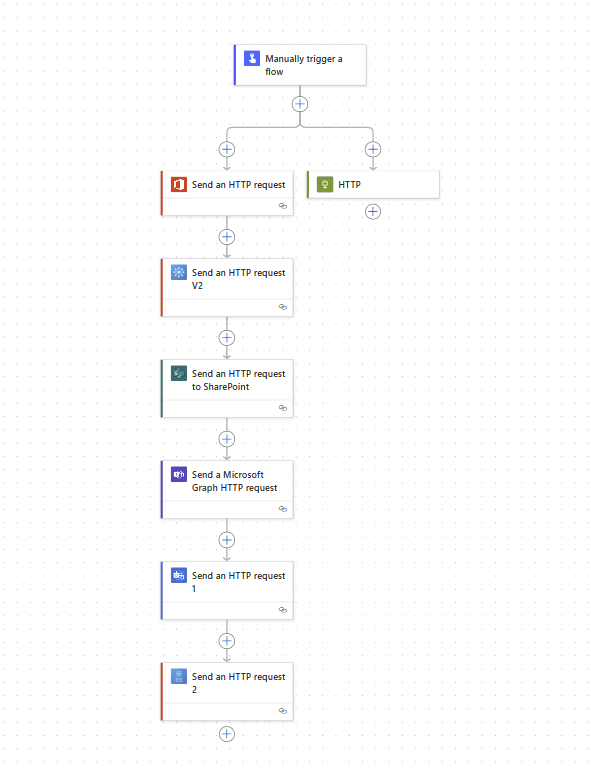
Comparing the Premium HTTP Action with Standard Actions
It’s critical to evaluate the benefits and limitations of both Premium HTTP actions and Standard actions when automating processes in Power Automate. Each has its use cases, and identifying which is appropriate for your situation can streamline your workflow.
Using this method has advantages, particularly when needing detailed profile information quickly for reports or dashboards. For instance, with a single API call, I can programmatically fetch data concerning various attributes, which can be beneficial for data analysis.
I’m going to focus on the Graph API endpoints in this post.
By utilizing the Send an HTTP request from the Office 365 Users connector, I can still achieve similar results without incurring costs associated with Premium licenses. This is particularly advantageous for small businesses or teams operating on tight budgets.
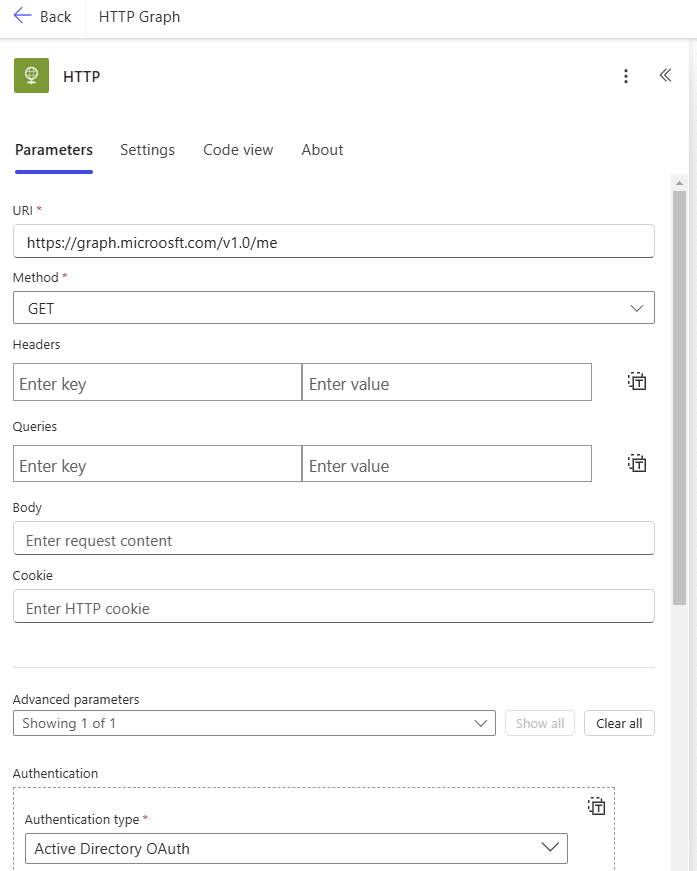
For example, if I want to retrieve my profile details from Microsoft Graph, I could connect using the HTTP action to graph.microsoft.com/v1.0/me. This request allows me to access a variety of personal information, including my display name, email address, and job title, as shown below:
For instance, the Teams connector may have specific settings or parameters that differ from those in the Graph API or SharePoint connectors, making it essential for users to familiarize themselves with each connector’s documentation to avoid issues.
However I could also use a standard licence and avoid the need for premium licences using the Send an HTTP request from the Office 365 Users connector.
This is crucial when building integrations, as it determines the types of data you can access and manipulate within your application. Proper configuration of scopes during your app registrations is vital for seamless operation.

This trade-off means that while Standard actions are easier to use, they may not always provide the flexibility that more complex scenarios require.
This distinction is crucial for users aiming to interact with SharePoint data, as it influences how requests are structured and what parameters are required for success. For more details, see my post about SharePoint and the Graph API in Power Automate.
Exploring Other HTTP Request Actions
It’s important to note that the HTTP request action in the Microsoft Teams connector has a slightly different name, which can cause some confusion among users. Understanding these nuances is essential for effective automation.
This feedback can guide users in understanding which resources are available under each connector, and help in constructing successful API calls.
Searching for the correct scopes can often be a matter of trial and error. For instance, if I attempt to access the same profile endpoint mentioned earlier using the Groups connector, the error message returned will inform me that only the group resource is supported.

The following table outlines some of the most common connectors and the resources they support. Understanding these allocations helps users choose the right actions for their automation needs effectively.
So, what is the actual difference among all these actions? While they all function similarly, each has distinct scopes of operation. Some endpoints may be accessible via one connector’s HTTP request action but not via another.
They all work fairly similar however they all have their own scopes. And calling some endpoint may work in one connector’s HTTP request action while it doesn’t work in another. Remember configuring the scopes in your app registrations?
Fortunately, there is no need to configure scopes for these Standard actions. This simplifies the process, making it accessible for users who may not have a technical background, but it also restricts the expansion of available scopes for advanced users.
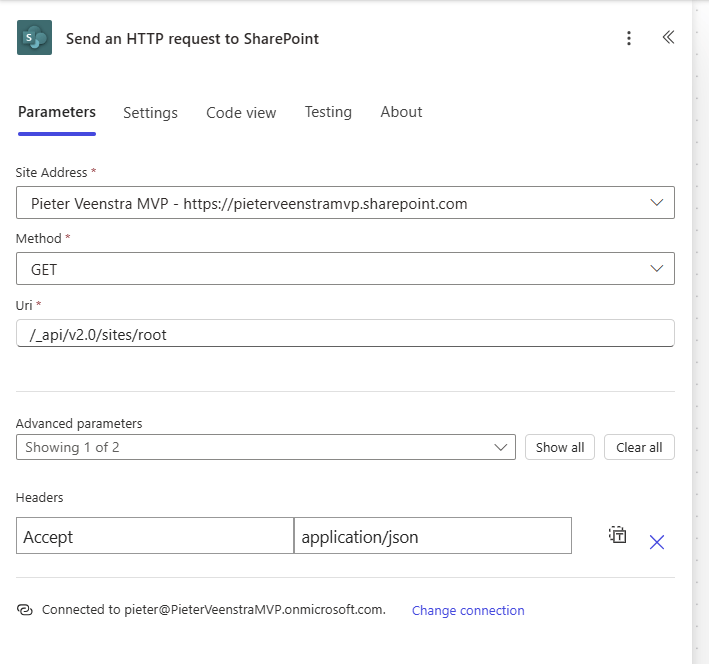
The Send an HTTP request to SharePoint action operates a bit differently. In the previous example, a site is specified along with a related URL to that site. Unlike the Graph API, this action does not include Graph.microsoft.com.
Finding Available Scopes for Each Action
The easiest way to find the scopes for the actions is by getting it wrong. So for example if uI go to the same profile endpoint as mentioned earlier using the Groups connector, then the error message on the failing flow will tell me that only the group resource is supported.

Supported Resources for Each HTTP Action
| Connector | Resources |
| Office 365 Groups / Office 365 Outlook | Group |
| SharePoint | Sites |
| Lists | |
| Column definitions | |
| Content Types | |
| List Items | |
| Document Set Version | |
| Long Running Operations | |
| SharePoint Settings | |
| Base Site Page | |
| Site Page | |
| Web Part | |
| Taxonomy Store | |
| Taxonomy Group | |
| Taxonomy Set | |
| Taxonomy Term | |
| Taxonomy Relation | |
| Microsoft Teams | |
| channels | |
| chats | |
| installedApps | |
| messages | |
| pinnedMessages | |
| Office 365 Outlook/Office 365 Group Mail | messages |
| mailFolders | |
| events | |
| calendar | |
| calendars | |
| outlook | |
| inferenceClassification | |
For the resources listed above, it’s beneficial to experiment with the standard actions to better understand their capabilities and limitations.
- They are easier to configure than the out of the raw HTTP action.
- No need for custom app registrations
- No need for premium Power Automate licences.
Pieter Veenstra

Is your business still running on paper trails, sprawling Excel files, or ageing Access databases? There's a better way — and I can show you exactly what it looks like. I'm the Technical Director of Vantage 365, a Microsoft solutions consultancy working with clients across the UK, the Netherlands, and worldwide. For over 30 years I've been turning messy, manual business processes into clean, automated systems that save time, reduce errors, and give teams the visibility they need to make better decisions. SharePains is not just any blog run by a Microsoft MVP. Have you ever used Try-Catch in Power Automate? The original post about Try-Catch in Power Automate can still be found on this site, https://sharepains.com/2018/02/07/try-catch-finally-in-power-automate-flow/ Or have you ever used the Pieter’s method to avoid variables and speed up your flows? https://sharepains.com/2020/03/11/pieters-method-for-advanced-in-flows/ You can contact me using contact@sharepains.com

