

Power Apps studio includes test tools, however these are not available when you use co-authoring. So how about automated testing your Canvas Apps using Power Automate Desktop?
Once you read this post, you might also want to have a look at Automated Testing Power Apps – Controls and More.
Automated Testing
Automated testing tools can be used to rerun the same tests over and over again. In this post I will look at using Power Automate Desktop to run my tests.
In general the aims of automated testing can cover areas like:
- Repeat tests of features delivered in previous releases (regression testing)
- Test new functionality in my apps.
- Development testing
- Test newly deployed releases to ensure that there are no environmental issues.
- Speed up repetitive testing tasks
Introduction to Power Automate Desktop
Now, Power Apps comes with a few challenges when looking at automating testing. The various iFrames which make up the app in the browser don’t always make it easy to access the various elements in my browser.
The Power Apps studio, has its own testing tools but like earlier mentioned those tools aren’t always available.
When you first look at Power Automate Desktop you might want to look at the Recorder option available in the top of the PAD app, however I found it not very useful. A bit like Copilot, it may give you a clue in the right direction, but learning how to deal with the various challenges and being able to solve problems yourself is often quicker.
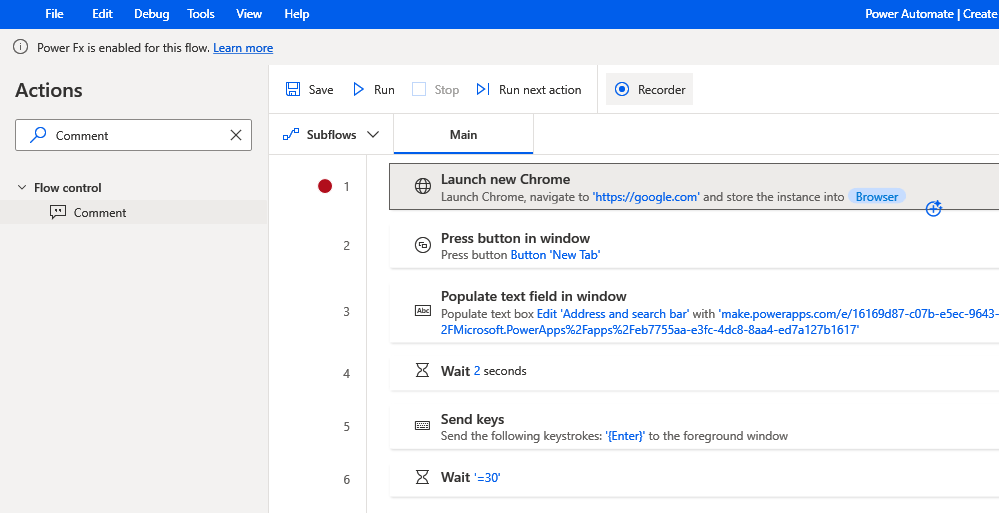
Comments in Power Automate Desktop
In Power Automate Desktop it is useful to add comments in your desktop flow. The little blue lines will really help to explain each step or group of steps in your flow.
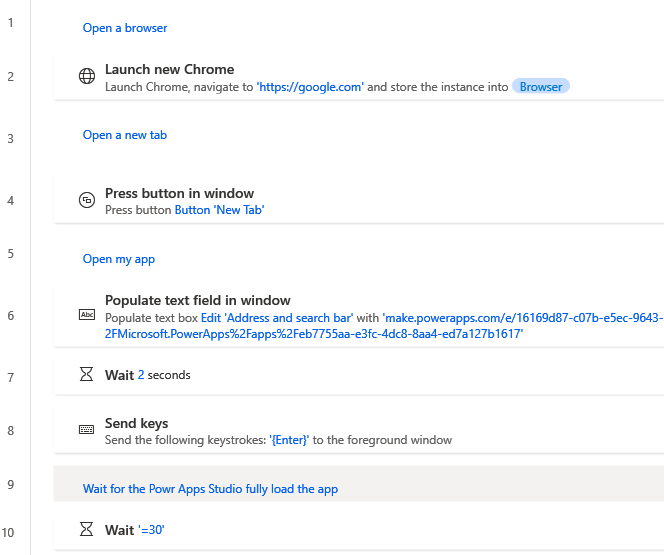
Launch new browser
Now the first step I’m going to add to my flow is opening a browser. This is straight away a difficult choice we have to make.
I’m a keen user of profiles in my browsers and Chrome handles profiles a bit different than Edge does. In my example I will be using Chrome. But you could of course use Edge.
One of the issues that I hit have been that when PAD runs the Launch new Chrome action, while you try and show a colleague your flow in Microsoft Teams, then the action will fail. Power Automate Desktop will simply not be able to grab the launched browser as Teams seems to take the focus away from your browser window.
Also, The newly created browser sessions will use the profile as used by your most recently opened browser window. This can be helpful, as you can switch browsers profiles quite quickly.
Now within the Launch new Chrome action you can decide to run a new instance or you could attach to an existing instance. I like to run my tests with a new browser.
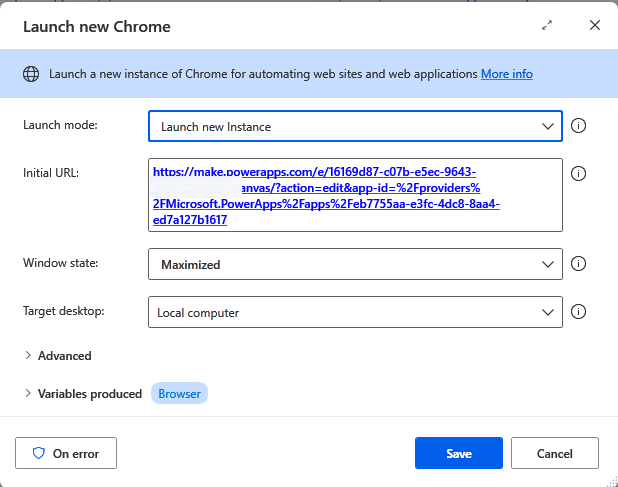
The initial URL can be set to you app’s url. In my case I’m going to create a test while running within my Power Apps development studio.
Handling the loading of the app
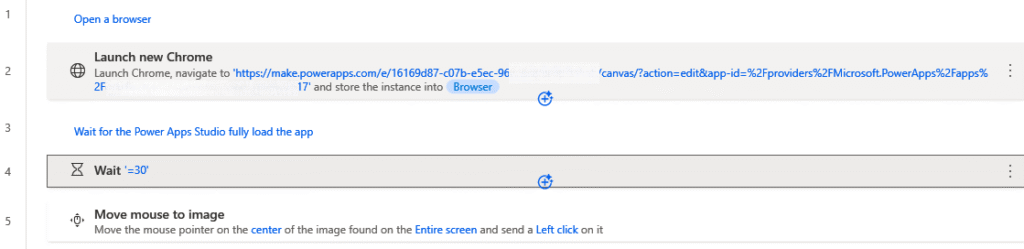
As loading the app and the development studio can take a little while, we could put in a wait of 30 seconds. This way would should be able to expect that the browser has loaded my app, however this may not be the case, or we might be wasting a lot of time if the app loads faster than expected.
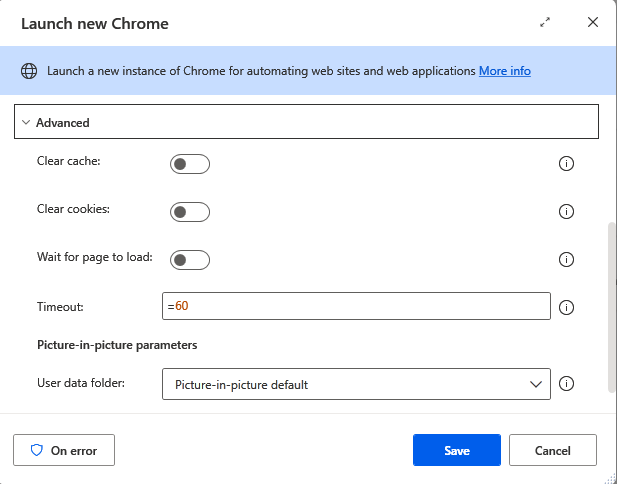
For the above Launch new Chrome action, the advanced actions are going to be important too. In my case I’m going to disable the Wait for page to load option. This is switch on by default, however, the page will be loaded as soon as Power Apps is informing you that it is loading the app.
Once the app is loaded in my browser I will want to press the play button. Pressing the play button will require that button to be available. So rather than waiting the 30 seconds I might as well get Power Automate Desktop to check for the existence of the play button. The wait for image action can help me with that:
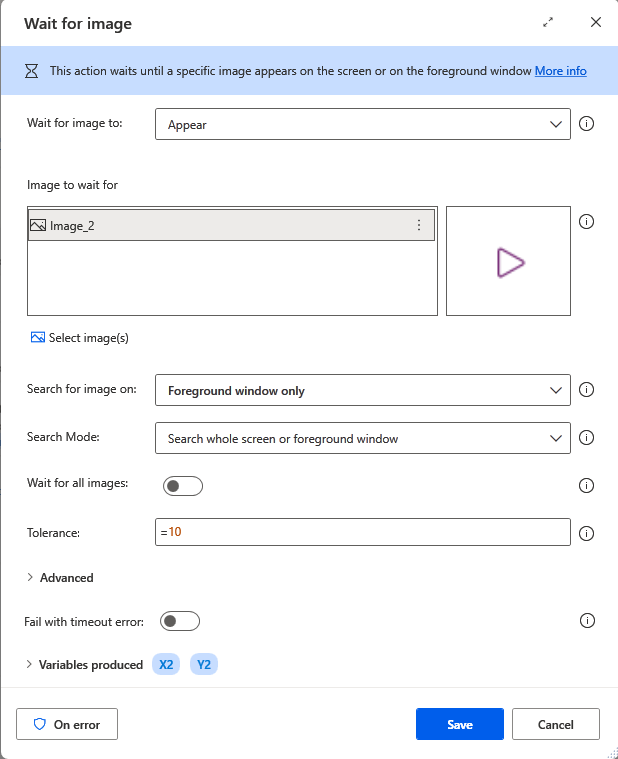
Pressing the play button
Now to press the play button, all we have to do is include a Move mouse to image action and the app will play as expected.
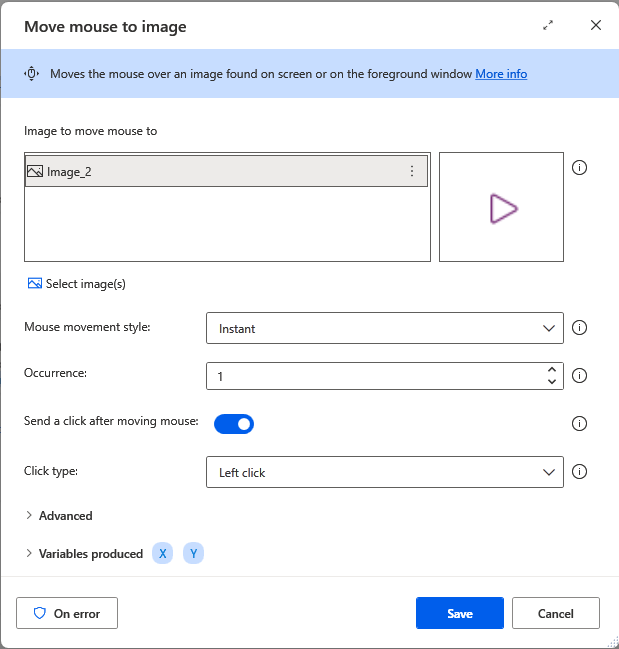
So far I haven’t had any troubles with handling the app sitting inside an iframe. Whereas when you use the recorder and replay your steps, the flow will complain about not being able to find any of your elements.
Testing text input controls
Now in the same way we can move our mouse to the various parts of our app and click on button and links.
In the above example. I’m selecting my Title field.
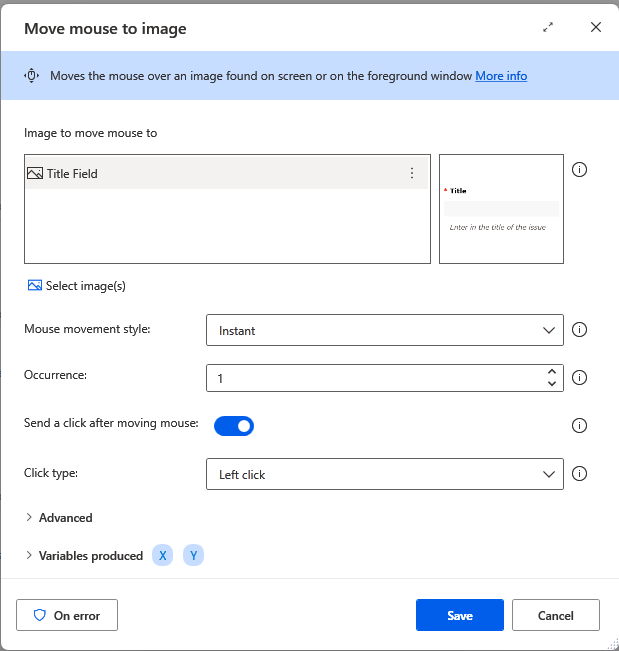
And then adding some content to the title field:
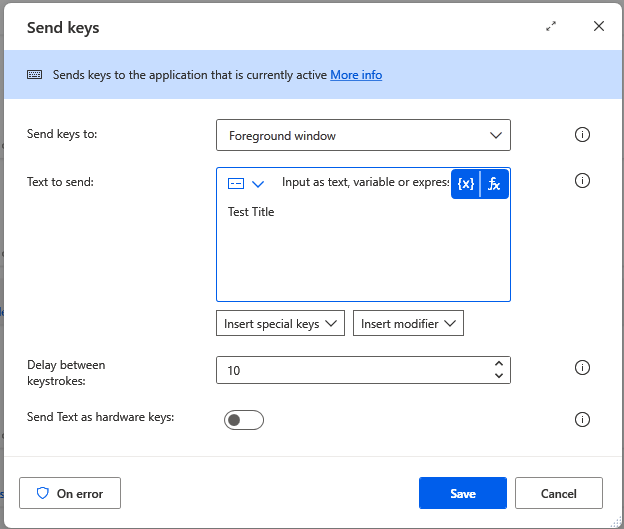
And like this you can test all the user journeys within your app.
Pieter Veenstra

Is your business still running on paper trails, sprawling Excel files, or ageing Access databases? There's a better way — and I can show you exactly what it looks like. I'm the Technical Director of Vantage 365, a Microsoft solutions consultancy working with clients across the UK, the Netherlands, and worldwide. For over 30 years I've been turning messy, manual business processes into clean, automated systems that save time, reduce errors, and give teams the visibility they need to make better decisions. SharePains is not just any blog run by a Microsoft MVP. Have you ever used Try-Catch in Power Automate? The original post about Try-Catch in Power Automate can still be found on this site, https://sharepains.com/2018/02/07/try-catch-finally-in-power-automate-flow/ Or have you ever used the Pieter’s method to avoid variables and speed up your flows? https://sharepains.com/2020/03/11/pieters-method-for-advanced-in-flows/ You can contact me using contact@sharepains.com

