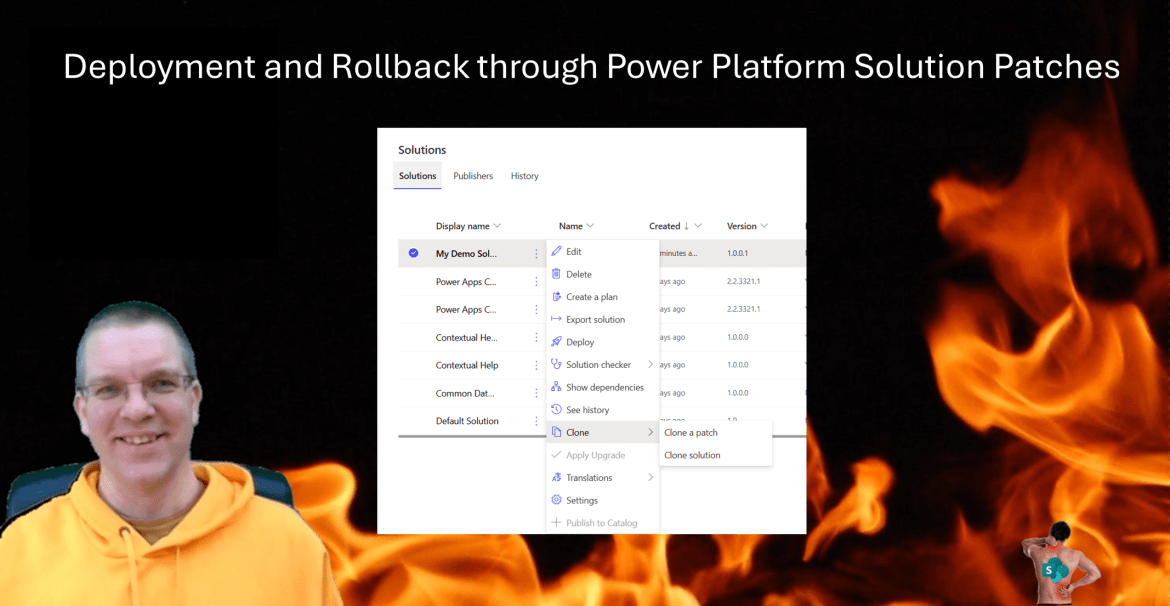
Recently I needed to deploy parts of a solution to a test environment. I also had to be able to rollback the solution. Solution Patches within the Power Platform can help with this. In this post I’m looking at how Solution patches work.
Power Platform Solutions
Solutions within the Power Platform are packages of objects that can typically be deployed from Development to Test to Production Environments.
Solutions could for example include, Dataverse Table Definitions, Canvas Apps and Flows. Each of these objects could be dependent on each other, however quite often they can also almost standalone. In my example, Other developers were updating an app while I needed to update a flow that needed to run overnight.
Once I completed my changes to the flow, I was ready to deploy the flow, however the app was still mid development. Hence solution deployment was becoming a bit tricky.
So how do you avoid these competing situations when you work with multiple developers?
Solution Patches
So, my solution could look like this. Where I have one app and one flow added to my solution. I’ve deployed the solution to my Test and Production environment. And now I want to make my updates to the flow and app, however I first want to deploy the flow while the app is being worked on.
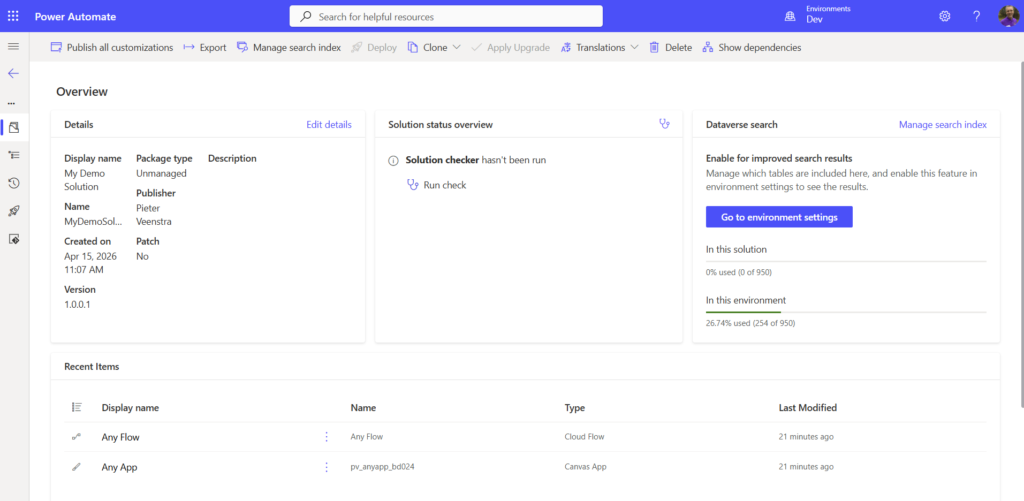
Within the Development environment I’m now going to create two patches.
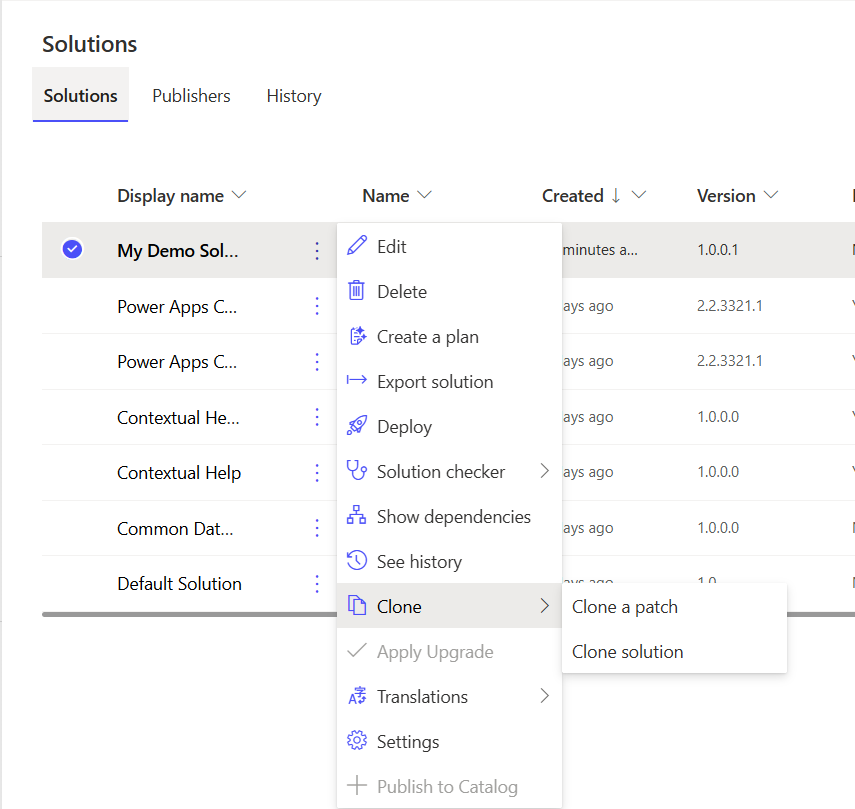
I’m giving both Patches a sensible name. One will be named Flow Updates and the other one will be called App updates
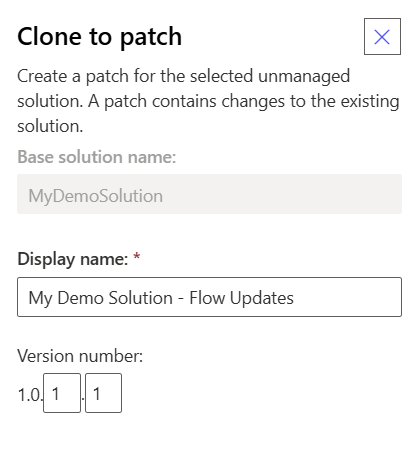
Make sure that the Patches have a different version number. Otherwise you will get the following error.
Failed to Patch solution. Patch ‘MyDemoSolution_Patch_5859772a’ has a matching or higher version (1.0.1.1) than that of the patch being installed.
I’m giving my App Updates soluiton version 1.0.2.1.
In development I’ve now got three solution all with their own version number.
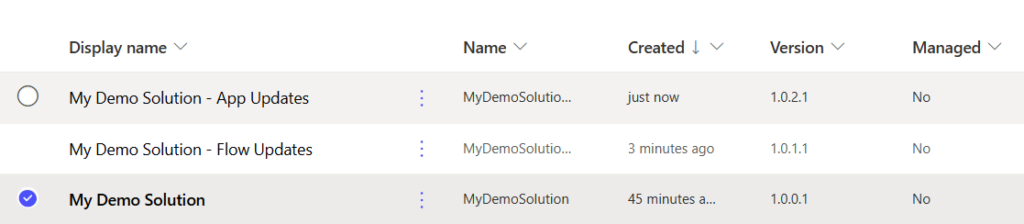
If you now try to update the base solution in any kind of way you will see the following warning. So before you create your patch make sure that you have planned all the development work as you may need to create more patches.
You cannot directly edit the objects within a parent solution. If customization is enabled, you may do so through the patches.
Also, if you were to delete your patch, the changes will still remain in your development environment.
Adding Apps and flows to patches
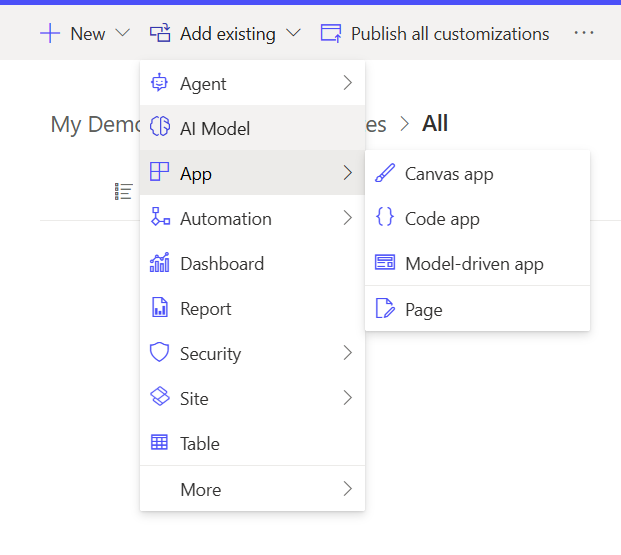
Within your patch solutions you can now add the app and the flow.
Now I can make my update to my flow as shown below.
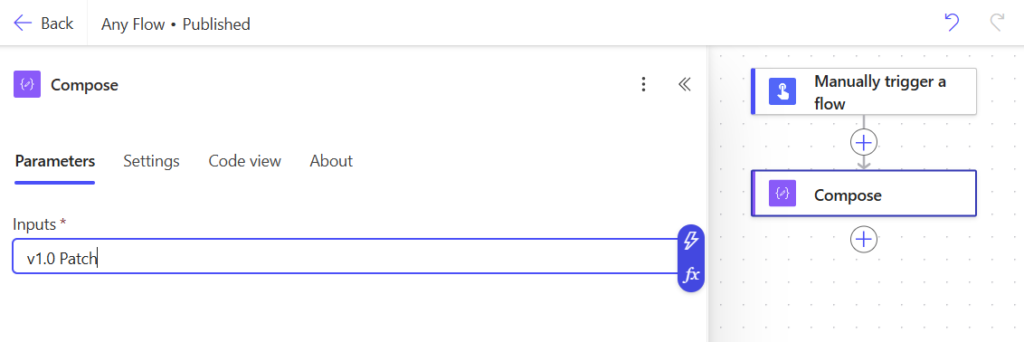
Now the export of my flow patch is like with normal solutions. However I’m only going to export the Flow patch.
In my Test environment I can now deploy my solution patch. This results in two of my solutions as managed solutions to appear.
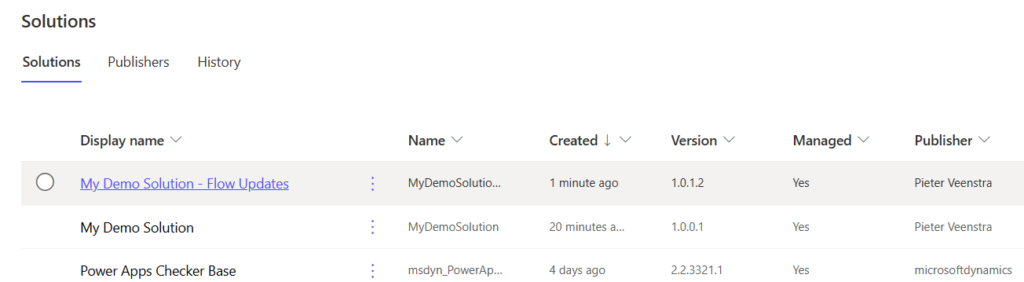
Rollback solutions
Now imagine that my flow update breaks my process and I want to roll back the solution. You can simply delete the patch that we just deployed and we are back to where we were before. As we have managed solutions and both the base solution and the patch are managed the solutions, the deletion process will look after cleaning up our changes introduced by the patch solution.
Confirming the patch
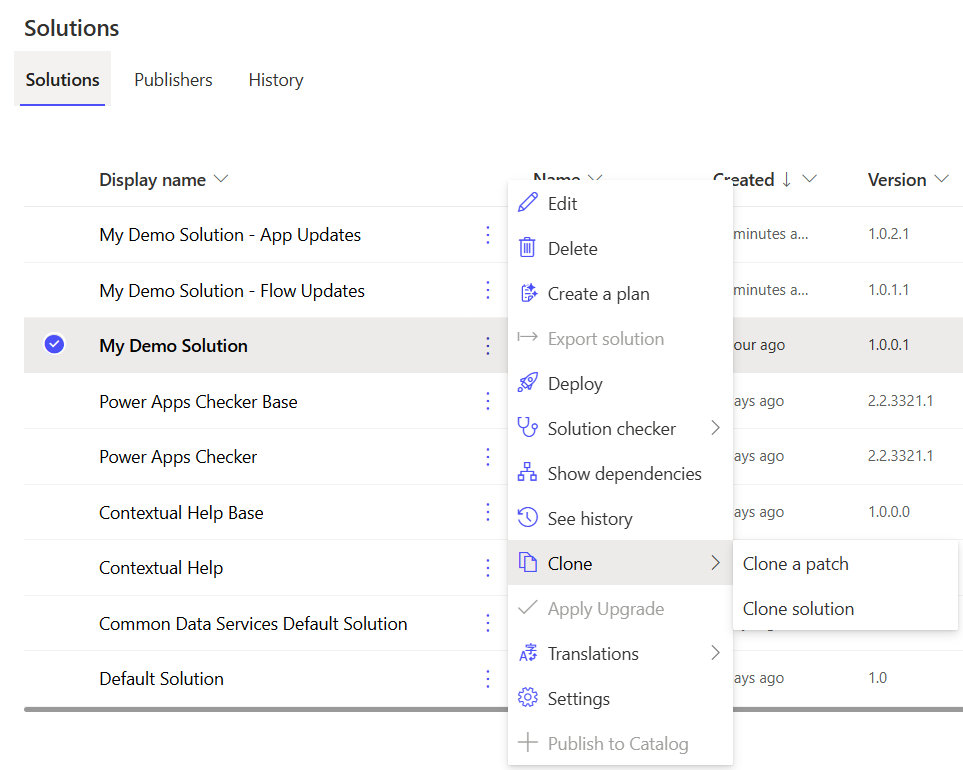
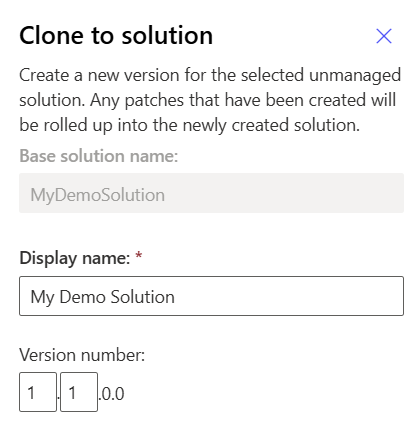
The second option is that our update is successful. We have tested all our solutions and we now want to deploy all the patches. You could first deploy each patch. Make sure that each patch works as expected and then you will need to go back to the Development environment and select Clone solution from your solution’s context menu. Clone solution should really be called merge solution as it will merge all your patches with the base solution.
WE will now create the solution version 1.1.0.0
From this solution we can create a managed solution version 1.1.0.1.
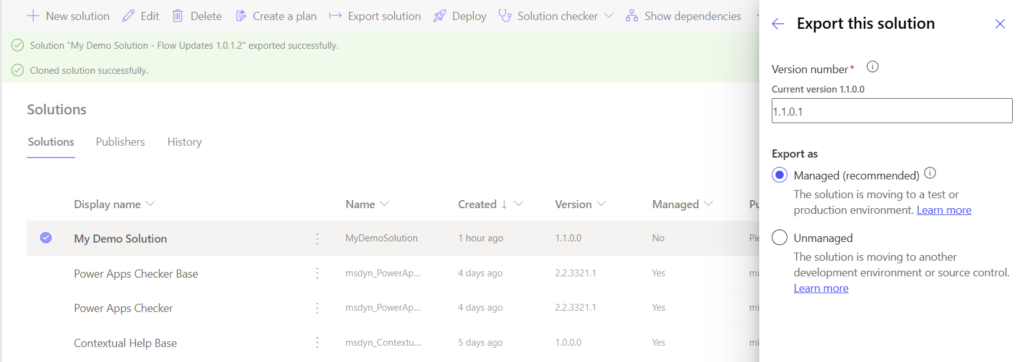
This managed solution we can now deploy to test/production without uninstalling the patches. So even though this update is not going to change anything (remember that the real updates arrived through the patches), we will now have a single base solution deployed and all patches merged automatically.
Pieter Veenstra

Is your business still running on paper trails, sprawling Excel files, or ageing Access databases? There's a better way — and I can show you exactly what it looks like. I'm the Technical Director of Vantage 365, a Microsoft solutions consultancy working with clients across the UK, the Netherlands, and worldwide. For over 30 years I've been turning messy, manual business processes into clean, automated systems that save time, reduce errors, and give teams the visibility they need to make better decisions. SharePains is not just any blog run by a Microsoft MVP. Have you ever used Try-Catch in Power Automate? The original post about Try-Catch in Power Automate can still be found on this site, https://sharepains.com/2018/02/07/try-catch-finally-in-power-automate-flow/ Or have you ever used the Pieter’s method to avoid variables and speed up your flows? https://sharepains.com/2020/03/11/pieters-method-for-advanced-in-flows/ You can contact me using contact@sharepains.com