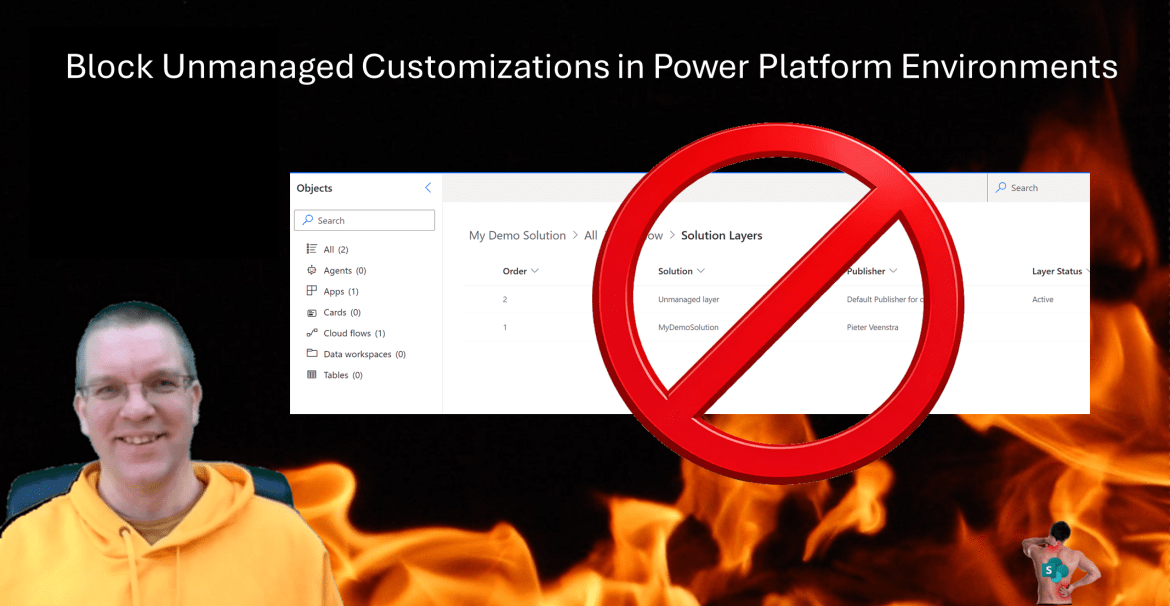
This post is all about how to block unmanaged customizations within production environments. I’m going to assume that you have followed the advice of creating a Development, Test, UAT and Production environment. And that each of these environments should be treated in a very different way.
Environments
Within Development environments developers can update their Power Platform solutions. Test is used by developers to test out the deployment processes and their developed solutions. UAT is for users/testers to go through their acceptance testing and Production is where the end product will be used. I’ve seen organisations with separate environments for Training and Production Testing as well.
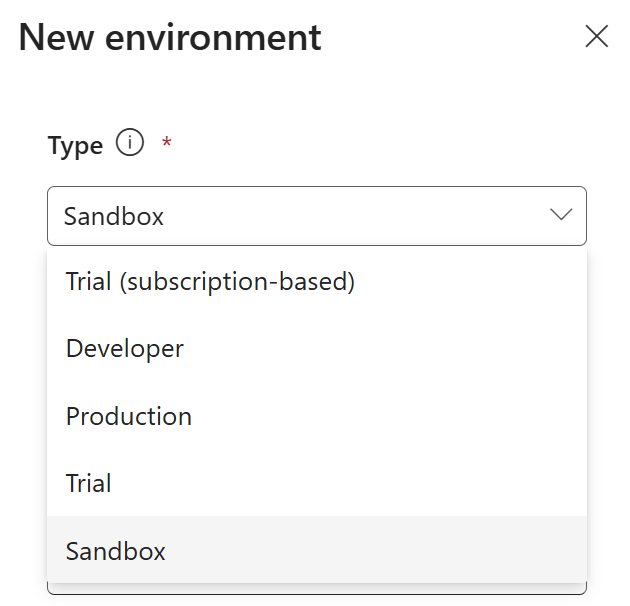
Microsoft offers a variety of environment types which you can select when you create a new environments. Don’t worry if you select the wrong environment, you can always change this later
Solutions
So, you have your environments setup and decided to use solutions to package all the objects (tables, apps, flows etc) that you have developed read for deployment to the various environments.
You’ve also understood that Development uses unmanaged solutions (can be modified) and managed solution (cannot be modified).
Well, in my production environment, I’ve deployed my managed solution and the edit option has been greyed out.

But when you go to the flow details, you will find that the Edit button is enabled and the flow is simply editable.
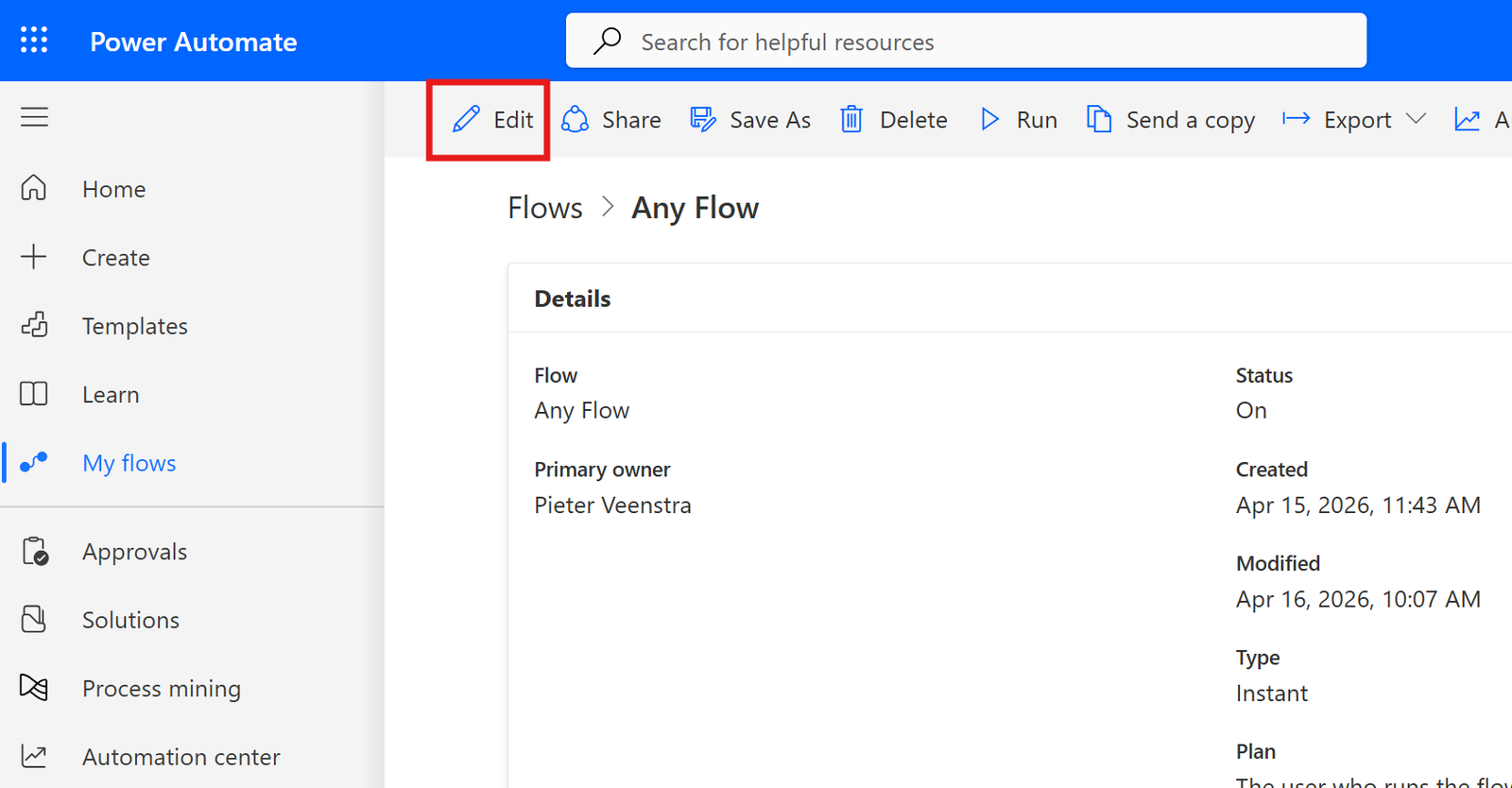
And you might see the following warning
This flow cannot be updated because the managed properties of this solution component do not allow customizations.

But changes will be made when we publish our flow as we can see below. In this post I will look at how we can Block Unmanaged Customizations
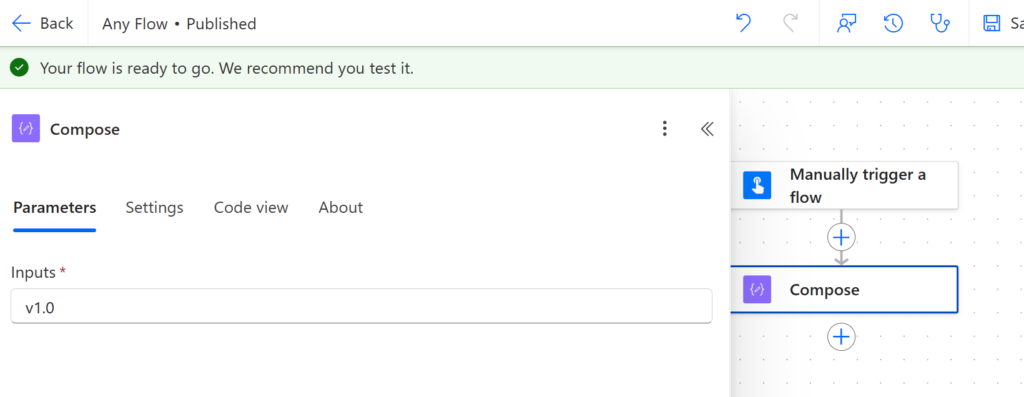
You are likely to be aware that this will create an unmanaged layer.
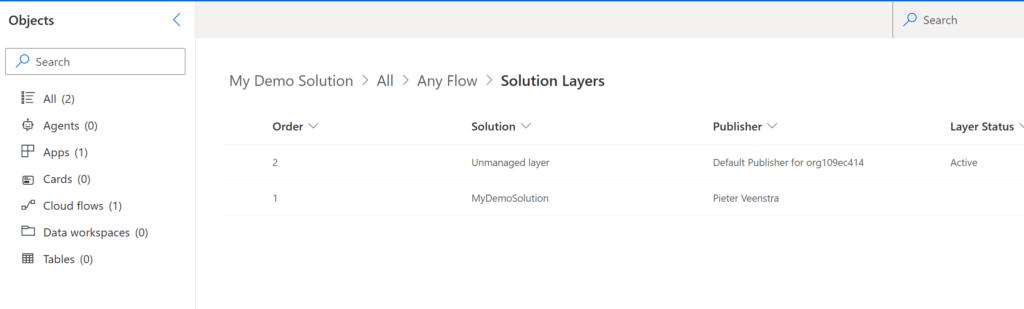
Unmanaged layers can be useful to quickly put a fix in, but … Editing anything directly in Production is not a good idea. Even if it looks like just a small change. Remember you can always deploy a Solution Patch as you could rollback those solutions if you needed to.
Block Unmanaged Customizations
As a system administrator, you might want to block unmanaged customizations in production environments. Development environments can be open as they are, for Test and UAT environments you could go either way as it might be useful to quickly check if a fix would deliver the correct system behaviour. But for Production systems the option for unmanaged layers should really be removed.
To Block Unmanaged Customizations, visit the Power Platform Admin Center, then select the environment that you want to update and then select Settings.
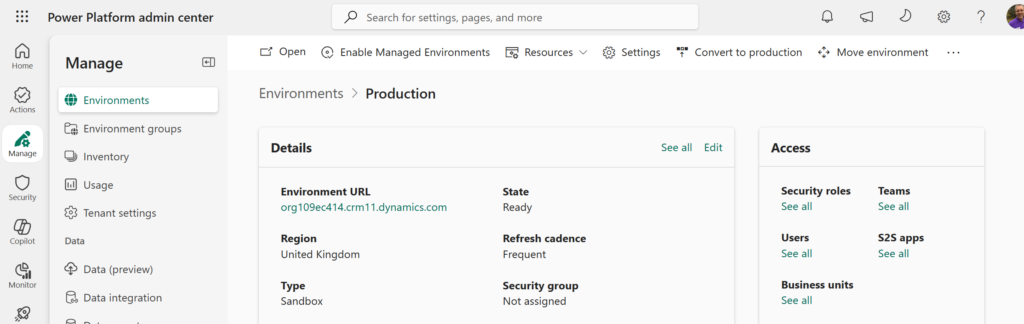
Under Product select Features.
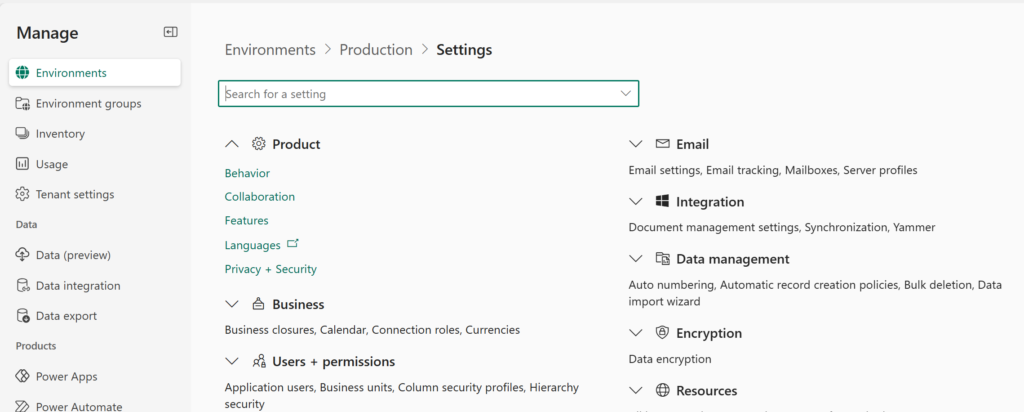
Then search for the Block unmanaged customizations setting and enable it.
Putting it to the test
I’m going to reopen my solution, I’m editing the flow again and now I will get the following warning when I try to publish my flow
This environment doesn’t allow unmanaged customizations. This was a choice made by your admin, and certain actions won’t be available or will be view only. Learn more: https://go.microsoft.com/fwlink/?linkid=2251006
So what does this feature block?
- Unmanaged solutions in the environment
- Creation of new apps, flows, tables etc
- Creation of unmanaged layers
You can however still update the values of environment variables.
Pieter Veenstra

Is your business still running on paper trails, sprawling Excel files, or ageing Access databases? There's a better way — and I can show you exactly what it looks like. I'm the Technical Director of Vantage 365, a Microsoft solutions consultancy working with clients across the UK, the Netherlands, and worldwide. For over 30 years I've been turning messy, manual business processes into clean, automated systems that save time, reduce errors, and give teams the visibility they need to make better decisions. SharePains is not just any blog run by a Microsoft MVP. Have you ever used Try-Catch in Power Automate? The original post about Try-Catch in Power Automate can still be found on this site, https://sharepains.com/2018/02/07/try-catch-finally-in-power-automate-flow/ Or have you ever used the Pieter’s method to avoid variables and speed up your flows? https://sharepains.com/2020/03/11/pieters-method-for-advanced-in-flows/ You can contact me using contact@sharepains.com