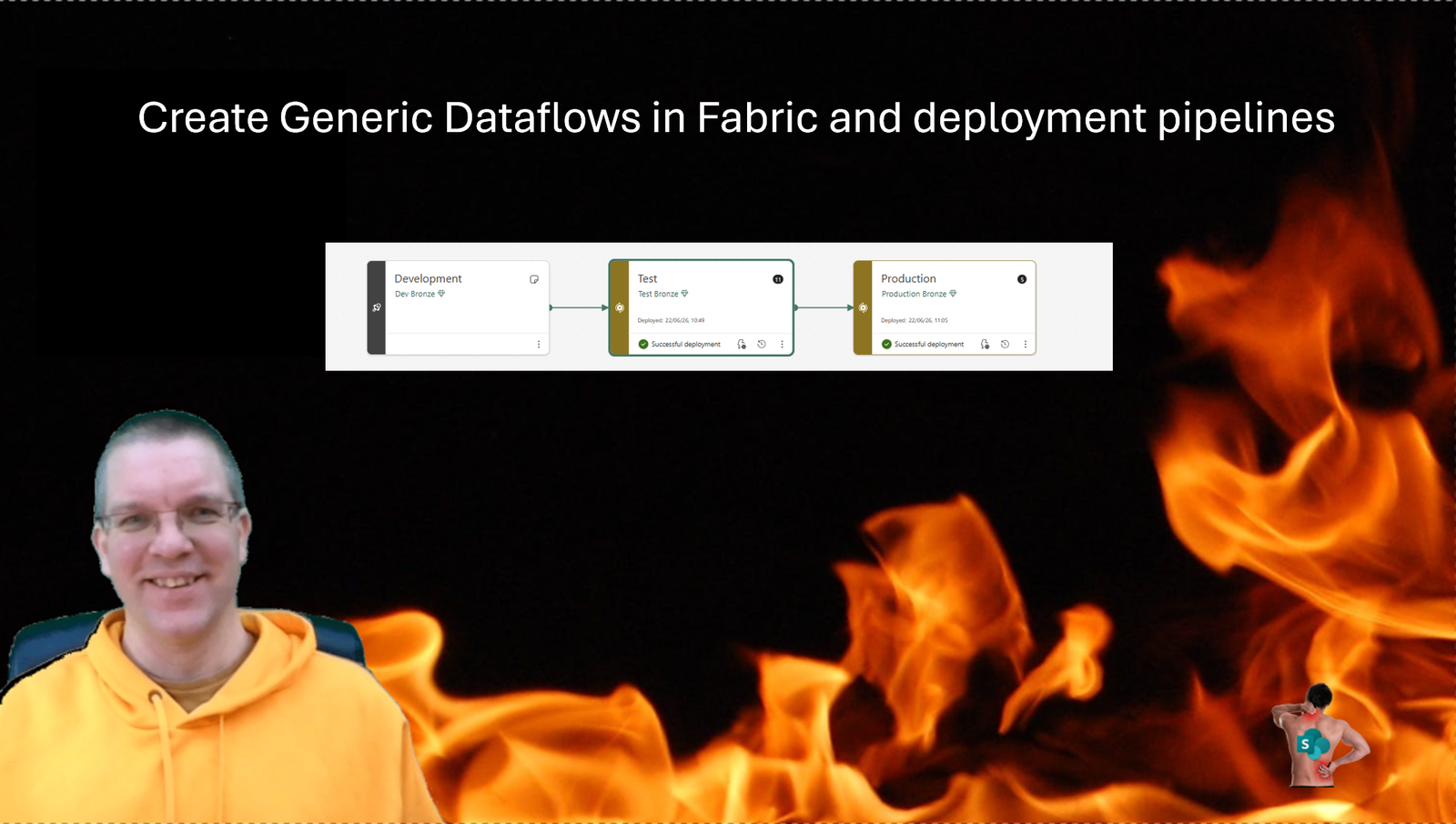
When you implement multiple workspaces to support Development, Test, UAT and Production with Dataflows in Fabric then it is critical to make sure that you create generic Dataflows. Generic dataflows make it easy to deploy your dataflows between the various environments using deployment pipelines.
Dataflows
There are a few elements within dataflows that could become a challenge when we deploy our Gen2 Dataflows.
- Source Query
- Destination Query
If you are new to Gen2 dataflows then you might want to have a look at the Differences between Gen2 and Gen1 as well.
When you create a Semantic model to support your Power BI report you will find that there are some steps to configure there too, however that can all be done within the Pipelines.
Deployment Pipelines
When you build deployment pipelines to push your dataflows (or other Fabric elements) you will need to make sure that everything is generic. You don’t want to deploy something from Development to Test or Production and then edit your dataflows in test to make it all work.

The little thunderbolt icon will let you configure deployment rules that can be used within Semantic models, but they don’t work for Dataflows. Within Dataflows we have to take a few exra steps
Dataflow Source Queries in Fabric
If we first have a look at the Source query. When we create our query using a blank query, we will see that we can start with any data source. Hence you could select the actual data source (e.g. MySQL) that you want to use rather than building up all the queries manually. In this post I will use the advanced editor. For some parts it is perfectly fine the use the UI to create your Power Query.
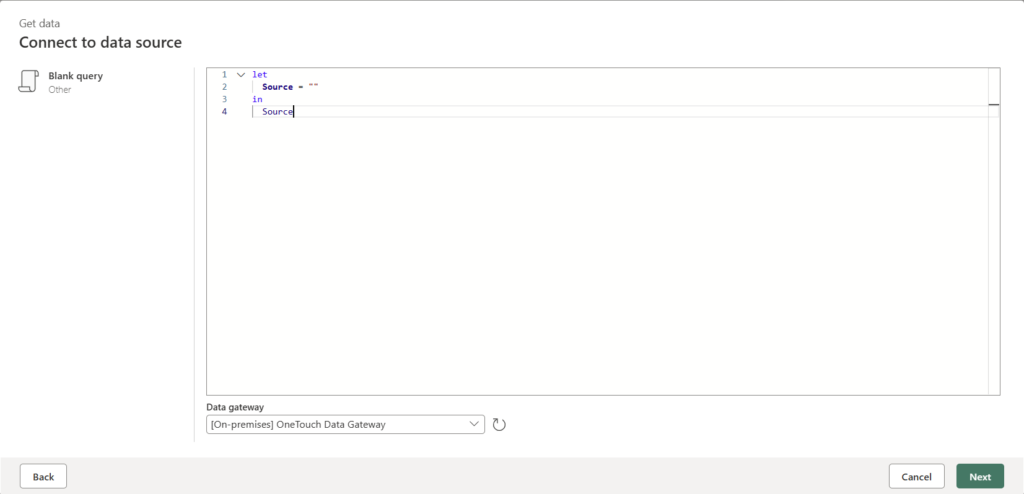
If we take this a bit further to connect into a MySQL database then you could have something like this:
let
  Source = MySQL.Database("mydatabase.sharepains.com", "MyDB"),
  #"Navigation 1" = Source{[Schema = "MyDB", Item = "myTable"]}[Data]
in
  #"Navigation 1"
So far this is still quite simply picking up data directly from a data source without any transformations of the data. When you use the Medallion Architecture in Fabric (Bronze, Silver and Gold) then you would place queries like the above one in your Bronze layer where you just import the data.
So far all good, we only have one version of our source database ( if you had more than one database for dev, test and production) you can use the same pattern as I will talk about within the Destination query section of this post.
If we use the Power Query UI to generate a query we might get something like this.
let
  Source = Lakehouse.Contents([HierarchicalNavigation = null, EnableVorder = true, OutputMetadataRefresh = true]),
  #"Navigation 1" = Source{[workspaceId = "a06d1dac-51a8-411f-8120-2615fc7181a1"]}[Data],
  #"Navigation 2" = #"Navigation 1"{[lakehouseId = "f0127103-e514-41be-b110-95131e11ce161"]}[Data],
  #"Navigation 3" = #"Navigation 2"{[Id = "MyTable", ItemKind = "Table"]}[Data]
in
  #"Navigation 3"
With both the workspace Id and the Lakehouse Id hardcoded it will be impossible to deploy our solution to the test workspaces. This is of course assuming that the Development, Test , UAT and Production environments all host their own lake house as you should have.
If we now have a look at our Gold Layer where we want to read data from our Bronze Lakehouse, we will have to make our source query more generic. In the example below we are use Variable Library with a couple of variables.
let
  Source = Lakehouse.Contents([HierarchicalNavigation = null, EnableVorder = true, OutputMetadataRefresh = true]),
  Workspace = Source{[workspaceId = Variable.ValueOrDefault("$(/**/Gold Variables/BronzeWorkspaceId)", "a06d1dac-51a8-411f-8120-2615fc7181a1") ]}[Data],
  Lakehouse = Workspace{[lakehouseId = Variable.ValueOrDefault("$(/**/Gold Variables/BronzeLakehouseId)", "f0127103-e514-41be-b110-95131e11ce161")]}[Data],
  MyTable = Lakehouse{[Id = "MyTable", ItemKind = "Table"]}[Data],
  FilteredRows = Table.SelectRows(MyTable, each [deletedBy] = 0),
  RemovedDeletedColumns = Table.RemoveColumns(FilteredRows, {"deletedBy", "deleted"}),
  AddedKey = Table.AddKey(RemovedDeletedColumns, {"id"}, false)
in
  AddedKey
In the above example I’ve created a Variable Library called “Gold Variables” and the variables are called BronzeWorkspaceId and BronzeLakehouseId. After I’ve read my data I then filter the data by the deletedBy column before I delete the deletedBy column. To finish things off I set an index.
In the above code we will see the Variable.ValueOrDefault function that returns either the first value or a default value in case the first value doesn’t exist. I set the default value to my development environment so that I get errors in test if I forget to deploy the Variable Library to test. You can of course also set this to something like “Unknown” or any other nonsense value.
So now we have a generic way of using the values in our variables library. We just need to make sure that we deploy the Variables library only once, then update the values in the non-Development environments. Any future deployments will just work and use the updated values in the Variables Library.
Dataflow Destination Queries
Once the Source Queries are generic we need to worry about the destination queries. This is where the implementation of generic connections seems to be a bit incomplete. We can select “!(Current Workspace)” to make sure that when we deploy the solution between environments will always push the data to the local Lakehouse
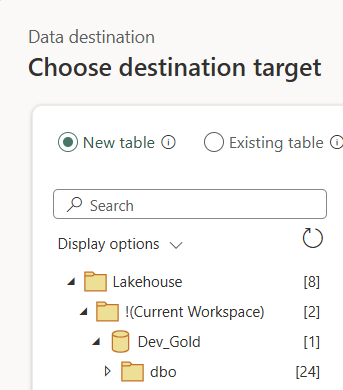
But each of my environments has its own database name. I would recommend using different database names anyway as you wouldn’t want to accidentally want to mix up development and production data. At least now we will get an error message when the expected database isn’t found.
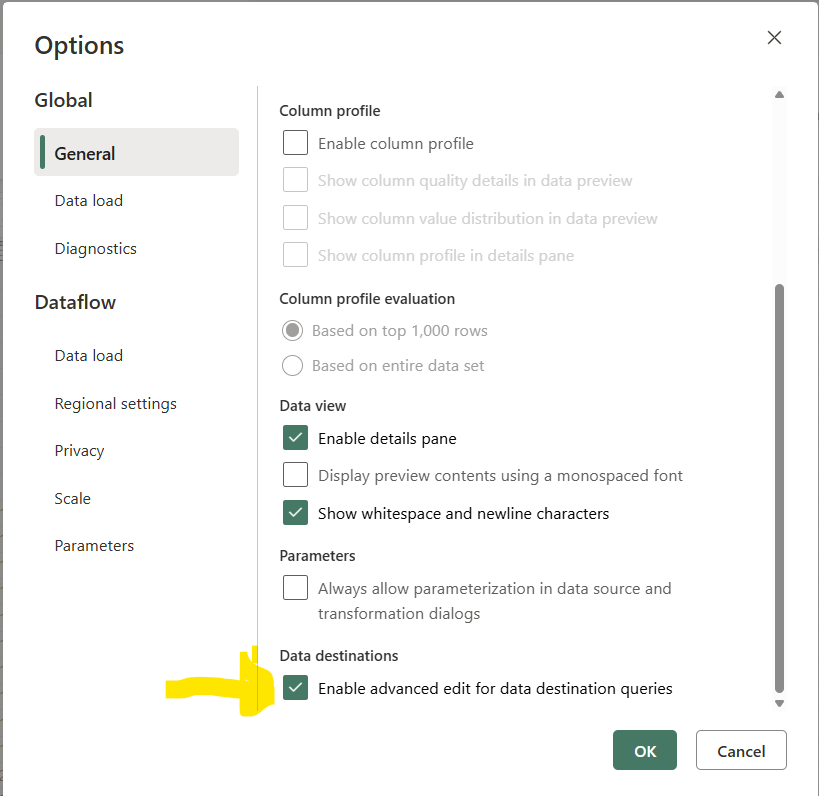
To make our destination generic we will need to use the Advance editor again. If you don’t see this option appear you might have to enable this option within the
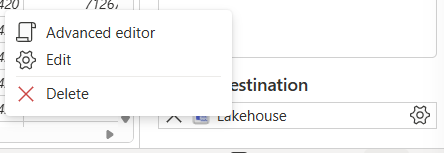
You can find this option at the bottom of the Options Panel.
Now when we use the advance editor again to make our Dataflow Power Query generic at the destination end as well. Using the Variable Library.
let
  Pattern = Lakehouse.Contents([CreateNavigationProperties = false, EnableFolding = false, HierarchicalNavigation = true, EnableVorder = true, OutputMetadataRefresh = true]),
  Workspace = Pattern{[workspaceId = "."]}[Data],
  Lakehouse = Workspace{[lakehouseName = Variable.ValueOrDefault("$(/**/Gold Variables/GoldLakehouseName)", "Dev_Gold")]}[Data],
  Schema = Lakehouse{[Id = "dbo", ItemKind = "Schema"]}[Data],
  TableNavigation = Schema{[Id = "MyTable", ItemKind = "Table"]}[Data]
in
  TableNavigation
To make the dataflows generic in the various Medallion layers you will want to create separate Variable Libraries for each of the layers.
The destination query catch
In the example below we will get an error message after we deploy the dataflow. The following line will generate an error as MyTable will no yet exist and all we do is query our lakehouse schema for the table that we want to write to. On the initial deployment the table will not yet exist.
TableNavigation = Schema{[Id = "MyTable", ItemKind = "Table"]}[Data]One easy trick to make this work is
- Deploy the dataflows using your deployment pipeline.
- Replace the destination query by a query that creates the table in your lakehouse.
- Redeploy the dataflow again which will replace the standard destination query with the generic one mentioned earlier.
Pieter Veenstra

Is your business still running on paper trails, sprawling Excel files, or ageing Access databases? There's a better way — and I can show you exactly what it looks like. I'm the Technical Director of Vantage 365, a Microsoft solutions consultancy working with clients across the UK, the Netherlands, and worldwide. For over 30 years I've been turning messy, manual business processes into clean, automated systems that save time, reduce errors, and give teams the visibility they need to make better decisions. SharePains is not just any blog run by a Microsoft MVP. Have you ever used Try-Catch in Power Automate? The original post about Try-Catch in Power Automate can still be found on this site, https://sharepains.com/2018/02/07/try-catch-finally-in-power-automate-flow/ Or have you ever used the Pieter’s method to avoid variables and speed up your flows? https://sharepains.com/2020/03/11/pieters-method-for-advanced-in-flows/ You can contact me using contact@sharepains.com