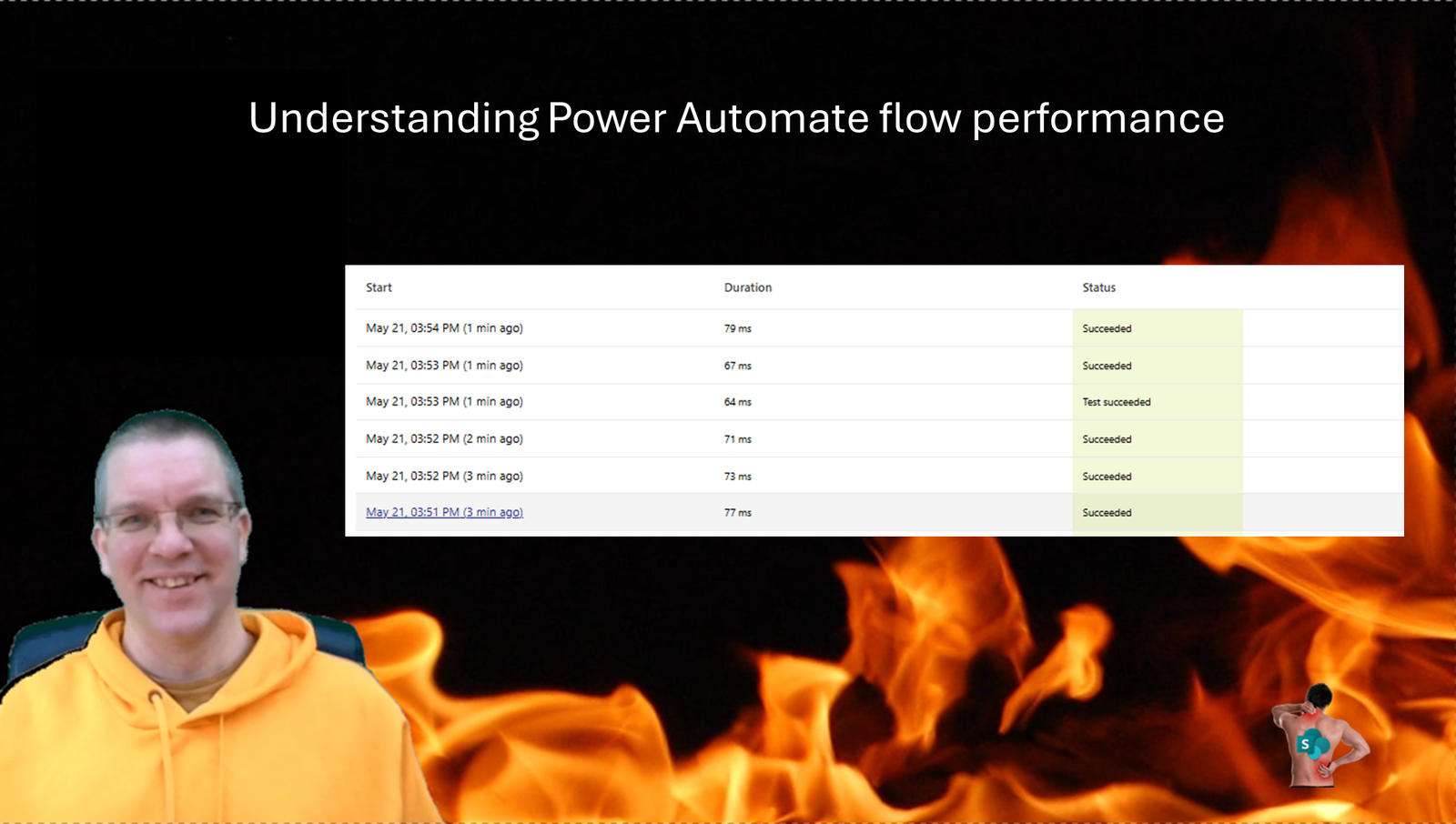
In this post I’m looking at performance of Power Automate flows. For some flows this may not really matter too much, however when you have a need to high performance flows the findings in this post may be quite important. To make your flows perform well, it is important to understand where time is wasted.
A simple flow
I will first have a look at the simplest of flows. A manual flow with a single action following a manual trigger.
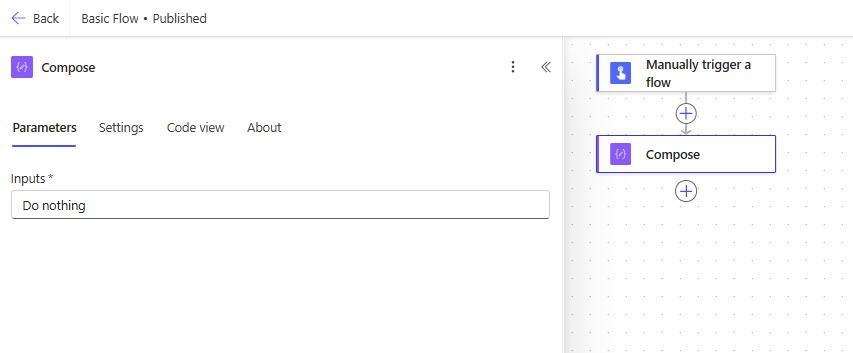
When we run the above flow we ill see that the initial flow run is slow, nearly 0.5 seconds and following runs are faster. When updating the flow and then running the flow again there may also be a slight delay in running the flow. Running this flow however should take less than 0.1 seconds.

Functions
Now if we make our Compose action a bit more complicated then we will see that there is no real impact on the performance of our flow.

And even if we recreate the same as the above with three Compose actions rather than nested functions the performance will remain the same. The multiple actions is actually slightly faster, but nothing to really worry about.
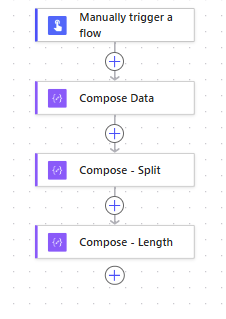
When we have larger flows we might want to keep the number of actions down as there are Power Automate limits that we have to consider. However the limit of 500 actions per flow should be avoided anyway, if you want to keep your flow maintainable.
Calling a Child Flow
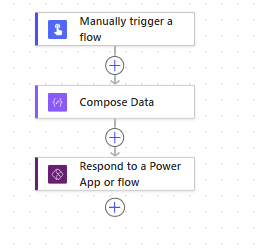
If we now add a Respond action to our flow we have a flow that can be used as a child flow.
Then as we create a parent flow that calls the above flow.
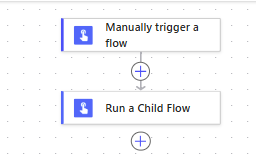
We will now find that our parent flow runs within 0.25 seconds

While the child flow runs within 0.07 seconds.
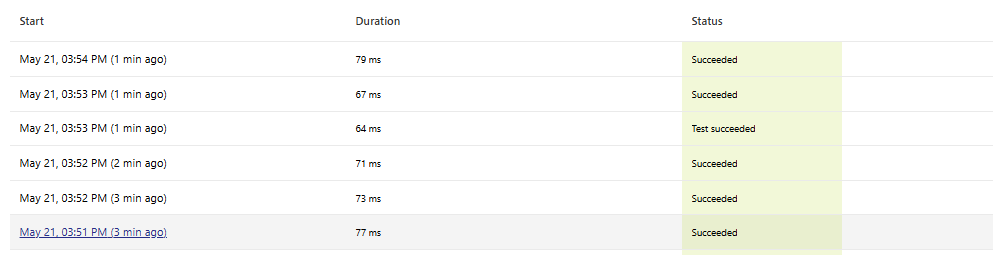
As we now have two flows running to do the same thing as our original flow there is a slight delay. But from a maintainability perspective I would always recommend to use child flows where possible.
Apply to each
Now when we run the Child flow 100 times we will see some more interesting timeframes. When an apply to each runs 100 iterations where the same child flow is called again, our flow will run in about 25 seconds. While each child flows run time is 0.07 seconds. Therefore it looks like there are about 18 seconds getting lost in the Apply to each or the calling of the child flow.
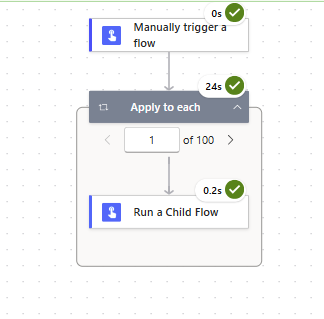
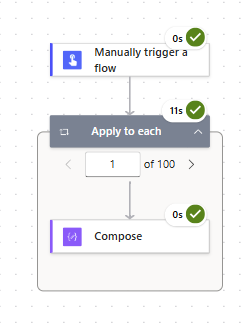
If we now run the same parent flow but rather than calling a child flow we will run a simple compose action then the flow runs in 11 seconds. The difference … Our Run a child flow action needs to call an API whereas the Compose just sets some data in memory which will be a lot faster.
Now we can improve the performance a bit here, by enabling the concurrency on the Apply to each step.
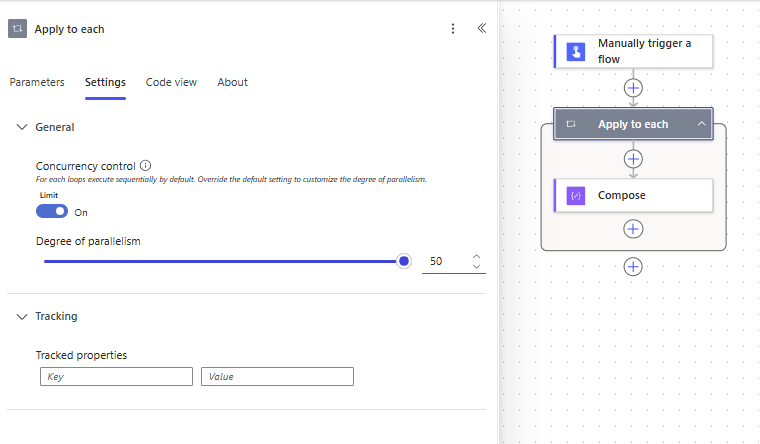
This will result in the above flow running in 1 second.
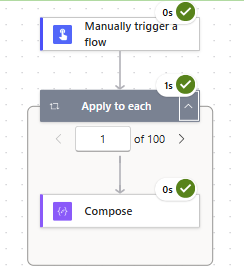
That is 10 seconds gained very quickly. And do remember Pieter’s method if you want to run the above and generate an array. Although a single Select action can also often be a great option to make your data transformations be super fast.
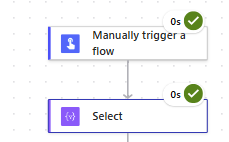
Back to running a child flow in an apply to each step. With concurrency on that flow also runs within 1 second, running 100 iterations. As we saw earlier concurrency can really make a difference, however concurrency can also slow things down. Always review the connector limits for the actions used within the apply to each.
Using an API
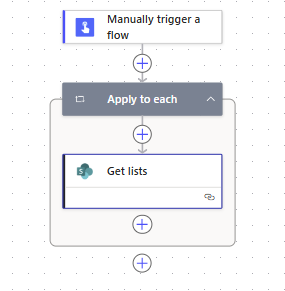
The next thing to look at is APIs. So far I’ve limited the use of APIs. But in the following test I’m going to use the SharePoint connector which will use the SharePoint APIs to collect the lists on a site. I’ve disabled concurrency so that it is easier to measure the differences within my tests.
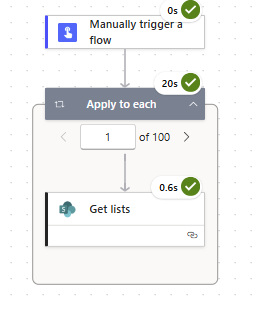
Calling the SharePoint API 100 times takes 20 seconds. The first time the SharePoint action is called the action is a lot slower than any following SharePoint APIs. Does anybody remember the SharePoint warm-up scripts that we used in the on-premises versions of SharePoint?
| Number of iterations | time (seconds) | rate (iterations per second) |
| 100 | 25 | 4 |
| 1000 | 311 | 3.2 |
| 10000 | 4800 | 2 |
As we increase the concurrency and the number of iterations in the apply to each, I’m going to push the SharePoint API a bit more.
As we can see in the above table the longer an apply to each runs the slower it becomes. But this could be part of the API slowing us down. Even though we don’t get any 429 errors in any of the above flow runs.
Sequential vs Parallel
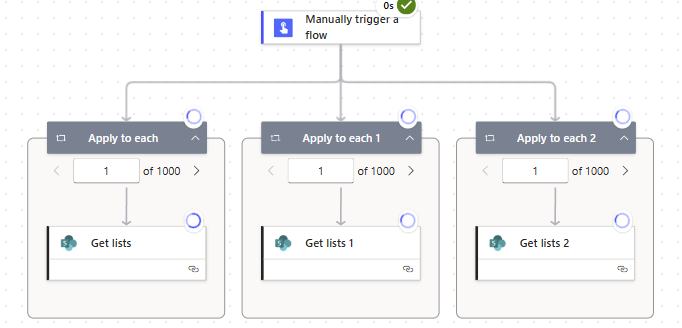
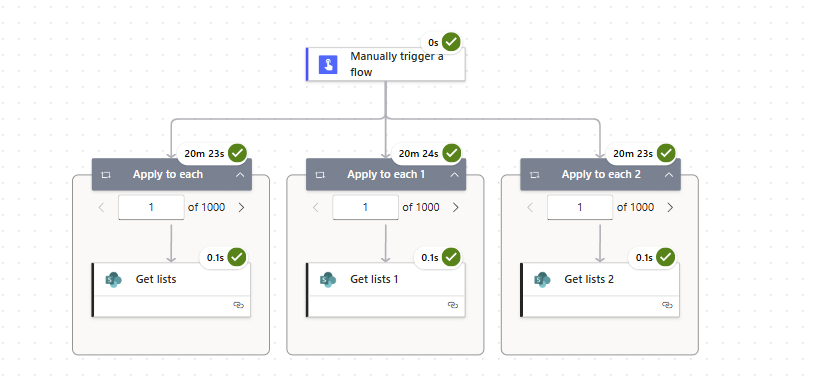
Now we can still put the API further under pressure by building parallel branches. With a concurrency of 50 on each of the below branches, we are running up to 150 SharePoint actions at the same time.
| Number of iterations | time (seconds) | rate (iterations per second) |
| 3x 1000 | 1224 | 2.45 |
| 1x 200 | 2 | 100 |
| 3x 200 | 5 | 120 |
| 6x 200 | 308 | 4 (some 429s occured) |
| 9x 200 | 609 | 3 (more 429 error |
The throttling limits for the SharePoint connector are well documented. You can only run 600 calls within 60 seconds. If you make more than 600 calls within 60 seconds you are likely to receive 429 throttling errors and when the flow doesn’t slow down you will see some503 failures too. In the above example I created a flow with three parallel branches, but you could create the same issues by calling many child flows. Many flow runs that run at the same time will have a similar affect.
From the above examples you can se that processing more calls in parallel will improve the performance, however once the throttling limits are hit we get a strong slow down of the process. Always try to avoid the throttling in your processes. However it is not always straight forward.
Child flows however do give you the opportunity to debug/rerun a single flow run. Hence it may help to split the heavy load across child flows.
Local vs global
When you create a Power Platform environment you can create this is various locations across the world. Imagine that you tenant lives within the UK and you create a flow in an environment in Australia. The data will have to travel further.
Now it might be obvious When you access SharePoint data but how about other connectors? where does your cloud based data really need to come from?
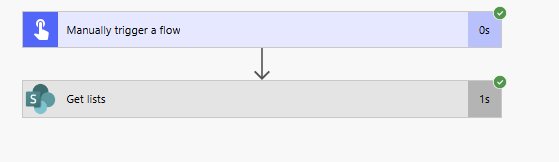
Similar as before, I created a flow in an environment located in Japan while my tenant is in the UK. The action that took earlier very little time, now doesn’t complete in less than 1 second. rather than a tenth of that time.
Payload
The next set of texts are about the amount of data that we are receiving form a connector. I’m going ot use the get items action in the SharePoint connector. In my flow below I’m going to collect 200 times the items from a list.
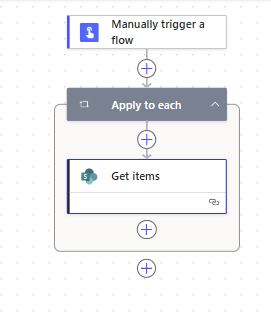
The Get items will return 100 items by default. The performance that you may get will depends on the type of content that you are collecting. A list with 200 columns will be slow than a list with one column of course. In the following test I am varying the number of items by setting the count within the action.
| Items returned | Time ( seconds) | Rate ( items per second) |
| 200x 100 | 3 | 6666 |
| 200x 1000 | 7 | 28571 |
| 200x 2000 | 10 | 40000 |
So if you need to read a lot of items reading them in one go is faster than reading the items in multiple goes. In general reducing the number of API calls will help to make your flow perform better.
If however you read all items before using filter array to get the required item(s) then you are wasting a lot of time.
Delegation
Delegation is a big subject in Power Apps. Power Apps even gives you clear warnings when you make delegation errors. How about delegation in Power Automate?
I’m going to start with a simple query to collect a limited set of items from my actions list.
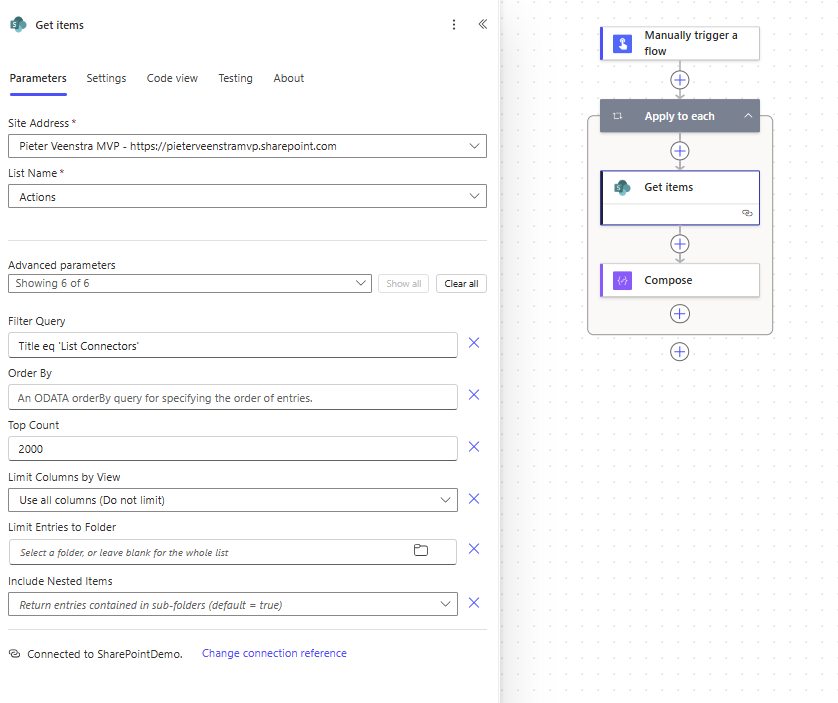
So the flow is now returning 200x 1 item with a concurrency set to 50. This happens in about 2 seconds. This shows again that payload is hardly making a difference. returning 1 item or 100 items takes the same amount of time. Making a larger number of API calls is really what is slowing our flows down.
I’m going to set my concurrency back to 1 and the apply to each is going to only run 100 times.
| Query | Time (seconds) | Comment |
| No query set | 172 | Returns 2500 items. |
| Title eq ‘…’ | 24 | This only returns 1 item |
| Title ne ‘…’ | 167 | Returns 2500 items. |
| ContentType eq ‘Item’ (According to the documentation this is not delegable) | 170 | Returns 2500 items. |
So far I’ve not hit the delegation limits, even when I repeat the above tests on lists with over 5000 items. However using a flow to collect data for Power Apps may not be a good idea as you will need to pull all that data into the app.
Summary
Findings so far:
- Reduce the number of API calls where possible. This is both through a connector and directly towards the API.
- Be careful not to his throttling limits, either by running too many parallel branches or multiple flows.
- Be aware of actions that have slow API calls and fast API calls.
- Keep your environments local to your data
- Finally, a lot may be trial and error. So don’t be afraid to try out various options.
Where do you find that your flows are performing slowly? Any overnight flows that run out of time?
Pieter Veenstra

Is your business still running on paper trails, sprawling Excel files, or ageing Access databases? There's a better way — and I can show you exactly what it looks like. I'm the Technical Director of Vantage 365, a Microsoft solutions consultancy working with clients across the UK, the Netherlands, and worldwide. For over 30 years I've been turning messy, manual business processes into clean, automated systems that save time, reduce errors, and give teams the visibility they need to make better decisions. SharePains is not just any blog run by a Microsoft MVP. Have you ever used Try-Catch in Power Automate? The original post about Try-Catch in Power Automate can still be found on this site, https://sharepains.com/2018/02/07/try-catch-finally-in-power-automate-flow/ Or have you ever used the Pieter’s method to avoid variables and speed up your flows? https://sharepains.com/2020/03/11/pieters-method-for-advanced-in-flows/ You can contact me using contact@sharepains.com