Recently, I was told by one of my followers that the switch step in Microsoft flow can only handle 27 options. So I thought today I will put this to the test.
I started with a large switch that tests for the current day of the month. This should return 1-31.
I’m using the following expression for this:
dayOfMonth(utcNow())

To make this all fit on your screen you might need a wide monitor!

When you get to your 27s case in your switch statement the + icon simply doesn’t work. No error messages or warnings. Just plain nothing happens.

What should you do when you want to handle more than 27 cases in a switch?
The answer to this question is simple!
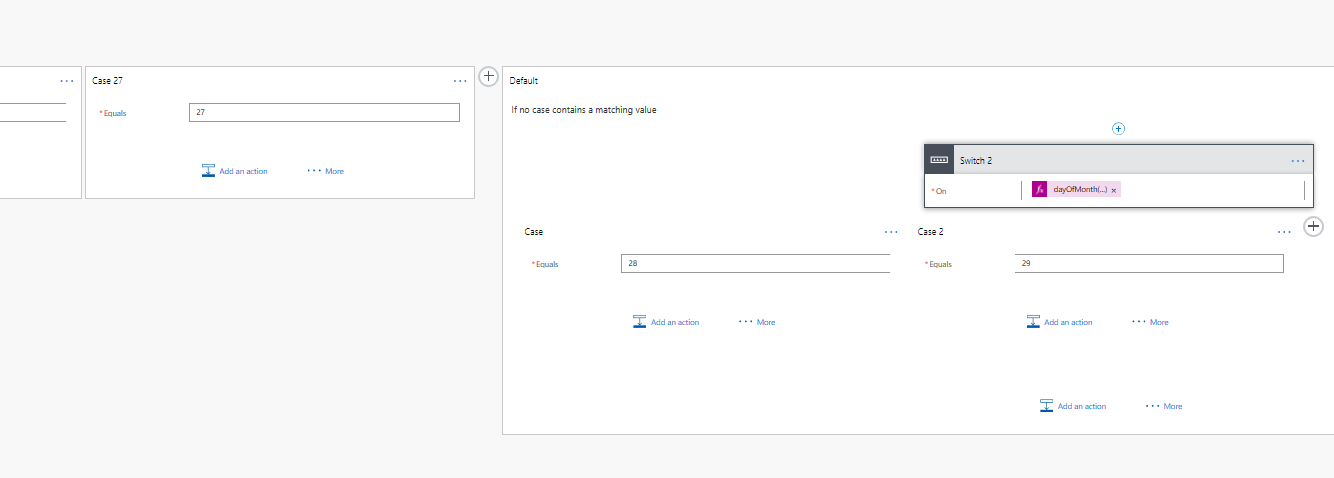
Create a second switch in the Default branch of the first switch. Yes, you could even place the two switches underneath each other as two sequential steps but that would make it harder to understand the logic of the flow when you need to debug the flow using the run history.
But then as a built my flow and I tried to save the flow I got the following error message

The template action ‘Switch’ at line ‘1’ and column ‘958’ is not valid: the number of cases used ’27’ exceeds the maximum number allowed ’25’.
Well that is very clear. The limit is 25 items, but you are only told as you save the flow. Reducing the number of cases to 25 in my flow solved the problem
Discover more from SharePains
Subscribe to get the latest posts sent to your email.
Why not have a preceding Condition step that checks for the date number 15.
Would that do it?
When switch works on a number then that works. But if you have a switch on a text then that is unlikely to work. The additional switches in the default branch will be easier to manage.
I do use multiple switch on a flow (60+) using string and the way to make it work is to insert the second switch underneath the first one. So when the condition doesn’t meet on the first switch, it goes to the default branch that do nothing and validate the values of the second switch and so on if you have multiple switch.
My problem with this approach is having multiple actions (send an email) in every branch with variable specific to the switch branch value. This makes maintenance hard to do whenever i need to modify email text (same modification to all of them). Do you have an idea how to deal with this issue ?
Hi Jérôme,
I would probably create a child flow and pass in the value of the switch.
Then if the emails are different you could get that flow to read the various settings (for each email template) from a SharePoint table or a Dataverse table. That way there is only really one step in the flow needed while the templates of the emails are managed separately. The emails can then even be changed without affecting the flow at all.
Hi Pieter, your answer help me to think ouside of the box and consider another approach. I now list in an excel file corresponding value. So if the value coming from my flow is the name of somebody from a team, i get the corresponding email address and team name as dynamic value to be used on the send an email action. This way, i don’t even need switch anymore and it is easier to update the excel file rather than modify the flow every time.
That is great to hear!