The SharePoint odata filter query in get items actions can optimize your flows in Power Automate.
First collecting all items and then use conditional logic to do what you want to do is just not good enough.
What is a SharePoint odata Filter Query?
Table of Contents
A filter query is a configuration on the get items action, that will reduce the amount of data that is received before the action returns the data to the flow. An alternative could be to collect all items before filtering the data however Filter Queries will speed up the process dramatically.
SharePoint Get Items action
Before reading this post you might also want to have a look at the new still in preview version of filter queries.
Easier way to manage Filter Queries using the experimental features
When you develop flows for SharePoint in Power Automate you will find yourself many times dealing with list items. Adding items, removing items, updating item it is all easy. One of the trickier things is the SharePoint Get Items action. Quite quickly you will find that you need to understand OData Filter query option.
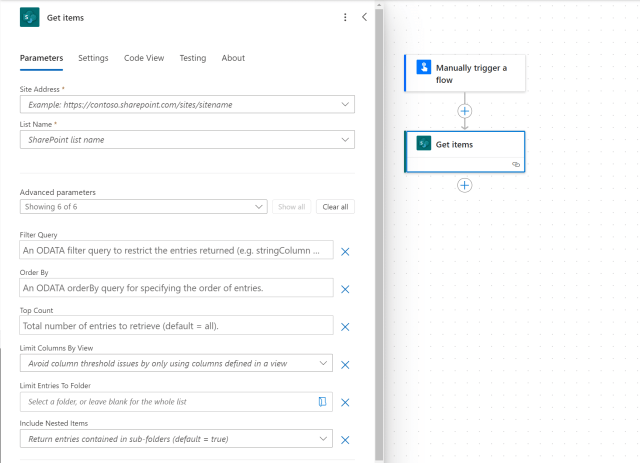
I will start by having a look at doing things the wrong way. Yes, I like the showing you the wrong way as much as I like showing you the right way.
The Wrong Way to use get items filter query
When you get list items do you find that you are getting too many items back and that you need to use conditions or other options within a Flow to select the right items?
You will probably find that your flow looks a bit like this. The general structure to look out for is a Condition as the first step inside an Apply to each control while one of the branches of the control is empty.

In general this means that you simply collected to many items and your now looping through too many items. This is not a good idea.
The Better Way with a SharePoint OData filter query
Within the SharePoint Get items action there is a Filter Query available. This SharePoint OData Filter Query can be used to select the right items.
The problem with this Filter query however is that it isn’t immediately clear what the syntax is. The Tooltip helps a little bit:
A SharePoint OData filter query to restrict the entries returned (e.g. stringColumn eq ‘string’ OR numberColumn lt 123).
For non-developers/citizen developer this might not immediately help. The other problem is that this syntax is actually wrong!
recently I tried the following and it didn’t work!
stringColumn eq 'string' AND numberColumn lt 123
It didn’t work until I changed it to the following filter query
(stringColumn eq 'string') and (numberColumn lt 123)I’m going to start by having a look at the syntax.
Syntax
The general syntax of a simple query is:
fieldname operation value
The field names that are used are the internal field names as used by SharePoint. These internal field names can be found within column settings in SharePoint. Simply go to the settings for the column and in the URL you will find the field name.
The operations can eq, be lt, gt, ge, le, ne (Equal to, Less Than, Greater Than, Greater than or Equal to, Less than or Equal to, No Equal to).
This makes it easy to compare a field value to an actual value. however you might find that you need to query multiple field. The easiest approach is the use of the and or or operations.
Finally the value is the value that you are comparing the field name with. Please note that you will need to use single quotes (‘) around the values. For numbers Flow is happy to accept both with and without quotes, however for text values they are required. Therefore you might as well always use quotes.
Available Functions
Now that I’ve mentioned functions in the Query Filter it might be useful to have a look at the available options and potential ways of using them. The following functions are available within the query filters:
- endswith
- startswith
- substringof
- length
- day
- year
- hour
- minute
- second
Some of these are more obvious than others. Time to look at some examples.
endswith
example
endswith(MyField, 'test')
The above example will select all items where MyField ends with test.
startswith
example
startswith(MyField, 'test')
The above example will select all items where MyField starts with test.

substringof
The substringof function is on that you might get wrong the first time you use it. Especially when you are familiar with the starts with or ends with functions. also the documentation link that you might find when you google is wrong. The better document to look at is Use SharePoint OData filter query operations in SharePoint REST requests, although that page doesn’t seem to list all; available functions.
Note that in the Filter Query you first have to supply the text you are looking for followed by the field value. Therefore the right example is:
substringof('test',Title)
length
The length function is not supported.
day, year, hour, minute, second
When you work with dates querying by day can be useful. For example when you want to find all items that were modified on the first day of the month you should be able to use the day function.

However I couldn’t get the date and time functions to work in Power Automate. The only way to filter by dates is the simpler option of comparing the date field with a specified date.
using something like the following as a query should work:
Created gt '2018-11-25'
But I have seen the above fail when the wrong format for the date is used. So be careful.
Then I created a new list and created a new list with dates and it worked as shown below. Both gt and eq worked for date time fields that included and the ones that didn’t include the time.

So the last example shows us how to filter by a date, but what if there are empty date fields. Can we filter those out?
Yes we can, please see my post on how to filter out empty dates.
Related Power Automate articles
Filter queries in the List records action in the Common Data Services connector
Discover more from SharePains
Subscribe to get the latest posts sent to your email.