In this post I will give a pattern for reading a csv file form SharePoint.
An example csv file
Table of Contents
For this post I created a csv file with 3 columns and two rows of data.

I uploaded this csv file to SharePoint, ready to be read by my Flow.
Newline
Later on we will use the output from a compose action with just a new line.

The flow to read csv files
After I built my flow I ended up with a json object in my flow that contained all the information from my csv file.
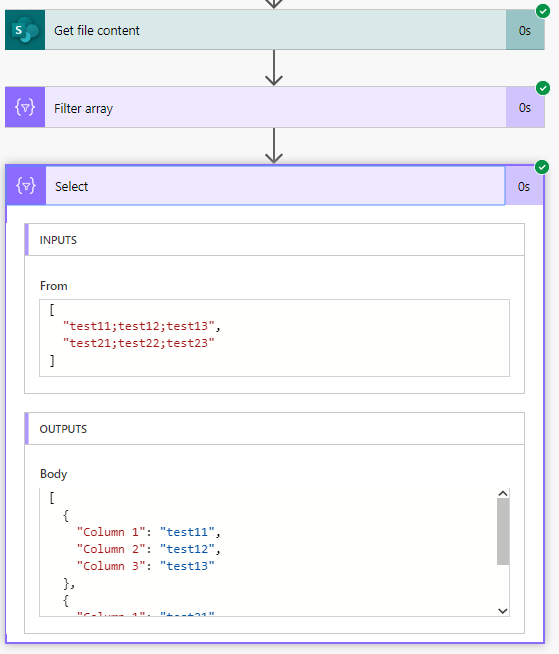
Only 3 steps needed to complete this task.
How to read a csv file from SharePoint.
This is the easy part. The get file content action will do this for you.

See there, we have $content! Ready to be converted to json.
Convert the CSV file to json
Ok, this is the tricky part.
The Filter Array action does two things. The obvious bit is that I want to filter out the empty lines as there is no need to process these.

The the From setting is where I’m turning the $content into an array of data that can be filtered.
json(
  uriComponentToString(
    replace(
      replace(
        uriComponent(
          split(
            replace(
              base64ToString(
                body('Get_file_content')?['$content']
              ),
              ',',';'),
           outputs('Newline')
         )
       ),
       '%5Cr',
       ''),
    '%EF%BB%BF',
    '')
  )
)The base64ToString function turns the weird looking characters in $content into something that already looks like the data in my csv.
base64ToString(
   body('Get_file_content')?['$content']
)
Then the replace around that replaces my commas with semi colons. The reason why I’m doing this is because the commas may cause some problems within my csv data.
replace(
base64ToString(
body('Get_file_content')?['$content']
),
',',';'),
Then in the rest of the large expression I’m removing some of the junk that excel adds to csv files. (‘%EF%BB%BF’ and ‘%5Cr’)
You will also have noticed the outputs(‘Newline’). This is referring to a compose action in which I just pressed enter.
The final step
The final step of the flow has again 2 reasons.
- The first line of csv files contains headers rather than data and should be ignored.
- turn the column names into json labels.
In one of my favourite actions in Flow, the select action, I will use to skip the headers, the following expression:
skip(body('Filter_array'),1)
Ok, that was easy!

split(item(),';')[0]
split(item(),';')[1]
split(item(),';')[2]
If you are interested in a single step then you could also up vote the idea on the forum. Although when only 3 steps are required to read rows form a CSV file, there will hardly be a benefit 😉
Large CSV files
This all worked quite well until some people started complaining about larger CSV files. When you use larger csv files you may get the following error
InvalidTemplate. Unable to process template language expressions in action ‘Filter_array’ inputs at line ‘1’ and column ‘6808’: ‘The template language function ‘uriComponent’ was invoked with invalid parameters. The parameter at index ‘0’ cannot be converted to URI component.’.

So what does that mean?
the uriComponent function is complaining that it is getting invalid data. The error message is even giving us the clue where to look! The first parameter is wrong ( See the error message at index ‘0’)
uriComponent(
   split(
      replace(
         base64ToString(
            body('Get_file_content')?['$content']
         ), ',',';'
      ),
      outputs('Newline')
   )
)
When I added the above expression to a compose action, I got the following output when my file exceeded 2622 lines. It all still looked the same as when I had less lines. The empty line is there because I edited the document in Excel and there is an additional line saved, but that is not a problem.

So what is the problem?
It looks like the uriComponent functions can only handle so much data. I reduced my file back to 2621 lines and my flow is successful. No I’m adding an extra column and the same error message appears.
This also explains why some of my followers mentioned a problem after a few thousand rows and some others mentioned the problem after 300 rows. It all depends on the data.
So how do we resolve this?
The easiest way is probably to split the csv file into smaller chunks. So that once we have read it and converted it from base64 to string and split it by the new lines then we could take a set number of lines from the csv file. But this number will depend on the width of the csv file.
To do this the following code could be added to a compose actions and then section could be added
       split(
            replace(
              base64ToString(
                body('Get_file_content')?['$content']
              ),
              ',',';'),
           outputs('Newline')
         )
Then using the take function the first so many items could be collected and processed and the using the skip function the second part of the csv file could be handled afterwards.
Handling simple CSV data
This expressions that I just mentioned could also be used by itself.
split(replace(base64ToString(body('Get_file_content')?['$content']), ',', ';'),outputs('Newline'))resulting in the following flow:

Now the limit of the number of lines has gone and potentially we could now do the cleanups in each of the Columns in the Select action.
Discover more from SharePains
Subscribe to get the latest posts sent to your email.