
In the last week I’ve been asked 3 times how to handle commas in csv files.
Please note that you now now also use the Run a prompt action to make your job a lot easier.
Reading CSV files
A while back I wrote a post about how to read CSV Files in Power Automate. Although this post handles some of the issues around reading CSV, It didn’t cover handling commas your csv.
Example CSV
In this post I will use the following example CSV

Name,Description,Amount
First item,This is the test of the first item,1
Second Item,"The second, and last item",2
So I’ve got one header line. Then I’ve got a simple line with some data followed by a more complicated line where my description contains a comma.
Note that the csv will have a double quote around the data with a comma. If only every field could have double quotes around all data then that would be great.
In my case i want to replace the commas that separate the fields with 3 hashes (###). But I don’t want to replace the comma in my data.
Creating a flow
As so often I’m going to create a manually started flow. in this flow I will initialize 3 variables. In general I try to avoid variables as much as possible and use compose steps instead, but there will be too loops and conditions for that to work this time.
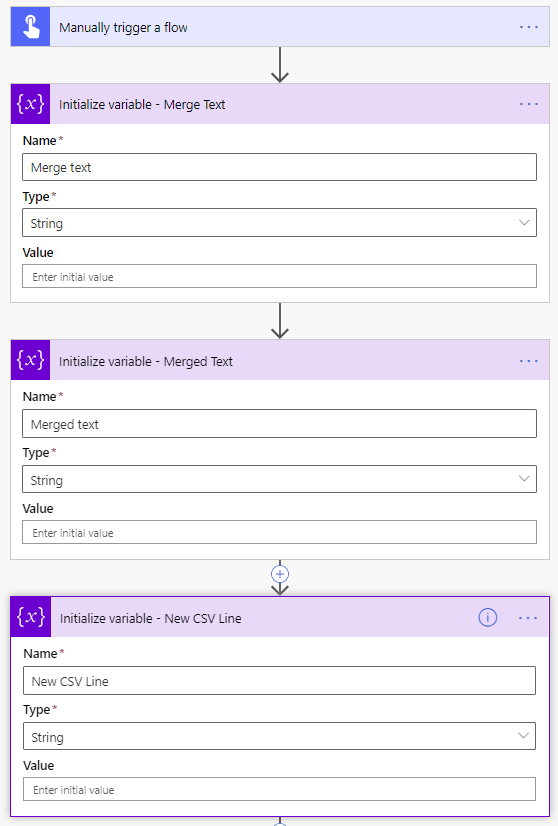
With these 3 variables I will control the manipulation of the csv file.
Reading the CSV data
Now I’ve got 3 steps to get my CSV data and turning it into an array of lines.

For the CSV content compose action i’m using the following expression:
base64ToString(
                body('Get_file_content')?['$content']
              )
for the CSV Lines split, I’m using the following expression to split by the new lines.
split(outputs('CSV_content'),'
')
Note that I added a new line in the middle of my expression!
When I run this flow I’ve now got the following array of CSV lines.

Constructing new CSV lines
In the next step I will process the CSV lines in an Apply to each step. this Apply to each will take the output from the earlier CSV Lines compose action and take it as its input.
Then for each line we want to split the data.

The expression used to split the fields is
split(items('Apply_to_each'),',')All quite simple so far. But what does the result look like? Especially that second item in our CSV will now not look right.
[
  "Second Item",
  "\"The second",
  " and last item\"",
  "2"
]
there are a couple of different approaches, but in my approach in this post I will go for standard flow options available. I could have called and Azure Function to do all the work, but I want to stick to standard Power Automate actions today.
The general process is shown below.

The New CSV line is set to an empty value using the concat function ( concat(”) will do this).
Then Inside the Apply to each 2 will will set the New CSV line to the required ### separated text like this:
Second Item,"The second, and last item",2Then we will use a compose action to get each of the lines. So that we can use the Pieter’s method to merge all of the lines.
Inside the Apply to each 2
Inside the Apply to each 2 we will need to check if a field of data starsts with a double quote (“). If it does then we have found data that has commas and my csv editor (e.g. Excel) decided that the double quotes were needed.
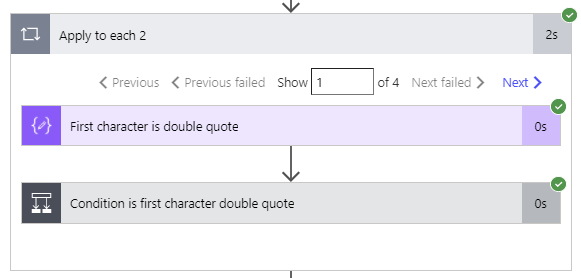
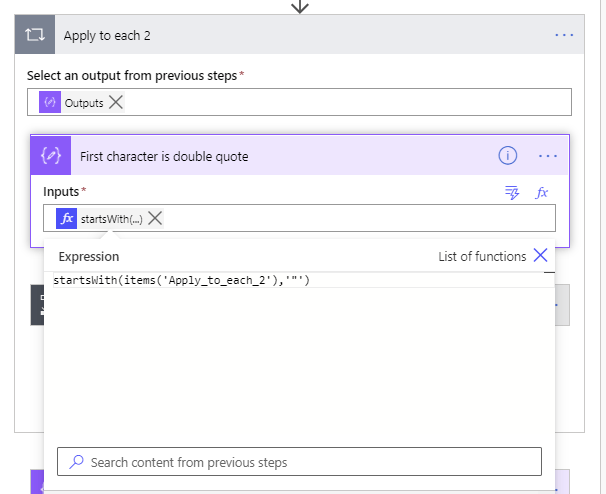
First I created a compose action which gets the first character
We can now use this in a condition step. when the data starts with a double quote we will simply store the text in the merge Text variable. Nothing to complicated.
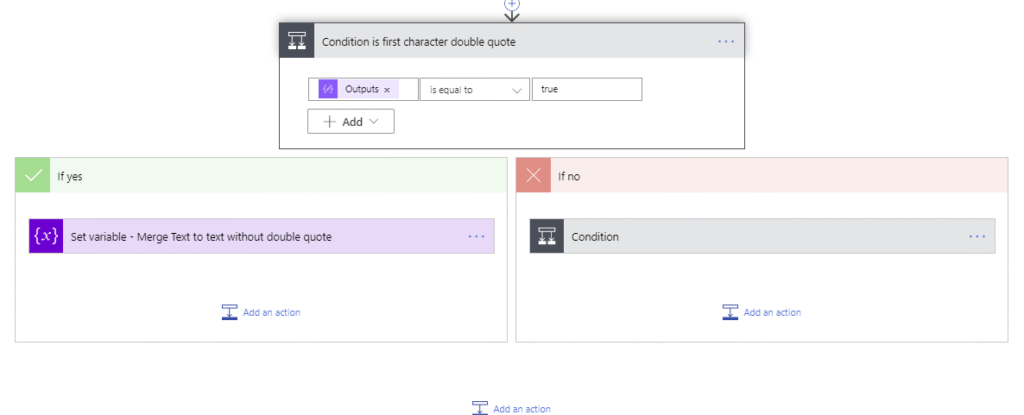
If we find data without a double quote then there are two options. Either we have found data to merge before or we haven’t.
If we have found a field starting with a quotes before then we set the merged text variable to merge the values found. If we haven’t found quotes before then we simply set the merged text to the value of the field.

The code for the nothing to merge is as follows:
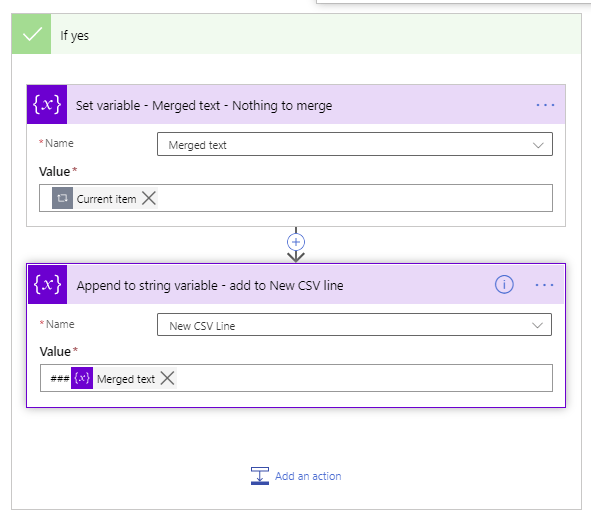
When I need to merge two texts together I use the following 4 steps:
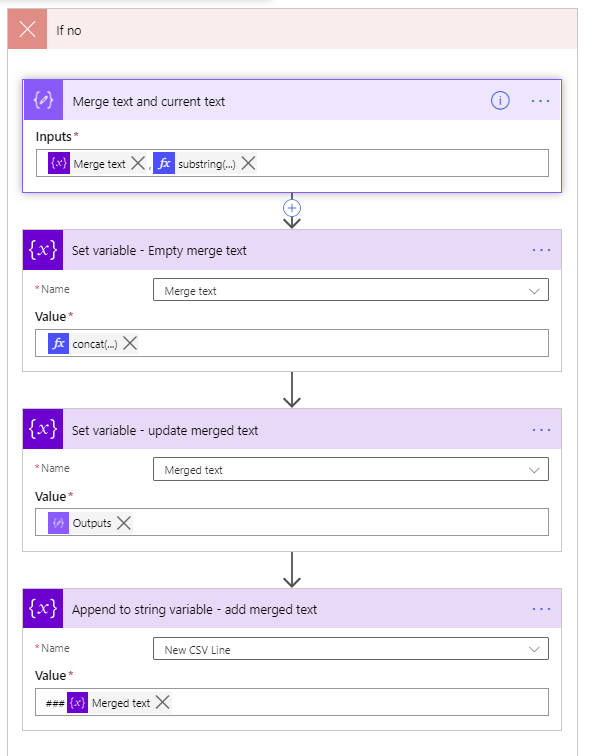
So now we have a New CSV Line that looks like the has separated lines that I mentioned before.
The only thing left to do is now to set the compose with the content of the variable so t that a second compose can collect all the lines.

This final Compose will now hold the following data:

This solves my problem.
I could still remove the initial 3 hashes, but that would clutter the post rather than anything else. They aren’t sitting in my way for now.
Other Power Automate posts?
Have a look at the Power Automate User Guide with many other posts.
Pieter Veenstra

Is your business still running on paper trails, sprawling Excel files, or ageing Access databases? There's a better way — and I can show you exactly what it looks like. I'm the Technical Director of Vantage 365, a Microsoft solutions consultancy working with clients across the UK, the Netherlands, and worldwide. For over 30 years I've been turning messy, manual business processes into clean, automated systems that save time, reduce errors, and give teams the visibility they need to make better decisions. SharePains is not just any blog run by a Microsoft MVP. Have you ever used Try-Catch in Power Automate? The original post about Try-Catch in Power Automate can still be found on this site, https://sharepains.com/2018/02/07/try-catch-finally-in-power-automate-flow/ Or have you ever used the Pieter’s method to avoid variables and speed up your flows? https://sharepains.com/2020/03/11/pieters-method-for-advanced-in-flows/ You can contact me using contact@sharepains.com

you don’t show the expression for the sub string you use to merge the two texts together. Can you please show
Hi Janal, that uses the Pieter’s method in that last compose action.
So the expression is outputs(‘…’) referring to the compose inside the apply to each. See also https://sharepains.com/2020/03/11/pieters-method-for-advanced-in-flows/
I too am a little confused, specifically at the formula being used for the second item in “merge text with current text”, if you’re using a substring formula don’t you have to define start position and character length? doesn’t this change with the data? wouldn’t it be better to just use current item? Can you show that specific formula?
Hi Brett,
The substring expression is as follows:
substring(items(‘Apply_to_each_2’),0, sub(length(items(‘Apply_to_each_2’)),1))
So even though the content length may change with the length function it is possible to calculate the length of the specific text.
you don’t show the expression for the Set variable – Empty merge text, set variable -update merged text, and compose – New CSV Line. Can you please show
Hi Rajesh,
The New CSV line is as mentioned in the post set to concat(”) this is to force an empty value in the compose step
Pieter, Thanks for the quick reply, I have a suggestion that probably would take more expertise than I have. I noticed that your solution is good if were dealing with a cell with only a single comma in the .CSV. What about something that can deal with multiple commas in a single cell, like “1,000,000” for instance, or multiple sentences containing commas. I changed the delimiter to a pipe for testing purposes.
Input- This is a Test, This is, a Test.
output – |\”This is a Test, This is| a Test.\”|
The startsWith condition could remain, but some where we would need to do an endsWith, then merge everything in between, I assume. (haven’t figured this part out yet)
This might create something that is very slow to run. I have no idea why Microsoft does not support CSV processing with the Excel connector. It would save a ton of hassle.
Hi Pieter. First of all, thanks for all of your posts and especially this one. I have looked around for a way to do this for the last few days and finally found your post.
Could you please share the actual expressions in the last 2 steps, namely the “Compose New CSV Line” and the “New CSV”? I know you mention that Compose New CSV Line is just setting it to the content of the variable and that the New CSV step is using the Pieter, but the expression:
Body(‘Compose New CSV Line’)
is throwing an error and I cannot reference the Apply to Each content.
Can you help? Thanks in advance.
You will need underscores to replace the spaces. So Body(‘Compose_New_CSV_Line’)
Thanks! That seems to work. I, however just ran into the For Each limit of 5000. 🙁
My CSV file has ~24K lines * 15 items each results in > 360K items to process in Apply to each.
Any recommendations would be welcome.
I guess I need to create some kind of a “batching” sequence.
Thanks again for your quick response.
The general idea is to avoid for each all together. They are slow and difficult to debug.
What are you doing inside the for each?
Quite often a select action can be an alternative if you just massage data.
I am processing a CSV file which has commas in some of the fields (exactly like the article describes…copied step by step). The issue is the size of the source file. After your steps then I am parsing (JSON) it.
If you need to actively do something with the data then chopping the file or read x lines at a time may quite well work better
It took me awhile, but the concept works and was the only real solution I could find to replace commas inside quotes from CSV files when you have no control over the separators. The key is the 2nd for each and I replaced the quotes with *# on the left and #* on the split the row. Then follow his process for the 2nd for each to pull change and re-assemble the row. Later in the JSON array if you do that, you can set a variable with the field you updated to bring back the commas. Took me a week to get it right, but once done it’s easy to reproduce
Hello,
I just developed a way to change the comma delimiter column separators in CSV file data.
It only changes the commas used as separators if the file is set up with quotes only around the columns with commas.
It doesn’t use any Apply to each and it accomplishes everything in seconds in a few actions, even for large CSV files.
https://powerusers.microsoft.com/t5/Power-Automate-Cookbook/Change-CSV-File-Data-Delimiter/td-p/1442954
Once only the column separators are changed, then it’s easy to parse the entire file in a single Select action.
I had a CSV with a value that ended with a space. This ended up ad value,”value “,value,value. To make sure to skip this value I tried this:
and(startsWith(items(‘Apply_to_each_2’),'”‘),not(endsWith(items(‘Apply_to_each_2’),'”‘))
Hi,
I have a question: Is it possible to remove comma from a number value and convert that decimal number to whole number in power automate platform. For example: I want to convert 1,27.89 to 128. Here I want to remove comma after 1,2XXX and covert the decimal number 127.89 to 128. Please help
Hi Saurav,
That format odd 1,27.89 is a bit weird. Which country uses this standard? I standard of 1,276.89 is more common where the comma is separating the thousands.
Hello, please could you provide the expression of concat function in the first step and el second one , Thank youuu
Hi, do you have a video/package somewhere.. i was not able to follow what is the value of apply_to_each_2 input?
The Apply to each takes the following
outputs('line_Fields')please share concat expression also
This is great material, but unfortunately, it is missing a few contents for non-advanced Power Automate users. After the “Reading the CSV data” topic I missed some guides and could not keep up.
Thank you for letting me know. I will have a look through the post soon.
Thank you for this amazing work. Greatly appreciated.
To take care of multiple commas inside the field, I included an extra if/else statement, checking for the ending quote.
As this seems to be recently read, a faster approach is to count the number of columns in the individual lines (select action). It only works when there is only one column that can contain the separator, but that applies to the case in this article as well.
For example
“ID, Name, Code, Description, Date”
“1,line1,5,no problems here,2024-08-01”
“2,line2,8,/”a test,another test,last test/”,2024-08-01″
All items (can be tens of thousands) with length(split(item(),’,’))=4 can be processed immediately.
The rest can be parallel mapped with logic inside a select statement
Field1=split(item()[‘data’], ‘;’)?[0]
Field2=split(item()[‘data’], ‘;’)?[1]
Field3=split(item()[‘data’], ‘;’)?[2]
Field4=split(item()[‘data’], ‘;’)?[3]…split(item()[‘data’], ‘;’)?[last-1]
Field5=split(item()[‘data’], ‘;’)?[last]
Leaving this here to help thers, i couldnt follow the above, too complicated for my feble mind, however i did realise that with my data, and with the example above, each comma within a text qualifier was followed by a space.
So the easier thing to do was
1. replace all ‘, ‘ (comma then space) with a squiggle ‘~’
2. replace all remaining commas with pipes
3. replace squiggles back to commas
4. replace quotes with blank
5. separate with pipes.
Hi Antony
It helps indeed when there are spaces that are part of the column separators.
How are you handling “, “s that are part of your data?
So for example something like this:
Field1, Field2 and, some more as part of Field 2, Field 3
Hi, Can you please show the power automate variable names for the following steps .
Set variable – Empty merge text,
Set variable -update merged text
Compose – New CSV Line
Thanks,
The Set variable Empty Merge text is the current item from the apply to each step.
The second set variable is ### and the Merged text variable.
The Compose action is just an empty Compose box with an empty line. So just hit enter and you are there.