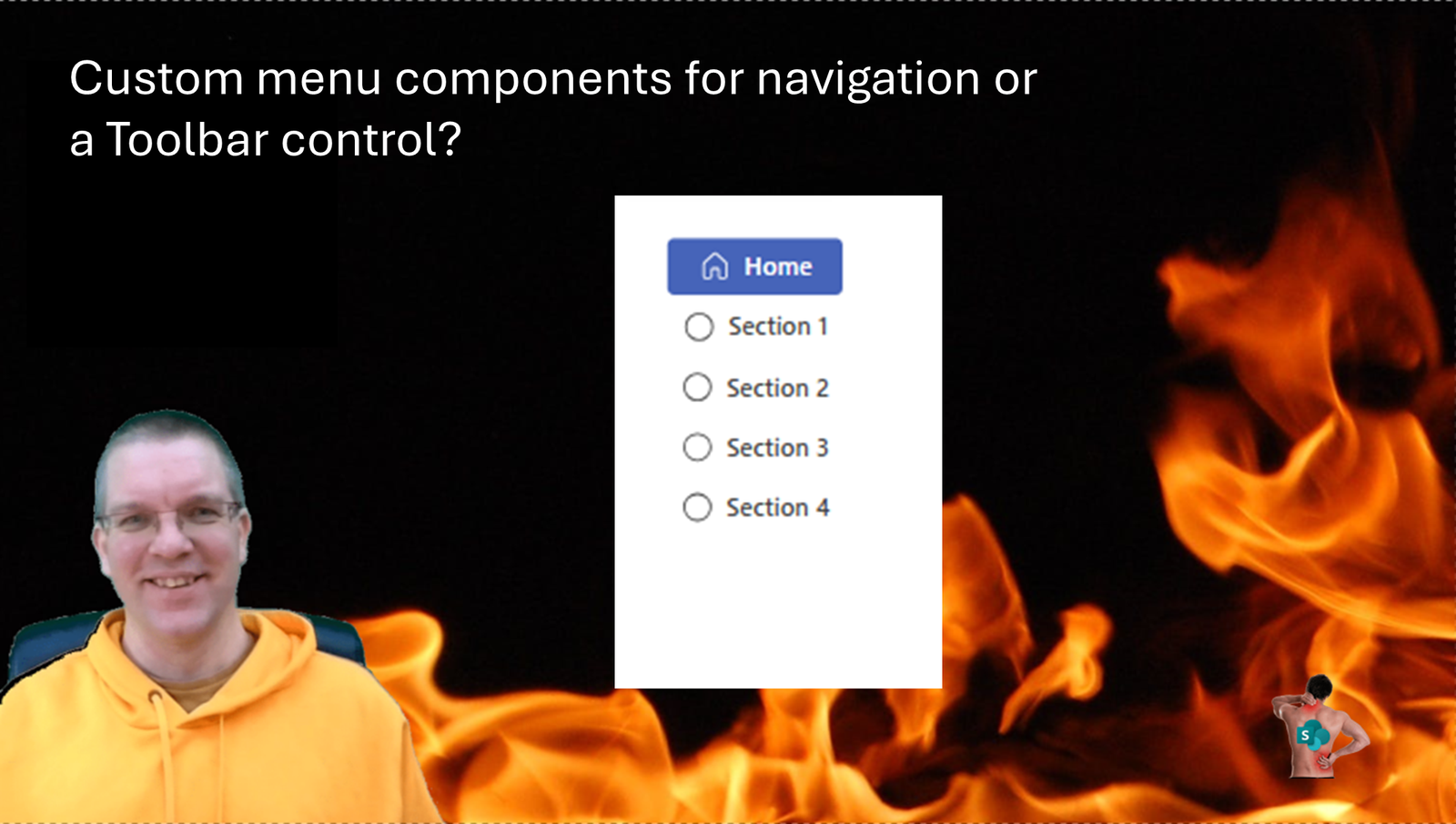
Toolbar or custom menu components? How do you develop your navigation controls in your app? During Power Apps projects I see many different ways clients have implemented navigation controls, in this post some of the options. I’m of course concluding with the easiest and most manageable way of getting your menus sorted out.
Navigation in a Single screen
Quite often I find people who start with Power Apps development add a gallery to a screen and then make this gallery use a data structure like this:
Table(
    {
        ID: 1,
        Label: "Home"
    },
    {
        ID: 2,
        Label: "Details"
    }
)
Then with a simple button within the gallery the navigation structure will work as we can record which button has been pressed resulting in a variable being set to the ID of each menu option. Then we only need to make sure that each control on the screen looks at this variable to decide if it needs to be visible or not.
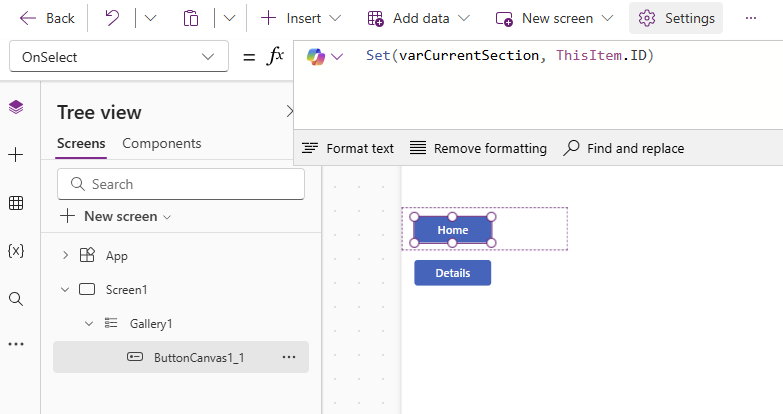
Now this option is extremely simple to implement and for single screen apps this works quite well. However before you know it your apps has hundreds of controls on a single screen, making it very hard to manage your app.
And of course we could set the colour of the buttons in such a way that we can recognize the current screen. by comparing ThisRecord..ID with the varCurrentSection value.
Navigation in a Multiple screen
Quite rightly you might now decide to add more screens to you app. For each section (menu option) we can add a separate new screen.
Now we would need to update the data structurer that feeds our gallery with menu items to include a screen
Table(
    {
        ID: 1,
        Label: "Home",
        Screen: 'Screen Home'
    },
    {
        ID: 2,
        Label: "Details",
        Screen: 'Screen Details'
    }
)
And then we update the Navigation button’s OnSelct as shown below.
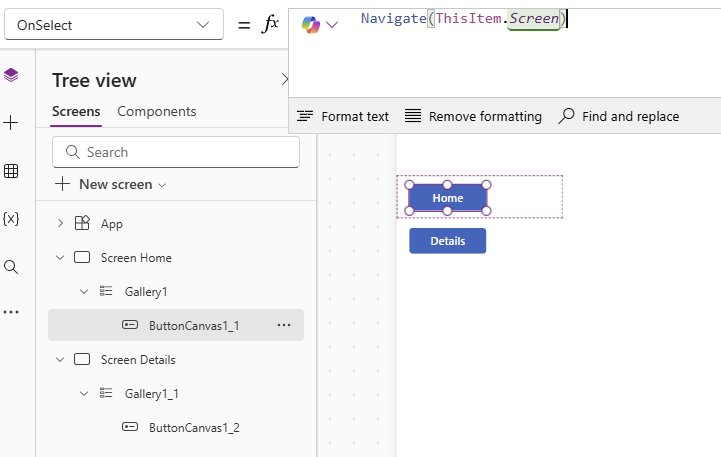
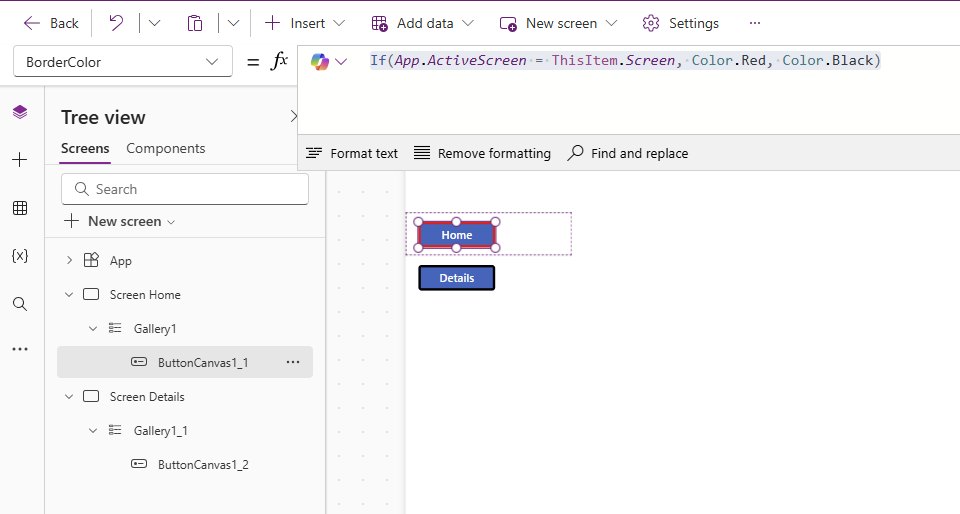
And again we can set the colours of to help the user identify which screen they are on but this time we can compare the active screen with the navigation item’s screen
There are a few more things that you might want to sort out as we now need to replicate our data structures and gallery across all screens.
To avoid having multiple copies of the navigation structures, I would create a named formula. however you could of course do the same with the App.Onstart and set a variable.
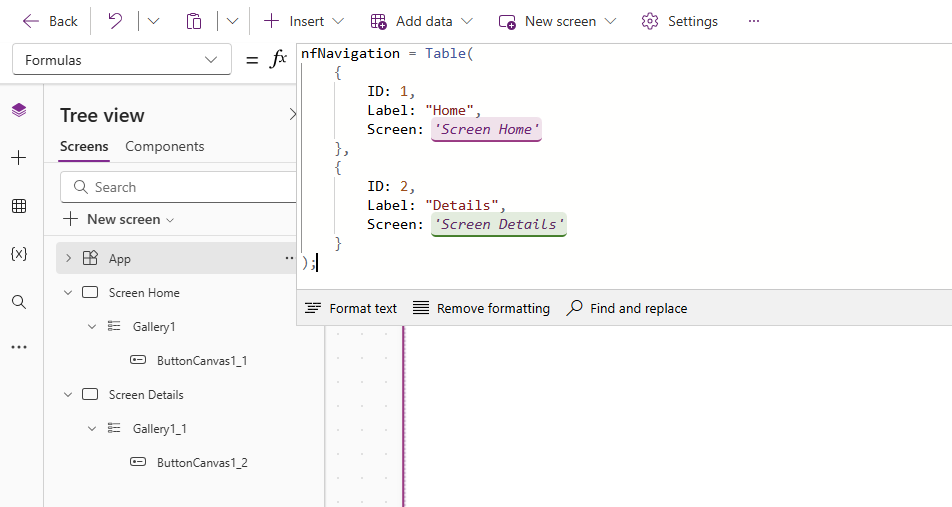
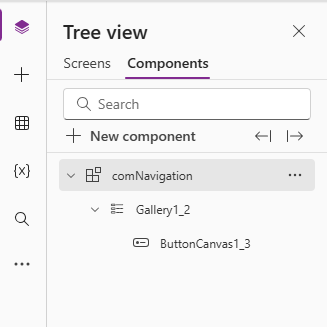
This approach will help us not having multiple copies of the data structure however we still have multiple copies of the same gallery across all screens and especially if you have many custom settings within the galleries you might want to use a component that can be copied to every screen.
The easiest option – Toolbar control
As part of the modern controls there is the Toolbar control.

Using the following data structure you can very quickly create a navigation structure. That looks similar to tools bars that we find in other Microsoft products.
Table(
    {
        ItemKey: "new",
        ItemDisplayName: "New",
        ItemIconName: "Add",
        ItemAppearance: "Primary",
        ItemIconStyle: "Regular",
        ItemTooltip: "Add new item"
    },
    {
        ItemKey: "edit",
        ItemDisplayName: "Edit",
        ItemIconName: "Edit",
        ItemAppearance: "Subtle",
        ....
And this doesn’t just give us buttons but also icons. And if you prefer your buttons underneath eachother, all you need to do is set the alignment to Vertical and the Tools bar will do the rest for you.
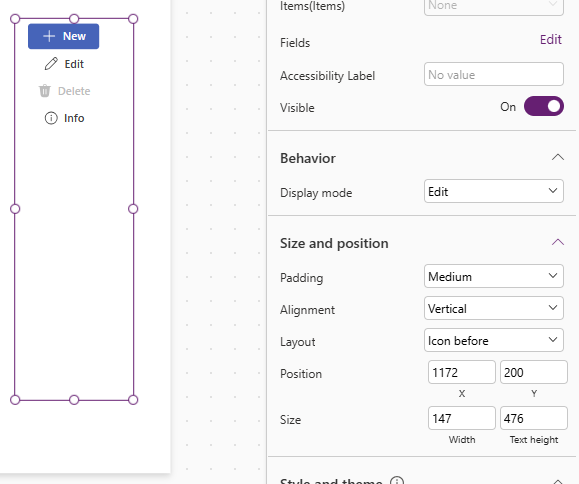
To make the navigation control work, we just have to update the OnSelect property for the control. As we have to update this across all screens it might be useful to create a component instead, so that we don’t end up with multiple copies. Or alternatively a User Defined Function could also work. You might however find that buttons could change depending on data and then just a collection will also work.
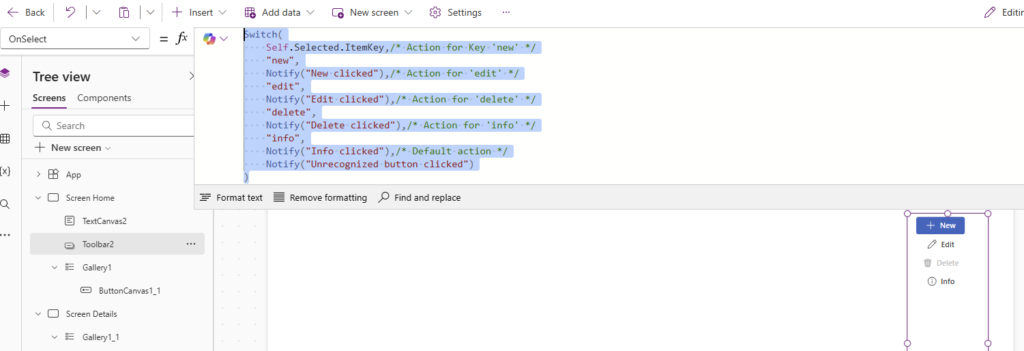
This control makes it very easy to make your app look good. But it might be worth having a bit more of a detailed look at that data structure.
There are six properties that we can control the buttons with.
- ItemKey
- ItemDisplayName
- ItemIconName
- ItemAppearance
- ItemIconStyle
- ItemTooltip
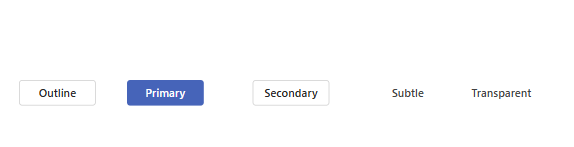
The ItemKey just needs to be a unique key. Then the ItemDisplayName will be the text that appears next to your menu icons. ItemAppearance will control how your buttons will appear. You can pick Primary or Subtle as we’ve seen in the example earlier, but you can also use Outline, Secondary and Transparent.
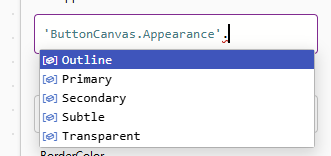
Below you can see how each of the buttons will appear.
IconStyle is the next property to look at. For icon Style we have two options. Either Outline or Filled. The Filled options gives you a slightly bolder icon.
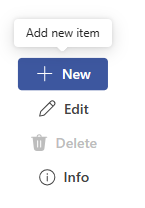
IconToolTip, you can add if you like your buttons to have the tooltips appear.
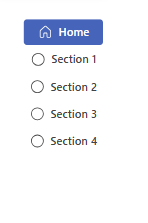
This then could make your navigation look like this
Pieter Veenstra

Is your business still running on paper trails, sprawling Excel files, or ageing Access databases? There's a better way — and I can show you exactly what it looks like. I'm the Technical Director of Vantage 365, a Microsoft solutions consultancy working with clients across the UK, the Netherlands, and worldwide. For over 30 years I've been turning messy, manual business processes into clean, automated systems that save time, reduce errors, and give teams the visibility they need to make better decisions. SharePains is not just any blog run by a Microsoft MVP. Have you ever used Try-Catch in Power Automate? The original post about Try-Catch in Power Automate can still be found on this site, https://sharepains.com/2018/02/07/try-catch-finally-in-power-automate-flow/ Or have you ever used the Pieter’s method to avoid variables and speed up your flows? https://sharepains.com/2020/03/11/pieters-method-for-advanced-in-flows/ You can contact me using contact@sharepains.com