
Connecting to data sources in Power BI can be very easy. But when you need to call three end points to get to your data with Secrets, Client IDs and Bearer tokens it can be a bit harder to get your data.
Background on the API
Sometimes APIS are nice and easy to use and sometimes APIs are just a pain. If all you have to do is connect to your data source by clicking a few button, it would be no fun. In this post I will look at one of the more challenging APIs.
For this example I will be connecting into the API used by timesheetportal.com. This is a timesheet solution, that has an REST API and a SOAP API. The first challenge is to find the documentation for the API so that you can find out which API calls are available.
In this case the API documentation was sitting at the following URL:
https://[tenant].api.timesheetportal.com/docs/standardFrom the documentation I found out that there are 3 calls to the API to make before you can get any data returned.
- /oauth/authorize
- /oauth/token
- /v2/chargecodes
So what do these endpoints do?
The first Authorization url lets me supply a client id and a secret to collect an authorization code. This code will expire within a short period of time every time I request it. With that authorization code that I now have I can call the token end point to collect a bearer token. And with that bearer token I can call any of the other API end points to collect or update my data.
Within the admin pages of the solution you can generate a client ID and a Secret.
That should be all I need to know to get the data into Power BI.
Building the Power Query code
If you haven’t already downloaded Power BI Desktop, then you might want to do that first. But assuming that you have that in place, I’m going to assume that you have the following blank screen in front of you.
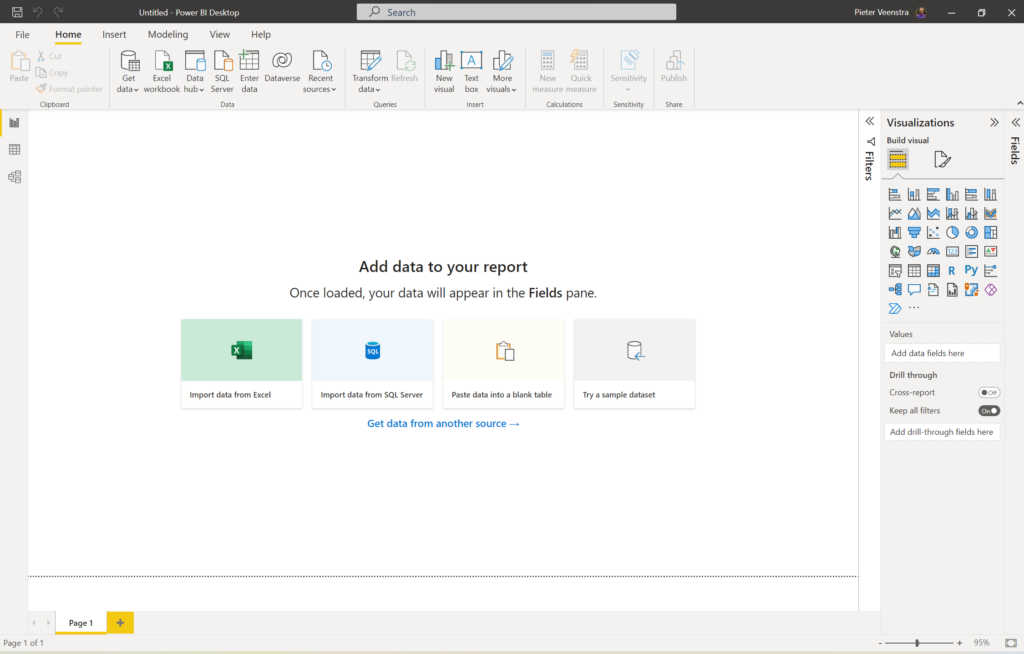
Click on the Get data link at the top and then select Blank query.

You should now see a Query1.

The first thing I would do is to rename that do something sensible. I’m going to call this TimesheetData.

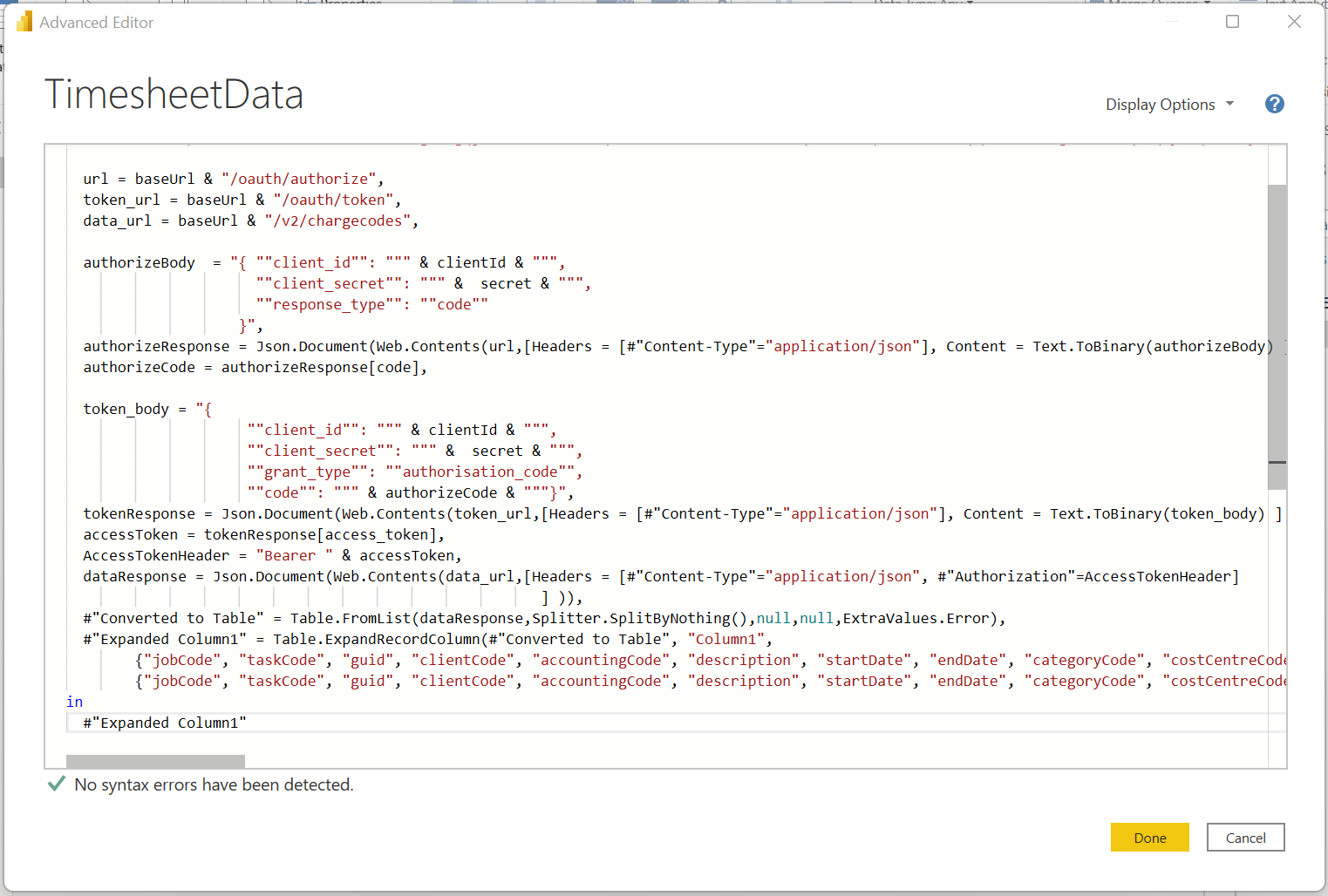
Then using the Advanced editor I will be creating the following code

In the above screen you can paste the code and then the data will be ready within seconds.
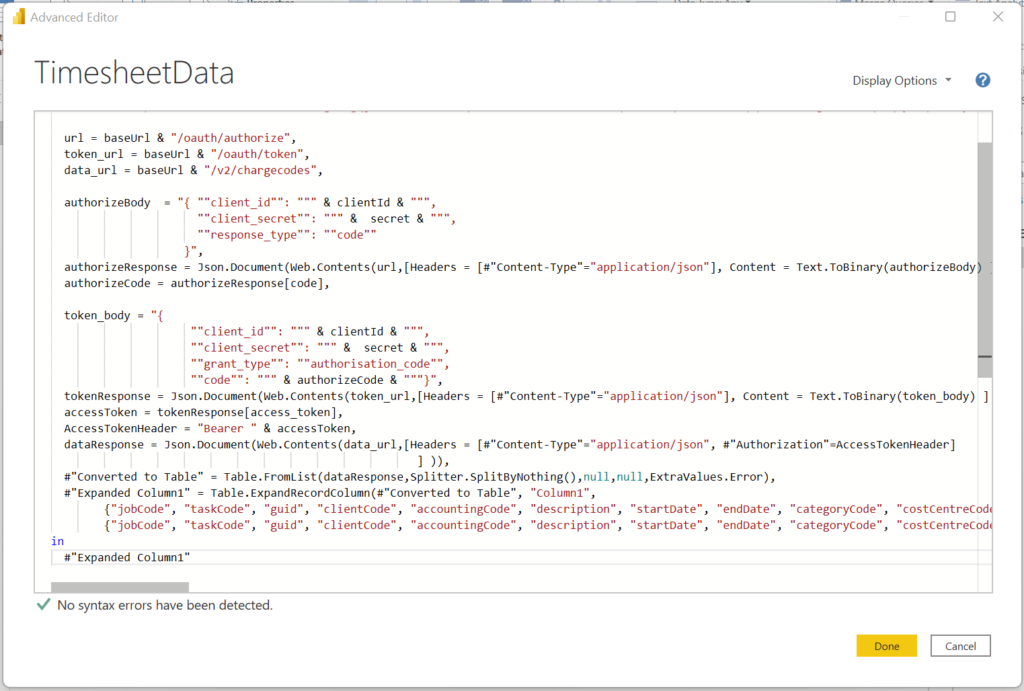
Building up the code
The code that we will need will start with the following lines:
let
baseUrl = "https://tenant.api.timesheetportal.com",
clientId = "QTZ.......OEY=",
secret = "vd.......JB",
Please note that you will need to place your own details here.
Then after that we will have need to list the following 3 lines of code to set the three end points that we need to call.
  url = baseUrl & "/oauth/authorize",
  token_url = baseUrl & "/oauth/token",
  data_url = baseUrl & "/v2/chargecodes",
So far we’ve only looked at setting some configuration elements to get the actual work done.
For each of the end points there will be some lines of code needed. For these kind of end point we will quite often need to supply a body text, that will tell the API end point what to do. Then we will call the end point and finally we might need to collect some of the data that is returned by the end point.
Get the Authorization code
To get the authorization code I need to build up a body with the client id and the secret.
authorizeBody  = "{ ""client_id"": """ & clientId & """,
                      ""client_secret"": """ &  secret & """,
                      ""response_type"": ""code""
                    }",
  authorizeResponse = Json.Document(Web.Contents(url,[Headers = [#"Content-Type"="application/json"], Content = Text.ToBinary(authorizeBody) ] )),
  authorizeCode = authorizeResponse[code],
The Web.Contents function will now call the earlier specified url, and supplying the body that we just created. That is as easy as it gets.
The details will be returned to us in the authorizeResponse variable. All we have to do is collect the code property. Now we have an access code that will be valid for 180 seconds.
Get the bearer token
Now we are going to repeat the same little trick to get a bearer token. This token is valid for 1 hour.
Using the following code, we need to supply the earlier collected authorization code and we will be given our token that we are after.
token_body = "{
                     ""client_id"": """ & clientId & """,
                     ""client_secret"": """ &  secret & """,
                     ""grant_type"": ""authorisation_code"",
                     ""code"": """ & authorizeCode & """}",
  tokenResponse = Json.Document(Web.Contents(token_url,[Headers = [#"Content-Type"="application/json"], Content = Text.ToBinary(token_body) ] )),
  accessToken = tokenResponse[access_token],
  AccessTokenHeader = "Bearer " & accessToken,
You might have noticed that the bearer token is made up of the word “Bearer ” and the access token that we were given.
Get the data
Now for the finale, we will be collecting the actual data that we wanted in the first place. Once again we will be calling an end point, however I’m not supplying any body this time. One of the things to note is that APIs have different methods of calling an end point. You can do a GET or a POST. Often a GET method is used to retrieve information where a POST is used to supply information.
The following code will get us the data using the Authorization heading with the bearer token.
 dataResponse = Json.Document(Web.Contents(data_url,[Headers = [#"Content-Type"="application/json", #"Authorization"=AccessTokenHeader]
                                                       ] )),
  #"Converted to Table" = Table.FromList(dataResponse,Splitter.SplitByNothing(),null,null,ExtraValues.Error),
  #"Expanded Column1" = Table.ExpandRecordColumn(#"Converted to Table", "Column1",
        {"jobCode", "taskCode", "guid", "clientCode", "accountingCode"},
        {"jobCode", "taskCode", "guid", "clientCode", "accountingCode"})
in
  #"Expanded Column1"
In the above code we will get a list of items back. This list is then converted to a table of records before each of the columns is expanded so that we end up with a table of fields. Now we are ready to build our dashboards!
Pieter Veenstra

Is your business still running on paper trails, sprawling Excel files, or ageing Access databases? There's a better way — and I can show you exactly what it looks like. I'm the Technical Director of Vantage 365, a Microsoft solutions consultancy working with clients across the UK, the Netherlands, and worldwide. For over 30 years I've been turning messy, manual business processes into clean, automated systems that save time, reduce errors, and give teams the visibility they need to make better decisions. SharePains is not just any blog run by a Microsoft MVP. Have you ever used Try-Catch in Power Automate? The original post about Try-Catch in Power Automate can still be found on this site, https://sharepains.com/2018/02/07/try-catch-finally-in-power-automate-flow/ Or have you ever used the Pieter’s method to avoid variables and speed up your flows? https://sharepains.com/2020/03/11/pieters-method-for-advanced-in-flows/ You can contact me using contact@sharepains.com


Hi, Is there any way the secret can be encrypted or managed, so its not visible as free text in the code.
If you reply, pls drop an email to the below mentioned email id. Thanks
Yes, you can add it to the Azure Vault and then read it from there before using it.
I was going over this post and got data using the Client ID and Client secret. My concern with this method is that the client secret is in clear text. I couldn’t find the Azure Vault connector. Can you please provide more details on how to connect to Azure Vault?
Thank you
Here are the details of the connector:
https://learn.microsoft.com/en-us/connectors/keyvault/