
Often people create flows to call Microsoft Graph end points or Approval from within Power Apps rather than “Power Automate connector actions” from within Power Apps.
Connectors
Most likely you will know that the Power Platform has connectors and connectors have triggers and actions. Now adding actions to flows is quite easy. But using the actions inside a Power Apps is a bit trickier.
I’m going to start with a simple example. Add the Office 365Users connection to your app and then there is an HTTP action that you can call. You just supply the endpoint, the GET method and the Content Type and …
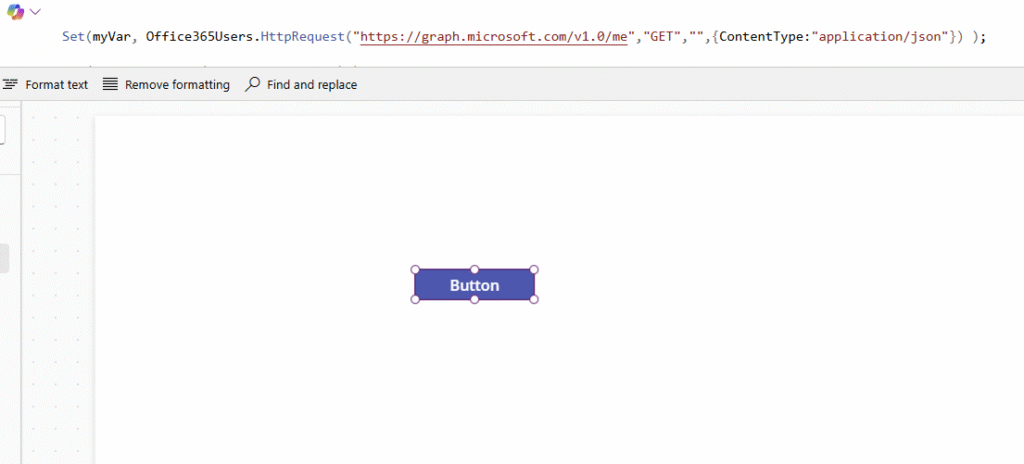
With the following code we can collect the profile of the logged in user:
Set(myVar, Office365Users.HttpRequest("https://graph.microsoft.com/v1.0/me","GET","",{ContentType:"application/json"}) );Now when we preview the myVar variable we will find an untyped object.
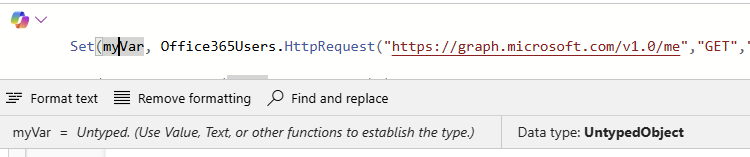
Typecasting the object
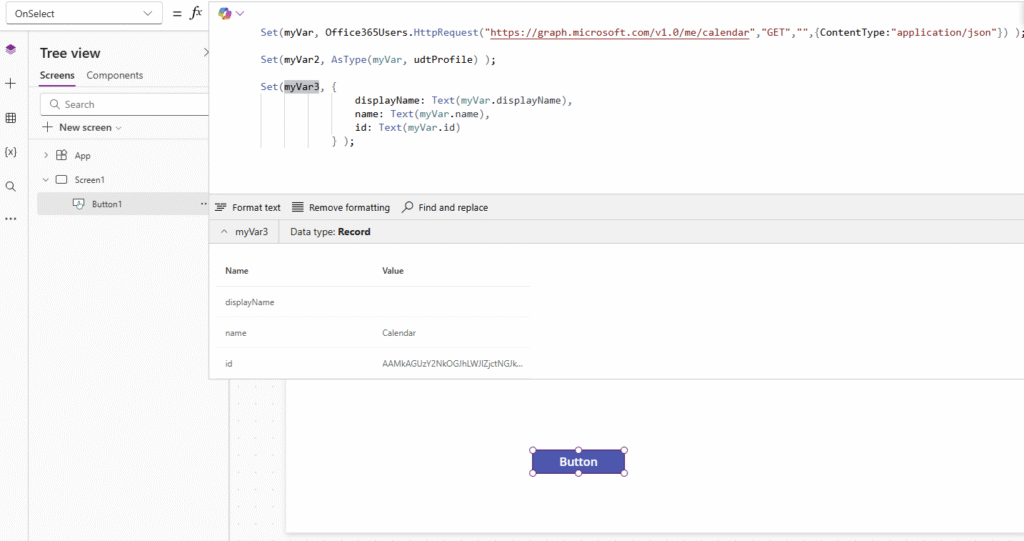
In one of my previous posts I mentioned how to type cast data using User Defined Types, however I was getting the following error with that:

Converting my data like this simply works. @odata.context in the example below of course has little additional value and could be removed from the example below.
Set(myVar3, {
                '@odata.context' :  Text(myVar.'@odata.context'),
                displayName: Text(myVar.displayName),
                givenName: Text(myVar.givenName),
                mail: Text(myVar.mail),
                jobTitle: Text(myVar.jobTitle),
                mobilePhone: Text(myVar.mobilePhone),
                officeLocation: Text(myVar.officeLocation),
                preferredLanguage: Text(myVar.preferredLanguage),
                userPrincipalName: Text(myVar.userPrincipalName),
                id: Text(myVar.id)
            } );
Now how do we figure out the available fields?
There are a few tools that can be used to understand the data that comes back from the end point.
- Microsoft documentation for the Graph API
- Graph Explorer to test run and then collect the output.
- Power Automate. You could run the same action in Power Automate and then copy the details.
- Any other tool that can call Graph end points.
Now we can take this further into for example the calendars in Microsoft Graph. For more information about the scopes of the various HTTP request actions please read my post HTTP vs Send HTP request actions.
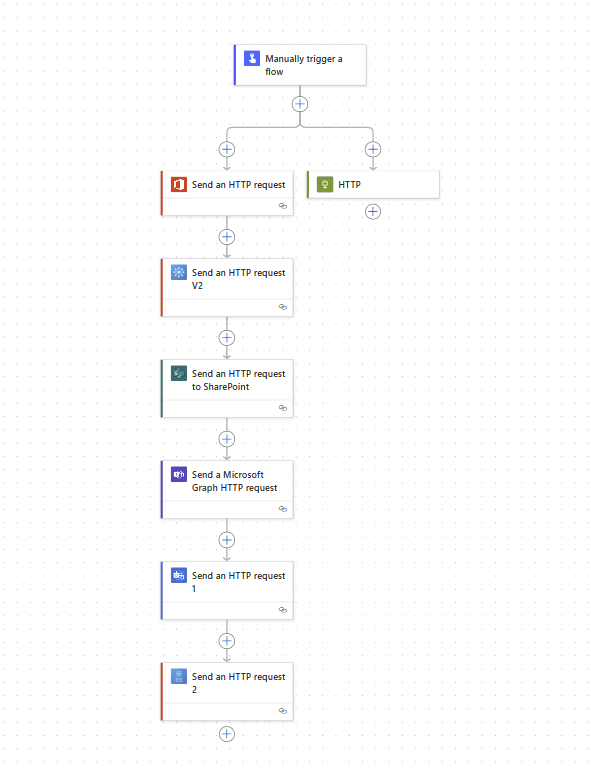
So should we always use the HTTP Request actions?
No! If there are other connector actions available within the connectors that do what you need then you can use any of those as well.
So for example to get the User Profile image (yes I know we can get this form User().Image )

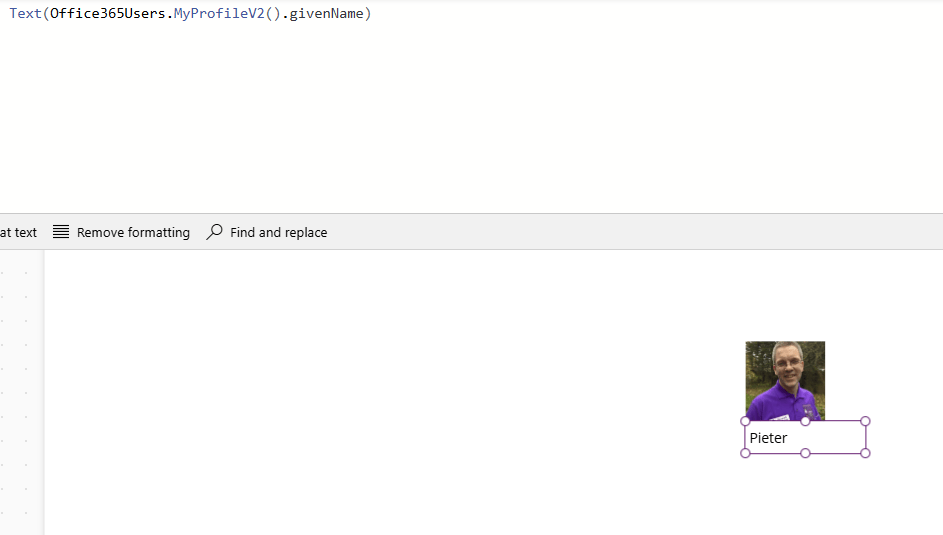
Any data like for example the given name of the user can be collected very easily. through the MyProfileV2 action.
Other connectors?
Can I use any connector?
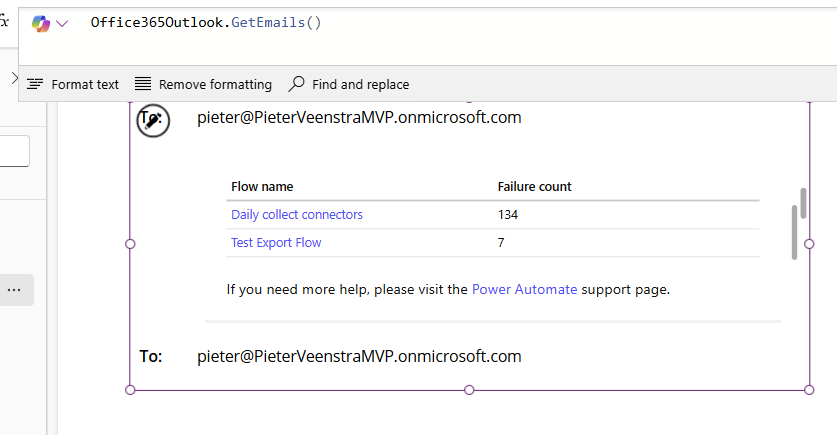
Yes. Just as easy as it is to collect User information, you can also get for example your Emails displayed in your Power App.
So do we still need Power Automate?
Yes, for some things Power Automate will be useful. For example to schedule a flow that runs daily and all those other back ground processes.
Creating approval directly form Power Apps
Now one of the reasons for using Power Automate is of course using Approvals now we would create an approval step:

This code needs a second look.
The createAnApproval actions expects first a Approval Type (this is a text) and an object with all the properties.
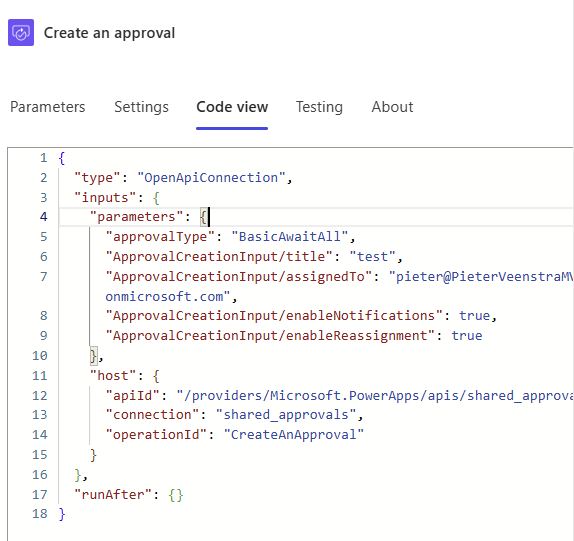
Approvals.CreateAnApproval("BasicAwaitAll", ParseJSON("{ ""title"": ""Test"", ""assignedTo"" : ""pieter@PieterVeenstraMVP.onmicrosoft.com"" }") )When we create the step in Power Automate, we will find in the Code view that Power Automate is very helpful.
Discover more from SharePains
Subscribe to get the latest posts sent to your email.
Pieter Veenstra

Is your business still running on paper trails, sprawling Excel files, or ageing Access databases? There's a better way — and I can show you exactly what it looks like. I'm the Technical Director of Vantage 365, a Microsoft solutions consultancy working with clients across the UK, the Netherlands, and worldwide. For over 30 years I've been turning messy, manual business processes into clean, automated systems that save time, reduce errors, and give teams the visibility they need to make better decisions. SharePains is not just any blog run by a Microsoft MVP. Have you ever used Try-Catch in Power Automate? The original post about Try-Catch in Power Automate can still be found on this site, https://sharepains.com/2018/02/07/try-catch-finally-in-power-automate-flow/ Or have you ever used the Pieter’s method to avoid variables and speed up your flows? https://sharepains.com/2020/03/11/pieters-method-for-advanced-in-flows/ You can contact me using contact@sharepains.com
Hello Pieter, please try you add businessPhones: [Text], to the type definition udtProfile to avoid the error message.
Thank you for your very informative blog posts. ?
I was probably a bit too quick with my suggestion: it only works if no business phone is returned. In all other cases an error message is displayed “JSON parsing error, expected ‘object’ but got ‘string’ ”.
Yes, the User Defined Types don’t seem to handle optional fields very well at the moment.