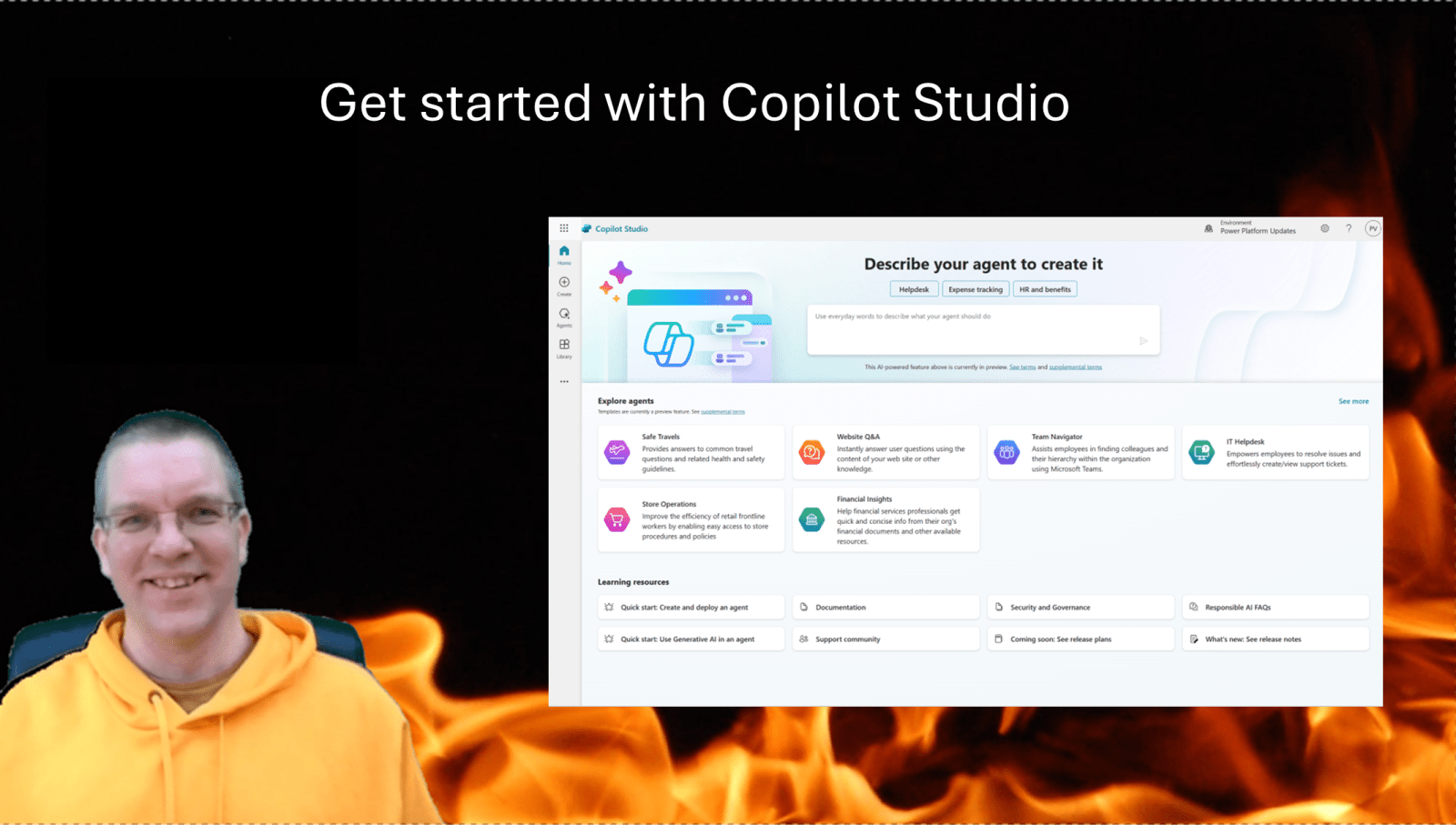
To get started with Copilot Studio is easy visit https://copilotstudio.microsoft.com/ and we are ready to get started with the creation of our first Agent.
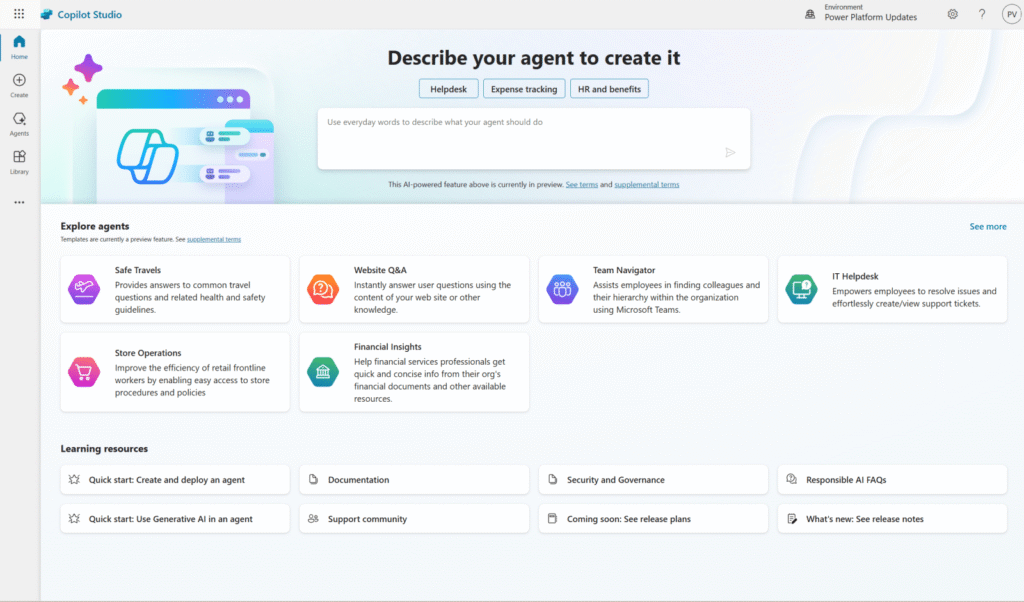
Get Started with Agent Templates in Copilot Studio
Currently there are 6 agents available. These agents are all preview. In general, I would think twice about using templates anyway. If I compare this to Power Apps and Power Automate where templates quite often result in additional work. However, templates can be a good way to get introduced to building solutions yourself.
The agents templates that are available are
- Safe travels
- Website Q&A
- Team Navigator
- IT Helpdesk
- Store Operations
- Financial Insights
When we have a closer look at the Team Navigator, we will see that the Office 365 User connector that we are familiar with from work within Power Apps and Power Automate is already has been assumed as a source of data.

Once the connection has been setup, you should see the connection as connected.
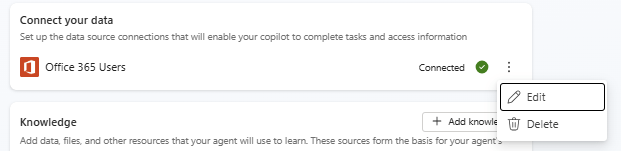
Once the connection has been setup, we can add additional knowledge or click on the create button at the top of the screen, however …
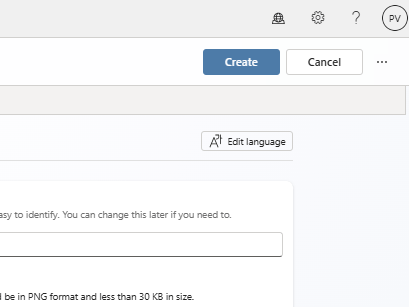
Within the … menu next to the Cancel button, there are some important options. In the Edit Advanced Settings, we will find that we can select a solution. As always things get created in the default solution unless we configure otherwise.
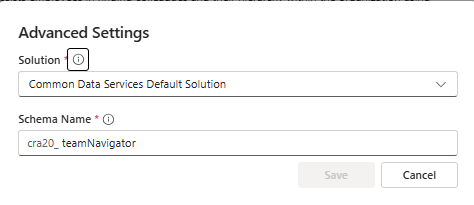
Potentially, if your agent is part of a larger solution, you will find that you might already have created a solution with flows and apps. These solutions will appear in the above dropdown. So once you have selected the solution, you can hit the earlier mentioned create button.
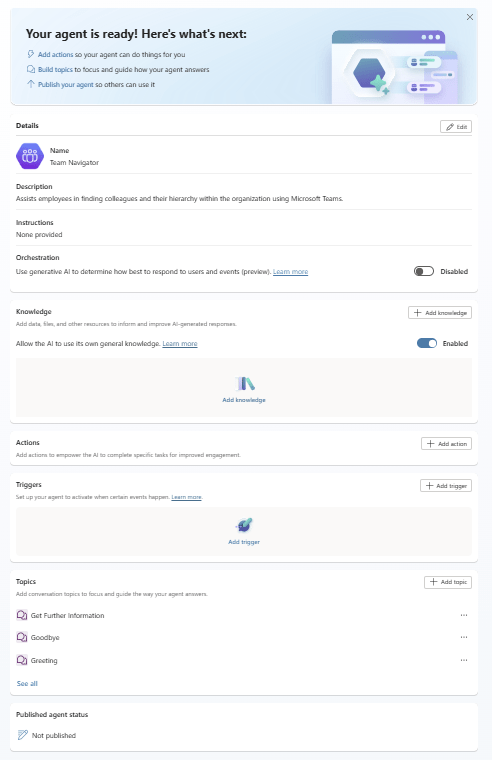
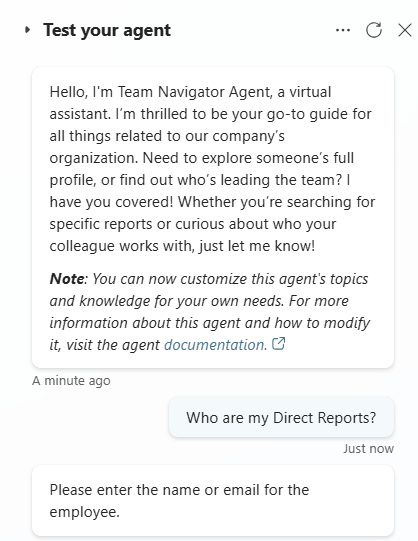
Now we can test the agent.
Understanding how Agents are configured
First of all we need to have a look at the various elements of our agent.
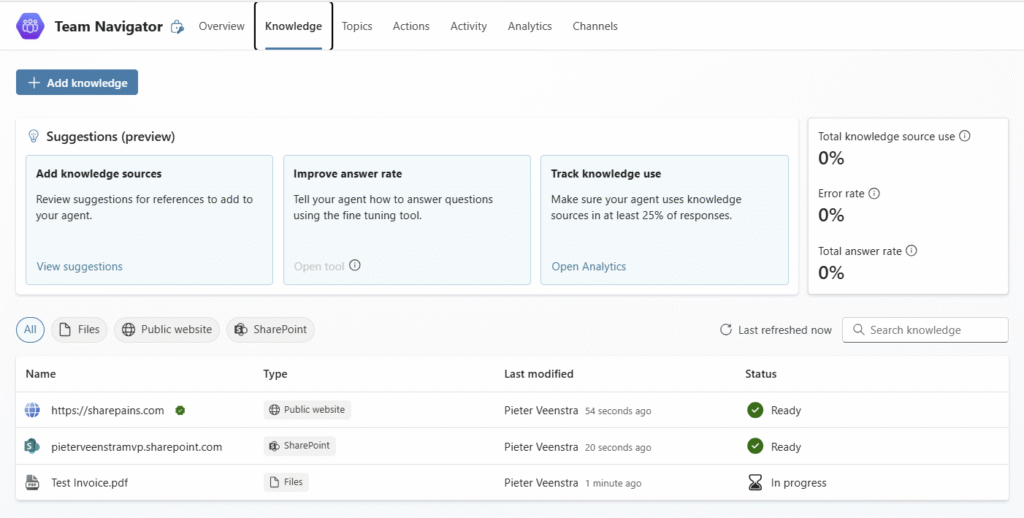
Within Agents, as we saw earlier you can configure Knowledge. Knowledge is the database available to the agent.
After that we have topics. Topics are a small set of steps that handle an event. So for example when you want to start your agent, you might send a welcome message to the user.
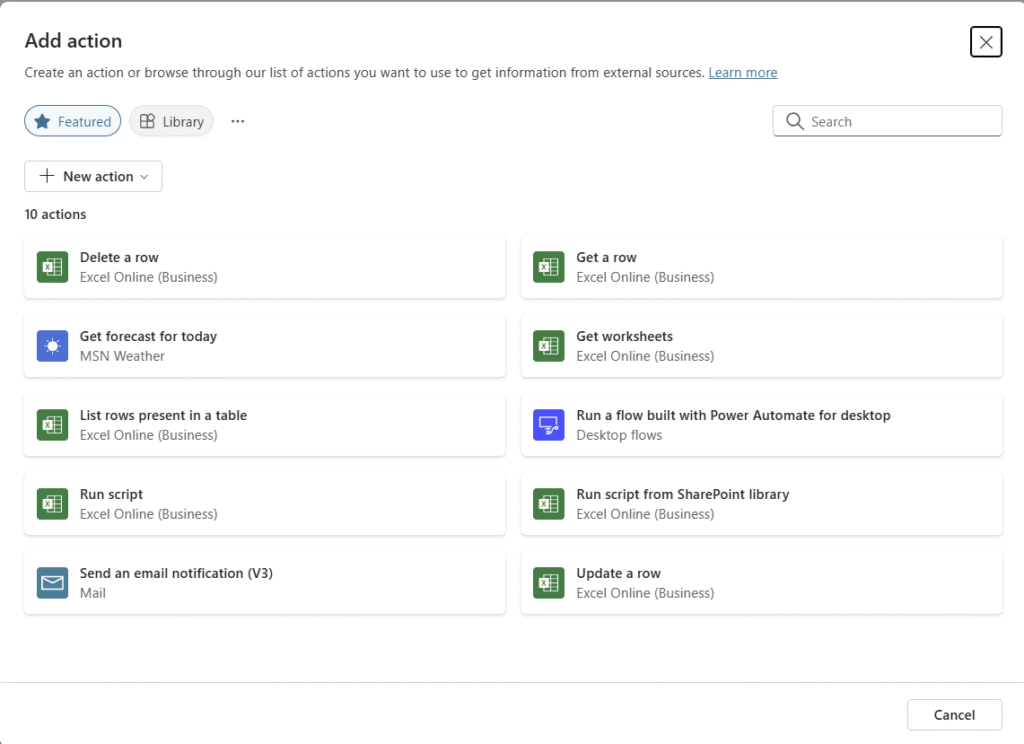
Then we have Actions. Actions are comparable to actions in Power Automate.
Knowledge
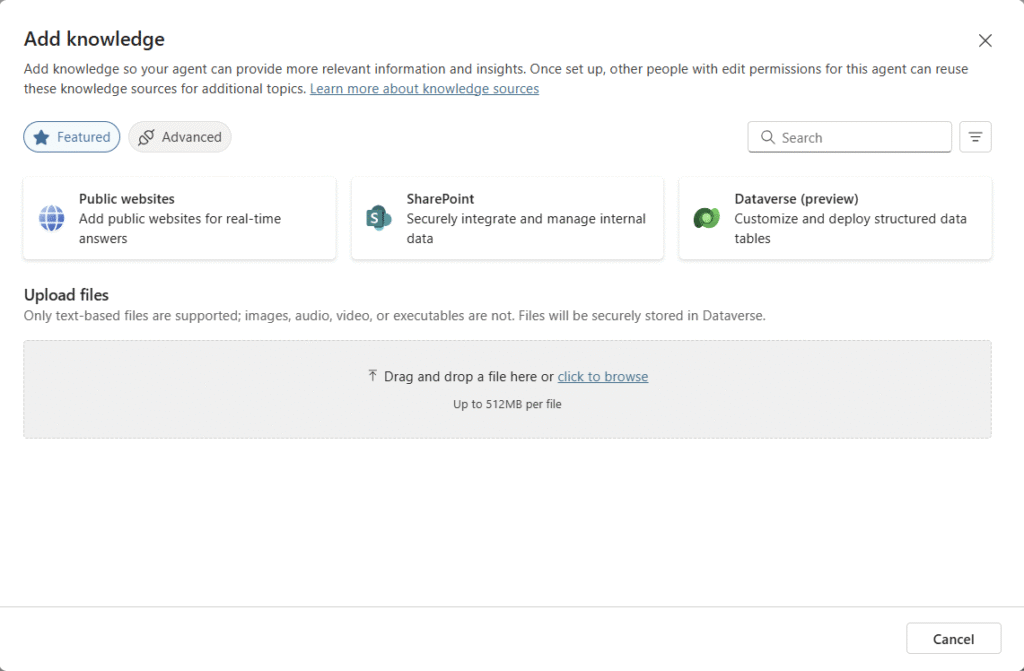
Within the we can add data from Public websites, SharePoint, Dataverse or files.
With all the knowledge, we can then train the agent to supply better answers to the user.
Topics
The Topics are a bit comparable with flows in Power Automate. Each Topic has a trigger followed by one or more steps.
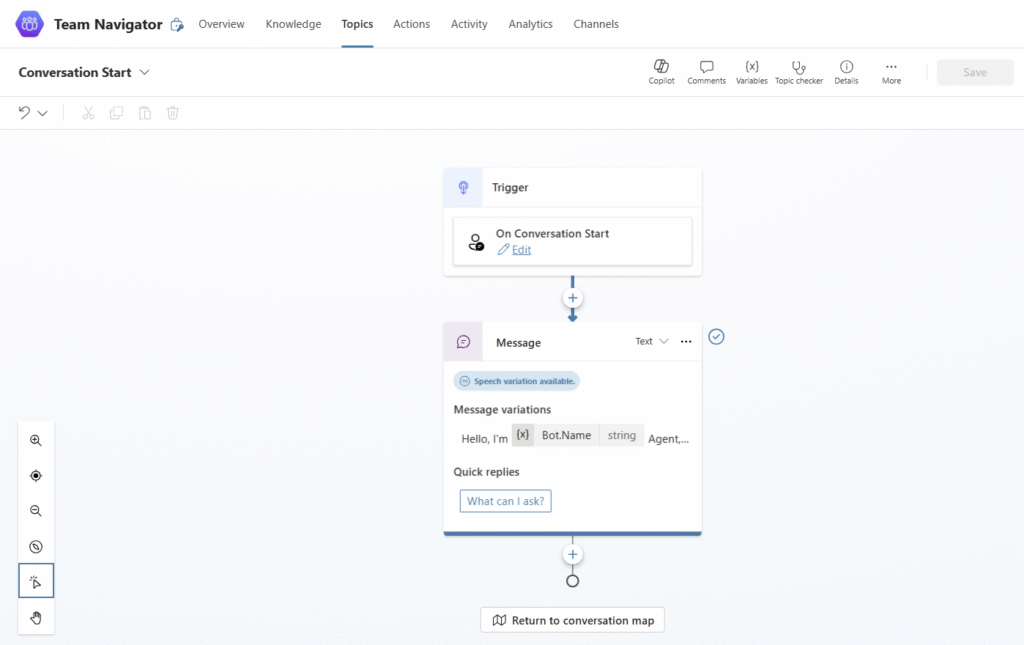
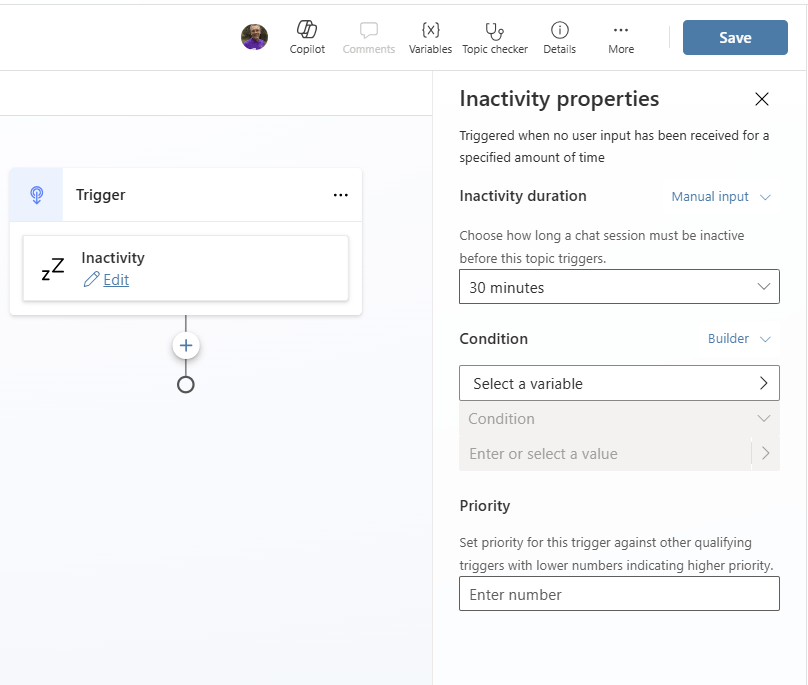
Triggers
So for example if you wanted your agent to wake up after 30 minute
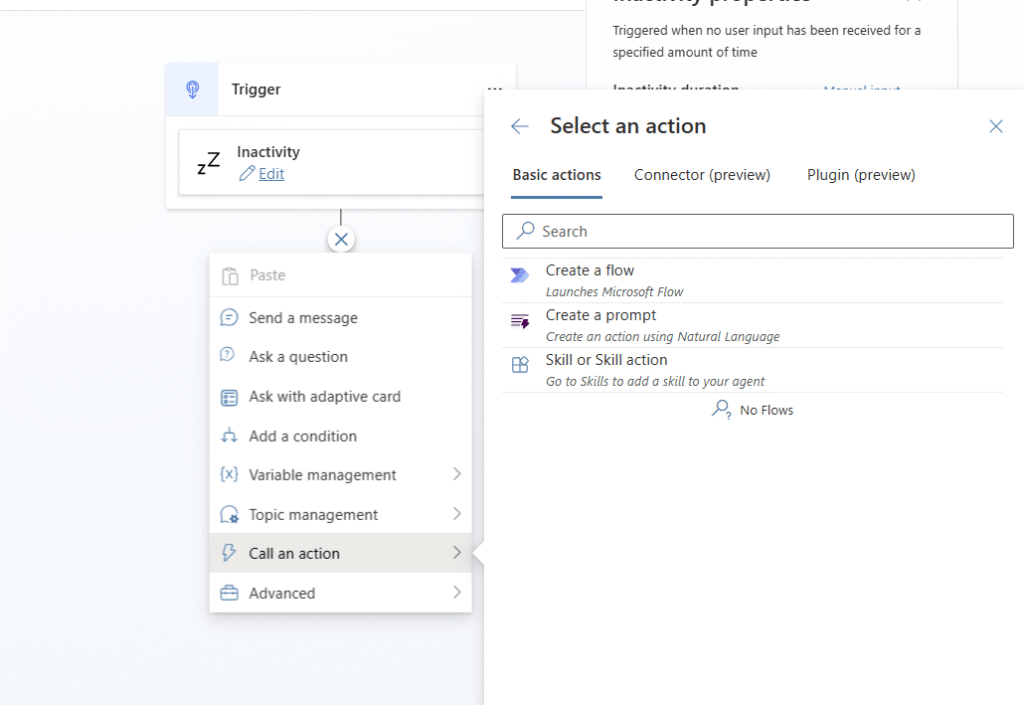
Actions
Once you added the trigger you can add more steps into your topic. So for example you could call a flow after the chat has been inactive for 30 minutes.
More about triggers and actions I will write about soon.
Next steps
Do you want to know more about Copilot Studio then please have a look at the Copilot Studio Ultimate User Guide
Pieter Veenstra

Is your business still running on paper trails, sprawling Excel files, or ageing Access databases? There's a better way — and I can show you exactly what it looks like. I'm the Technical Director of Vantage 365, a Microsoft solutions consultancy working with clients across the UK, the Netherlands, and worldwide. For over 30 years I've been turning messy, manual business processes into clean, automated systems that save time, reduce errors, and give teams the visibility they need to make better decisions. SharePains is not just any blog run by a Microsoft MVP. Have you ever used Try-Catch in Power Automate? The original post about Try-Catch in Power Automate can still be found on this site, https://sharepains.com/2018/02/07/try-catch-finally-in-power-automate-flow/ Or have you ever used the Pieter’s method to avoid variables and speed up your flows? https://sharepains.com/2020/03/11/pieters-method-for-advanced-in-flows/ You can contact me using contact@sharepains.com