It’s quite an old problem, when you use Power Automate, for many connectors when you push them hard enough you will get throttled. How do we avoid throttling from happening?
What is Throttling?
Throttling in Power Automate happens when you use a connector and your flow makes too many calls to that connector. The tricky part is that every connector has a different set of parameters that define its throttling limitations.
If we take the SharePoint connector’s throttling limits as an example. Then we can see that we can make 600 calls in 60 seconds before the we get a new set of 600 calls.
| Name | Calls | Renewal Period |
|---|---|---|
| API calls per connection | 600 | 60 seconds |
Now once we exceed the 600 calls per minute, we will end up in trouble and the connector will start to slow us down.
Now how can we make sure that we don’t make too make API calls. If we know that we can make 600 calls within a minute, we will need to somehow guarantee that we don’t exceed that number.
In the example flow below we know that we will be running 1 + 67 + The number of SharePoint actions inside the second apply to each.

From our example run we can see that the flow run took 3 minutes and 12 seconds. As that means that we are in our 4th minute of running this flow, we could run up to 2400 SharePoint API calls.
In my above example I’m running one SharePoint action inside the “Apply to each 2” step for each item returned by the earlier Get Items action. The Get Items gets all the items for each list found in the Get Lists action. In short it is going to be difficult to predict how many actions I’m running in a minute.
Parallelism in Apply to each steps
In Power Automate, we can set the parallelism to the maximum of 50. This means that 50 iterations will happen in parallel, while Power Automate will still ensure that the output of the steps inside will appear in the right order. See also my post about the Pieter’s method from a few years back.

Now it always feels like setting the parallelism to 50 is a good idea from a performance perspective, however once you end up with throttling issues your flow will slow down. It is better to avoid this. We do however want to aim to run as many iterations as possible.
Retry history
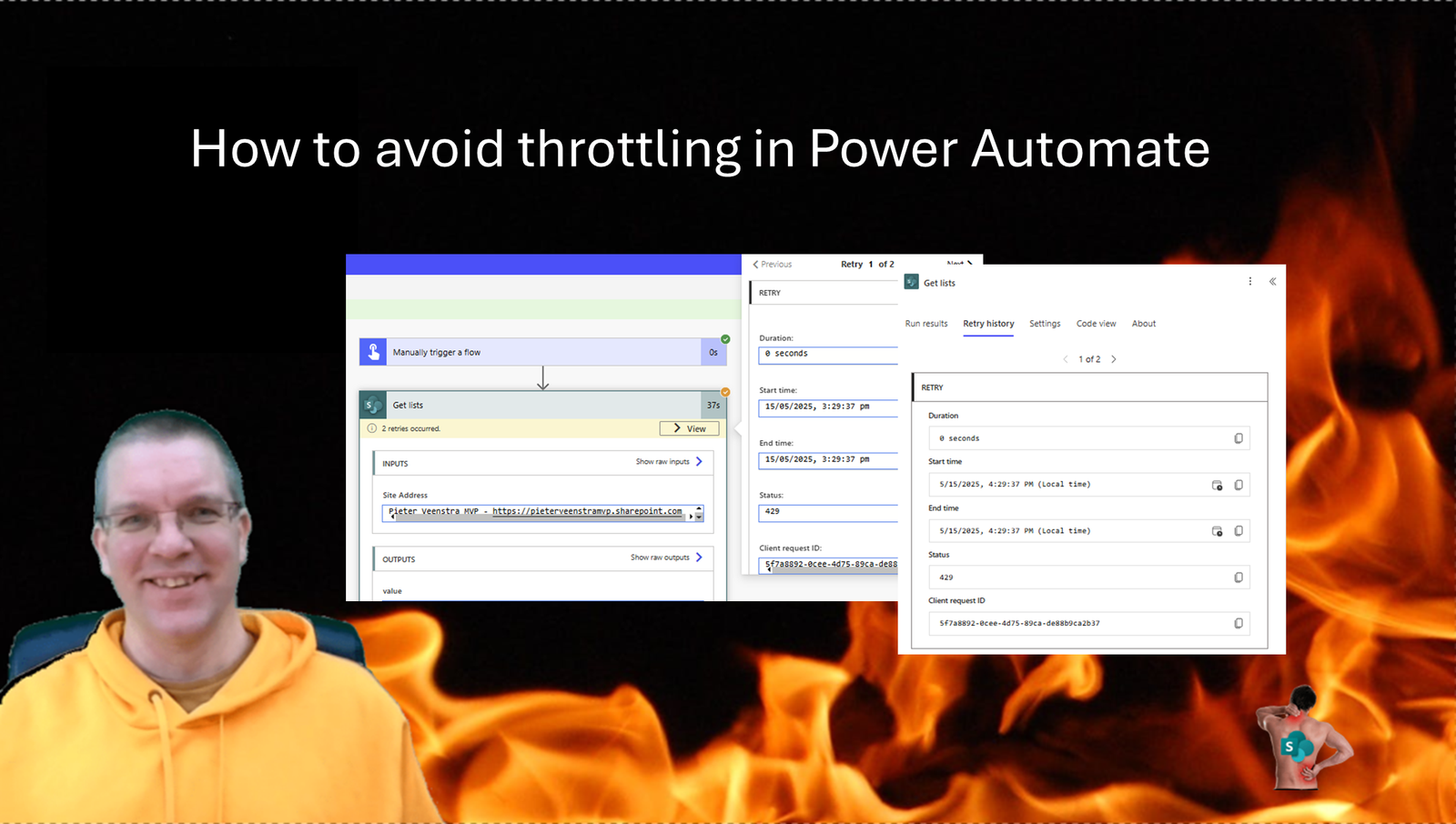
When steps in your flow have been throttled you will find the Retry history tab in your flow run. The Status 429 means that there were retries happening.

This is one of the places where the old UI was still a lot clearer. The yellow warnings used to tell me quite nicely which actions has been struggling to run. I’ve seen people disabling the retry all together however in my example the flow still ended up running successfully. It just took a little bit longer.

Parallel flow runs
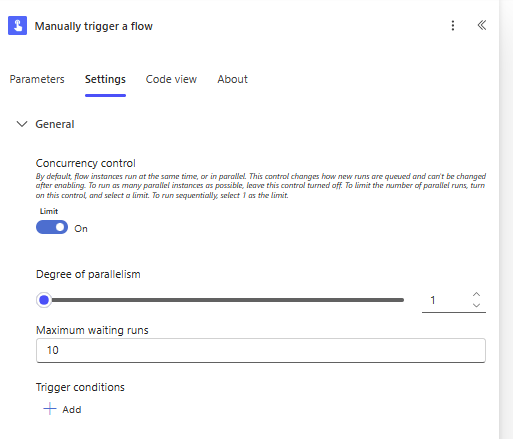
First of all we will need to know how many flow instances we may be running. If we just run one flow at the same time then calculating the risks is suddenly a lot easier. We can control this within the settings of the trigger. Enabling the concurrency control and setting the parallelism to 1 for the trigger can be a good idea.
Calculate the Throttling risk
When I look at the flow, it is useful to understand how long each step in my flow takes while the system is happy and not overloaded. So typical values for Get lists s 0.2 seconds. Get Items 2 second (returning 100 items) and get item takes 0.1 seconds
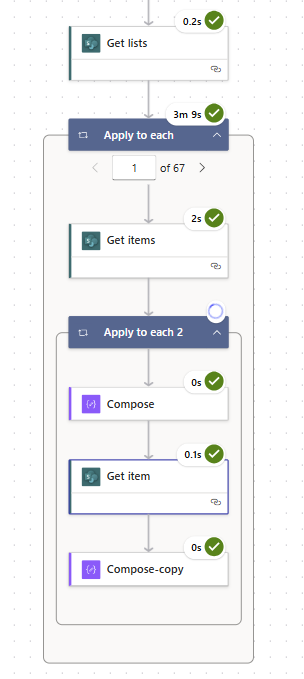
Now if we develop the following flow where we increase the number of get item actions, we will find some throttling issues appear. This is the situation where we want to avoid throttling.
In our case the outer Apply to each will run 50 iterations. The inner apply to each will also run 50 iterations, so this means that 50 get items and 50 (parallelism appy to each 2) x 4 x 50 (parallelism appy to each 2) get item actions are running at the same time. From our earlier analysis we know that 10000 API calls at the same time. So we are at risk of hitting the throttling limitations.
Please that 0.1 seconds multiplied by 600 equals 60 seconds. This is not always the case but it makes the sums easier in this case.
To avoid throttling, we can now put a delay into our apply to each. So that we pause for 1 minute when we are at risk of overloading the SharePoint connector.

Some further thoughts and control the actions
Should we always put in 1 minute delays when a system could go wrong? I would like to suggest no. This is why Power Automate has its retry setting. However if the retry settings still don’t resolve the issues then a delay may help.
Reducing the parallelism however is a better option. Try and ensure that the parallelism 1 * number of steps * parallelism 2 is less than 600 and you might be better off without the need for pauses in your flow. This calculation is assuming that you have nested apply to each steps. For other setups of flows the calculation may be slightly different of course.
FAQs
What does a return code of 429 mean?
429 is returned when throttling is happening however a retry is still possible. If reties fail as well 503 error messages may be returned.
Pieter Veenstra

Is your business still running on paper trails, sprawling Excel files, or ageing Access databases? There's a better way — and I can show you exactly what it looks like. I'm the Technical Director of Vantage 365, a Microsoft solutions consultancy working with clients across the UK, the Netherlands, and worldwide. For over 30 years I've been turning messy, manual business processes into clean, automated systems that save time, reduce errors, and give teams the visibility they need to make better decisions. SharePains is not just any blog run by a Microsoft MVP. Have you ever used Try-Catch in Power Automate? The original post about Try-Catch in Power Automate can still be found on this site, https://sharepains.com/2018/02/07/try-catch-finally-in-power-automate-flow/ Or have you ever used the Pieter’s method to avoid variables and speed up your flows? https://sharepains.com/2020/03/11/pieters-method-for-advanced-in-flows/ You can contact me using contact@sharepains.com