My WordPress blog SharePains has been running on WordPress for a very long time now. With so many posts it is a real challenge to make sure that there aren’t any broken links and other issues in any of the posts.
Automating the management of a WordPress site
In the Power Platform there has been a useless WordPress connector for a very long time. Recently however a second WordPress connector was added.
With this connector I’ve been working on a tool that doesn’t just report issues to me, it also validates and fixes issues. Automatically fixing issues can be a tricky one. In my case I found a variety of reasons why I ended up with broken links. Manually fixing these has still my preference in some cases but in other cases I might as well get Power Automate to fix the links for me.
I created a number of flows in my solution that checks my WordPress site.
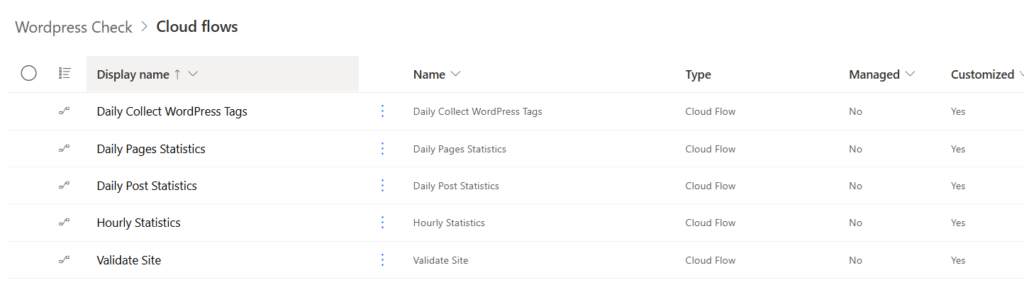
In this post about the WordPress Connector (WP Connectr) I will focus on the collection of my post data through the connector.
Installing the Power Automate plugin
First of all I had to install a Power Automate Plugin. This plugin will enable Power Automate to connect to my site without the need to affect the visitor stats. Once you have installed the plugin you should see the Power Automate link appear in you WordPress Admin centre.

Dataverse
In my case I created Dataverse tables that will hold a copy of my WordPress site. Now you could of course read the WordPress databases and update them directly, however I’m going for the approach of copying the data into Dataverse tables so that I can also have a Model Driven App showing me the content within my site.
Managing posts in a Model driven app is a lot faster than through WordPress itself.
Building the flow to manage a WordPress blog
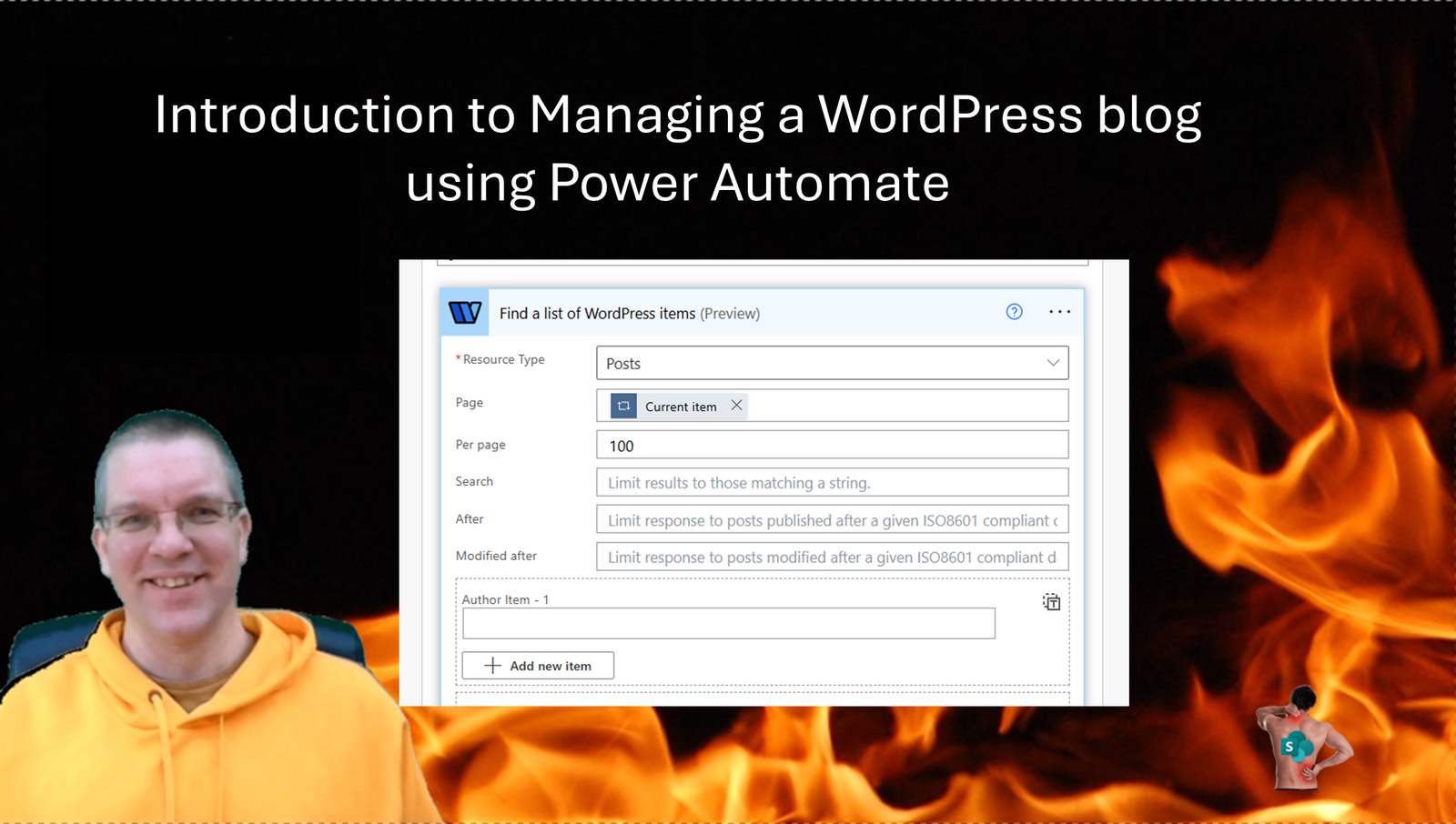
The connector allows us to read our posts in batches of 100. These batches are called pages in the connector as the connector is paging. The term pages however can be confusing as pages can also be created in WordPress similar to posts.
To allow us to read more than 100 posts, I’ve created an array with a sequence 1 – 11. An Apply to each is processing this array.
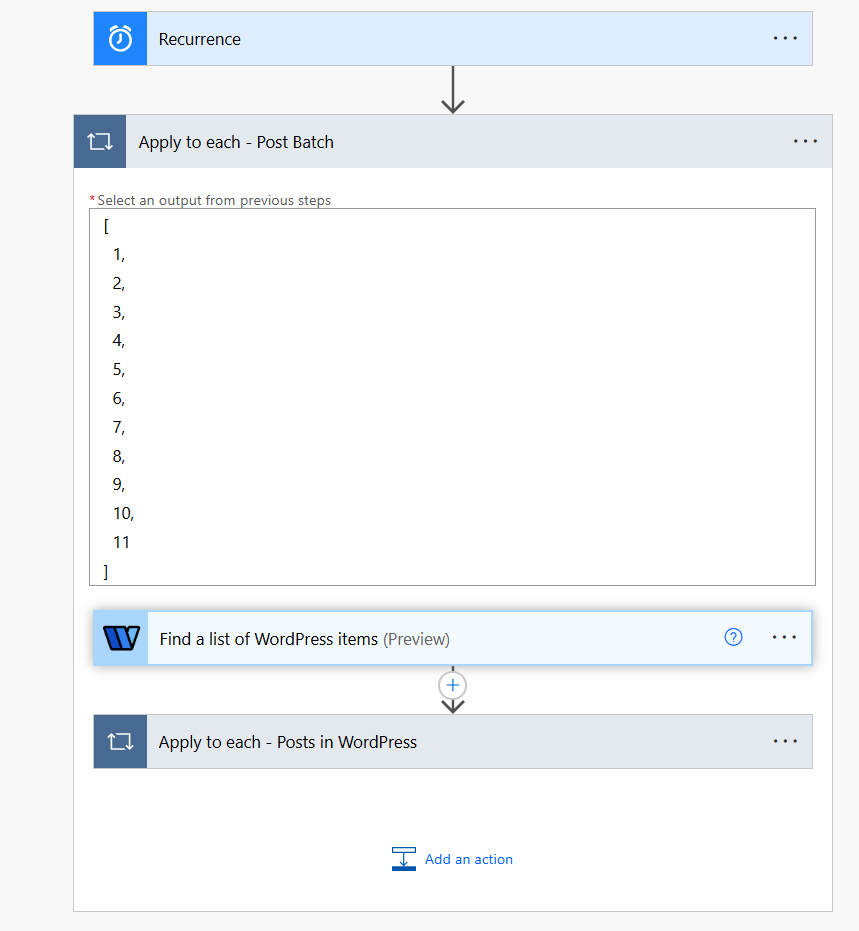
Each iteration of the apply to each will now read 100 posts before they are processed.
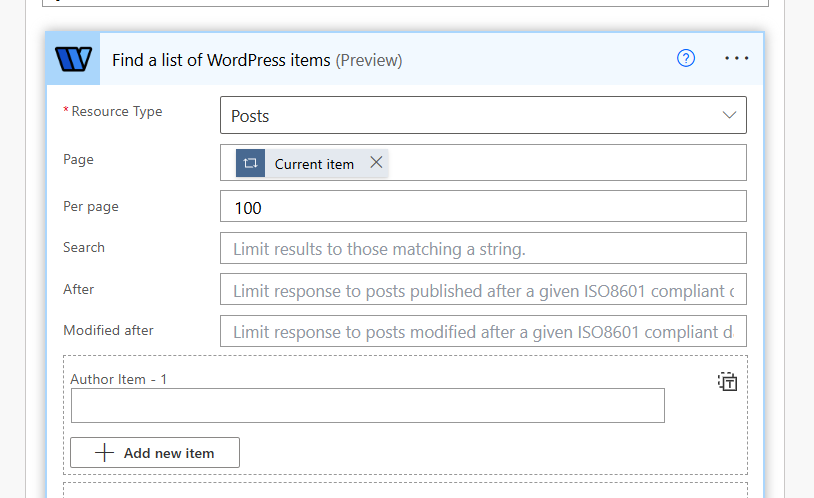
This is all easy. However the selction of posts is done through the Resource type. This may look like a dropdown of options, but it is not. You will have to add custom values.
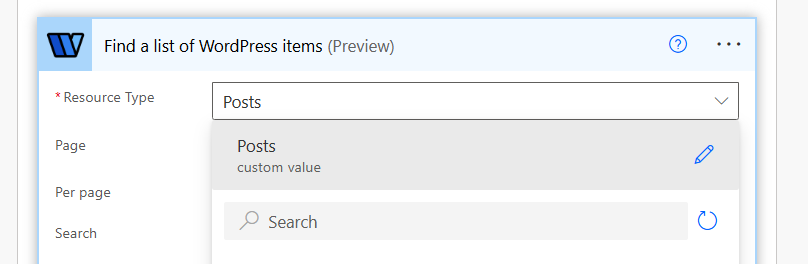
Also in the new UI you have to type the Posts option.
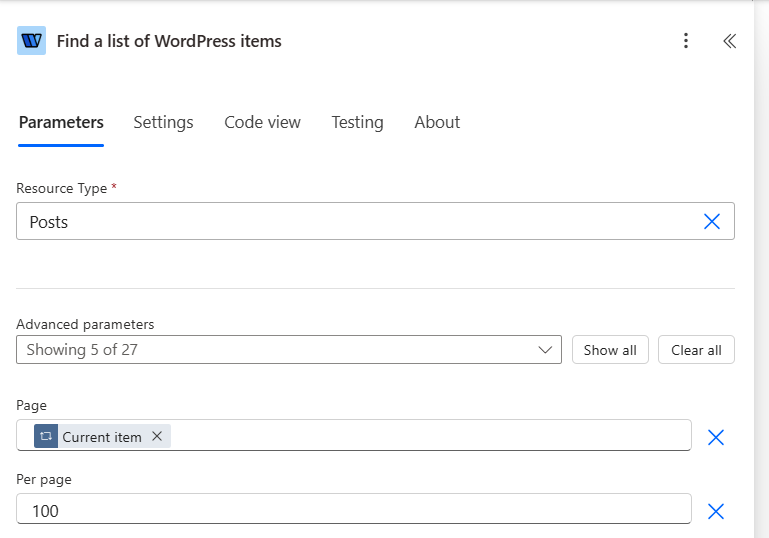
How would we get all those other resource types?
Well there are quite a few options available:
- Posts
- Pages
- Post Types
- Post Statuses
- Taxonomies
- Users
- Attachments
- Categories
- Comments
Reading most of your data from WordPress becomes very easy now that we can read data using this connector.
Updating my Dataverse tables with copies of my data is now easy. Read the records from Dataverse and then either create the records in my Posts table or update the existing records. In my case I will go through the content of the posts as part of my site validation flow where I can then correct any links or missing alt texts on images.
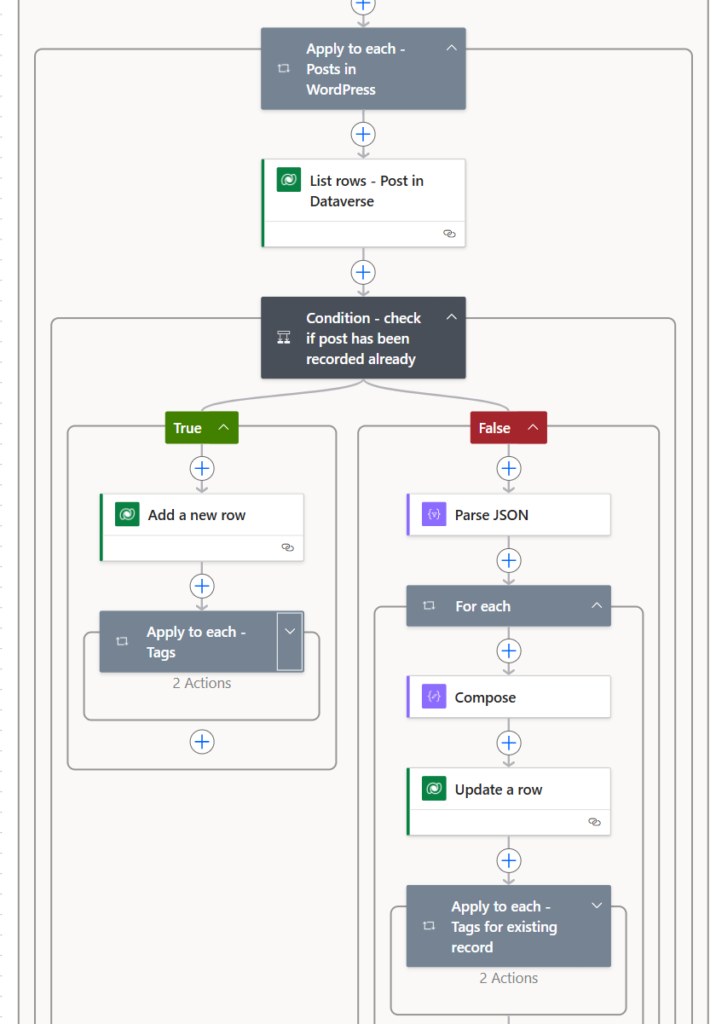
I will look at the updating process in part 2 of this series.
Pieter Veenstra

Is your business still running on paper trails, sprawling Excel files, or ageing Access databases? There's a better way — and I can show you exactly what it looks like. I'm the Technical Director of Vantage 365, a Microsoft solutions consultancy working with clients across the UK, the Netherlands, and worldwide. For over 30 years I've been turning messy, manual business processes into clean, automated systems that save time, reduce errors, and give teams the visibility they need to make better decisions. SharePains is not just any blog run by a Microsoft MVP. Have you ever used Try-Catch in Power Automate? The original post about Try-Catch in Power Automate can still be found on this site, https://sharepains.com/2018/02/07/try-catch-finally-in-power-automate-flow/ Or have you ever used the Pieter’s method to avoid variables and speed up your flows? https://sharepains.com/2020/03/11/pieters-method-for-advanced-in-flows/ You can contact me using contact@sharepains.com