
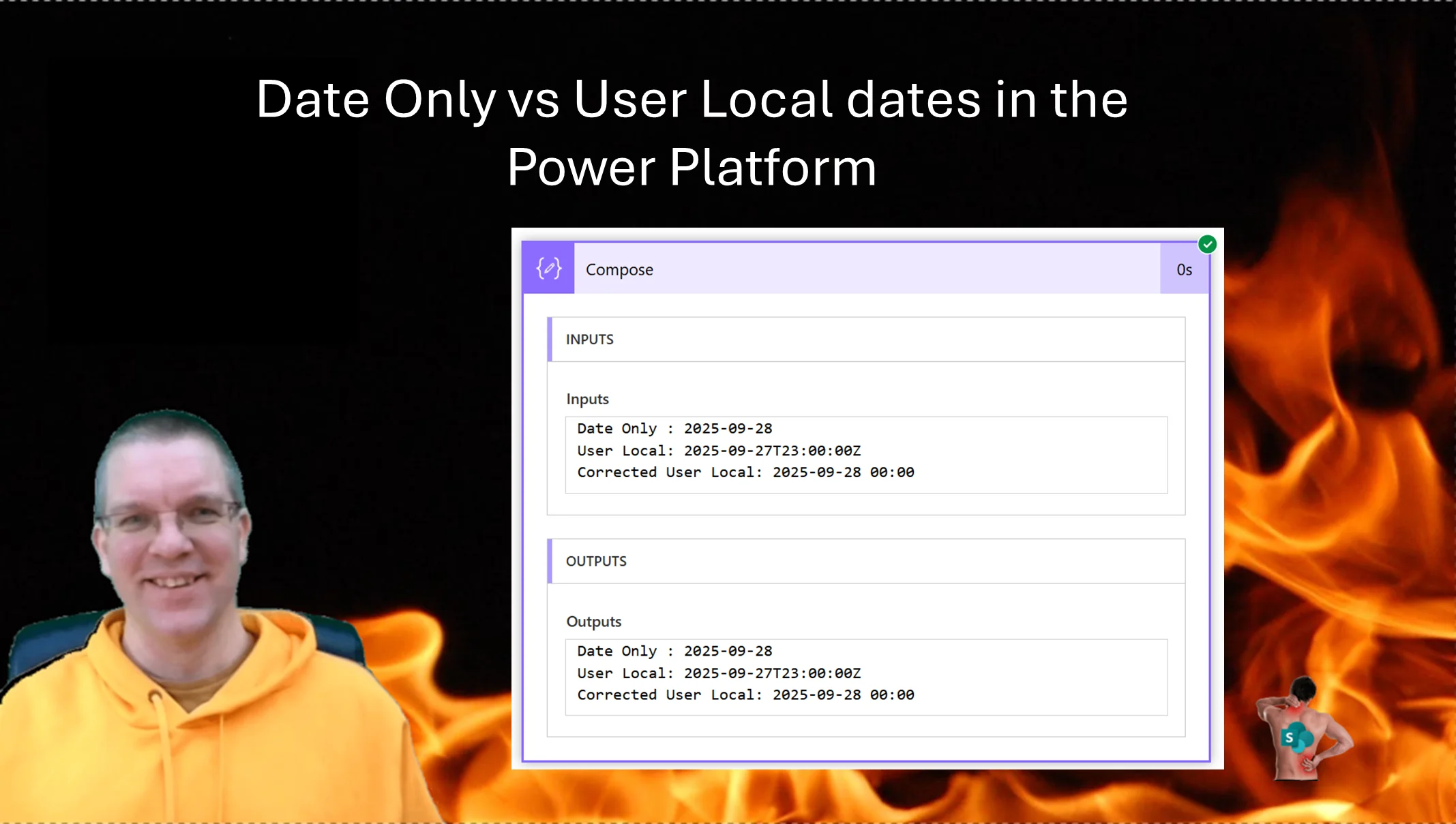
In this post I’m looking at Date Only vs User Local dates in Dataverse and how this may affect your solutions in the Power Platform. Have you ever had a date appear in Power Automate as a day out?
Creating a date field in Dataverse
When you create a date field in Dataverse you will find that under the Advanced settings for the date field a Time zone adjustment for the date field. This is set to User Local by default.
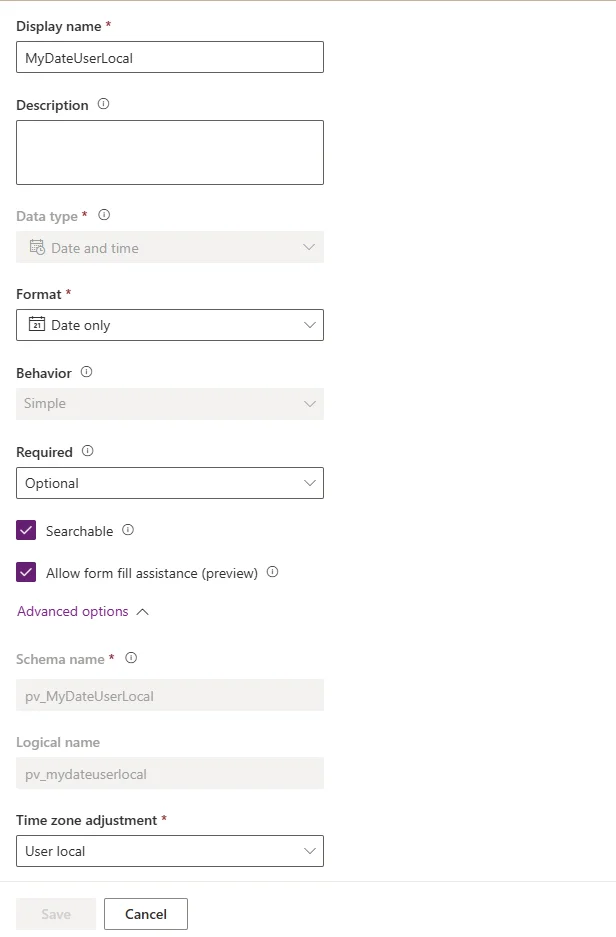
In many situations this is how you might want dates to be configured. But there are a few challenges.
Imagine you have an app that writes a date to your date field. For the example in this post I’ve created a table MyDates, with two custom columns. MyDateUserLocal is configured with the default setting where as MyDate is configured slightly differently.
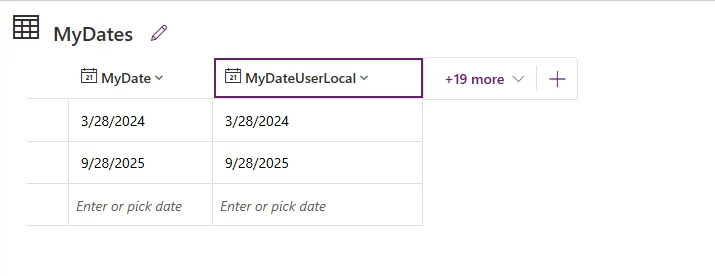
For the MyDate column, I set the Time Zone adjustment as follows to Date only.
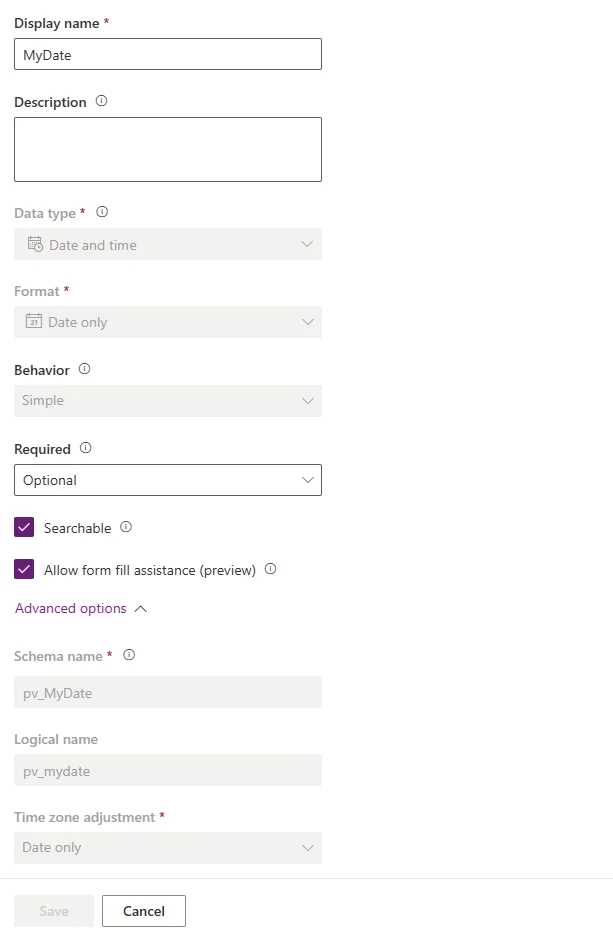
Have you noticed that this Date only setting is one way street! You can set your date to Date only but you can’t set it back.
The issues with Local User
Now in my case, I’m having a column that uses the default Local User setting for a date field. In Power Automate, I’m reading the date and some weird behaviours are popping up. When I’m using the Date only option things are fine.
Now first I’m going to have a look at a date 2024-03-28 (28 March 2024), this date sits within the UK winter time also know as GMT. My User Local field is displaying my date as 2024-03-28T00:00:00Z. Now this is all ok.

Now we see the maybe unexpected behaviour. The User Local time (My Power Automate user is based in the UK), is set to 11pm in the evening the day before the date that I entered. The default time of 00:00 is a real pain here. This is why the format of Date Only is available.
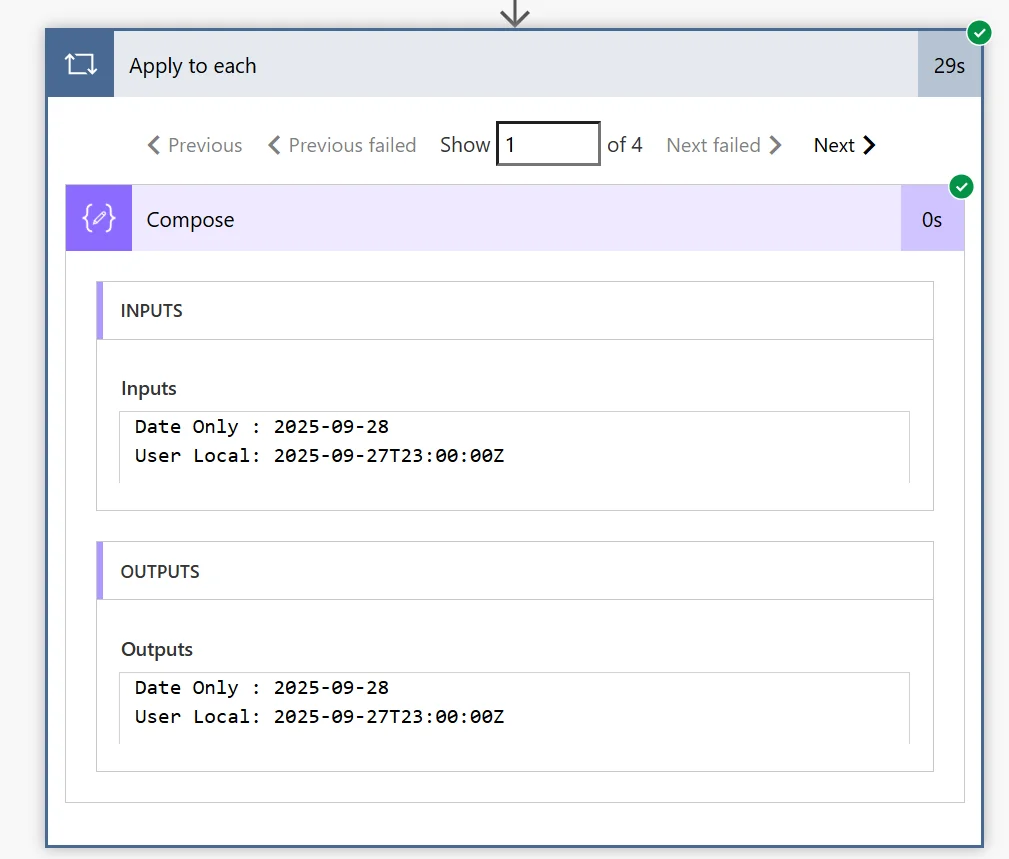
So how do we get the date when our user is not living in the UTC time zone. At the moment formatting the date to yyyy-MM-dd will give us the wrong date.
Solution 1 – Use Date Only
Date only would be a great solution as the date entered is static and there is no time zone correction applied. But what if you already have data in your database. Do you feel confident changing the data type of a field and there is no way back? What if you make some misjudgement? Or how about if your business goes international and you do want to take advantage of the local user setting? Or maybe the User Local features are used somewhere else in your app already.
Solution 2 – Convert the time zone
In my case the dates are only used in a PDF report. So as long as I can convert my dates to the right dates in Power Automate, the system will be fine.
So we now need to use one of the time zone conversion functions available in Power Automate. It is important that you pick a time zone that matches your winter/summer time correction dates. So in my case GMT Standard Time will sort that out.
Now using the convertFromUtc function will take our date and correct the one hour time change when needed.
convertFromUtc(items('Apply_to_each')?['pv_mydateuserlocal'], 'GMT Standard Time', 'yyyy-MM-dd HH:mm')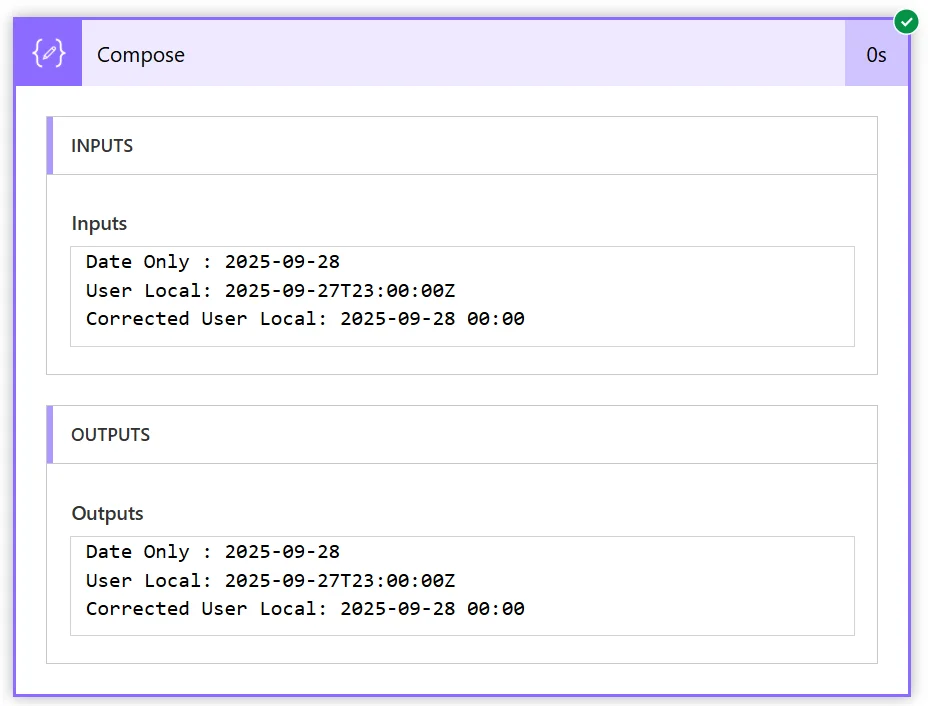
And for for dates where we don’t need to correct the time zone, we are still all ok as well.
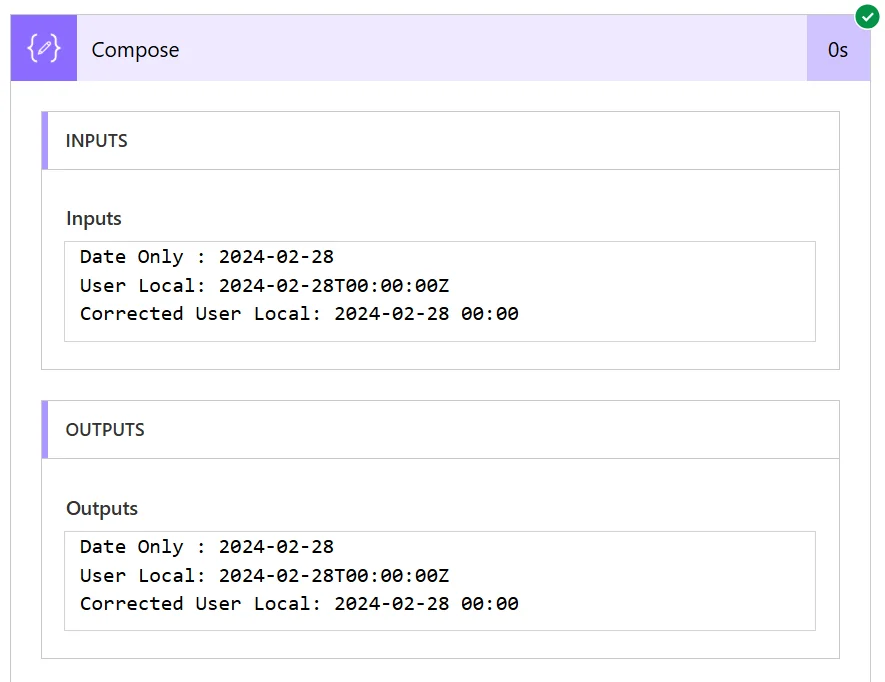
Now all we have to do is ensure that the we format the dates without the time.
convertFromUtc(items('Apply_to_each')?['pv_mydateuserlocal'], 'GMT Standard Time', 'yyyy-MM-dd')Reading data from Dataverse into the Date picker in Canvas Apps has some issues. Please read my post about the Datapicker issues for more details.
Pieter Veenstra

Is your business still running on paper trails, sprawling Excel files, or ageing Access databases? There's a better way — and I can show you exactly what it looks like. I'm the Technical Director of Vantage 365, a Microsoft solutions consultancy working with clients across the UK, the Netherlands, and worldwide. For over 30 years I've been turning messy, manual business processes into clean, automated systems that save time, reduce errors, and give teams the visibility they need to make better decisions. SharePains is not just any blog run by a Microsoft MVP. Have you ever used Try-Catch in Power Automate? The original post about Try-Catch in Power Automate can still be found on this site, https://sharepains.com/2018/02/07/try-catch-finally-in-power-automate-flow/ Or have you ever used the Pieter’s method to avoid variables and speed up your flows? https://sharepains.com/2020/03/11/pieters-method-for-advanced-in-flows/ You can contact me using contact@sharepains.com

