
Yesterday, I looked at how to filter data when making an API call using the HTTP action and noticed that filtering data isn’t always straight forward. In this post, you will find the details on how to filter data in Power Automate.
The examples in this post
In this post I’m querying data in SharePoint just because the SharePoint APIs and connector are quite complete in its options that are available. The issue that I ran into yesterday was with a different API, that wasn’t as good. Hence this post to give the various options available to filter data.
Option 1 – Filter data the easy way
If you are lucky then you are working with systems that have a connector that has all the options available. The SharePoint connector’s get items has a filter option available that makes things easy. The OData filter setting on the Get Items action makes thing easy.
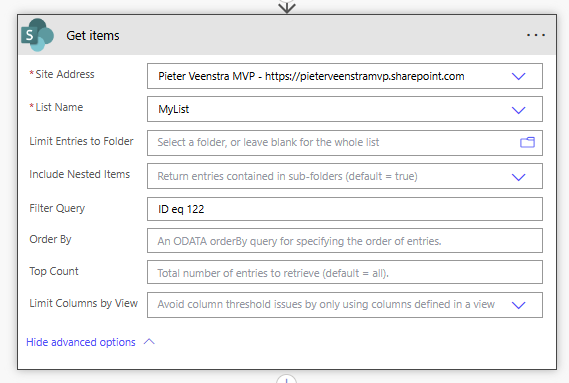
The above example gives me item 122 from the MyList in SharePoint. All easy to configure. If you need any help setting up the query then please follow the earlier mentioned link about the filter query setting.
Option 2 – $filter query string
Option 2 is slightly more difficult, but still nothing really complicated. The SharePoint API supports the $filter query string parameter which we can use to filter our data with. The queries follow a similar pattern as before.
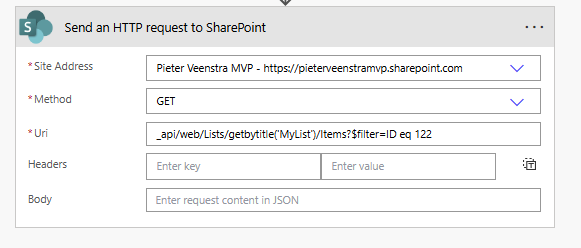
If however we specify $filter=Title eq ‘Test’ then we will find the HTTP action retrying. Ok, that’s not so nice.
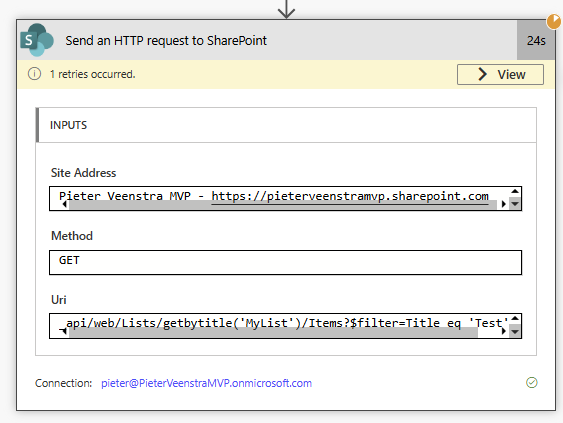
If however we look at the output of the action, we will find that the issue isn’t really related to the query but the number of items in my list.
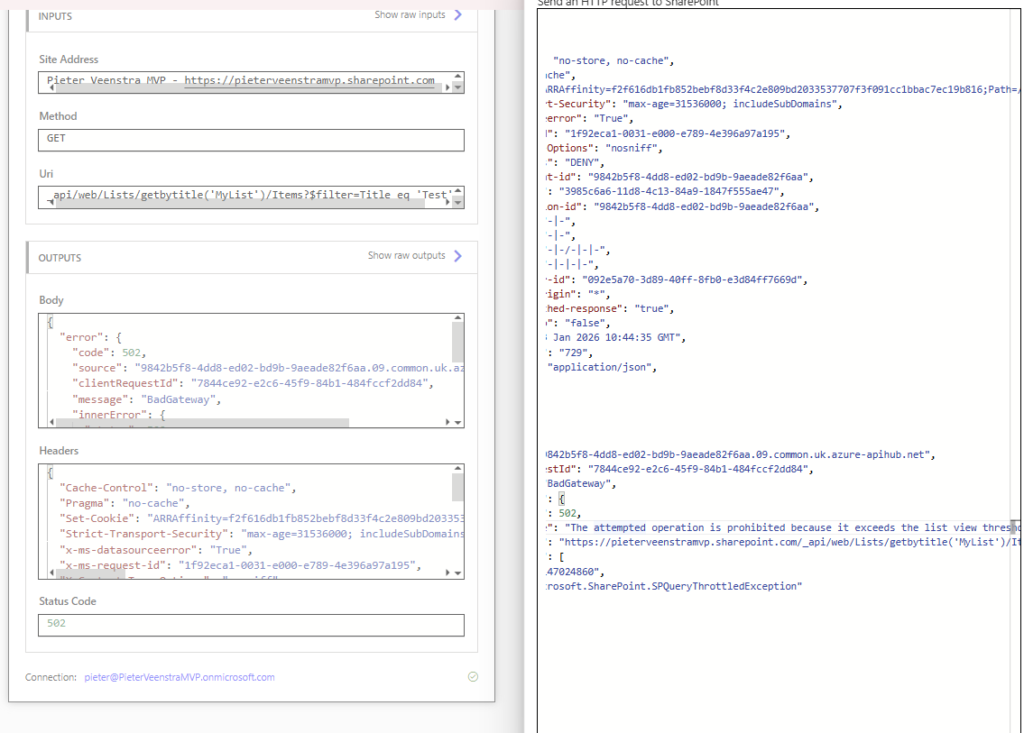
The attempted operation is prohibited because it exceeds the list view threshold.Is this that 5000 items issue that people always complain about? No!
Just create an index on your Title column ( or which ever column you are using in your query and the API will be able to return the required data to your flow.
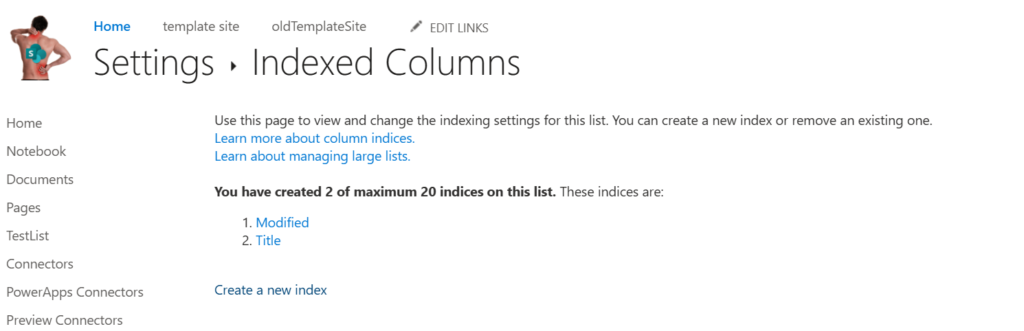
And now we can simply query our items using the Title field.
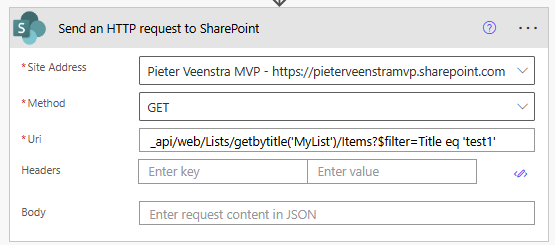
Option 3 – HTTP action with $filter
For the 3rd option I’m using the Premium HTTP action. To get all items from my list returned I can simply configure the HTTP action to call my /items endpoint.
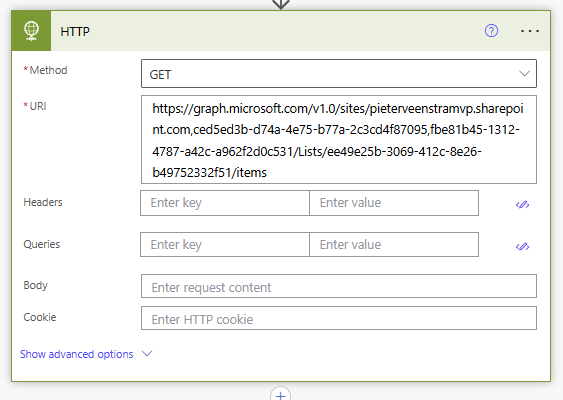
Now when we add our filter query to the URL we will suddenly get that annoying error message Enter a valid uri.
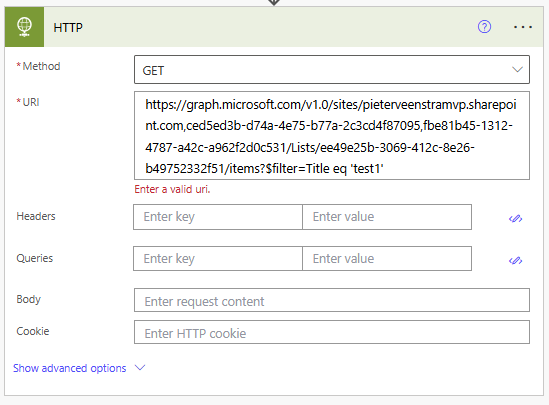
This is where the HTTP action has its Queries settings. To resolve this we first have to expand our fields before we can query our properties. Ok, this is a bit more painful.
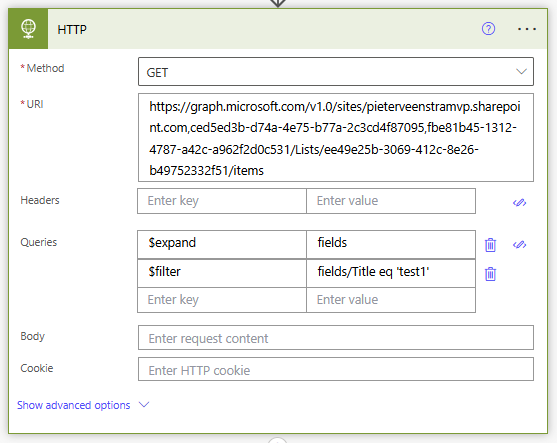
Option 4 – Use the Filter Array action
Using the Filter action is probably the worst option to go for. In the From section you supply the data you have and then simply filter the values of your properties.
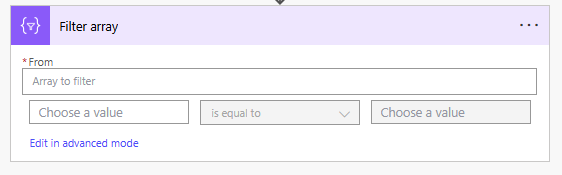
Nothing too complicated, so why is this so bad? Well imagine the list that I used earlier, we have 1000s of items. The flow will first read all data before we then decide that the flow only uses a very small subset of the data. That will most likely slow your flow down. There are of course always some good reasons for using filter actions. Especially when your API doesn’t offer the filter options shown in this post.
Pieter Veenstra

Is your business still running on paper trails, sprawling Excel files, or ageing Access databases? There's a better way — and I can show you exactly what it looks like. I'm the Technical Director of Vantage 365, a Microsoft solutions consultancy working with clients across the UK, the Netherlands, and worldwide. For over 30 years I've been turning messy, manual business processes into clean, automated systems that save time, reduce errors, and give teams the visibility they need to make better decisions. SharePains is not just any blog run by a Microsoft MVP. Have you ever used Try-Catch in Power Automate? The original post about Try-Catch in Power Automate can still be found on this site, https://sharepains.com/2018/02/07/try-catch-finally-in-power-automate-flow/ Or have you ever used the Pieter’s method to avoid variables and speed up your flows? https://sharepains.com/2020/03/11/pieters-method-for-advanced-in-flows/ You can contact me using contact@sharepains.com

Hi Peter, Love your work. What’s your typical use case for using the Http Get Items action?
In most cases I would use the Get Items action that comes with the SharePoint connector. However, the HTTP action is a bit more flexible if you want to dynamically construct the request. Also, you would avoid the connector limitations (not the API limitations of course)