
As the SharePoint Embedded connector was released last night, I thought it would be useful to start a series of posts about SharePoint Embedded within the Power Platform.
What is SharePoint Embedded?
SharePoint Embedded is described by Microsoft as an API only version of SharePoint.
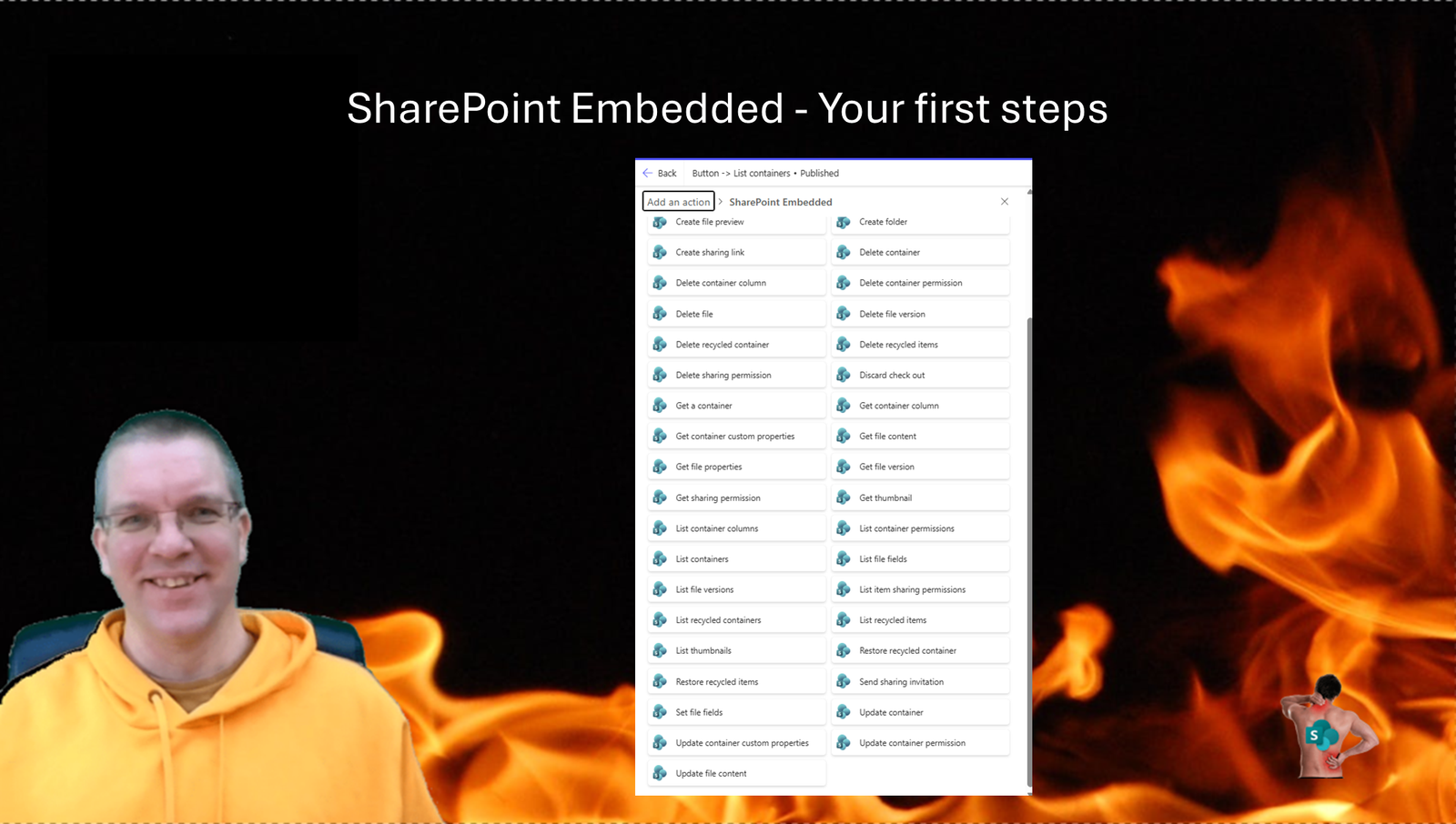
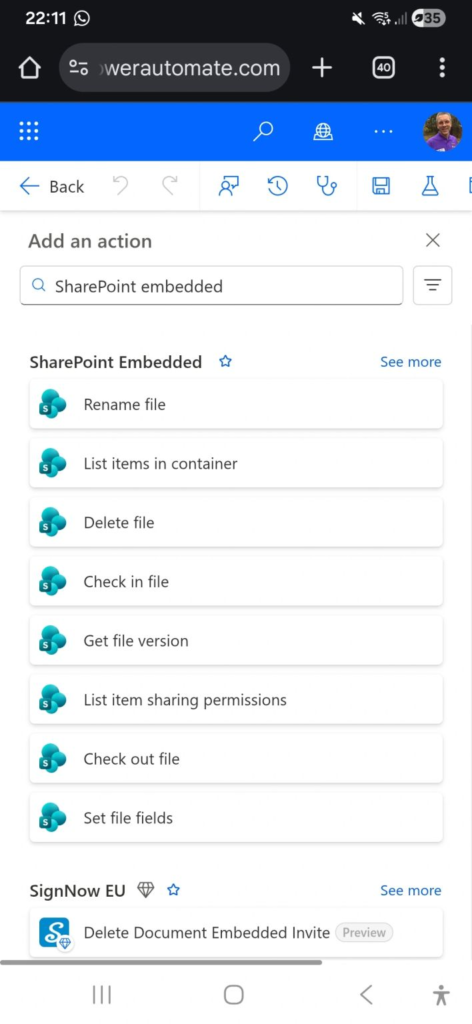
But it is actually quite a different beast. As you can see in the screenshot the actions available within the connector are very different then we are used to and the whole structure of the technology is very different.
However, it is still all about files and managing files.
In this post I will go through the initial steps that you will need to go through to configure SharePoint Embedded in your tenant.
I will be using the trial options so that I don’t have to worry about paying the bills. This means that after 30 days my trial will expire.
The first steps are to set up an app registration.
Create you SharePoint Embedded App Registration
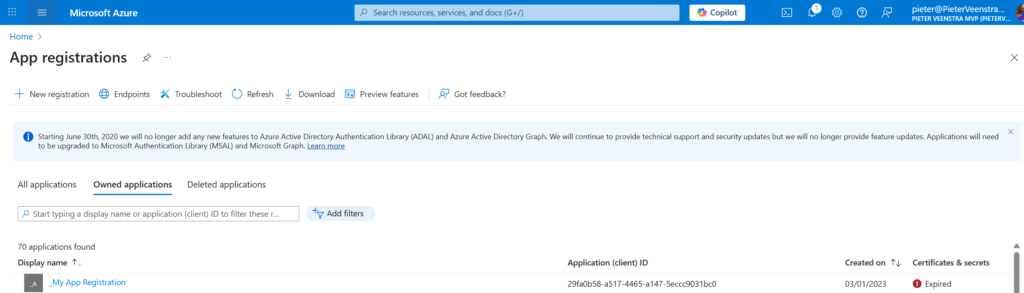
So I’m going to Microsoft Azure and type App Registration in the search in the blue bar and I will get to my app registrations.
Within App registration I can create an app registration that we will need to control the permissions needed by SharePoint Embedded.
If you have created app registration before then you may know that you can create app registrations, however each app registration will need to be approved by a global admin.
So you might want to get your global admin to create the app registration in the first place.
To create the app registration click on the New registration.
When you click on New registration you can give your app registration a name. You can set the Name to anything you like. It is useful to name app registrations with some form of organisational standard, as the list of app registrations will get longer and longer.
- Name: SharePoint Embedded app
- Supported account types: Accounts in any organizational directory (Any Microsoft Entra ID tenant – Multitenant)
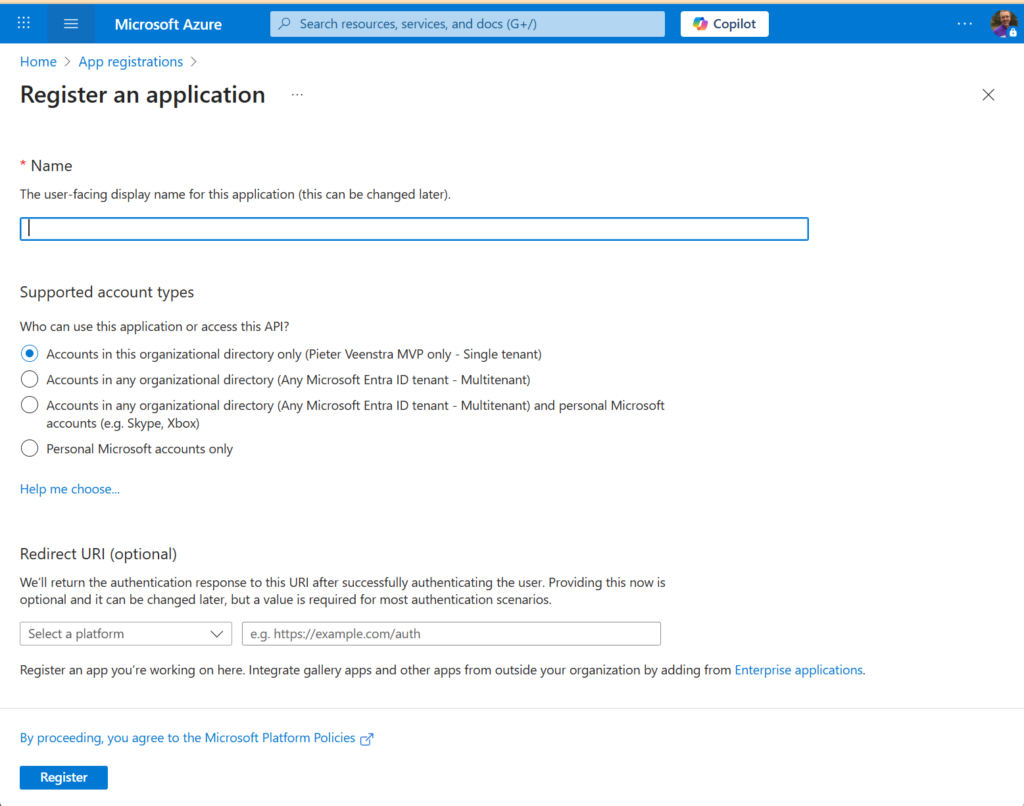
Once you are ready click on the Register button.
We now have an app registration created however the authentication, permissions and certificates still need to be sorted out.
Configure Authentication
Within your app registration go to Manage -> Authentication and click on Add Redirect URI.
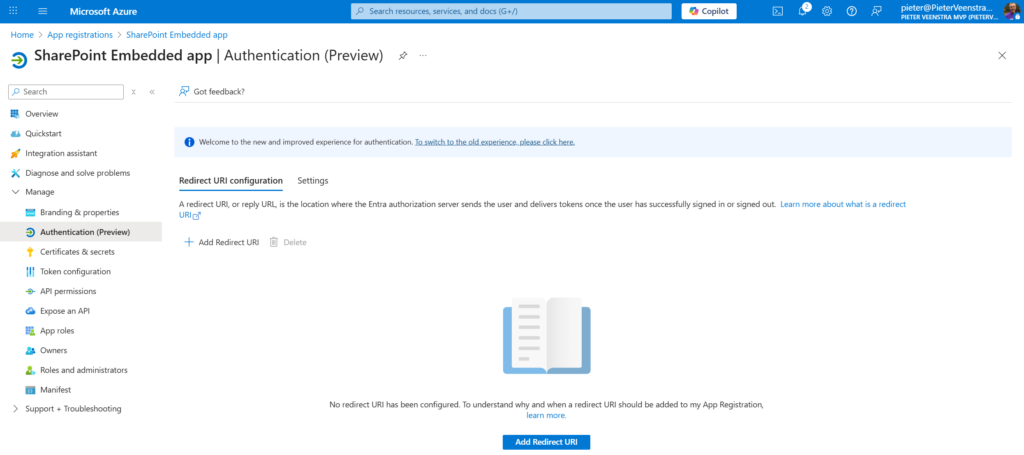
Then select Web.

Then enter the following URL as the Redirect URI and click on Configure
https://oauth.pstmn.io/v1/callback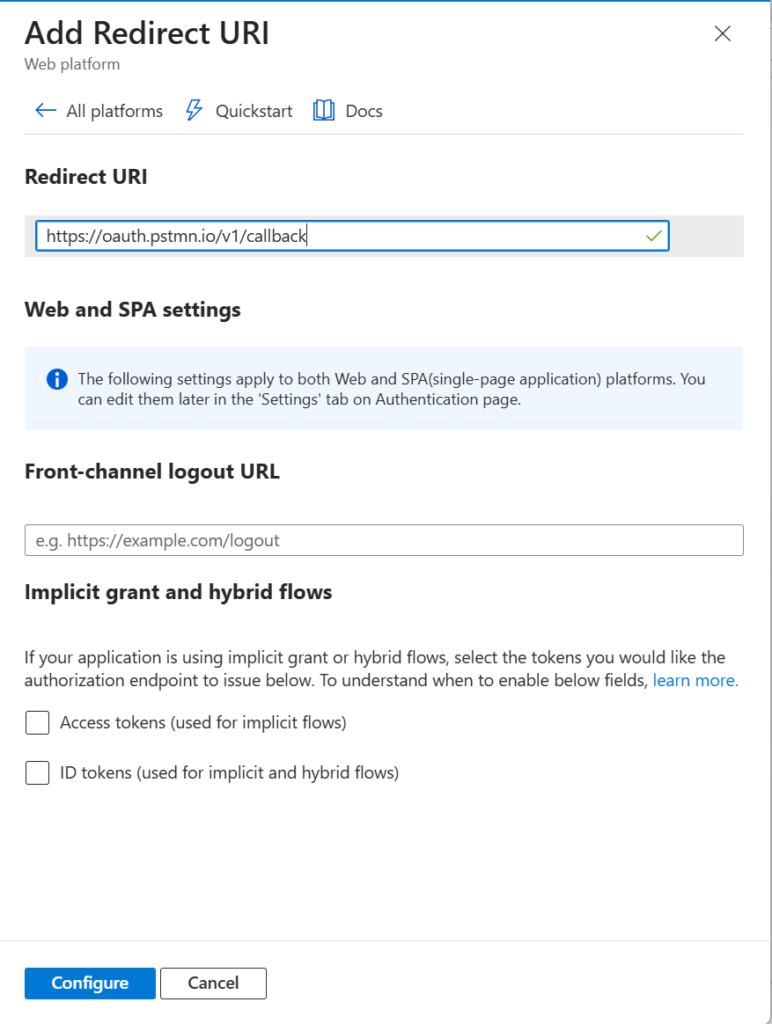
Add a second Redirect URL and use the
https://oauth.pstmn.io/v1/browser-callback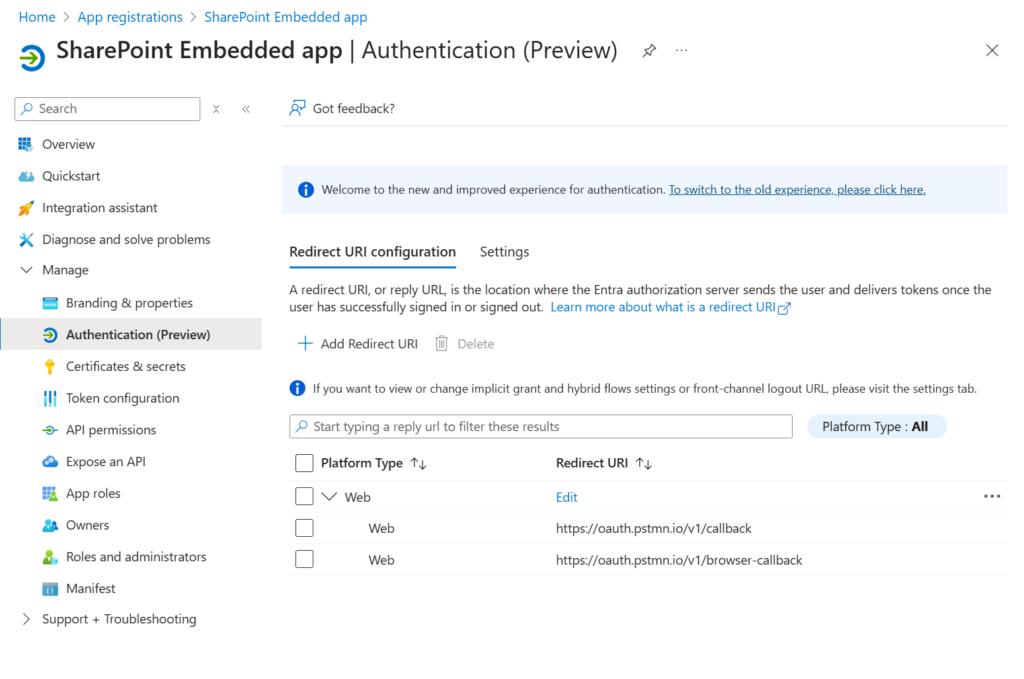
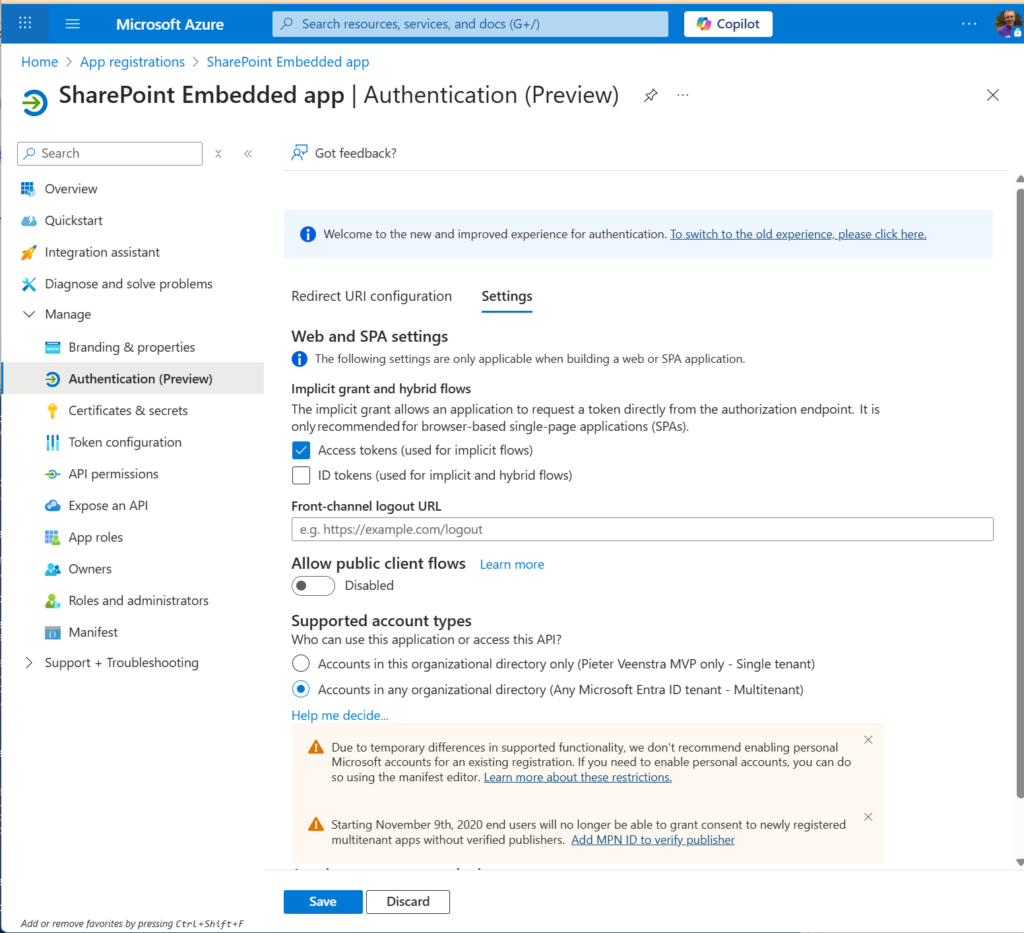
Now, go to the Settings tab and select Access Tokens within Implicit grant and hybrid flows before you hit Save.
Configure Permissions needed by SharePoint Embedded
Every app registration that you create has permissions set as follows
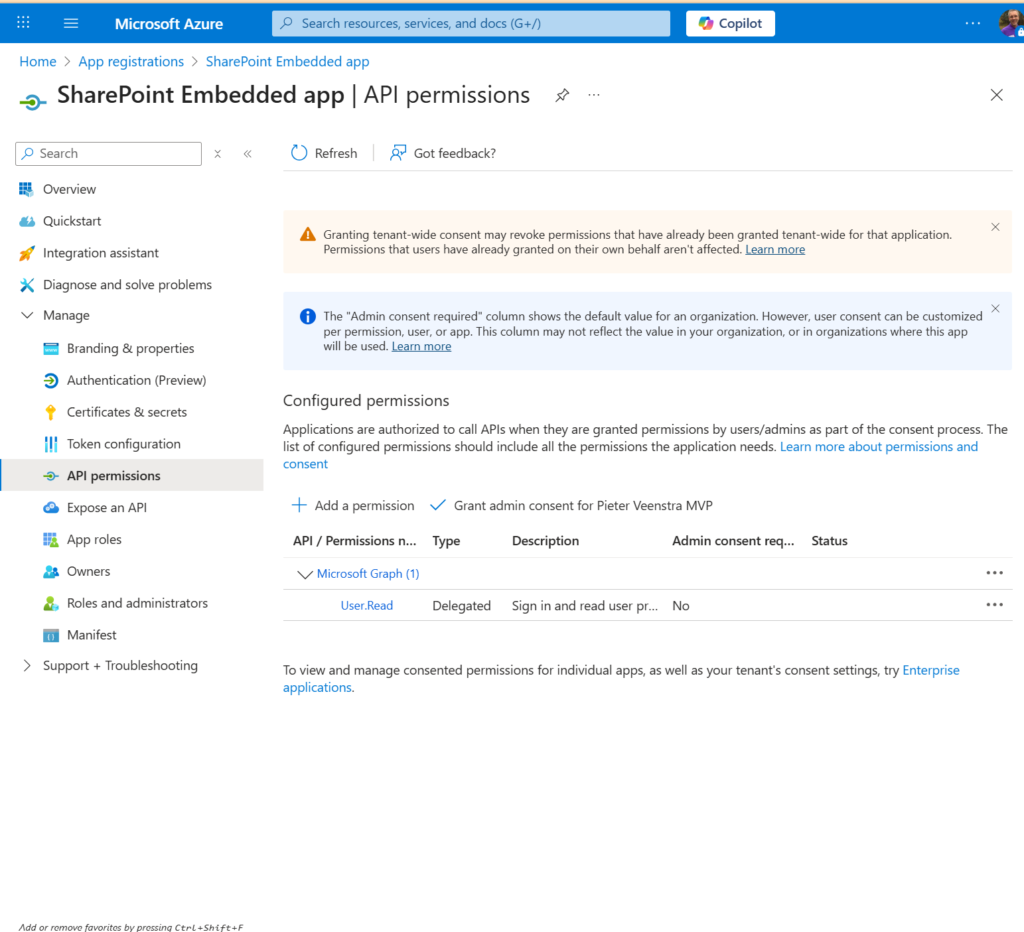
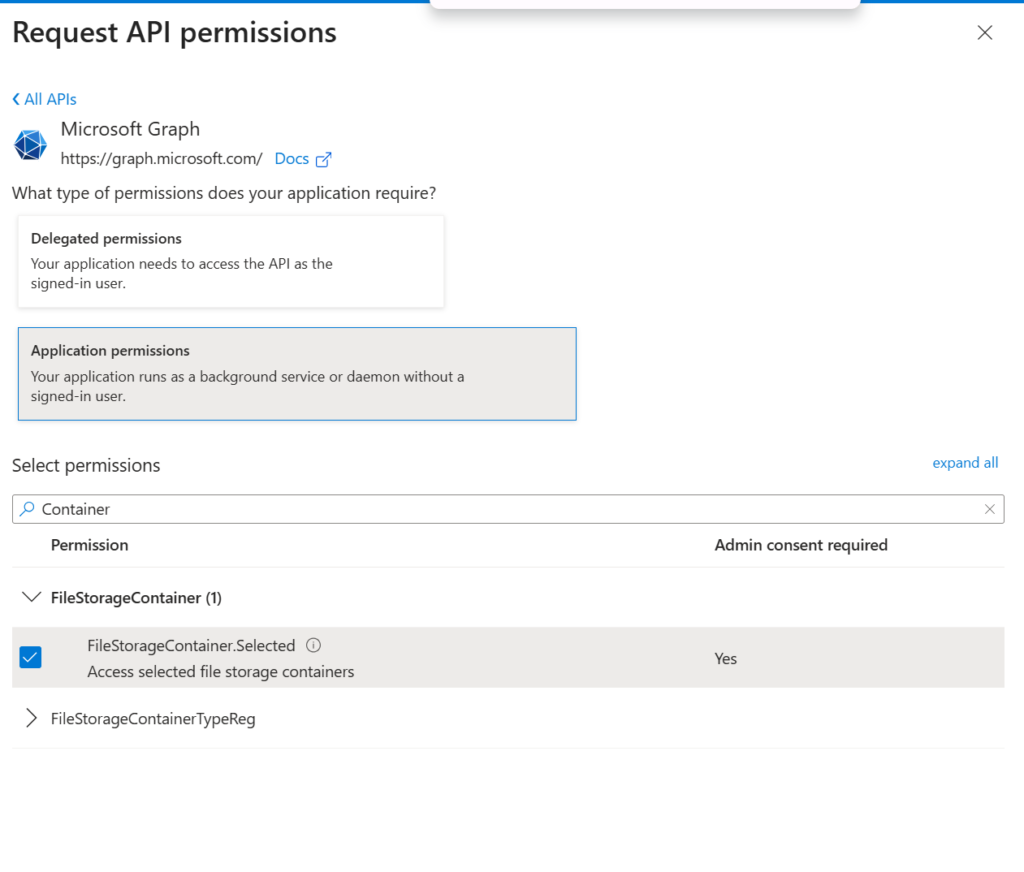
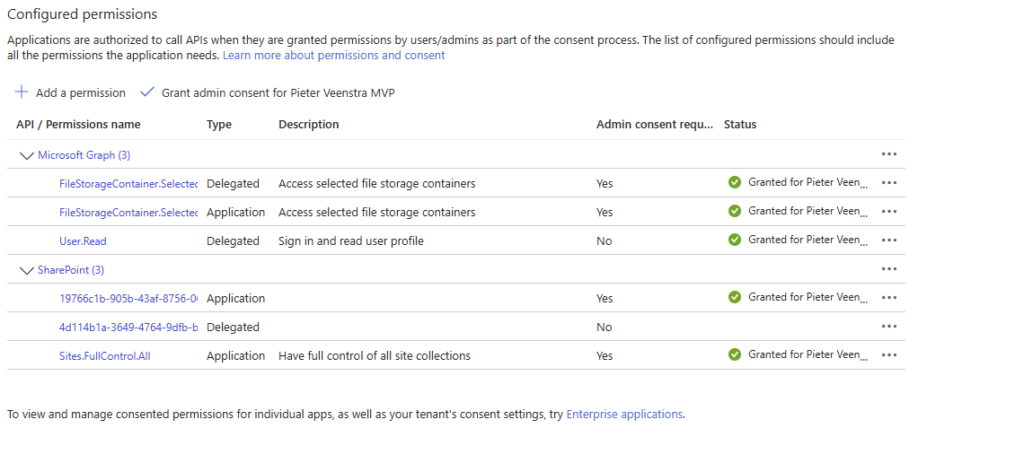
We will need to add some more permissions. Add Microsoft Graph permissions for FileStorageContainer.Selected. You will need to add both Delegated and Application permissions.
You should now have the following setup.
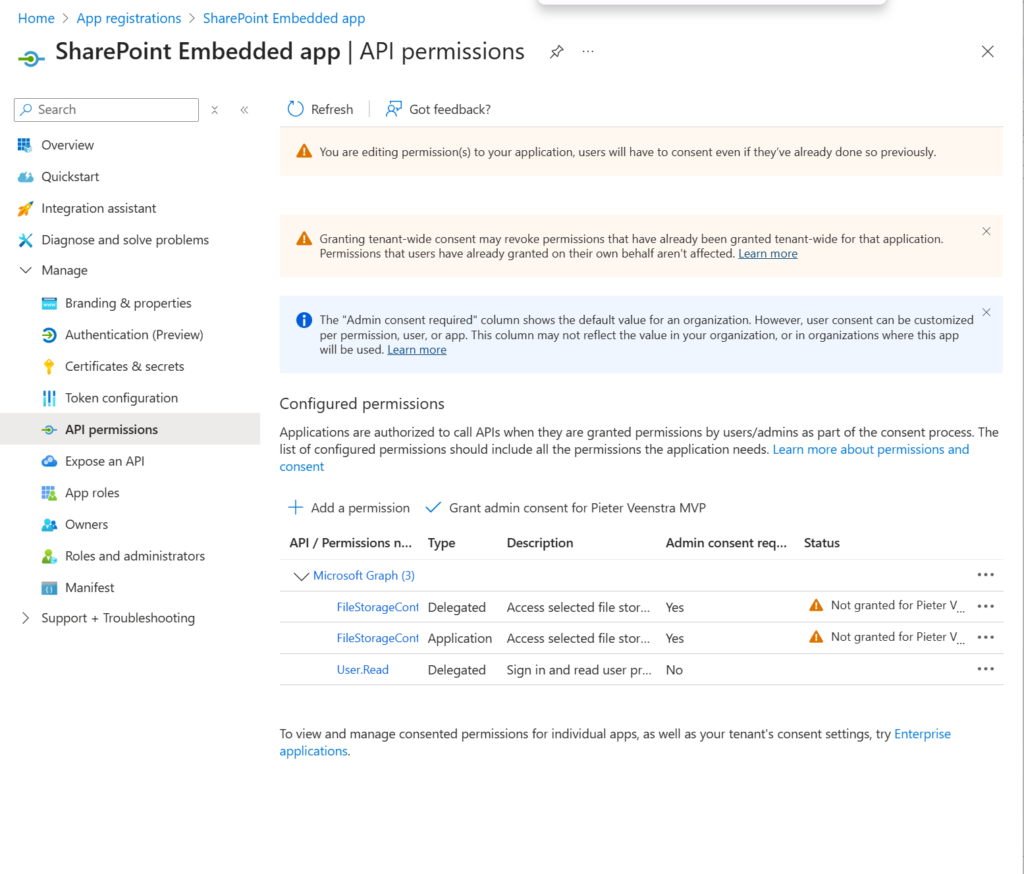
If you are not a global admin then you will find that the Grant Admin option is greyed out. If this is the case please buy you admin a coffee and they will press that button for you.
The orange warning signed should turn into green ticks once all is sorted out.
We need to add two more permissions, however we can’t use the UI yet
Under Manifest, you will need to add the following content. Search for the resourceAppId as shown below and make sure that you add the two resourceAccess records.
 {
    "resourceAppId": "00000003-0000-0ff1-ce00-000000000000",
    "resourceAccess": [
      {
        "id": "4d114b1a-3649-4764-9dfb-be1e236ff371",
        "type": "Scope"
      },
      {
        "id": "19766c1b-905b-43af-8756-06526ab42875",
        "type": "Role"
      }
    ]
  },
Then hit save and you should be able to grant permissions, however this will fail.
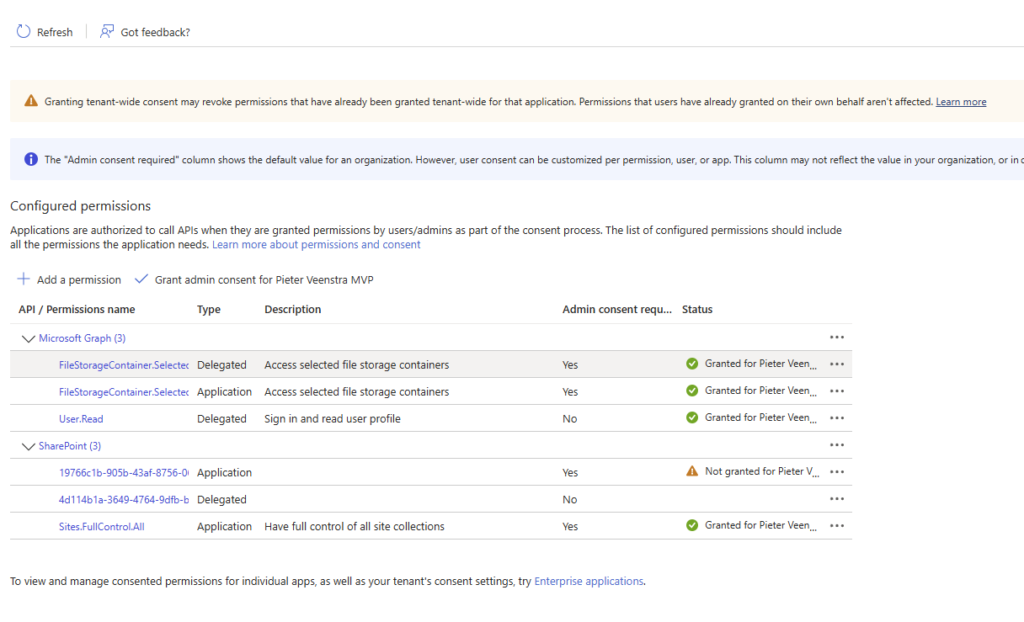
Click on the link Enterprise Applications and hit Grant there and all will work just fine.
Add a certificate to you App Registration
SharePoint will require a certificate rather than a Client Secret, therefore I’m going down the certificate route here. You will need to run a PowerShell window as an administrator (right click -> run as administrator). I’m using the older ISE below but you can use other options as well of course.
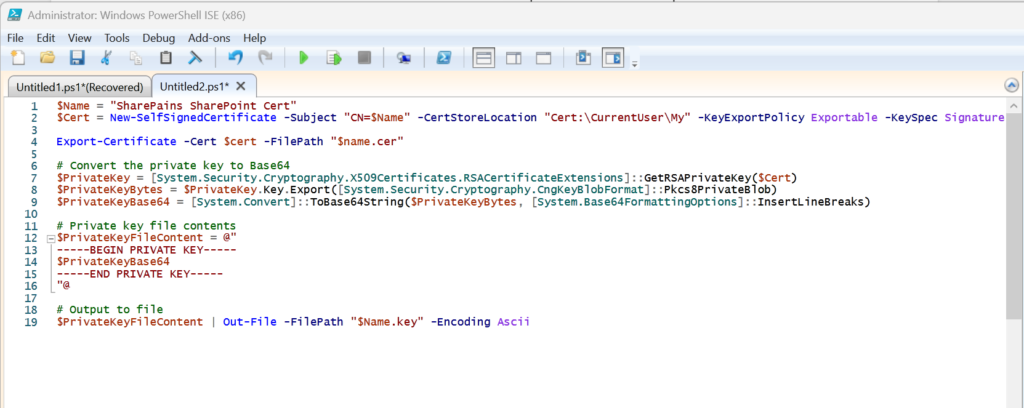
The full script is shown below. You might want to update the name of the certificate.
$Name = "SharePains SharePoint Cert"
$Cert = New-SelfSignedCertificate -Subject "CN=$Name" -CertStoreLocation "Cert:\CurrentUser\My" -KeyExportPolicy Exportable -KeySpec Signature -KeyLength 2048 -KeyAlgorithm RSA -HashAlgorithm SHA256

Export-Certificate -Cert $cert -FilePath "$name.cer"

$certPasswordPlain = "MyPassword123@"
# Replace with a secure password
$securePassword = ConvertTo-SecureString -String $certPasswordPlain -Force -AsPlainText

# Export the certificate along with its private key to a PFX file (for local use if needed)
Export-PfxCertificate -Cert $cert -FilePath "c:\priv\SharePains SharePoint Cert.pfx" -Password $securePassword

# Convert the private key to Base64
$PrivateKey = [System.Security.Cryptography.X509Certificates.RSACertificateExtensions]::GetRSAPrivateKey($Cert)
$PrivateKeyBytes = $PrivateKey.Key.Export([System.Security.Cryptography.CngKeyBlobFormat]::Pkcs8PrivateBlob)
$PrivateKeyBase64 = [System.Convert]::ToBase64String($PrivateKeyBytes, [System.Base64FormattingOptions]::InsertLineBreaks)

# Private key file contents
$PrivateKeyFileContent = @"
-----BEGIN PRIVATE KEY-----
$PrivateKeyBase64
-----END PRIVATE KEY-----
"@

# Output to file
$PrivateKeyFileContent | Out-File -FilePath "$Name.key" -Encoding Ascii
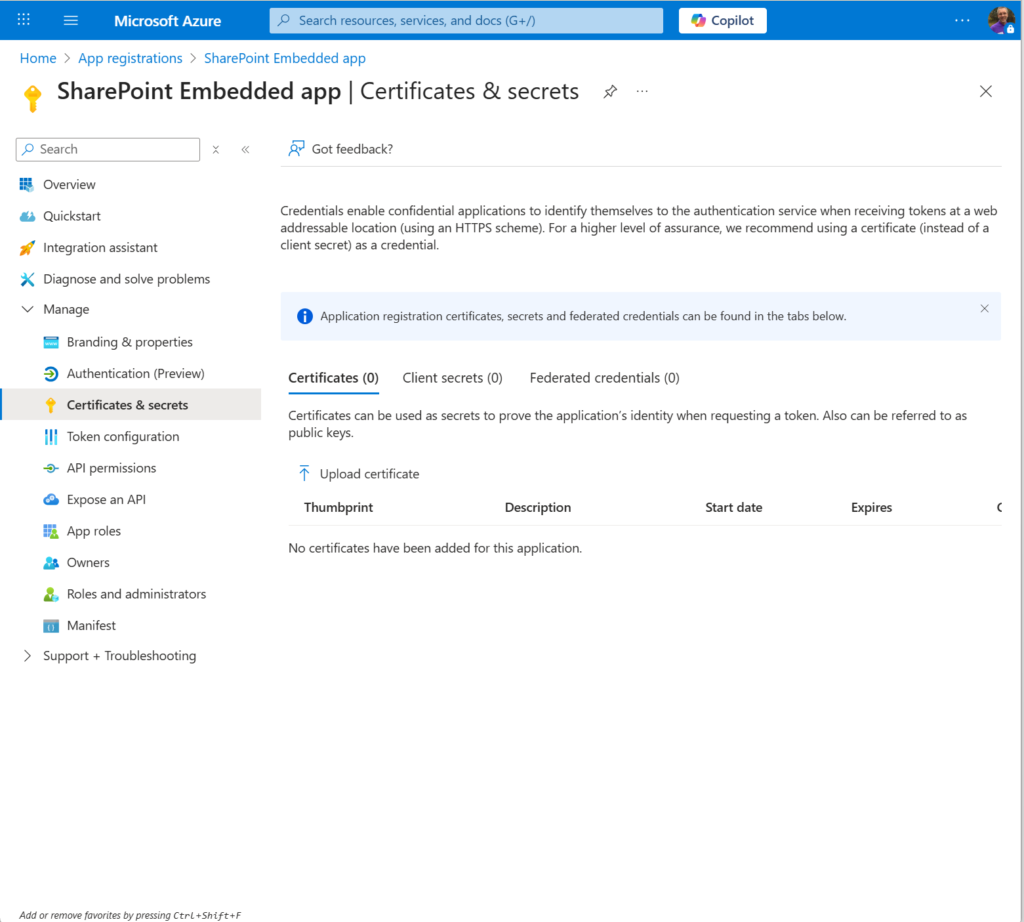
We will now have a certificate file created and we can now upload this to our app registration. Click on upload certificate
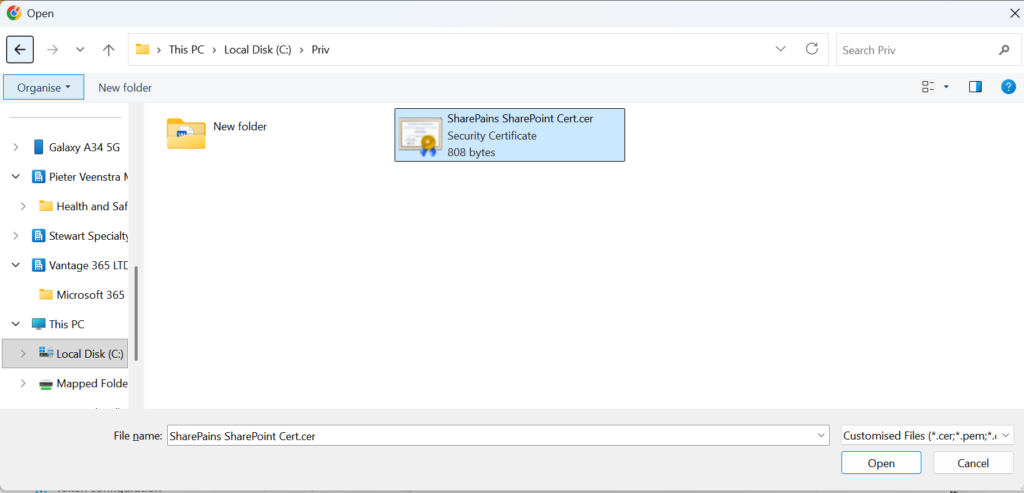
Now just select the certificate and we’re done.
And we’re done with the App registration. We just need to collect a couple of details.
In the Overview section you will find your client ID and your tenant ID. We will need these later.
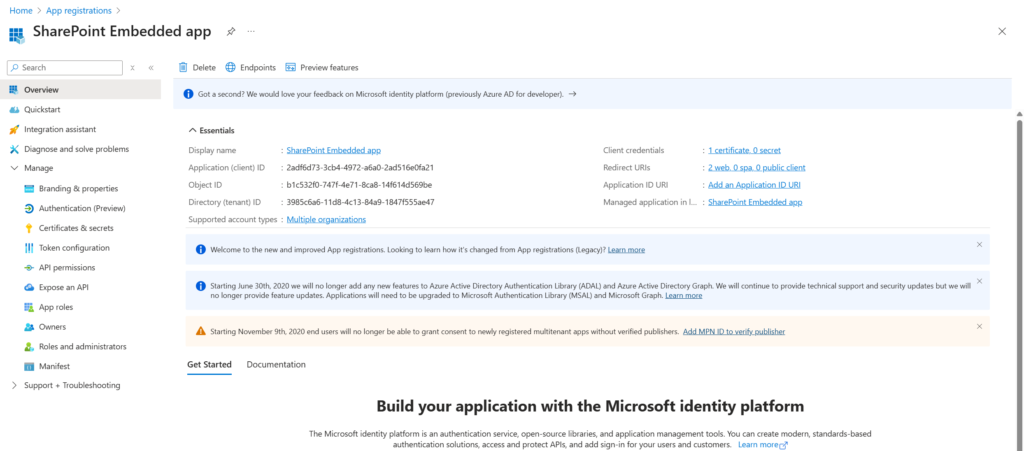
Now we can finally look at SharePoint Embedded.
Setup SharePoint Embedded
SharePoint Embedded needs to be enabled using PowerShell. Please install Microsoft.Online.SharePoint.PowerShell if you haven’t already done so. Quite often you will find that people use the below installation option without the Scope parameter, however why would you want to install it globally on your machine if only you use it.
Install-Module "Microsoft.Online.SharePoint.PowerShell" -Scope CurrentUserWe can now run the following in PowerShell
Connect-SPOService -Url "https://pieterveenstramvp-admin.sharepoint.com/"

New-SPOContainerType -TrialContainerType -ContainerTypeName "SharePains SharePoint Embedded Conmtainer Type" -OwningApplicationId "2adf6d73-3cb4-4972-a6a0-2ad516e0fa21"
When you run the above you might get the following warning. To make it work, please click Yes.
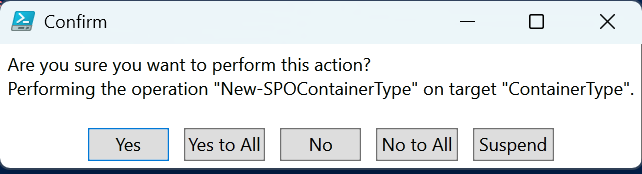
Then at the end we get the result that we want. In my case I use the TrialContainerType to so that I don’t have to pay for my Container. When you want to create a production Container Type you would leave the Trial option out of your PowerShell script.

Use Power Automate to complete the setup of SharePoint Embedded
Now the Microsoft documentation will tell you to use Postman. This makes the authentication steps quite a bit tougher than needed.
All we want to do is call the following end point
{{RootSiteURL}}/_api/v2.1/storageContainerTypes/{{ContainerTypeId}}/applicationPermissionsThis is what I’m trying to get to …
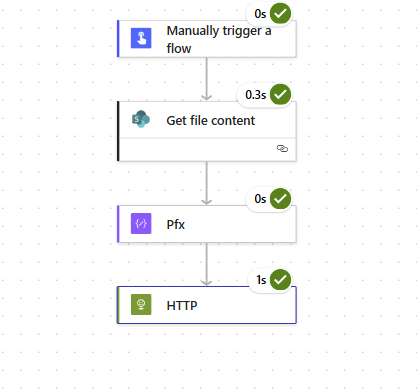
First of all I will need to upload my pfx file that was generated earlier to a SharePoint site.
Then I can read this file form SharePoint before I make the HTTP call to call the end point.
Get the file content
To get the file content we can use the SharePoint connector.
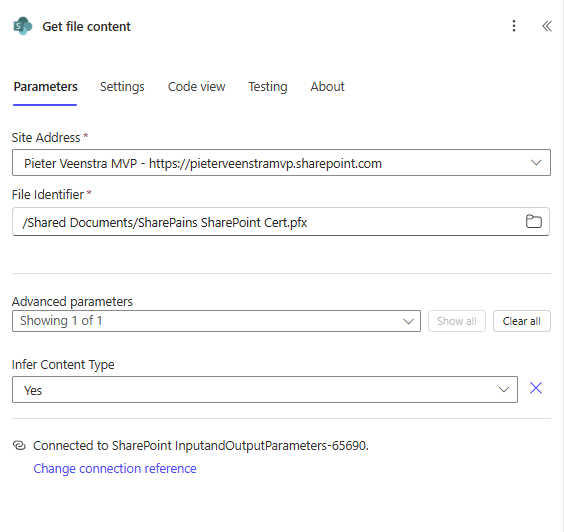
Then we can use a Compose action to get the Pfx content
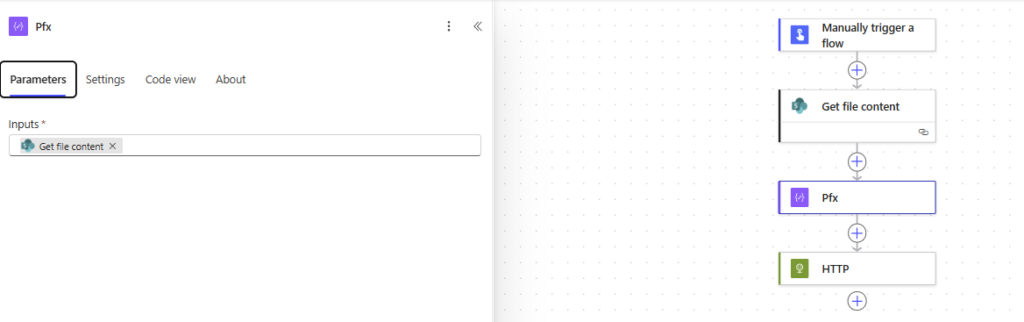
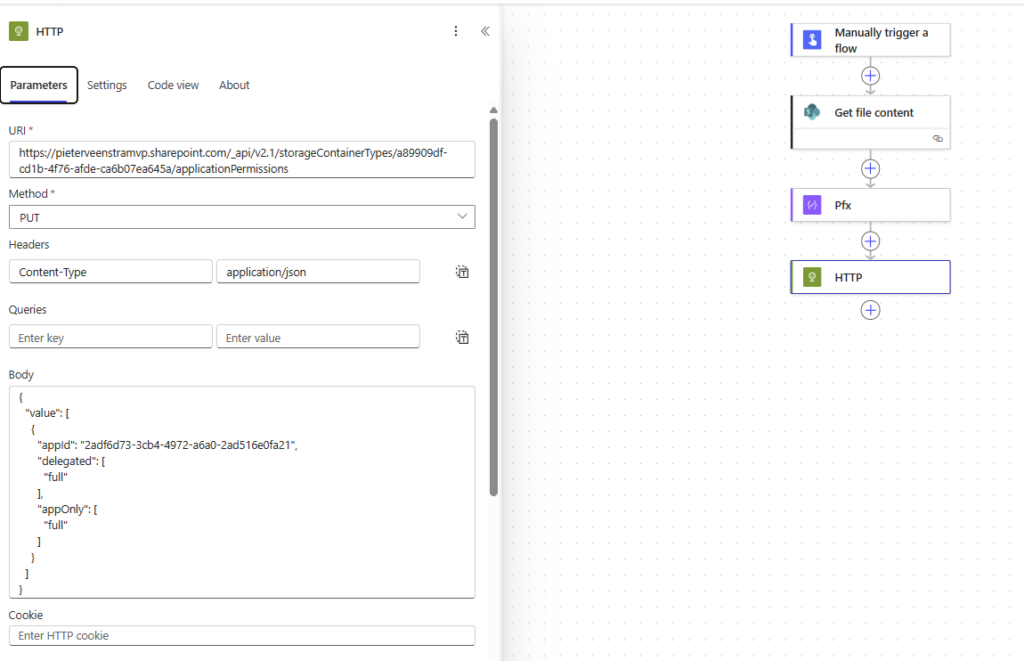
The HTTP action can be configured
{{BaseSPURL}}/_api/v2.1/storageContainerTypes/{{containerId}}/applicationPermissionsReplace the Guid with you app ID
{
  "value": [
    {
      "appId": "2adf6d73-....-2ad516e0fa21",
      "delegated": [
        "full"
      ],
      "appOnly": [
        "full"
      ]
    }
  ]
}
Within the Authentication part of the HTTP action you will need to use the following:
Tenant ID : Found in the app registration
Audience: You base URL for SharePoint
Client ID: Found in the app registration (e.g. https://pieterveenstramvp.sharepoint.com)
PFX: @{outputs(‘Pfx’)?[‘$content’]}
Password: The password you used within the PowerShell script to generate the PFX file.
If now your flow runs successfully you have SharePoint Embedded configured.
The steps are now to use the SharePoint Embedded Connector in Power platform, but that will be a post for next week.
Pieter Veenstra

Is your business still running on paper trails, sprawling Excel files, or ageing Access databases? There's a better way — and I can show you exactly what it looks like. I'm the Technical Director of Vantage 365, a Microsoft solutions consultancy working with clients across the UK, the Netherlands, and worldwide. For over 30 years I've been turning messy, manual business processes into clean, automated systems that save time, reduce errors, and give teams the visibility they need to make better decisions. SharePains is not just any blog run by a Microsoft MVP. Have you ever used Try-Catch in Power Automate? The original post about Try-Catch in Power Automate can still be found on this site, https://sharepains.com/2018/02/07/try-catch-finally-in-power-automate-flow/ Or have you ever used the Pieter’s method to avoid variables and speed up your flows? https://sharepains.com/2020/03/11/pieters-method-for-advanced-in-flows/ You can contact me using contact@sharepains.com