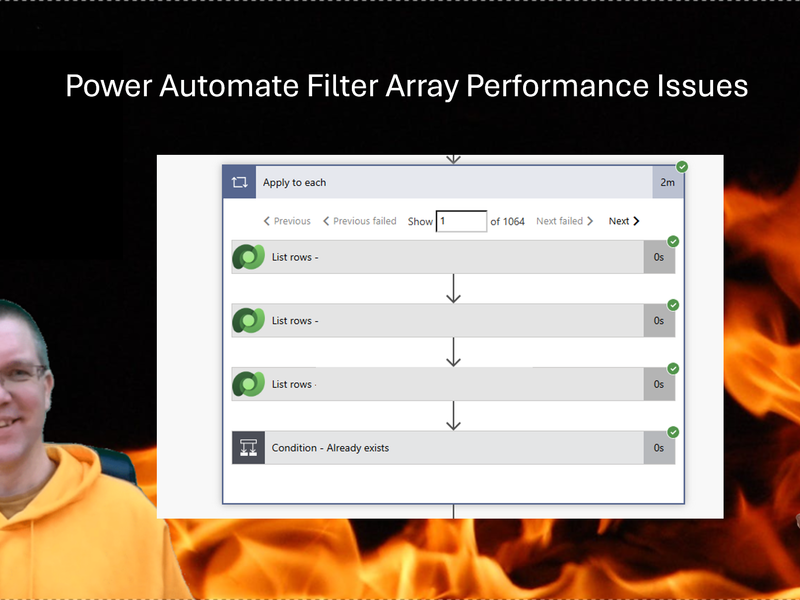
When you use SharePoint lists within the Power Platform, there are some things you can do to improve performance. Indexes on SharePoint lists can make quite a difference.
In this post I will mainly focus on Power Automate as it is easier to measure the time taken by various operations, however you will find that Power Apps will benefit from the right setup too.
My SharePoint lists
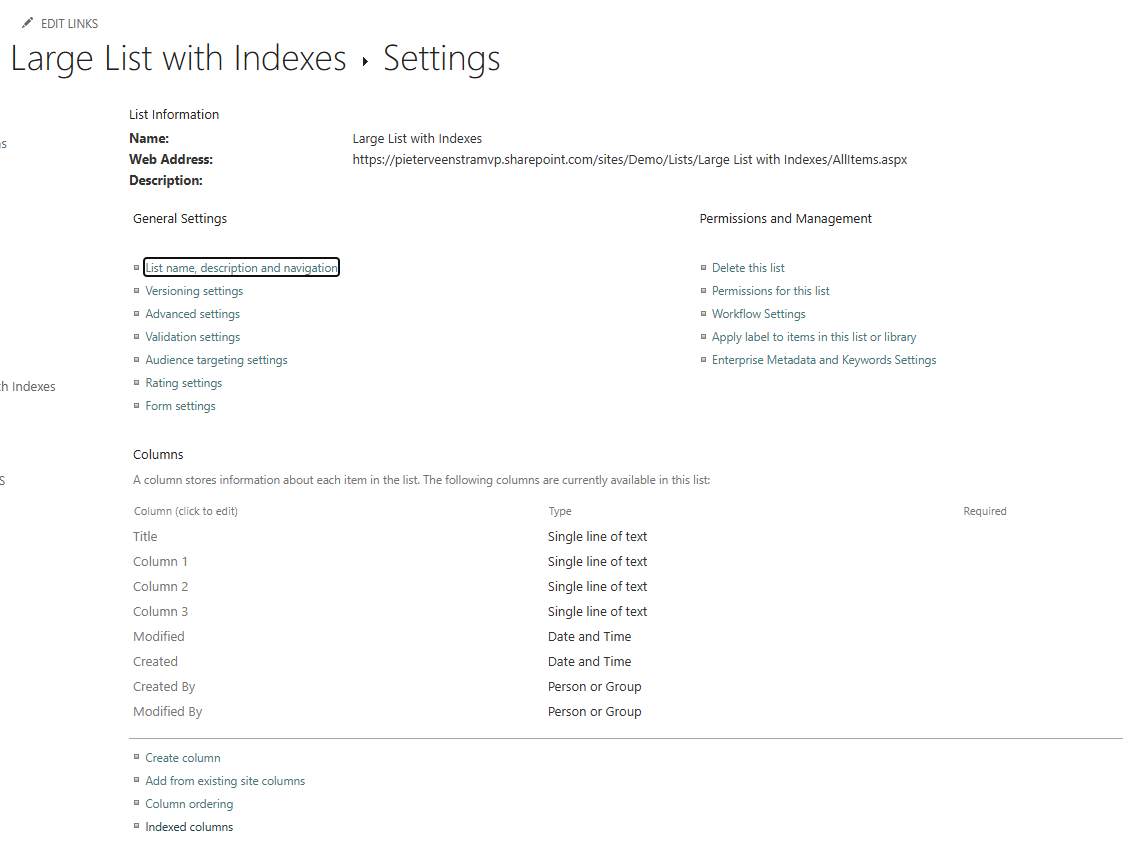
I’ve created two SharePoint lists. Each list has three text columns as shown below. For one of my lists however I’ve created an Index on each of these columns.
Adding data to the lists
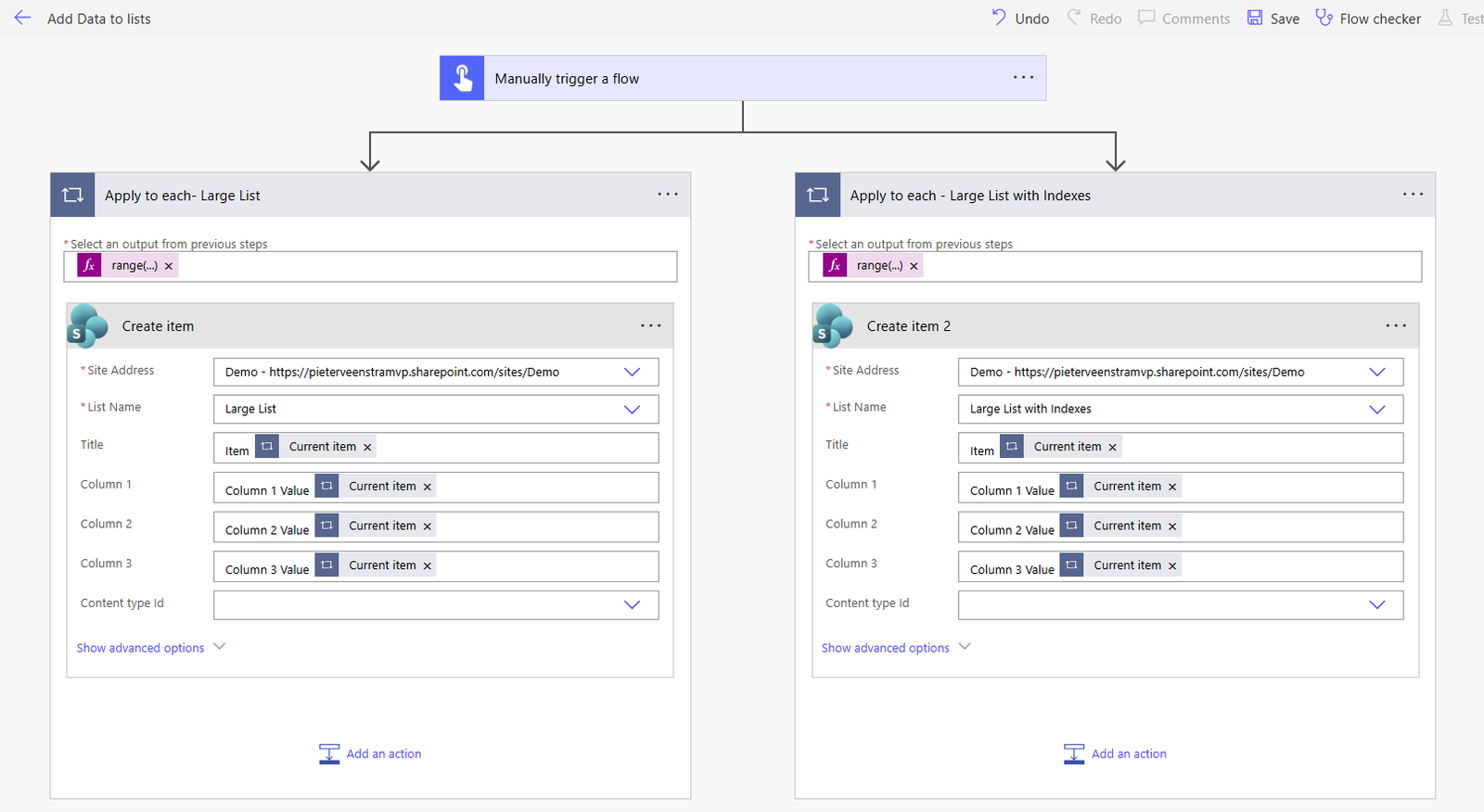
The first operation I’m going to look at is adding data to lists. So I’m creating a flow that creates data to each of the lists. I want to make sure that both lists are filled the same way, therefor I’m creating two parallel branches both running their own Apply to each step.
In both cases the items are being created at a similar speed.
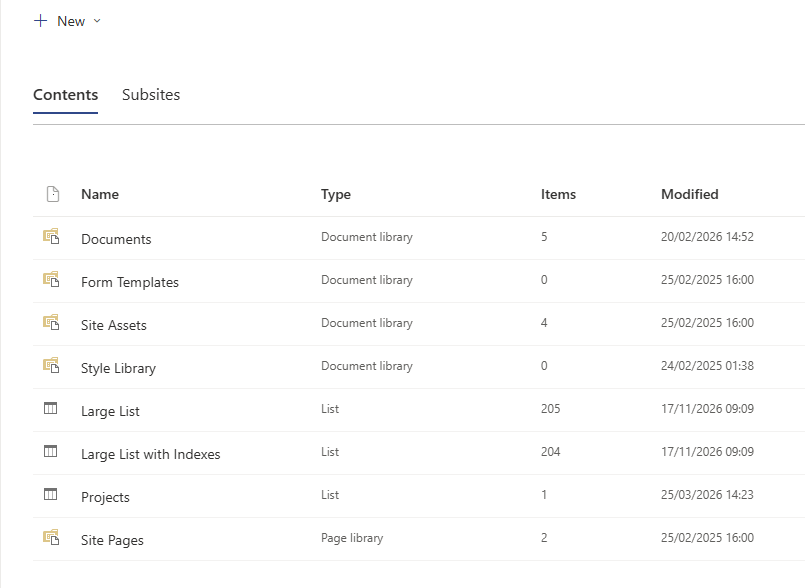
The above test was without enabling concurrency in my apply to each steps. With parallelism set to 10 for each of the apply to each steps. We are putting the lists a bit more under pressure. And we’ll find that the SharePoint throttling quite quickly kicks in.
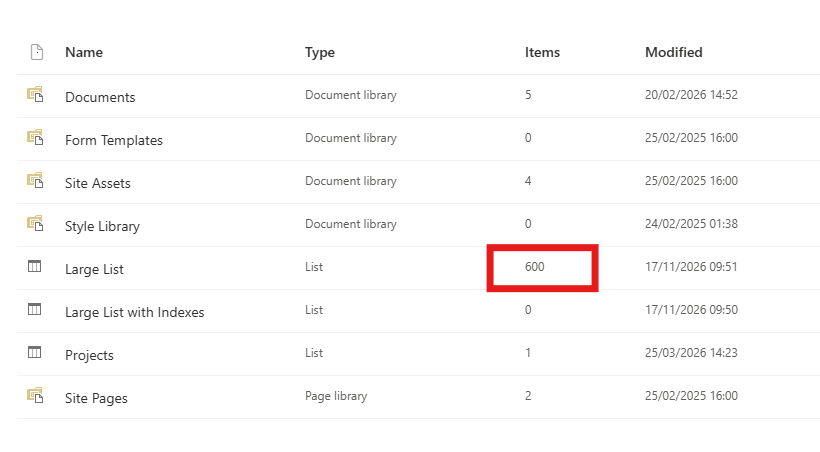
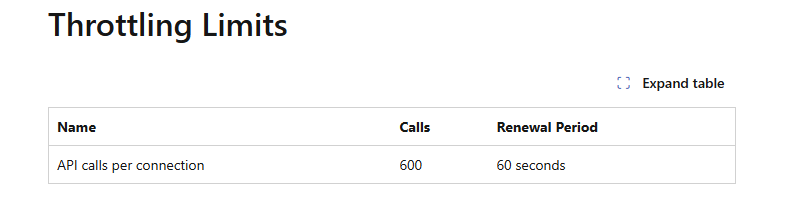
If for example we just updated one list, at high speed, 600 items will get added even though our flow is trying to add 10000 items. As we can see on the SharePoint connector document pages, the 600 actions per minute is the limit.
Performance improvements with Indexes
I used the above flow to create lists with 10000 items in each of the lists. When I now try to read these items. I’m seeing hardly any difference. However, …
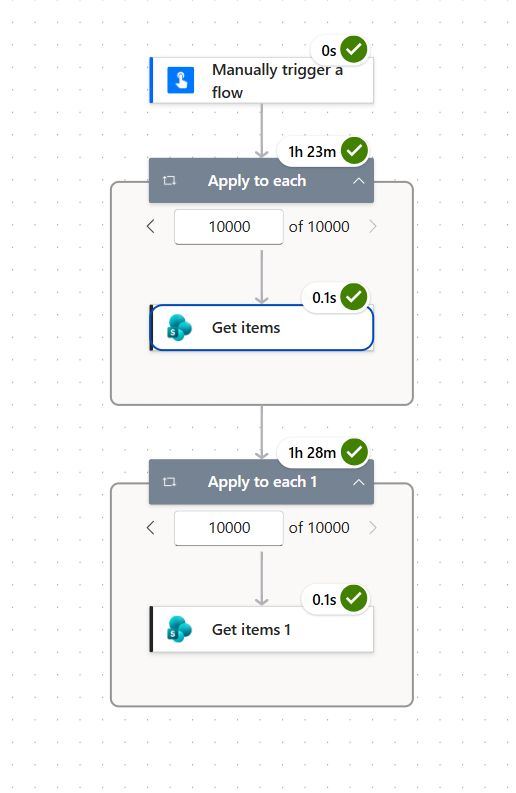
In the above flow the first Apply to each reads one item at a time from the non-indexed list filtering my data on one of text columns. The second Apply to each uses the indexed column. It looks like my indexes even have a negative affect until we look a bit more in detail at the results.
Non indexed results
The first 5000 queries work. But any records beyond the first 5000 cannot be found.
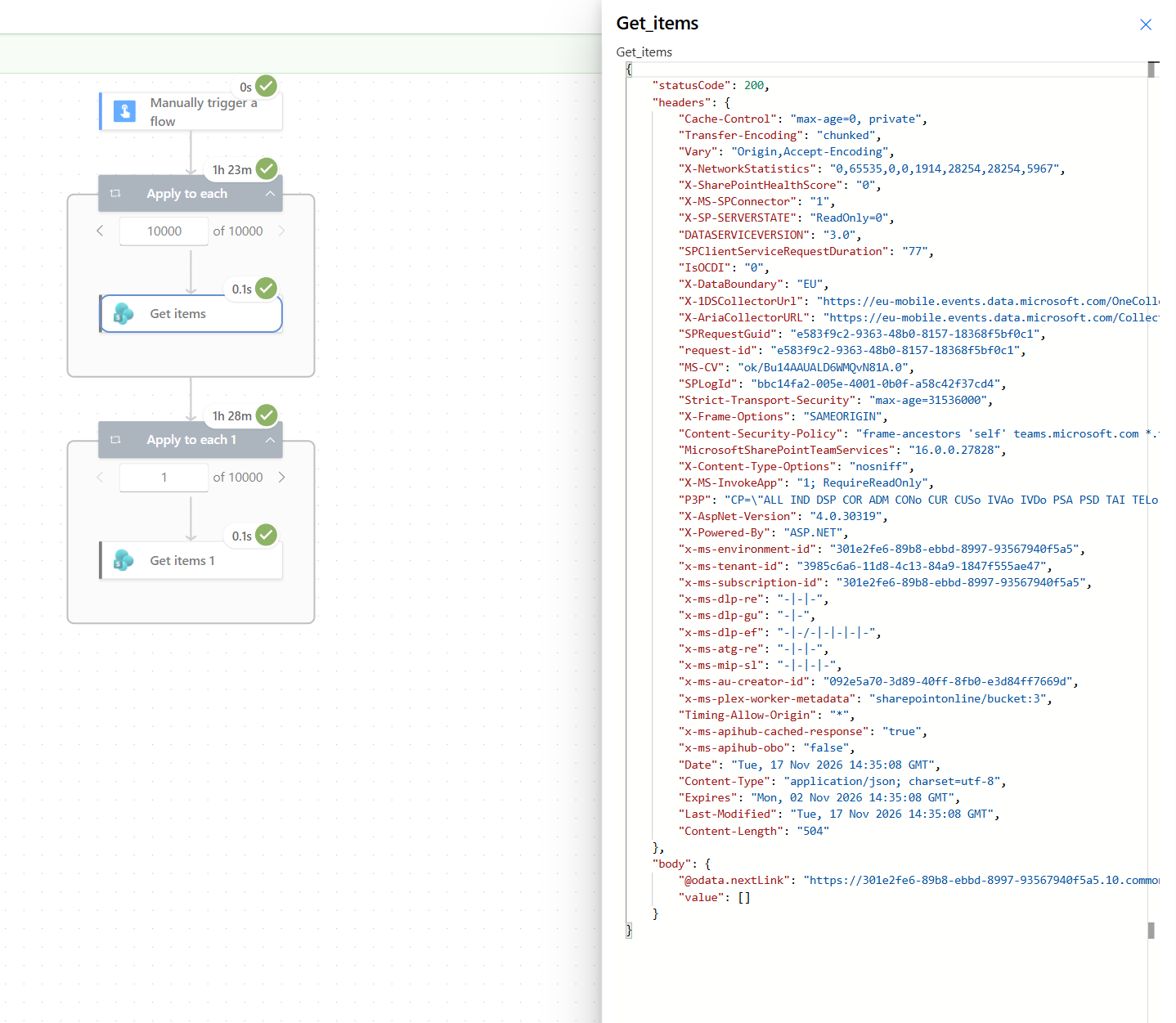
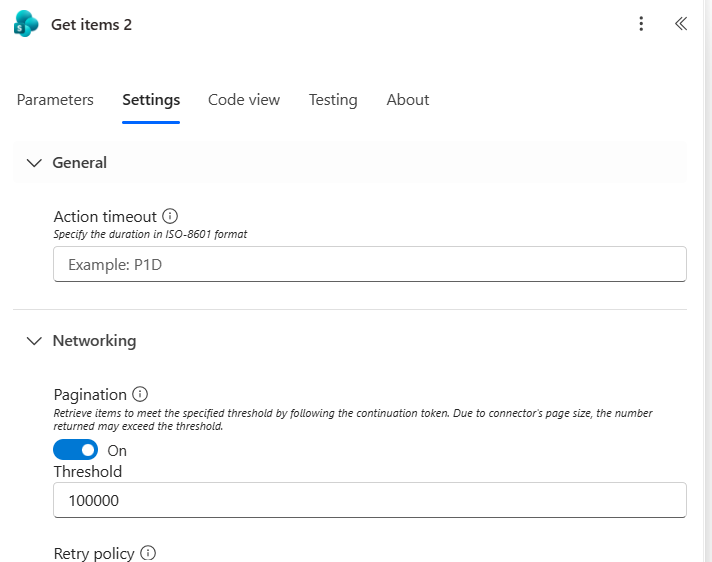
Alternatively, you could enable the Pagination in your Power Automate actions, but that seems to perform a lot slower than the index column approach.
Indexed column queries
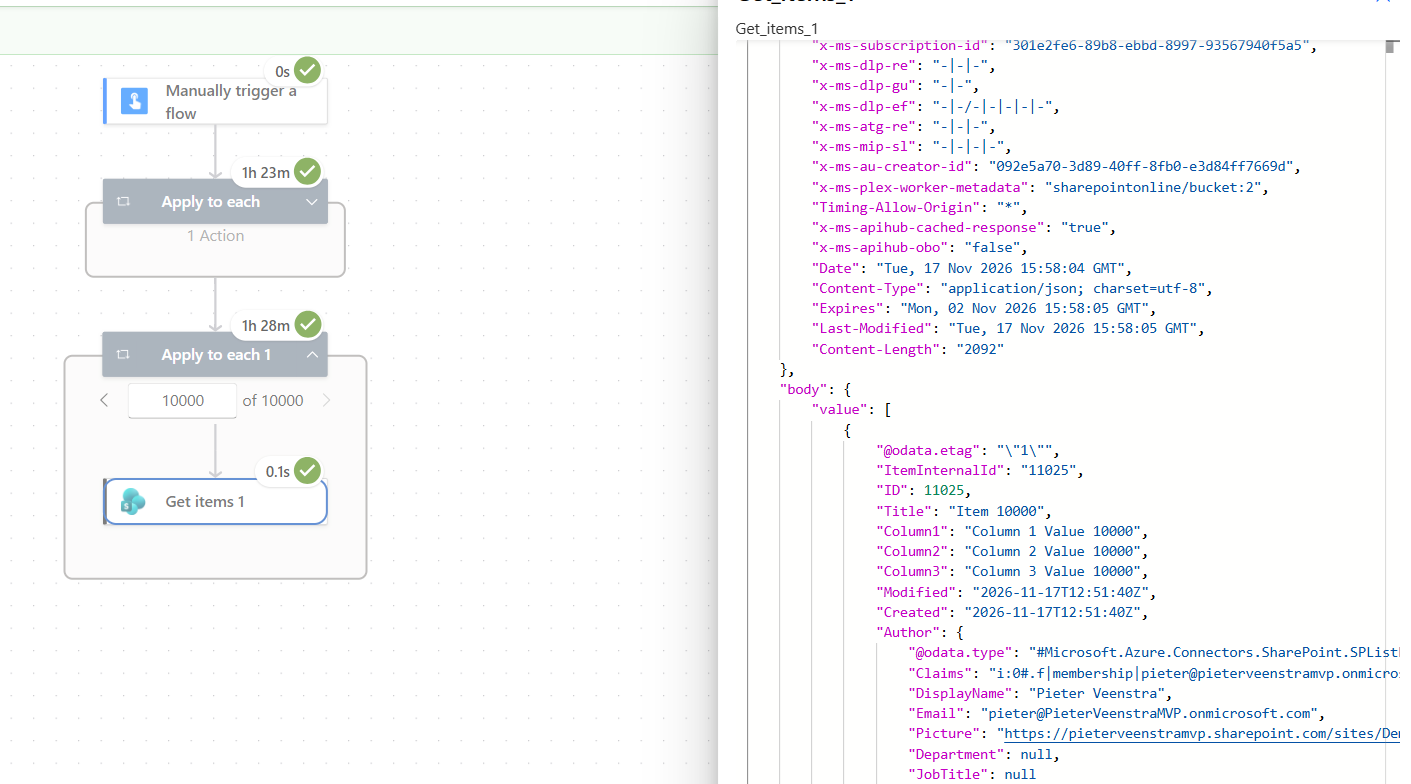
When we index a column in SharePoint and the query beyond the first 5000 item we get the faster performance with the right results. The query of the Get items action action takes about 0.1seconds instead of 2 seconds when we set the pagination setting to the maximum value.
Pieter Veenstra

Is your business still running on paper trails, sprawling Excel files, or ageing Access databases? There's a better way — and I can show you exactly what it looks like. I'm the Technical Director of Vantage 365, a Microsoft solutions consultancy working with clients across the UK, the Netherlands, and worldwide. For over 30 years I've been turning messy, manual business processes into clean, automated systems that save time, reduce errors, and give teams the visibility they need to make better decisions. SharePains is not just any blog run by a Microsoft MVP. Have you ever used Try-Catch in Power Automate? The original post about Try-Catch in Power Automate can still be found on this site, https://sharepains.com/2018/02/07/try-catch-finally-in-power-automate-flow/ Or have you ever used the Pieter’s method to avoid variables and speed up your flows? https://sharepains.com/2020/03/11/pieters-method-for-advanced-in-flows/ You can contact me using contact@sharepains.com