

For loops are one of the basic structures in coding. There are however many different types of loops. How can we implement various types of loops that we know in languages like Python in Power Automate an Power Apps? In this post you will find the Power Automate loops.
Loops in Python
Using the loop examples found on the Python Examples site, we will find that we have 10 loop structures for loops.
- For Loop with Range
- For Loop with list
- For Loop with Tuple
- For Loop with Dictionary
- For Loop with Set
- For Loop with String
- For Loop with break
- Continue For Loop
- For Loop with Else Block
- Nested For Loop
I used Python as an example here but I could have used many other program languages as examples.
For Loop with Range
If we look at the Python example, then we can see that we loop through a list of numbers generated by a range.
for i in range(25,29):
	print(i)
This is similar to other languages that use this construction
for (int i = 25; i < 29; i++)
{
    Console.WriteLine("Iteration: " + i);
}
Now in Power Automate, I see this often implemented like this. However, using Do Until steps and variables has a few negatives. For example Do Until steps are limited by the number of iterations. And of course Variables should always be avoided when possible.
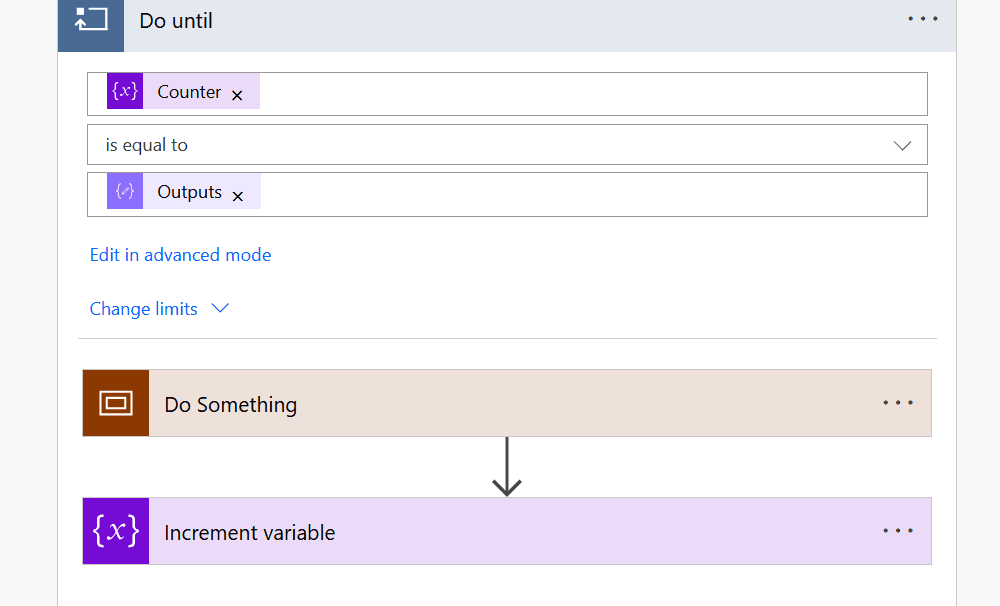
The better way to implement this is as follows:
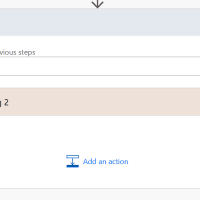
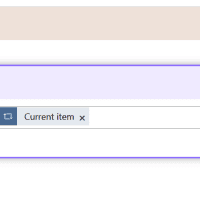
range(25, 29) And if you wanted to get to get to the IterationIndex that you have available in the Do Until then the Current item will give you that number.
For Loop with list
The next Python for loop example is Loops with lists
my_list = ['apple', 'banana', 'cherry']

for x in my_list:
	print(x)
Within Power Automate we can implement this as follows.

For Loop with Tuple
Now this is one that I would have expected to fail in Power Automate. However the variation in datatypes, Power Automate is happy to accept.
Within Python we can see this structure, where the for loop steps through a combination of texts and numbers
my_tuple = ('apple', 25)

for x in my_tuple:
	print(x)
And the equivalent in Power Automate works just as well:

For Loop with Dictionary
A Dictionary I would call an object. But in short we want to have a look through each property of an object.
my_dictionary = {'name':'apple', 'category':'fruits'}

for x in my_dictionary:
	print(x, ':', my_dictionary[x])
I’ve not found an easy way to implement this. Custom functions would have been a nice option as we can then use the Power FX function, ColumnNames. But Custom functions don;t support tables to give us our list of property names. Maybe with a bit of textual split this would be possible
For Loop with Set
Within Python lists and sets are slightly different.
my_set = {'apple', 'banana', 'cherry'}

for x in my_set:
	print(x)
Within Power Automate you can treat them the same way.
For Loop with String
This loop example will take some text and print each character separately
my_string = 'apple'

for x in my_string:
	print(x)
In Power Automate we can use the chunk function for this. Now if you r aim is to split your text into single characters you will need your apply to each of course. But if you actually want to process each character separately and do something with it then the apply to each will work.

For Loop with break
A loop with a break is the first of some ways to control the processes within a loop. Quite often you might process a number of records and once you have found the right one you want to finish your loop. In Python this is easy.
for x in range(2, 10):
    if(x==7):
        break
    print(x)
Well if you thought that the terminate would do the same, that will not work.
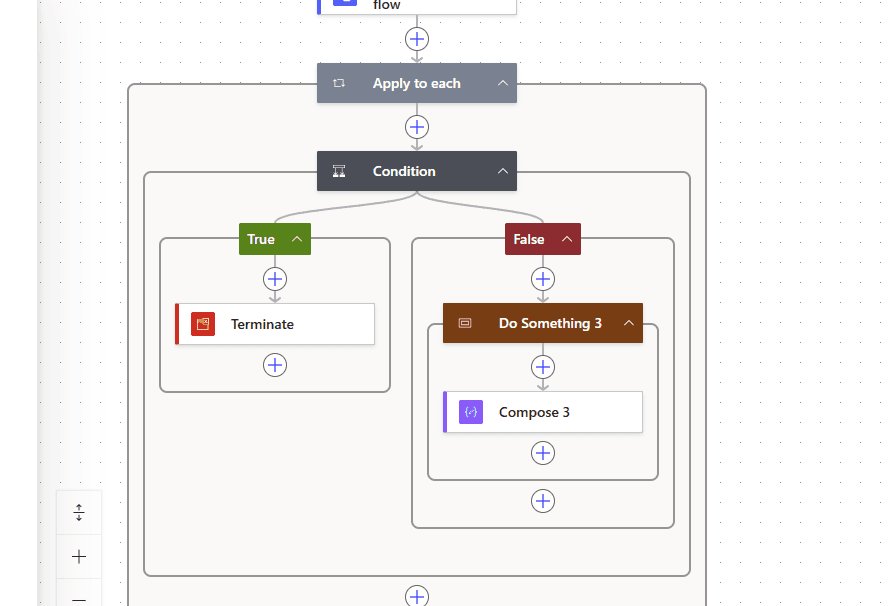
This is where potentially the Do Until could come in, however we do have that limitation of the Do Until being there.
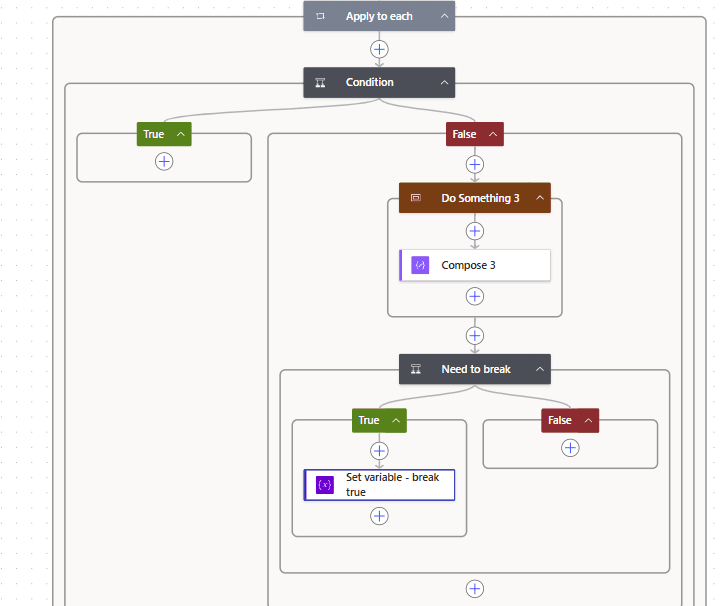
An alternative then is to have the Condition check a variable and set the variable inside the condition. That could look like this:
Continue For Loop
The Continue in loops skips a single iteration however any following iterations will continue to run as normal.
for x in range(2, 10):
    if(x==7):
        continue
    print(x)
In Power Automate we can implement this like this:
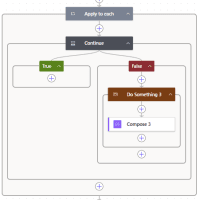
So just like before a condition inside the apply to each will help us here.
For Loop with Else Block
In Python we have the following construction to do something after the for loop has completed.
for x in range(2, 6):
    print(x)
else:
    print('Out of for loop')
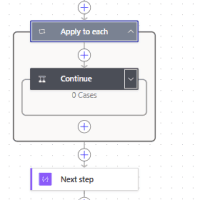
Within Power Automate we can just add a step after the Apply to each loop
Nested For Loop
In programming languages like Python nesting for loops steps can be done as show in the following example.
for x in range(5):
    for y in range(6):
        print(x, end=' ')
    print()
In Power Automate I tend to avoid nested loops. They are simply a pain to debug. Where possible try and create a child flow for all the steps that site inside an apply to each. This technically will still nest the apply to each steps, however the flow runs are now separated making debugging easier.
Pieter Veenstra

Is your business still running on paper trails, sprawling Excel files, or ageing Access databases? There's a better way — and I can show you exactly what it looks like. I'm the Technical Director of Vantage 365, a Microsoft solutions consultancy working with clients across the UK, the Netherlands, and worldwide. For over 30 years I've been turning messy, manual business processes into clean, automated systems that save time, reduce errors, and give teams the visibility they need to make better decisions. SharePains is not just any blog run by a Microsoft MVP. Have you ever used Try-Catch in Power Automate? The original post about Try-Catch in Power Automate can still be found on this site, https://sharepains.com/2018/02/07/try-catch-finally-in-power-automate-flow/ Or have you ever used the Pieter’s method to avoid variables and speed up your flows? https://sharepains.com/2020/03/11/pieters-method-for-advanced-in-flows/ You can contact me using contact@sharepains.com

