When you open an app in Power Automate Desktop, and you need to run this Power Automate Desktop flow multiple times it becomes important to handle the multiple instances of your browser. In this post the steps to make this work for you.
The issue to resolve
During testing, if you open a browser every time you run a flow then you will end up with many browsers. Power Automate Desktop however will select one instance. As you develop your desktop flow it will take a browser session, that might not be the same when you run it. Therefore making sure that you only ever have one browser sessions with your app open is a good idea.
In this post I’ll look at how you van make sure that you only ever open one session with a Power App.
Create Subflows
First of all I like to implement the opening of an app as a sub flow. This means that I can call this sub flow over and over again. As part of my automated testing implementation this can be very useful.
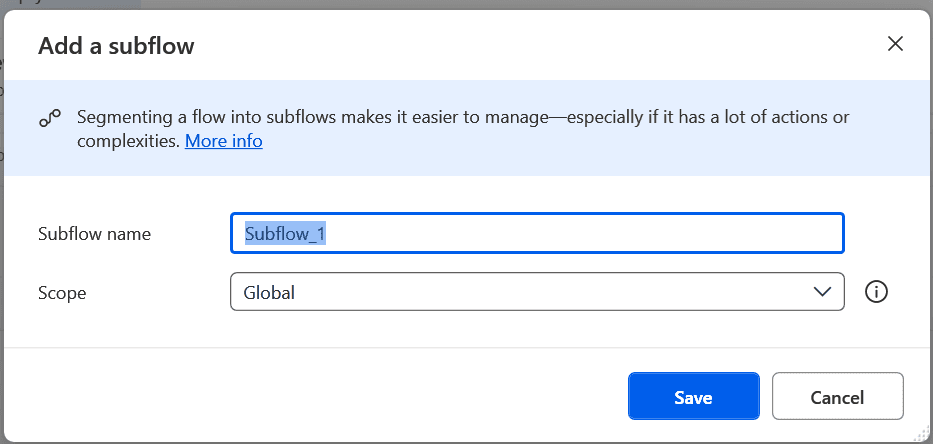
Within my subflow I have created an input parameter AppUrl. This way I can reuse my subflow for multiple projects.
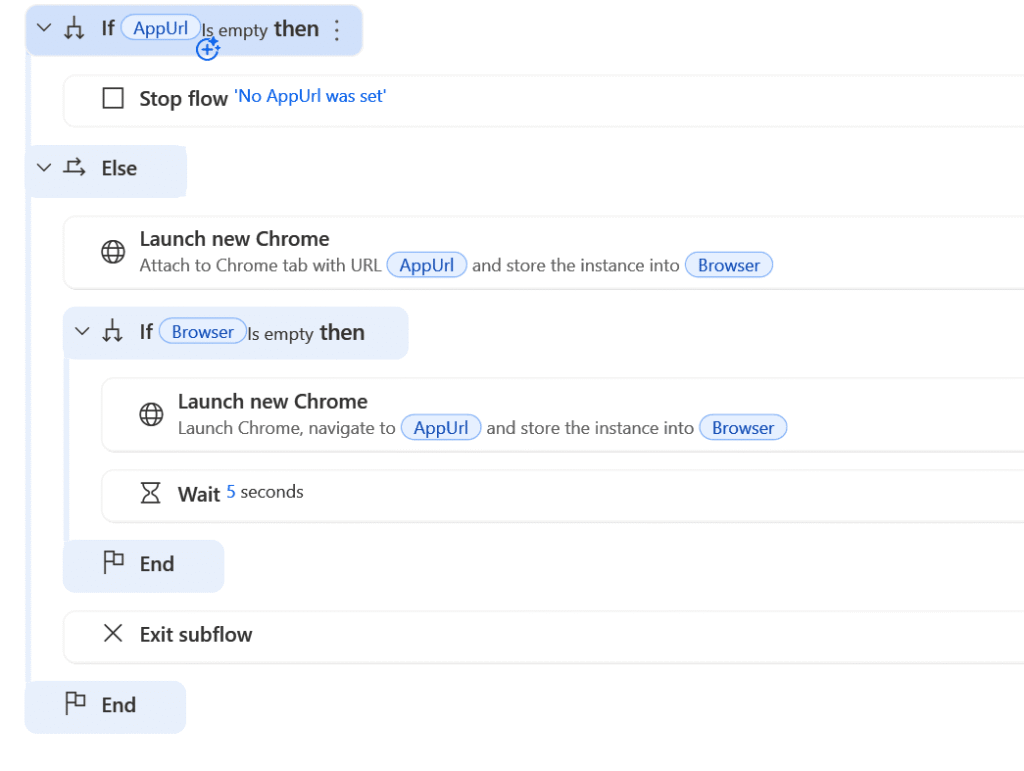
At the start of my Desktop flow I will now check that the AppUrl input parameter has been set or not.
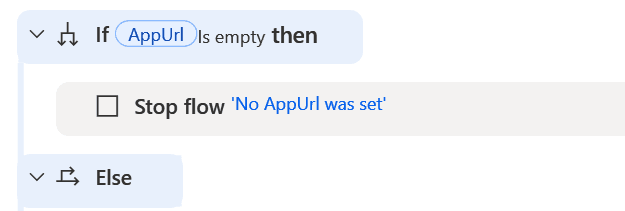
In my condition I just need to check if my AppUrl is empty or not. When the AppUrl is Empty I will stop my subflow and report the reason for the failure.
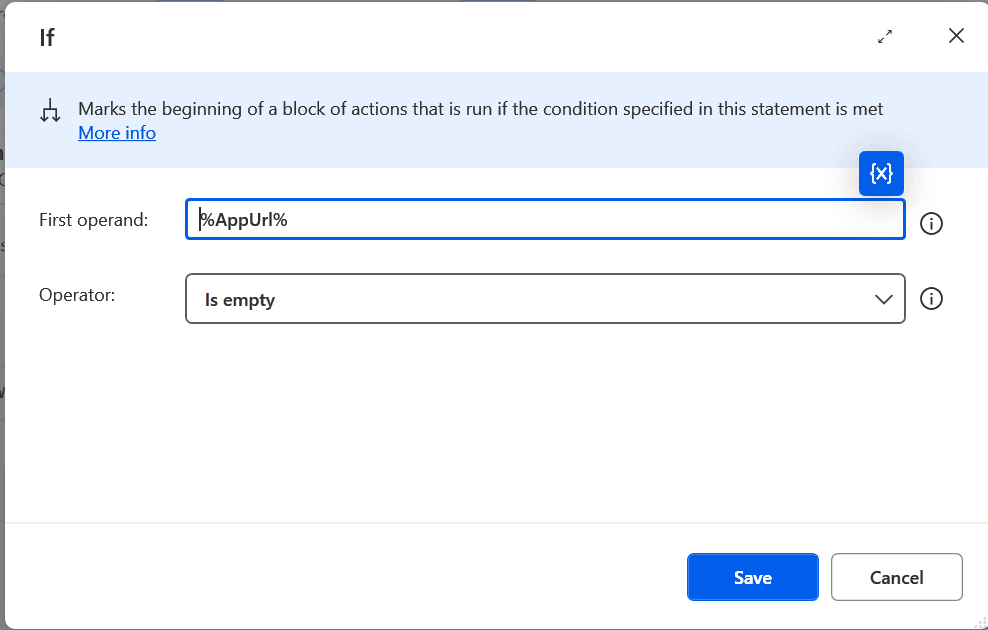
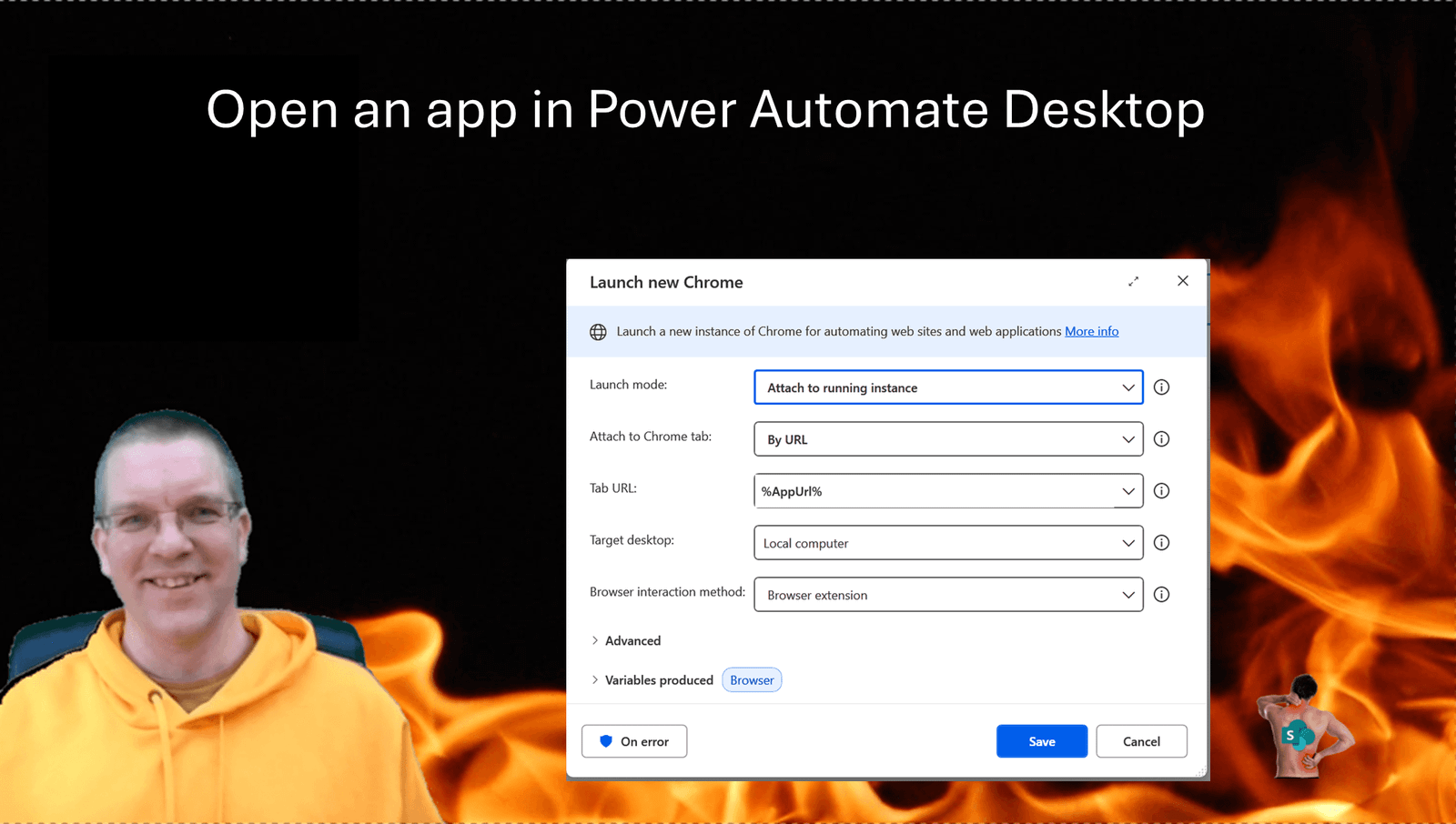
Now that we have an AppUrl, we can Launch the browser using the Launch new Browser action. I use Chrome, but feel free to use a different browser.
I will first try to attempt to find an existing browser that currently uses the AppUrl. My app is a Power App therefore the URL is static.
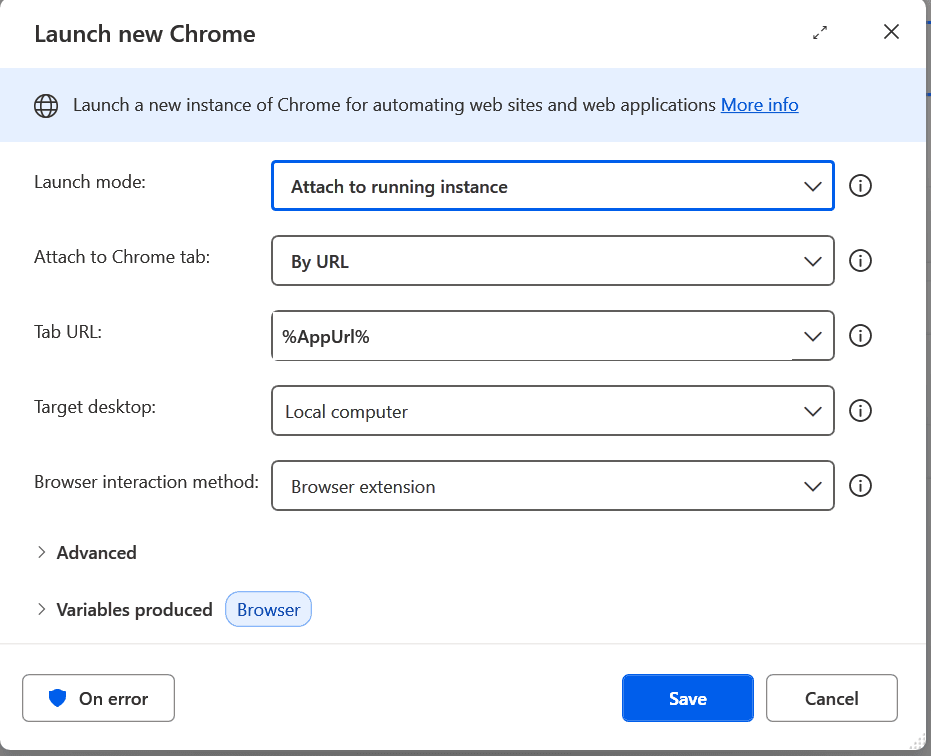
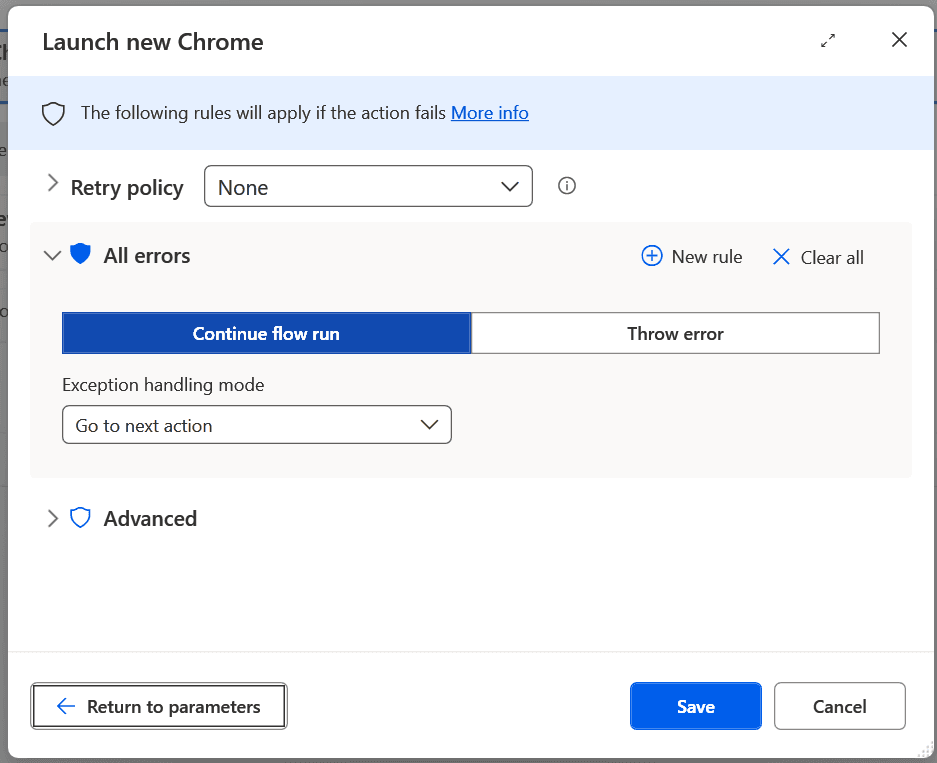
Please note that the On error for this step has been set to continue.
If however, we don’t have the app open already, then I’ll try to open Chrome again, but this time I’m creating a new browser instance.
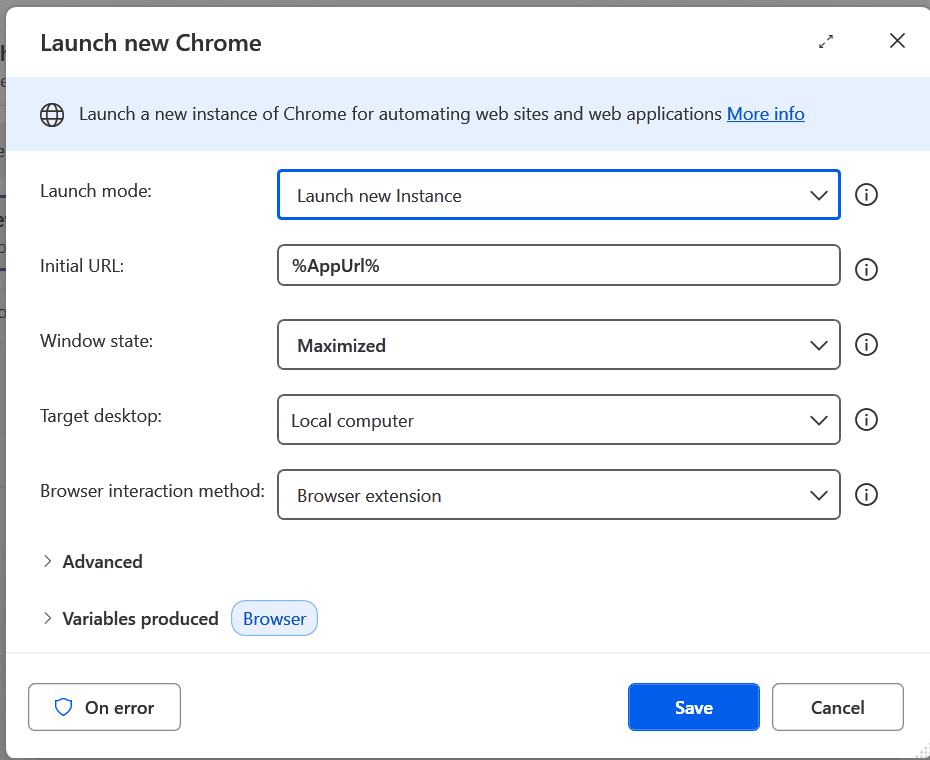
Then finally in my flow I’m adding a 5 seconds wait time just to make sure that my app has properly started.
Alternative solution
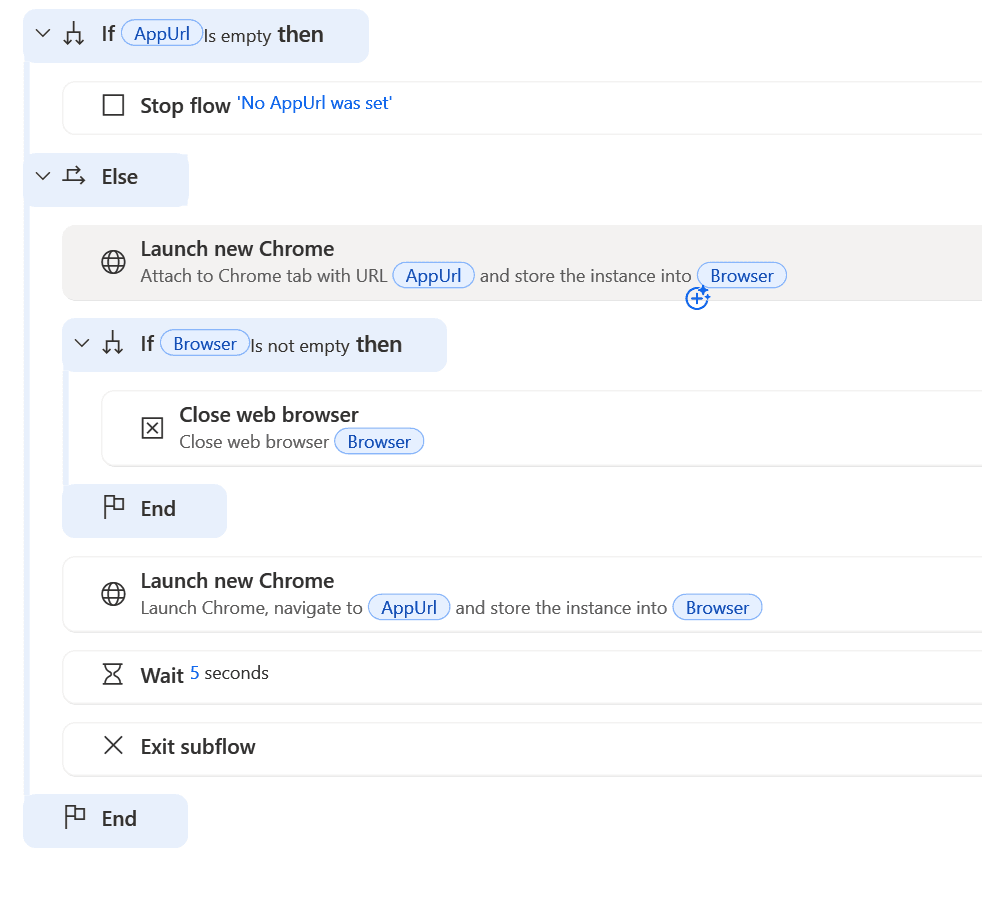
So far I looked at reusing the browser that already opened the app before. Now I could imagine that it might be useful to close that session before opening the app.
If you want to close existing browser sessions then the following flow will help you with this:
Pieter Veenstra

Is your business still running on paper trails, sprawling Excel files, or ageing Access databases? There's a better way — and I can show you exactly what it looks like. I'm the Technical Director of Vantage 365, a Microsoft solutions consultancy working with clients across the UK, the Netherlands, and worldwide. For over 30 years I've been turning messy, manual business processes into clean, automated systems that save time, reduce errors, and give teams the visibility they need to make better decisions. SharePains is not just any blog run by a Microsoft MVP. Have you ever used Try-Catch in Power Automate? The original post about Try-Catch in Power Automate can still be found on this site, https://sharepains.com/2018/02/07/try-catch-finally-in-power-automate-flow/ Or have you ever used the Pieter’s method to avoid variables and speed up your flows? https://sharepains.com/2020/03/11/pieters-method-for-advanced-in-flows/ You can contact me using contact@sharepains.com