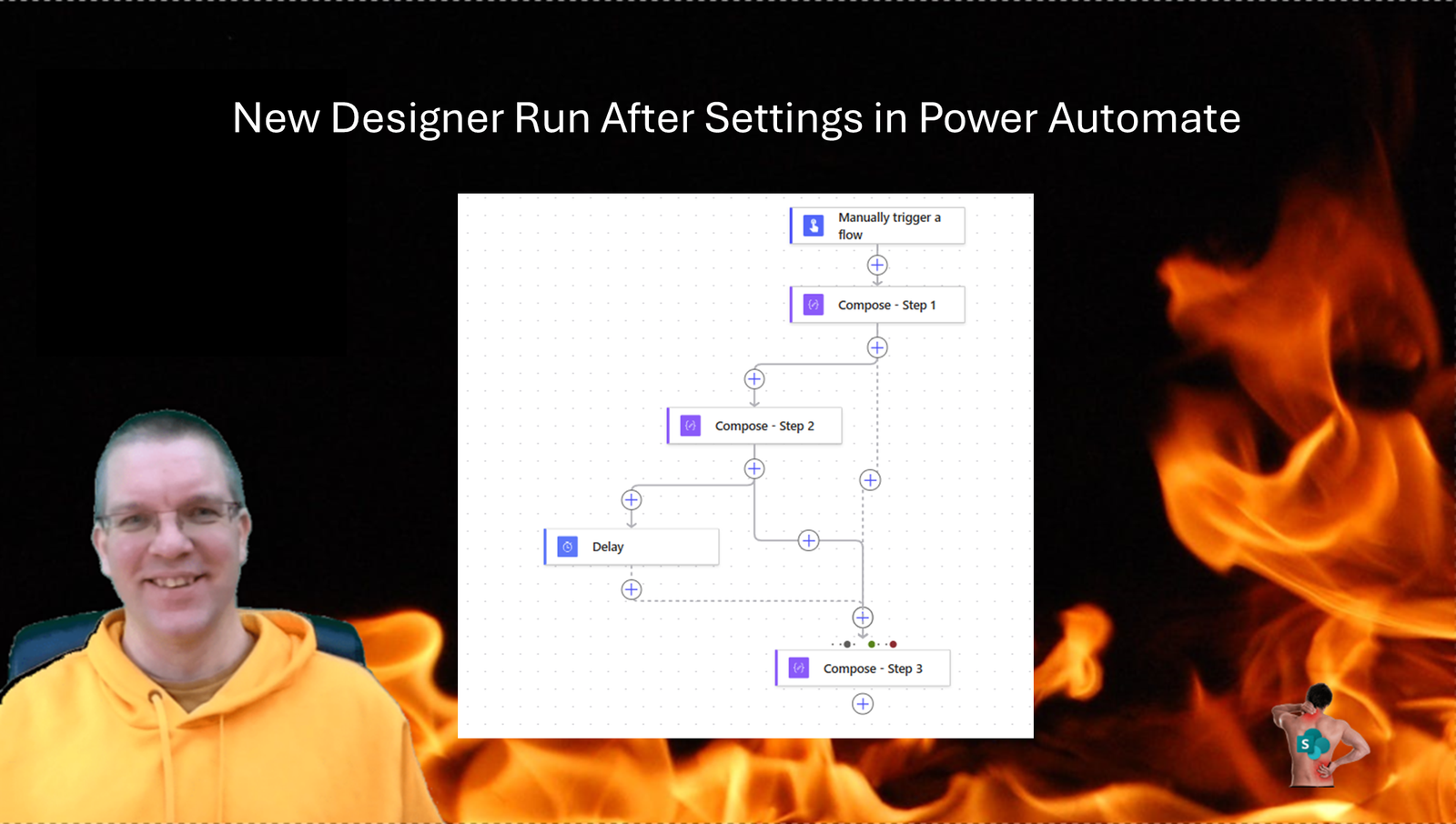
I will start this post with a warning about the New Designer Run After settings. The steps described in this post do not make it easier to understand what your flow will do. But I’m sure someone will comment on this post with a “That is exactly what I need”
Run After settings
Run after settings have existed in Power Automate for a very long time. They let you control the need for steps to run depending on if a previous step was successful, failed, skipped or timed out.
The Run After settings were the start of the try catch pattern in 2018. But how about the new settings. You can select any of the actions that appear earlier in your flow.
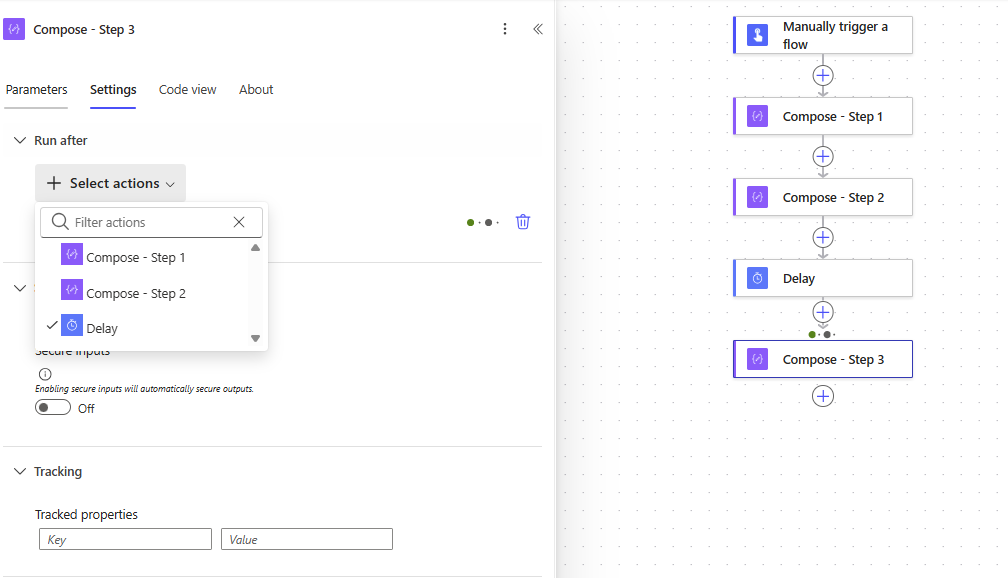
So by selecting Compose Step 1 in the Step 3’s run after setting you could end up with this flow:
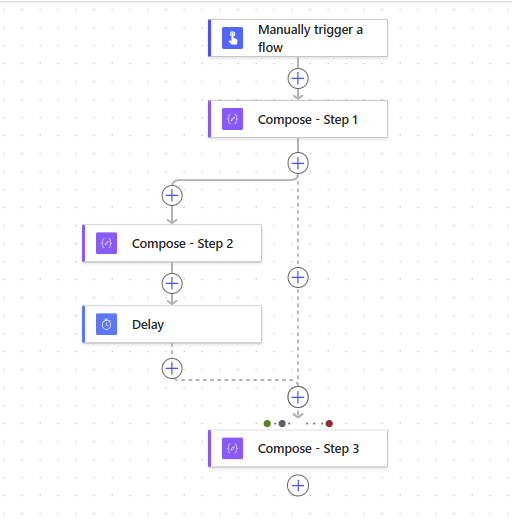
Please note that this is only available in the new UI. Even though flows can still be edited in the in the old UI. I guess Microsoft have given up with updates to the old UI. As we all know some flows cannot be edited in the New Designer.
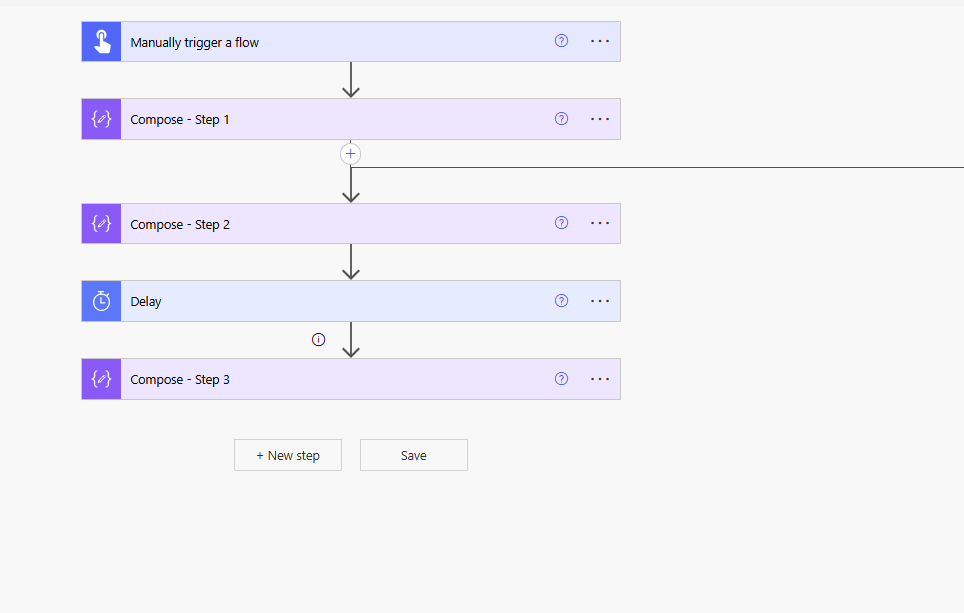
It looks like we now have a broken Classic Designer.
Now assuming that the New Designer works it is worth looking at how this works. We can see the two sets of dots above Step 3. Our settings have been configured to run step 3 when the Delay action has been skipped (for example when Step 1 fails) and when Step 1 is successful or has failed.
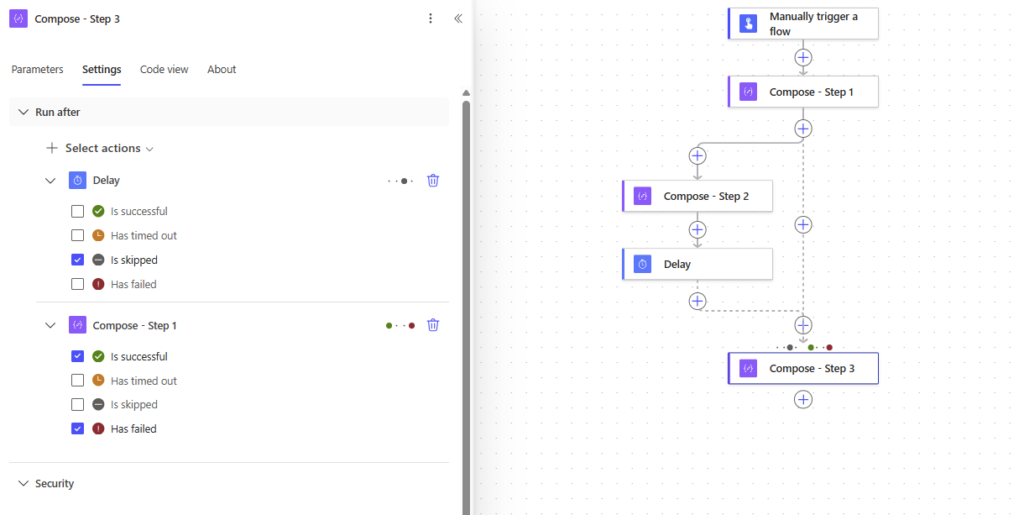
It is important to realise that each set of conditions has to be true. We have a logical AND here in the conditions.
If we take this a bit further then I do hope that we all agree that the following is absolutely horrible! Understanding the following logic will be a real challenge.
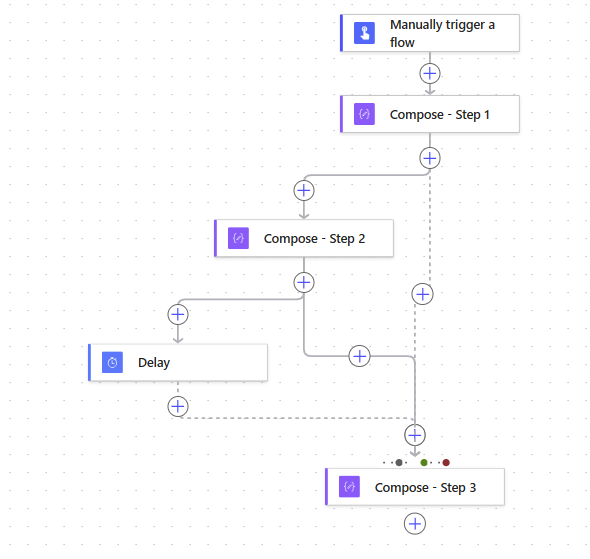
Within the old UI the above would appear with parallel branches. Even though we didn’t specify any parallel branches.
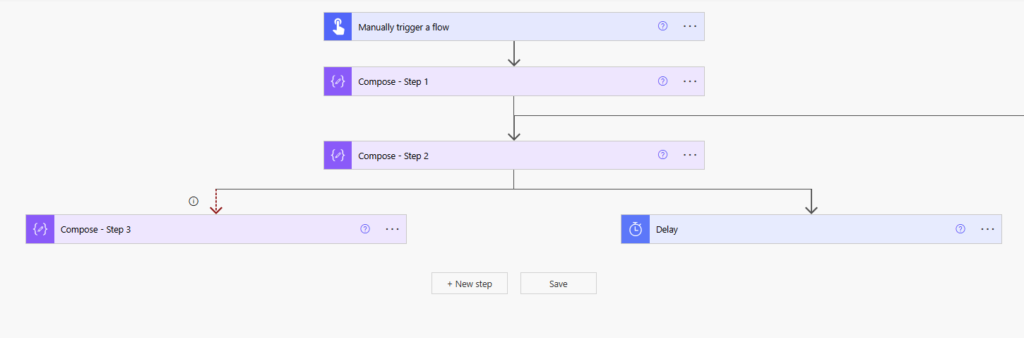
If you thought that switching back tot he new Designer would solve your problem. Then have a look at the result when I reopened my flow in the Modern Designer.
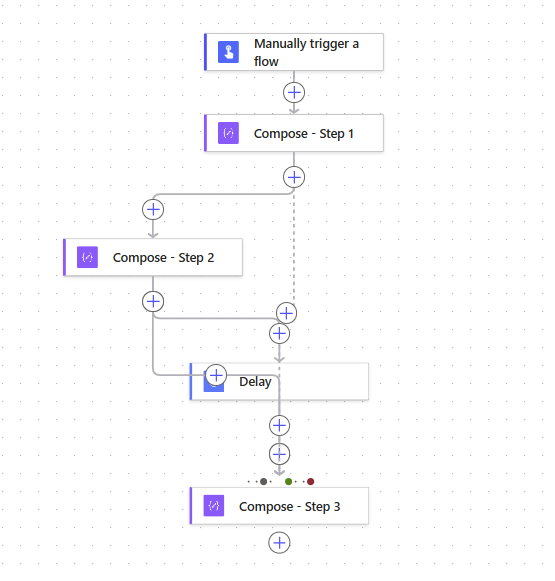
So just to repeat my warning at the beginning of this post. Be very careful using run after settings, especially when they depend on multiple actions. That includes if you are editing with the Classic Designer. The classic Try-Catch pattern is still the preferred way to handle exceptions.
Pieter Veenstra

Is your business still running on paper trails, sprawling Excel files, or ageing Access databases? There's a better way — and I can show you exactly what it looks like. I'm the Technical Director of Vantage 365, a Microsoft solutions consultancy working with clients across the UK, the Netherlands, and worldwide. For over 30 years I've been turning messy, manual business processes into clean, automated systems that save time, reduce errors, and give teams the visibility they need to make better decisions. SharePains is not just any blog run by a Microsoft MVP. Have you ever used Try-Catch in Power Automate? The original post about Try-Catch in Power Automate can still be found on this site, https://sharepains.com/2018/02/07/try-catch-finally-in-power-automate-flow/ Or have you ever used the Pieter’s method to avoid variables and speed up your flows? https://sharepains.com/2020/03/11/pieters-method-for-advanced-in-flows/ You can contact me using contact@sharepains.com