

Recently I’ve been asked quite a few times to duplicate SharePoint lists as part of creating a Development, Test and production environment in Power Apps.
PnP PowerShell
Whatever you want to do to SharePoint, PnP PowerShell is often the quick way of doing things. Especially if you want to undertake the same thing. One of these common reasons to use PnP PowerShell for me is to create a copy of a SharePoint site to support my 3 environment setup in my Power Platform solutions.
With the power of scripting and automation, you can save time and effort by replicating lists with ease. In this article, I will look at the various strategies to guide you through the process of duplicating lists in SharePoint using PnP PowerShell.
To install or update your PnP PowerShell, simply type the following line in your PowerShell Terminal in Visual Studio Code.
install-module PnP.Powershell -Scope CurrentUserIt had been a while since I last wrote about PnP PowerShell and replicating sites and so much has changed over the last few years,
Strategy 1 – Duplicate SharePoint list (or a small number of lists)
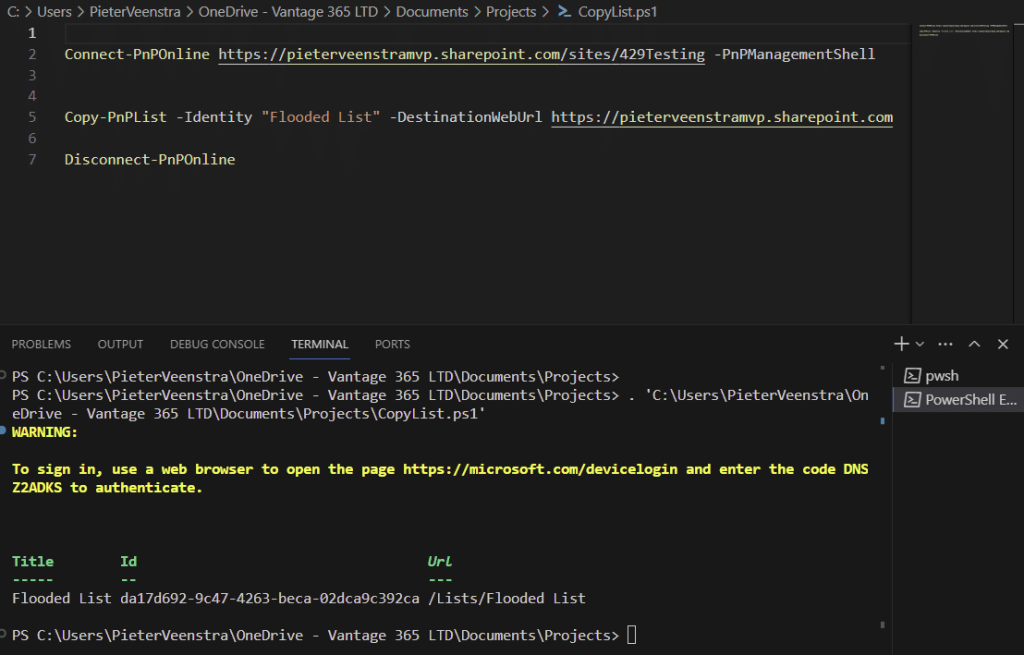
To duplicate a SharePoint list using PnP PowerShell, start by connecting to your SharePoint site using the Connect-PnPOnline cmdlet. Once connected, use the Copy-PnPList cmdlet to copy the list you want to duplicate to a site:
Connect-PnPOnline https://pieterveenstramvp.sharepoint.com/sites/Finance-PnPManagementShell
Copy-PnPList -Identity "Flooded List" -DestinationWebUrl $SiteUrlThe above will replicate the list but not the content of the list. Quite often I don’t want to replicate the list content however for lookup lists it might help if the content is replicated as well. But that I can have a look at in a different post.
Strategy 2 – Dusplicate a whole site
Quite often I want to not just replicate one list in a site, I want to replicate multiple lists to potentially multiple sites.
Typically, I would use the following script, to read a template form a site and then use the template, to recreate the various elements on my Development and Test copies of the site.
Connect-PnPOnline $TenantUrl/sites/Finance -PnPManagementShell
Get-PnPSiteTemplate -Out template.xml -ExcludeHandlers SiteSecurity

Connect-PnPOnline $TenantUrl/sites/FinanceDevelopment -PnPManagementShell
Invoke-PnPSiteTemplate -Path template.xml

Connect-PnPOnline $TenantUrl/sites/FinanceTest -PnPManagementShell
Invoke-PnPSiteTemplate -Path template.xml
The above I would typically use if, I’m in a situation where a new client has developed all their apps in a single environment and they are looking at moving towards a separation between Development, Test and Production.
Pieter Veenstra

Is your business still running on paper trails, sprawling Excel files, or ageing Access databases? There's a better way — and I can show you exactly what it looks like. I'm the Technical Director of Vantage 365, a Microsoft solutions consultancy working with clients across the UK, the Netherlands, and worldwide. For over 30 years I've been turning messy, manual business processes into clean, automated systems that save time, reduce errors, and give teams the visibility they need to make better decisions. SharePains is not just any blog run by a Microsoft MVP. Have you ever used Try-Catch in Power Automate? The original post about Try-Catch in Power Automate can still be found on this site, https://sharepains.com/2018/02/07/try-catch-finally-in-power-automate-flow/ Or have you ever used the Pieter’s method to avoid variables and speed up your flows? https://sharepains.com/2020/03/11/pieters-method-for-advanced-in-flows/ You can contact me using contact@sharepains.com


Great post! Thanks!