

The new Power Automate designer is getting a lot of negative attention. There are however a quite a few improvements in new Power Automate Designer. The Do Until step is one of those improvements in the new UI.
Do Until
In the classic UI, I’ve seen many used the Do Until often in combination with variables as shown below where we run some actions inside a Do Until before a variable is set before the Do Until step will check the value of the variable.
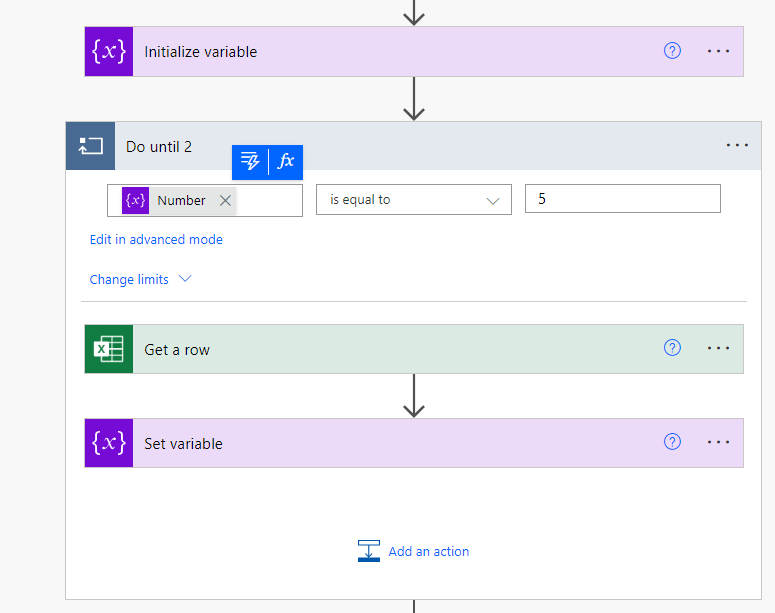
In the classic UI you might think that the Do until condition would be checked before the first iteration of the Do Until. But this does not happen. A Do Until will always run once before it checks the condition.
Do Until in the classic UI without variables
First of all, this is not a matter of using variables or not. Whereas in Apply to each steps variables disable concurrency in Do until loops there is no concurrency setting, hence it doesn’t matter if you use variables or not. Other than less is often better.
When we run some more tests you will find that the variable steps are actually not needed at all. As the condition can check values from steps returned by steps inside the Do Until.
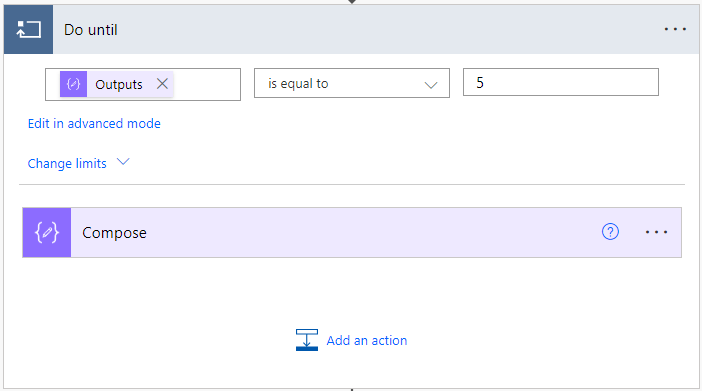
Now it is time to have a look at the modern Power Automate Designer UI.
Do Until in the modern Power Automate designer
Now, when we look at the new UI, we will see that the condition follows the logic in the Do Until. This mean that you would expect the code to run once before the Do Until checks if a condition is met.
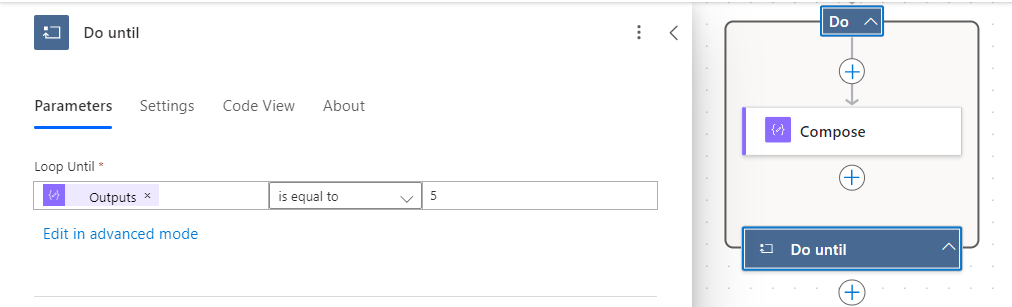
This is one of those many UI changes that actually makes sense. Have you found any real positive changes in the new UI, then leave a comment below.
Pieter Veenstra

Is your business still running on paper trails, sprawling Excel files, or ageing Access databases? There's a better way — and I can show you exactly what it looks like. I'm the Technical Director of Vantage 365, a Microsoft solutions consultancy working with clients across the UK, the Netherlands, and worldwide. For over 30 years I've been turning messy, manual business processes into clean, automated systems that save time, reduce errors, and give teams the visibility they need to make better decisions. SharePains is not just any blog run by a Microsoft MVP. Have you ever used Try-Catch in Power Automate? The original post about Try-Catch in Power Automate can still be found on this site, https://sharepains.com/2018/02/07/try-catch-finally-in-power-automate-flow/ Or have you ever used the Pieter’s method to avoid variables and speed up your flows? https://sharepains.com/2020/03/11/pieters-method-for-advanced-in-flows/ You can contact me using contact@sharepains.com

In this post, you wrote “There are however a quite a few improvements in new SharePoint Designer.” Did you mean “Power Automate Designer”? If not, I’ve a bit confused.
Thank you. Fixed that now.