

After looking at Triggers in Copilot Studio a few weeks ago, I’m taking the next step in this post. Activities in Copilot Studio.
Activities in Copilot
After adding a trigger to a topic of the Agent, we can add Activities to the configuration. Copilot Studio comes with a number of activities that we can choose from. In my previous posts I already used some of these for my examples.
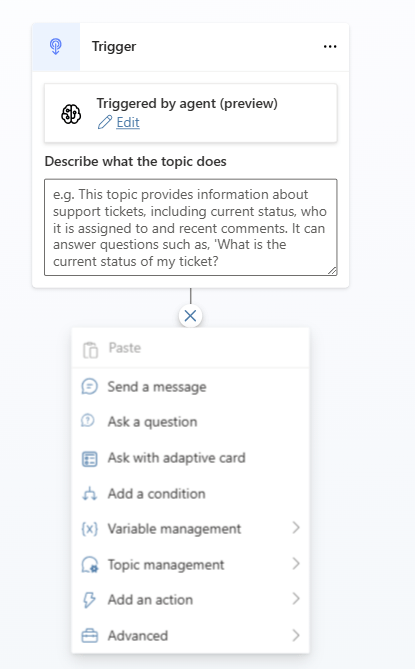
All of these actions can make use of variables and expressions, however that will be another set of posts at a later day.
Send a message
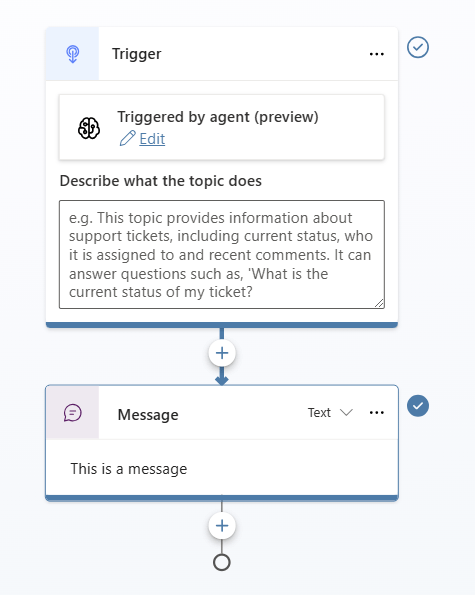
The Send a message activity is probably the simplest activity in the list. So for example when a user triggers my topic I could get the agent to say “This is a message”.
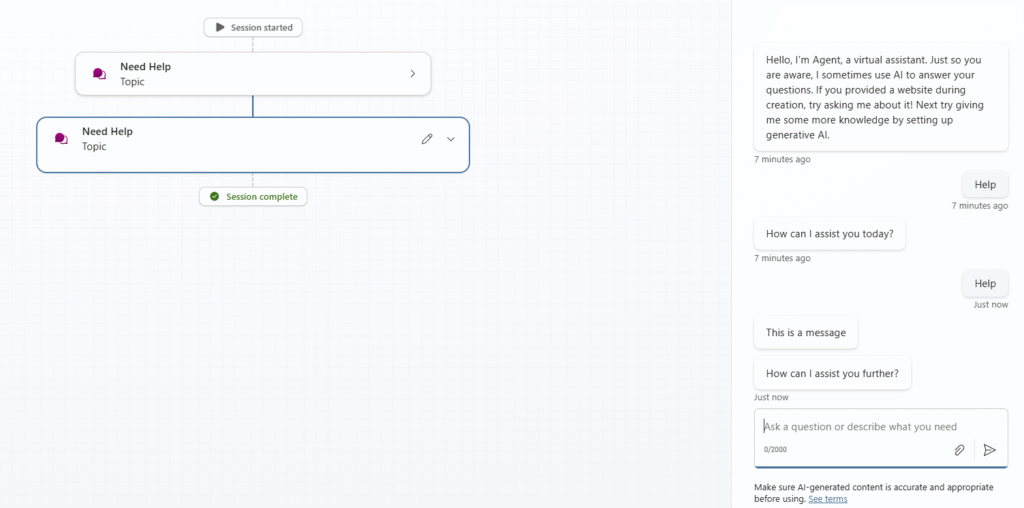
Now when we test the agent, we will see that triggering the topics in the agent first resulted in the How can I assist you today? Whereas when we implemented the Message activity, the response matches the above configuration.
But there is more…
The Message Activity allows you to also configure message variations. Simply click on Add in the activity and then select Message variation.
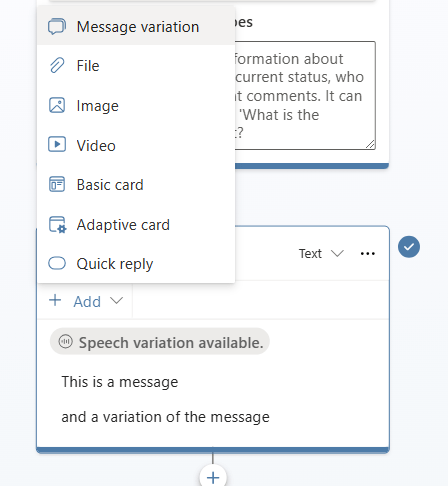
Message variations configured, if the user triggers the same topic alternative messages will be displayed.
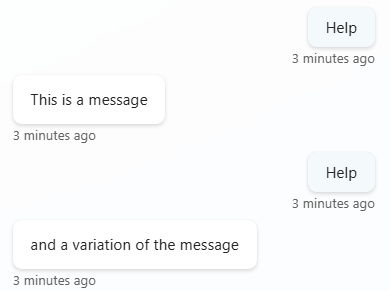
In a similar way we can also add quick reply buttons to our chat.
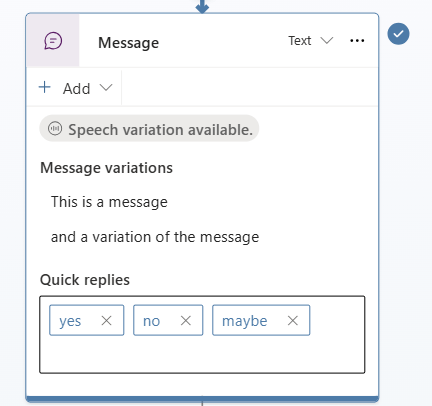
We just need to add the choices by typing the text and hit enter. Then the quick reply options will appear in our chat. This is typically useful for the , “did you mean XYZ?” questions.
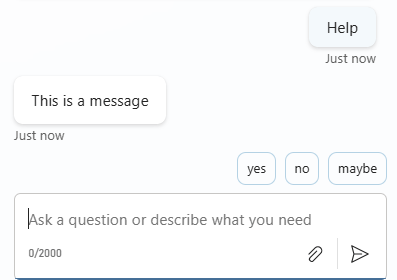
Similar to the quick reply, the message activity offers also,
- Message Variation
- File
- Image
- Video
- Basic Card
- Adaptive Card
- Quick reply
Ask a question
The next activity I’m looking at in this post is the Ask question. As mentioned before it is possible to read the choice options from data that we hold somewhere. In this post I only want to look at the first steps of configuring activities.

Now once again we test our agent and we get the question and the choices to appear. This is similar to the Quick reply that we looked at earlier. When the user now clicks on any of the options, there will be a variable (Var1 in the above setup) that we can use later on in the conversation.
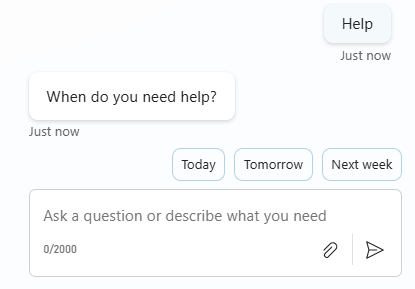
But there is more (again). Rather than using the Multiple Choice options we have a few more options available.
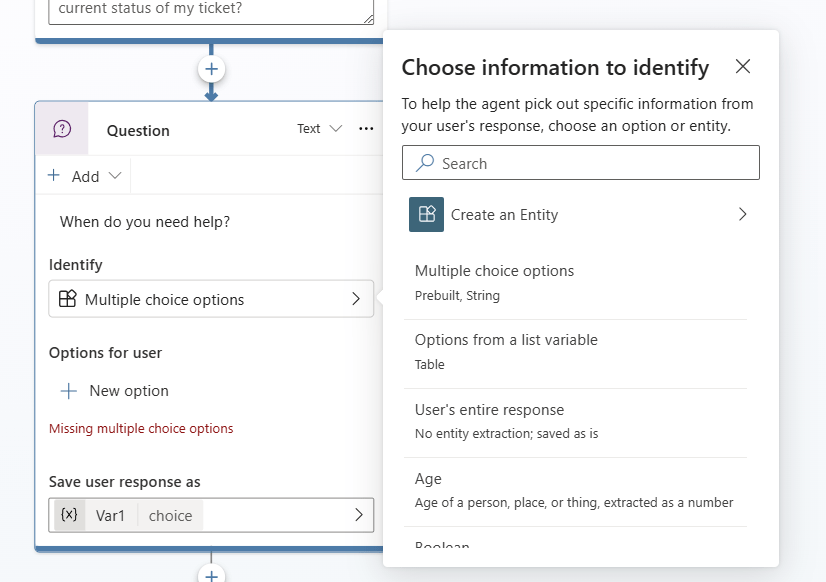
I’m going to pick Age. And now some magic will happen. Do you remember Power Automate adding an apply to each every time you access a property in an array. Even though it could be helpful, I would prefer to add these steps myself.
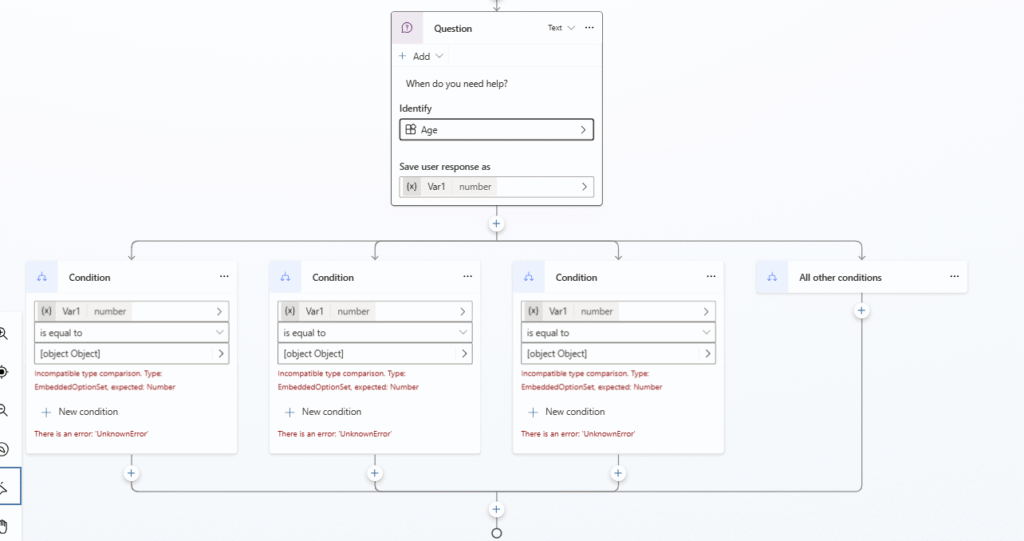
With the above Age question would could now for example take steps depending on the user’s entered age.
Ask with Adaptive Card
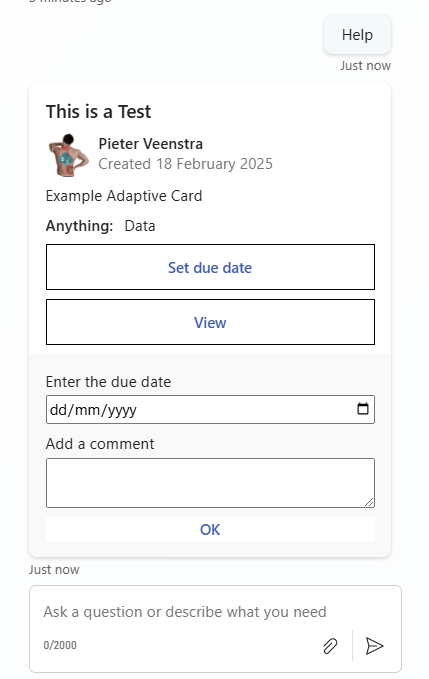
USing the Ask with adaptive card activity, can create adaptive cards that ask questions. So in the example below I’ve configured a basic adaptive card that asks the user to respond by clicking on buttons.

Depending on the choice that the user makes we can then take our next steps in the topic or adaptive card. An example of this is shown below:
Add a condition
Now when we add conditions in our topic, the agents become more interesting. First I’m going to go back to the Ask a question activity. The Ask a question activity will return either yes or no in a variable. Now with the condition we can check the value of the variable and make choices depending on that.

Now rather than using condition steps like in Power Automate, Copilot Studio will add switches. In this case Copilot added the right options for me already. Now Copilot Studio is trying to be helpful. Being helpful and getting it right is always good.
Set a variable value
To set a variable there is an action that will take data and set the variable for us to use at a later stage in the topic.
now we could set a variable and name it Today and then use the function Now() to give use the current date and time.

When we run this agent, we will get the expected result. We could of course do some date formatting for users outside the US. But I will have a look at that in a future post.

Now we have three sections left over. in the Activity options available in Copilot Studio
- Topic Management
- Add an Action
- Advanced.
I will have a look at this in my next posts. In the mean time have a read through my Copilot Studio User Guide.
Pieter Veenstra

Is your business still running on paper trails, sprawling Excel files, or ageing Access databases? There's a better way — and I can show you exactly what it looks like. I'm the Technical Director of Vantage 365, a Microsoft solutions consultancy working with clients across the UK, the Netherlands, and worldwide. For over 30 years I've been turning messy, manual business processes into clean, automated systems that save time, reduce errors, and give teams the visibility they need to make better decisions. SharePains is not just any blog run by a Microsoft MVP. Have you ever used Try-Catch in Power Automate? The original post about Try-Catch in Power Automate can still be found on this site, https://sharepains.com/2018/02/07/try-catch-finally-in-power-automate-flow/ Or have you ever used the Pieter’s method to avoid variables and speed up your flows? https://sharepains.com/2020/03/11/pieters-method-for-advanced-in-flows/ You can contact me using contact@sharepains.com

