
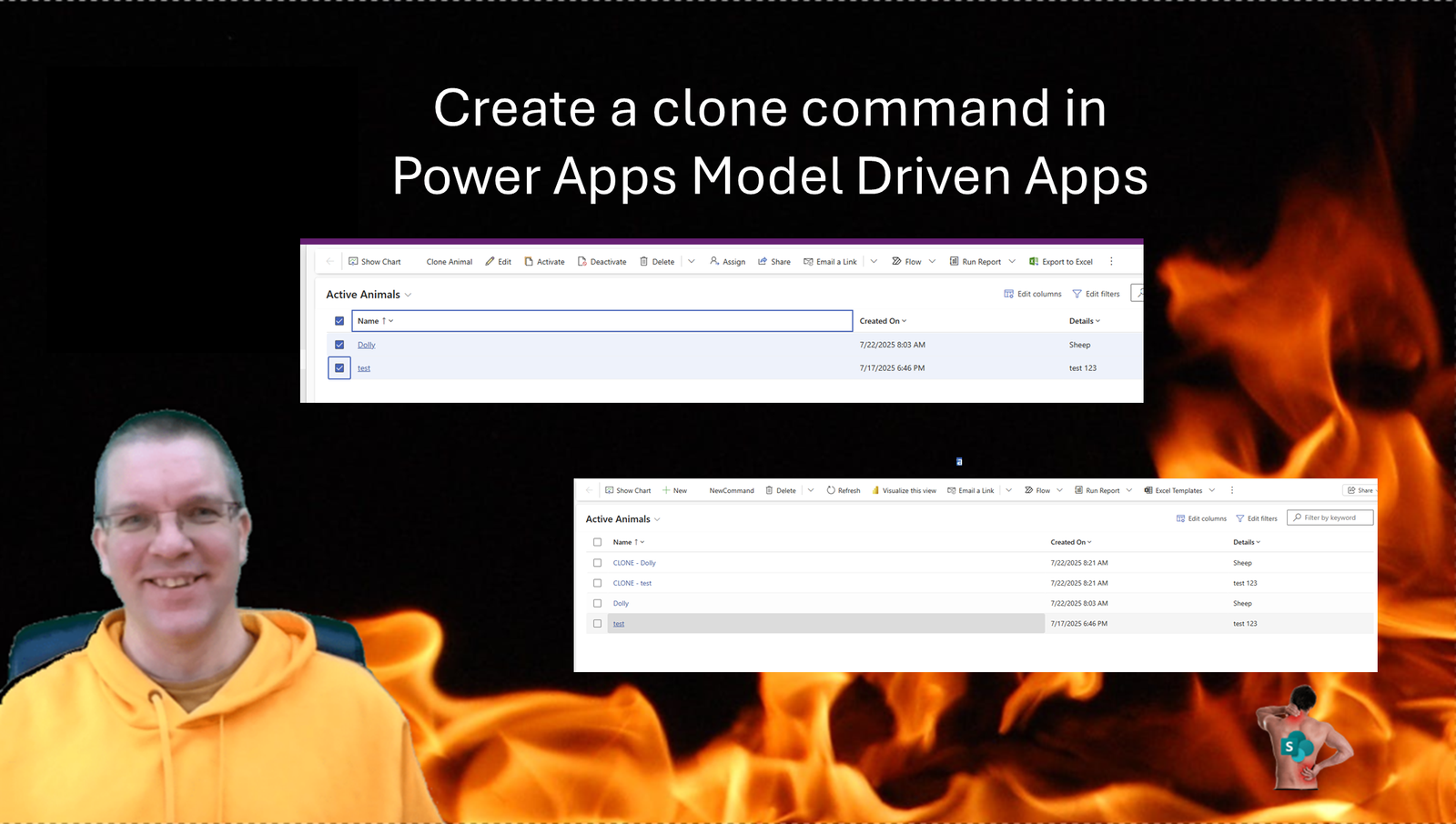
In Power Apps you can create custom commands in your views when developing Model Driven Apps. In this post I’m looking at how you can develop a clone command button to clone records in specific tables.
My Setup
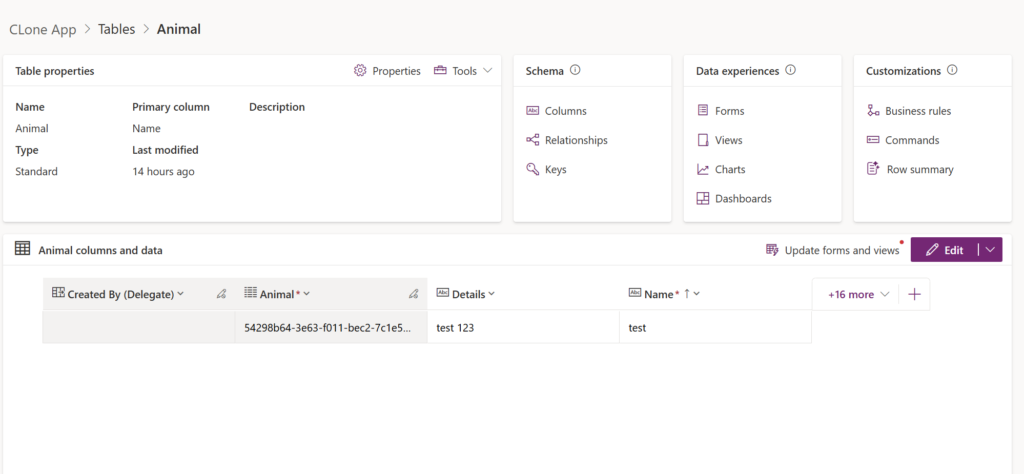
I’ve created a table called animals. This table has a number of fields that I want to use for my app. I’ve also updated the main form and the active records view, so that I can use those in my app that I have developed.
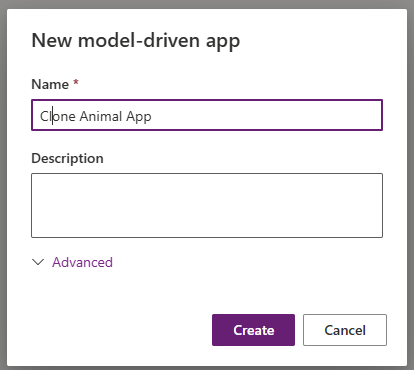
Create an Clone Model Driven app
Now that I have my table ready, I can create the app.
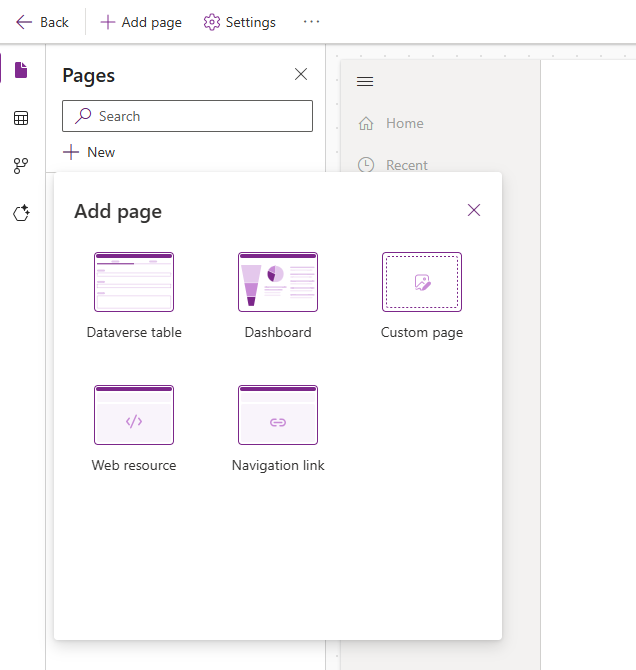
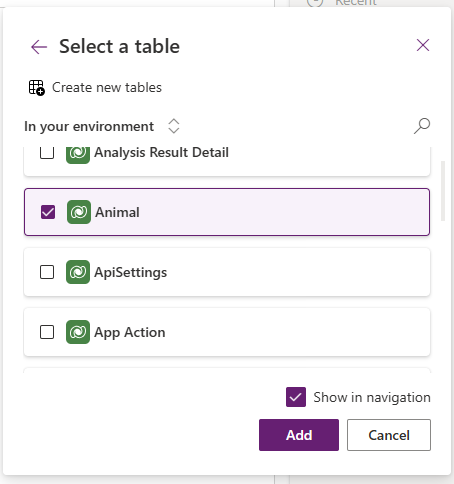
Within my app I can add a page to access my Dataverse Table. This means that my table will be available in the navigation of my app.
I’m selecting my animal table and make sure that I keep the Show in navigation ticked.
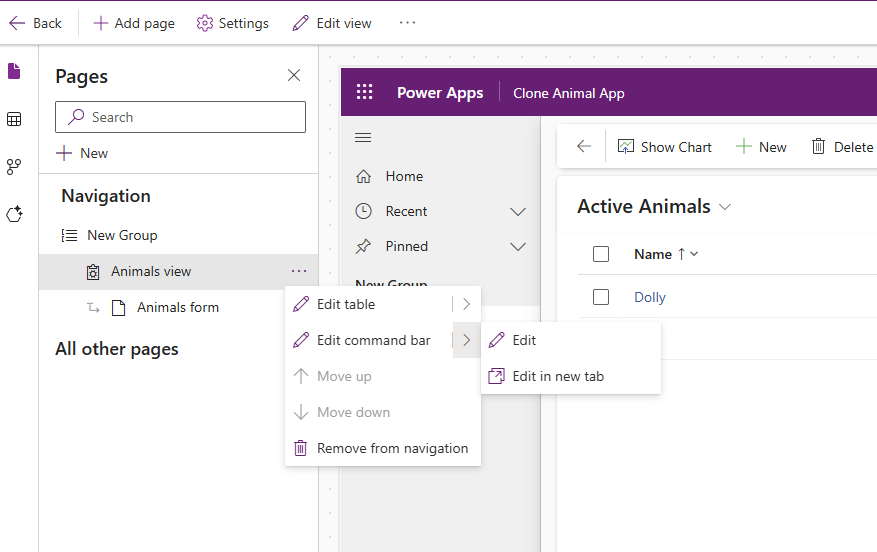
Within my Animal view, there is an option to add edit the command bar.
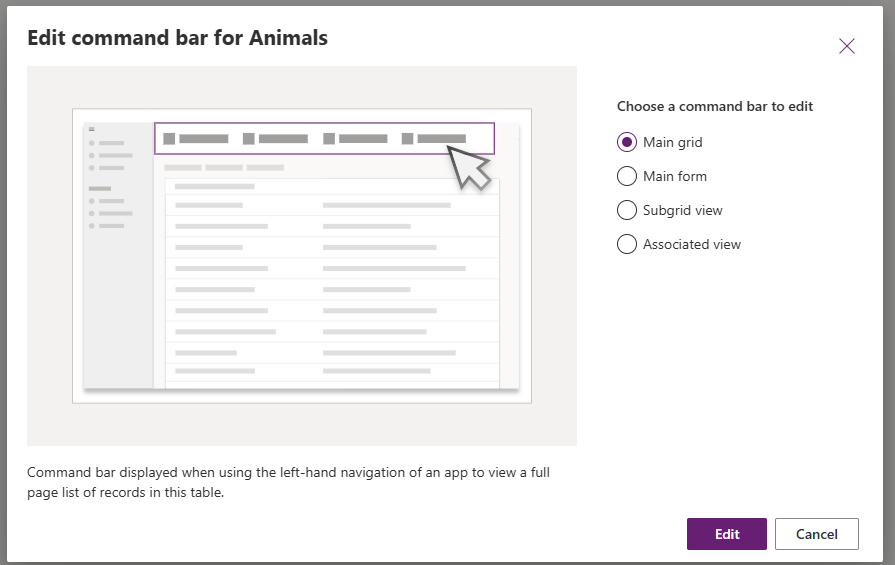
Commands can appear in different places. For our app I want to add the command to the Main grid. So when my animal records are displayed I want to be able to select my records before I clone my records.
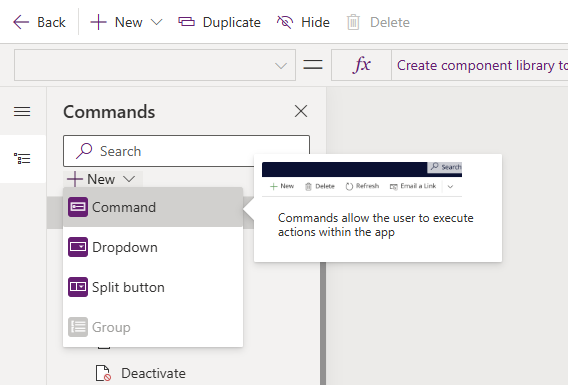
Within the Command Bar editor we add Commands, Dropdowns and Split Buttons. Command is the option that we want
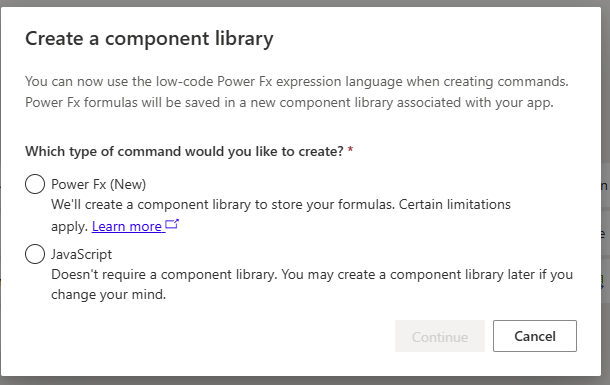
The first time we add a Command we will see the following dialogue. I’m selecting Power Fx as I want to create Power FX to develop out custom clone button.
Configure the Clone Button’s visibility
Now we can give our Command a new name, as by default every command is called NewCommand. Additionally, you could also select an icon to make the command look better in the app.
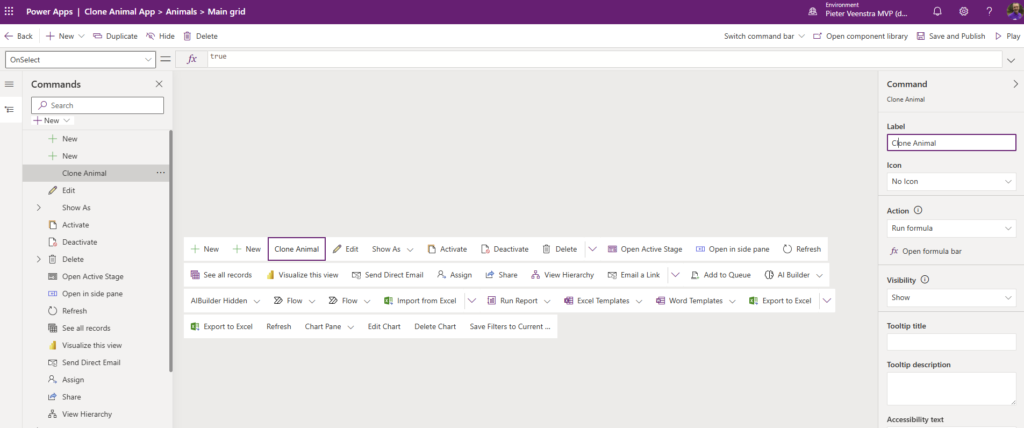
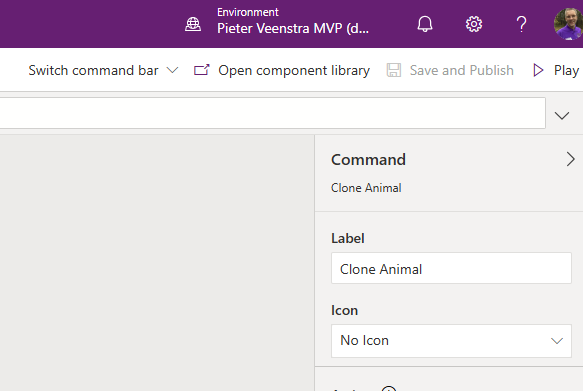
In general I prefer to open the component library (top right menu) first as I will need to do this to publish the component anyway.
To configure the clone button’s visibility we can set the Visible property using the following code:
CountRows(Self.Selected.AllItems)>0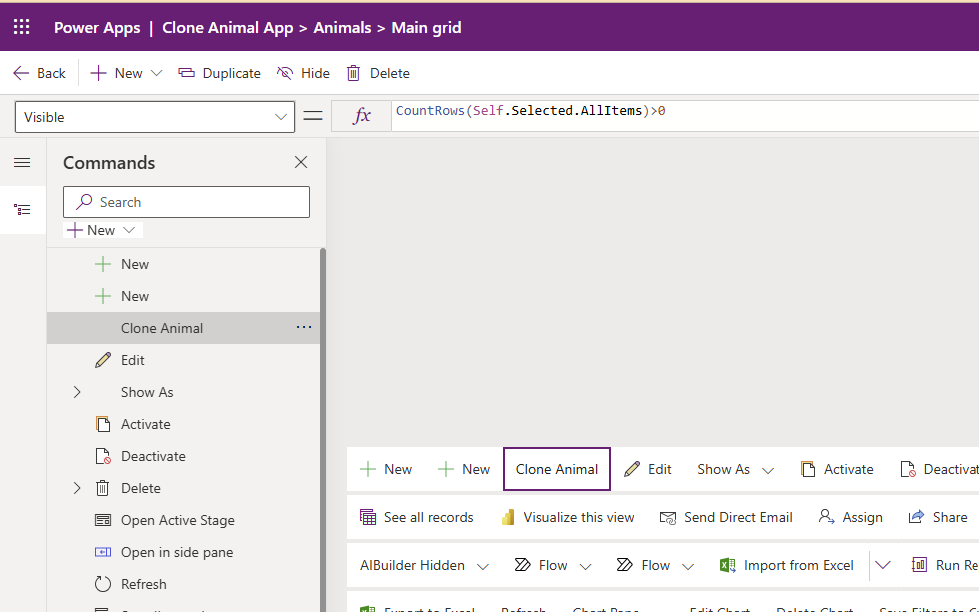
With the above Visibility setting, we make sure that the Clone Animal option is visible only when records have been selected.
Implement Cloning
So far we have a command that will appear at the righjt time, but we haven’t configured the behaviour of the command yet.
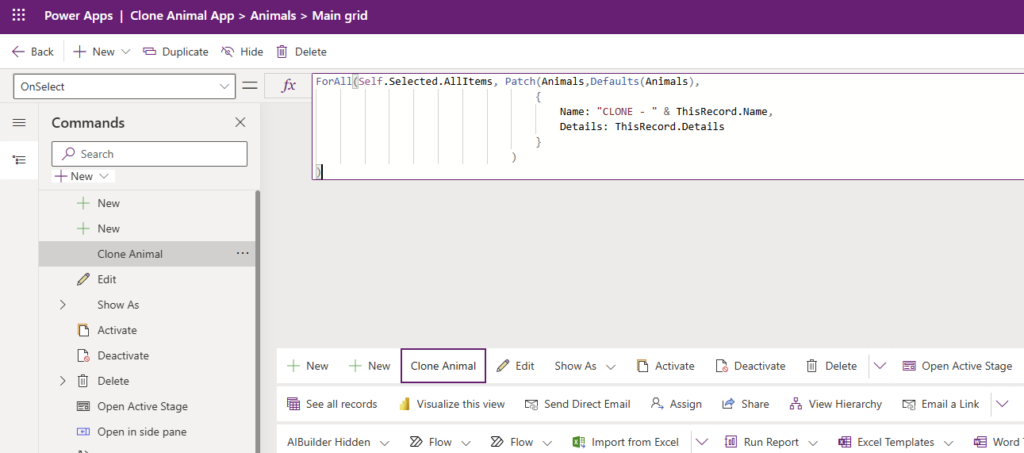
ForAll(Self.Selected.AllItems,
    Patch(Animals,Defaults(Animals),
        {
            Name: "CLONE - " & ThisRecord.Name,
            Details: ThisRecord.Details
        }
   )
)
The above code is fairly similar to how you would do this in a Canvas App. Yes, Power FX is fairly similar for both Canvas and Model Driven Apps. There are just some limitations here and there.
ForAll, Patch, Defaults are all functions that we use in Canvas Apps. The only thing that may need some explaining is the Self.Selected.AllItems. Self is referring to the View that we are using. Self.Selected.AllItems gives you all the items that have currently been selected.
Testing the Clone feature
Now that when run our app, we can select our records and the Clone Animal option will appear.

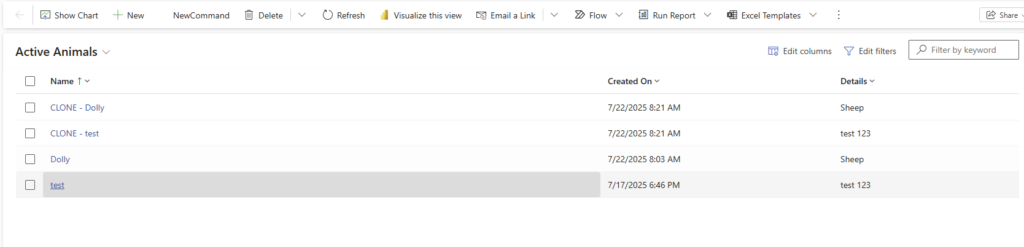
And once we clicked on the Clone Animal command, we will find that our records are cloned.
Pieter Veenstra

Is your business still running on paper trails, sprawling Excel files, or ageing Access databases? There's a better way — and I can show you exactly what it looks like. I'm the Technical Director of Vantage 365, a Microsoft solutions consultancy working with clients across the UK, the Netherlands, and worldwide. For over 30 years I've been turning messy, manual business processes into clean, automated systems that save time, reduce errors, and give teams the visibility they need to make better decisions. SharePains is not just any blog run by a Microsoft MVP. Have you ever used Try-Catch in Power Automate? The original post about Try-Catch in Power Automate can still be found on this site, https://sharepains.com/2018/02/07/try-catch-finally-in-power-automate-flow/ Or have you ever used the Pieter’s method to avoid variables and speed up your flows? https://sharepains.com/2020/03/11/pieters-method-for-advanced-in-flows/ You can contact me using contact@sharepains.com

According to the following document, it looks we can’t use the command bar to add the record in Dataverse. Is it correct?
https://learn.microsoft.com/en-us/power-apps/maker/model-driven-apps/use-command-designer#use-power-fx-for-actions-and-visibility
———
You can’t currently add additional tables as data sources directly from the command designer. However, you can open the command component library in canvas studio and add additional tables as data sources and then use them within the command designer.
It mentioned that you can’t add tables. But records to an existing table is ok.