

Following on from yesterday’s post about Input and Output Parameters in Power Automate, today I’m looking at the same for flows that are called from a Power Apps canvas app. We will find that child flows and flows called from an app are very different.
The Input Parameter types
Like with the Manually trigger a flow trigger that we use with Child flows, the When Power Apps calls a flow (V2) has six types of input parameters that can be used.
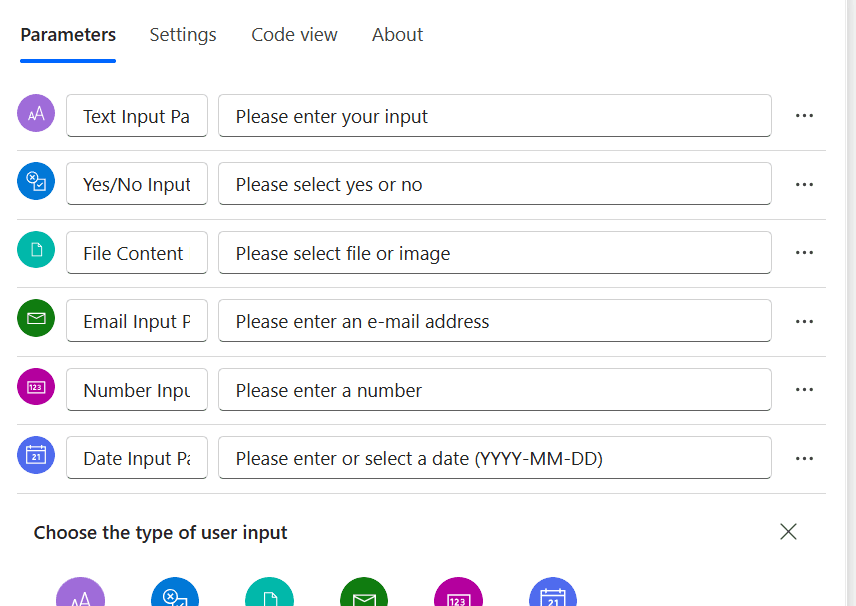
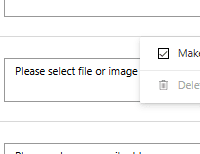
Again we can make fields/parameters optional or required for all of them. There is a small gotcha here though. The File input type is by default optional, whereas all the others are required by default.
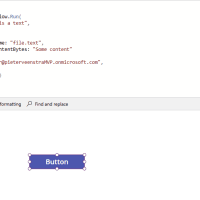
Once the flow has been created we can created an app that calls the flow as shown below. Important to remember is that if you collect the output form the flow the rest of the code will wait until your flow is finished. Or actually until a respond action has run within your flow.
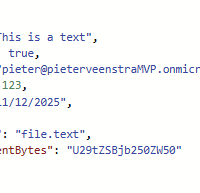
Output from the trigger
When we take a closer look at trigger of our flow, we can find all the data as we would expect. The properties within our data however are slightly confusing. Especially if you have 10 text fields. The Manually trigger a flow trigger in this perspective is better.
In our app we can now run the flow. Once the flow has completed and we preview the data returned to the app shows us a couple of issues.
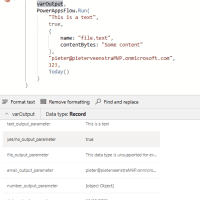
First of all the the file parameter can now be displayed. Ok, this is expected as Power Apps doesn’t let us preview complex data. The number output however is more of a problem. We are getting one of those weird [object Object] values.
Handling Null values
The way the Power Apps trigger handled null values is different to the Manual trigger that we looked at yesterday.
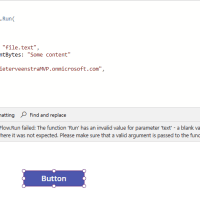
Submitting blank values giving error:
Error. (PowerAppsFlow.Run failed: The function ‘Run’ has an invalid value for parameter ‘text’ – a blank value was passed to it where it was not expected. Please make sure that a valid argument is passed to the function.)
Passing in Objects to a flow
If you want to send an object (or collection) to a flow then you can use the Text Input. I will first go through the my least preferred option. At the end of this post I will give you the better approach!
If within the app you try to pass in an object directly as shown below then you will find that you get an error when you try to save the app.
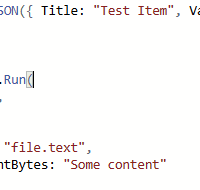
However if you convert the Object to JSON text using the JSON function as shown below then you will be successful getting the app data into the flow.
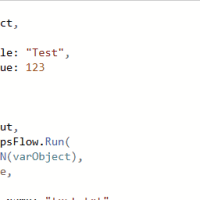
Output from trigger is now as text available in the flow and the JSON function in Power Automate will have to be used to turn the text into an object again. This is where the When Power Apps called a flow trigger is very different compared to the Manually trigger a flow trigger as we saw in yesterday’s post about Input and Output parameters in child flows.

Required vs Optional fields
So far we looked at all the fields being required. However, you can have optional fields on your flow trigger.
I’ve made a number of fields required and some of the optional. In the example below I called the flow with just the required fields. My Yes/No, File and Date fields are required.
Other than the optional fields not being included it all looks the same.
As we now add the optional fields, the syntax of the flow call becomes instantly better as the optional fields need to be named.
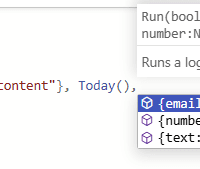
Unfortunately, we have to present the internal names (text, number, email) rather than the display names that we gave the property when we created the trigger.
When we have a look back at yesterday’s post. Power Automate with Child flows gave us so much better naming standards as the field names (rather than field types) are used to name the parameters.
Handling Date and Times
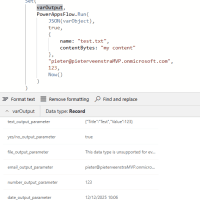
One of the comments I received on yesterday’s post is that the Date Input Parameter doesn’t handle the time part of a datetime field. So I’m putting that to the test in Power Apps. The following test shows that I can use the Now() function to generate a date and time and this is returned to me successfully.
Handling Objects – attempt 2
As promised earlier Handling objects can be done in a slightly different way. First of all you will need to create a parameter for each field. Then make all fields in your object optional. Now we can create an object and submit it as the optional part of our flow run. And example shown below:
Set(
    varObject,
    {
        text: "This is a text",
        number: 123,
        date: Now(),
        file: { name: "filename.txt", contentBytes : "This is my content"},
        boolean: true,
        email: User().Email
    }
);
Set(
    varOutput,
    PowerAppsFlow.Run(
       varObject
    )
)
Pieter Veenstra

Is your business still running on paper trails, sprawling Excel files, or ageing Access databases? There's a better way — and I can show you exactly what it looks like. I'm the Technical Director of Vantage 365, a Microsoft solutions consultancy working with clients across the UK, the Netherlands, and worldwide. For over 30 years I've been turning messy, manual business processes into clean, automated systems that save time, reduce errors, and give teams the visibility they need to make better decisions. SharePains is not just any blog run by a Microsoft MVP. Have you ever used Try-Catch in Power Automate? The original post about Try-Catch in Power Automate can still be found on this site, https://sharepains.com/2018/02/07/try-catch-finally-in-power-automate-flow/ Or have you ever used the Pieter’s method to avoid variables and speed up your flows? https://sharepains.com/2020/03/11/pieters-method-for-advanced-in-flows/ You can contact me using contact@sharepains.com

I promess that a date input parameter will not work if you give it the time part from a powerautomate parent flow.
if you test the flow from power automate experience, and you input date and time in a date parameter, the time part will be removed for the test.
or maybe I mess up with the manual trigger…