In recent months, I have begun using Power Automate Desktop for automated testing within Power Apps.
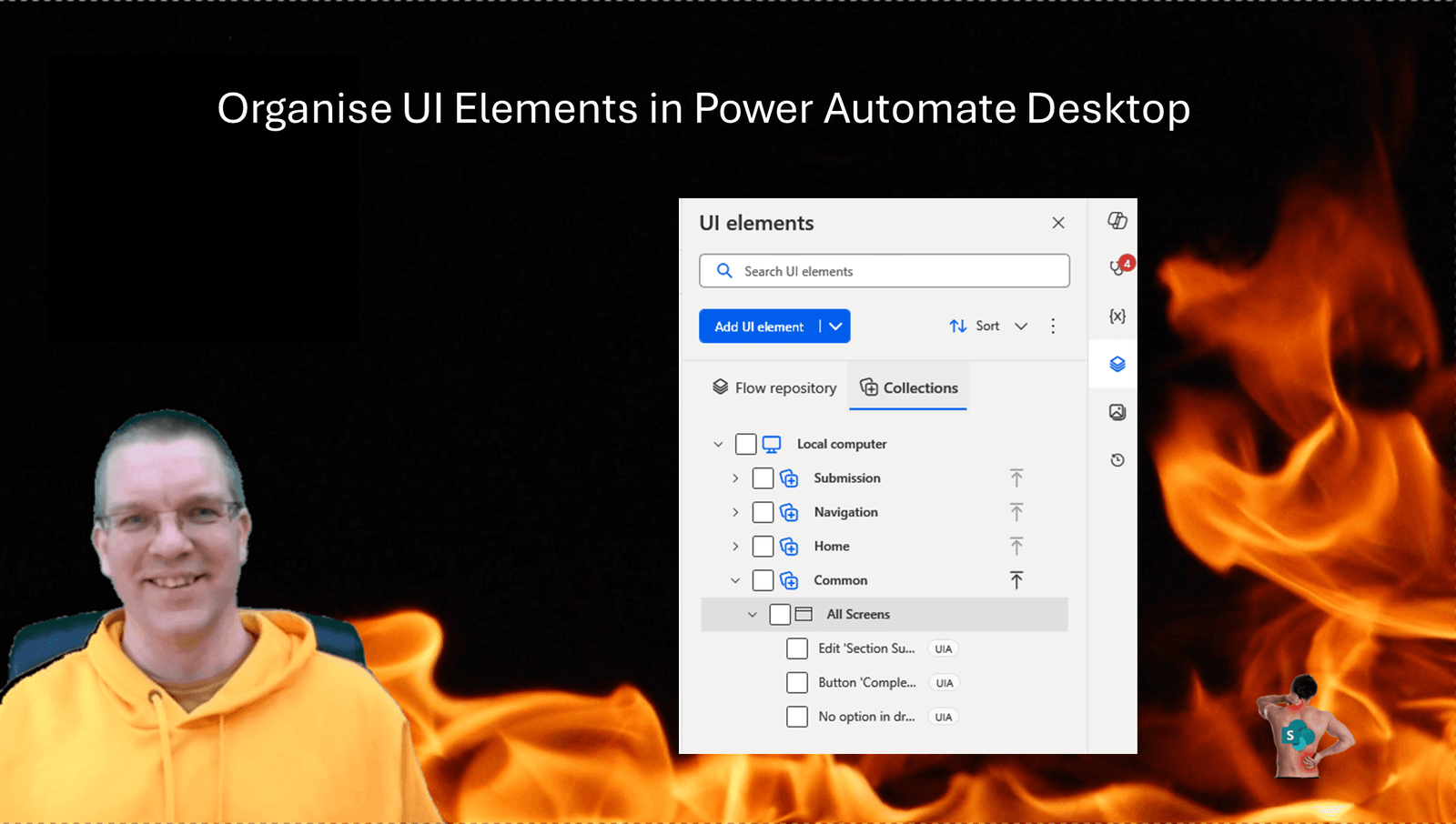
In this post I will have a look at how we can organise UI elements in our PAD flow a bit better.
Why use Power Automate Desktop?
In recent months, I have begun using Power Automate Desktop for automated testing within Power Apps.
However before looking at UI elements in PAD, I will have a brief look at why we would use PAD for testing our Power Apps in the first place.
Power Apps has its own automated testing tool build in. It would make sense to make use of that. There are however quite a few documented limitation.
- Components.
- Code components written in the Power Apps Component Framework.
- Nested galleries.
- Media controls.
- Formula-level error management experimental feature needs to be turned on for the app.
- Support for controls not listed in the Select and SetProperty functions.
- Person-type columns.
- Test Studio is not compatible with the experimental Git version control feature, and will not work properly if that feature is enabled.
The above list is enough reason to not use the Power Apps Test Studio for the majority of my apps.
Power Automate Desktop UI Elements
As described in one of my previous posts about accessing controls in Power Apps from PAD, UI Elements are critical to making any Power Automate Desktop Flow work. How we name our UI Elements within the flow helps a lot.
For example, if I add a Click UI element in window action to my flow it helps that the action itself described what is happening.

In Power Automate Desktop it isn’t possible to edit the name of the action, like we can do in Cloud flows. So the limited self documenting features that we have is all we can use to make the flow easier to understand.
The above example will be so much better than using the out of the box description of the following action:

And when we have a look at all our UI Elements in PAD, we’re just going to get lost in a mess of UI elements. Especially if we needed multiple attempts to get the right control recorded.
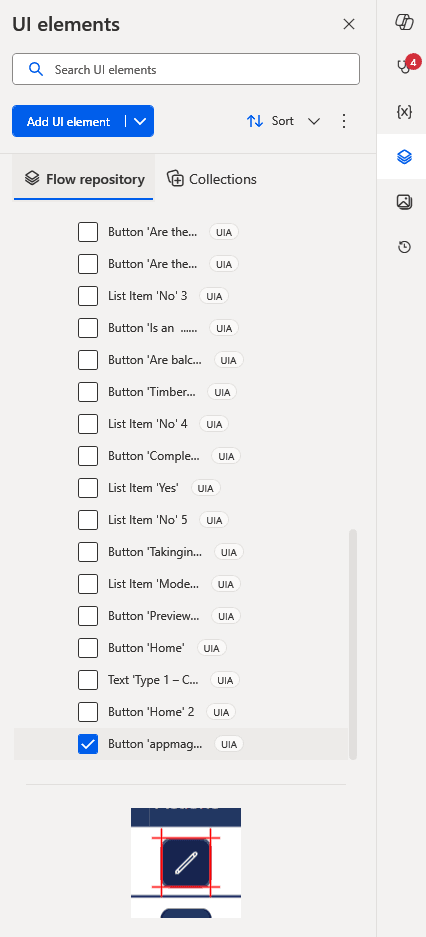
In the above example the fallback image might even end up being the biggest clue what the UI element is all about. I already mentioned in my previous posts that it is important to make things easy for ourselves. So for example make sure that you always set the accessibility labels in your controls.
It is so much better to select the controls with the text describing the controls than to use the fallback image or an ordinal number.
Ok, back to how do we organise our UI elements.
In the above screenshot we saw that there is a Local Repository and there are Collections that hold UI Elements.
UI Element Collections
From within the Flow Repository, you can upgrade your UI Elements to collections. Using the Publish as a new collection will give you a new collection whereas Add to imported collection adds the UI element to an existing collection. The names of these options are in my opinion very confusing. Add to new collection or add to existing collection would have done. Or maybe even Add to collection and offer the option to create or add in the next dialogue would have worked as well.
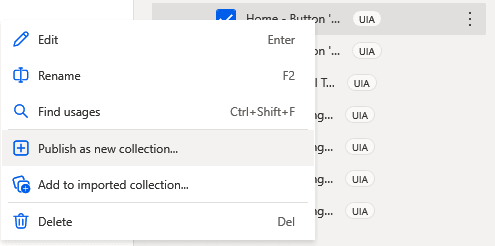
Anyway, once we add some UI elements to collections we will quite quickly end up with a mess in the collections. Not much of an improvement yet.
If however we name our collections properly, we could quite quickly make some more sense of our actions.
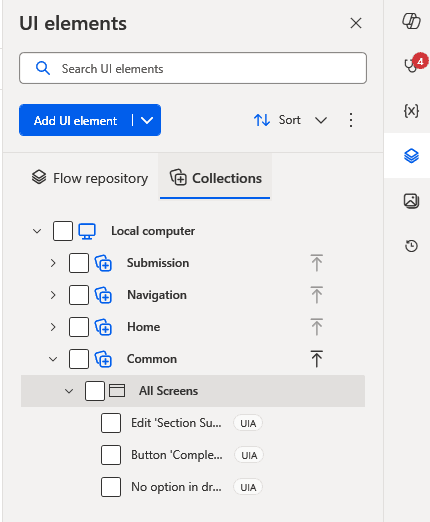
So, how should we organise our controls?
One of my biggest issues with PAD has always been the reuse of actions and UI elements. Ending up with duplicates is so easy. And cleaning up is potentially a lot of work.
As mentioned before, making sure that we can access button and other controls in a consistent manner helps a lot. So for example if you have a Home icon or button on every screen, then accessing it the same way every single time really helps.
This is why I always structure my UI element Collections as follows:
- Navigation
- Common
- Screen 1
- Screen 2
- …
The Navigation and Common could potentially be merged into one collection however when we select the controls from our actions the logical separation makes sense.
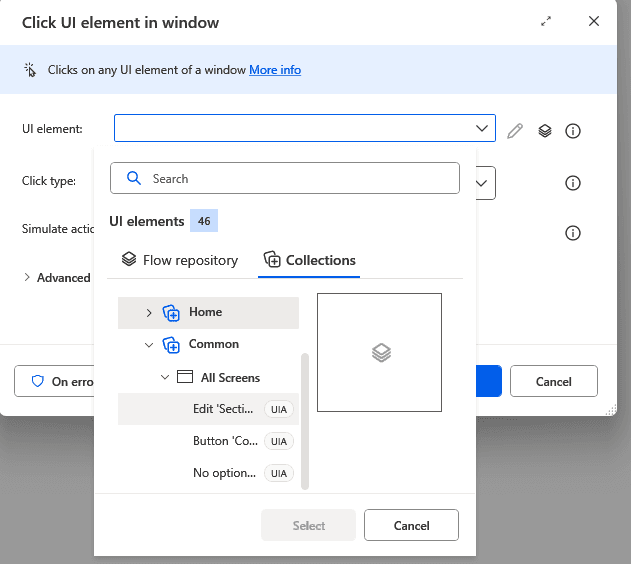
Especially, when we review an action the below example shows that we selected the element that gets us to our 19th screen in the app.
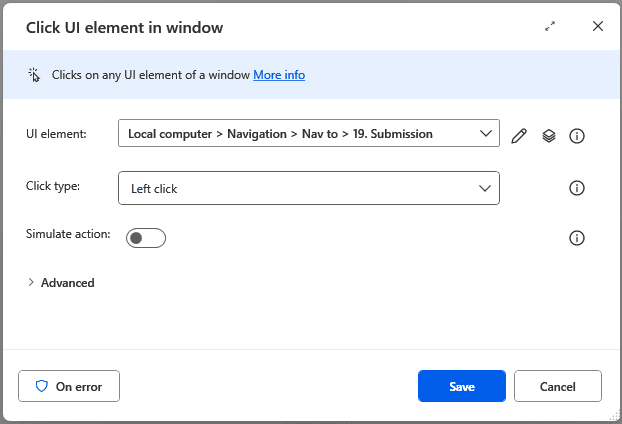
As you will have noticed in the many screenshots in this post, keeping names for the UI elements short is important. Using the Collection names to describe the location of the controls is often helpful.
Pieter Veenstra

Is your business still running on paper trails, sprawling Excel files, or ageing Access databases? There's a better way — and I can show you exactly what it looks like. I'm the Technical Director of Vantage 365, a Microsoft solutions consultancy working with clients across the UK, the Netherlands, and worldwide. For over 30 years I've been turning messy, manual business processes into clean, automated systems that save time, reduce errors, and give teams the visibility they need to make better decisions. SharePains is not just any blog run by a Microsoft MVP. Have you ever used Try-Catch in Power Automate? The original post about Try-Catch in Power Automate can still be found on this site, https://sharepains.com/2018/02/07/try-catch-finally-in-power-automate-flow/ Or have you ever used the Pieter’s method to avoid variables and speed up your flows? https://sharepains.com/2020/03/11/pieters-method-for-advanced-in-flows/ You can contact me using contact@sharepains.com