

Following my post about migrating from the Classic Controls to Modern Controls, today a bit of a closer look at the Modern Combo box.
The Differences between Classic and Modern Combo box
As mentioned yesterday, there are a few differences between the Classic and the modern Combo box. I will have a look at the two controls.
From the screenshot below we can see that the default look and feel of the modern control is better, however we could make the classic control look fairly similar to the modern equivalent.

So I’m not going to spend too long on the look and feel of the controls. As with all other modern controls you can adjust the look and feel using the Appearance property.
Number of items
When I first started working with the Modern controls I noticed one limitation that I’ve not found a good workaround for.
I’m putting the controls to the test by creating a collection of 10000 records that contain a number sequence. The modern control will show the first 8 items in a drop down.
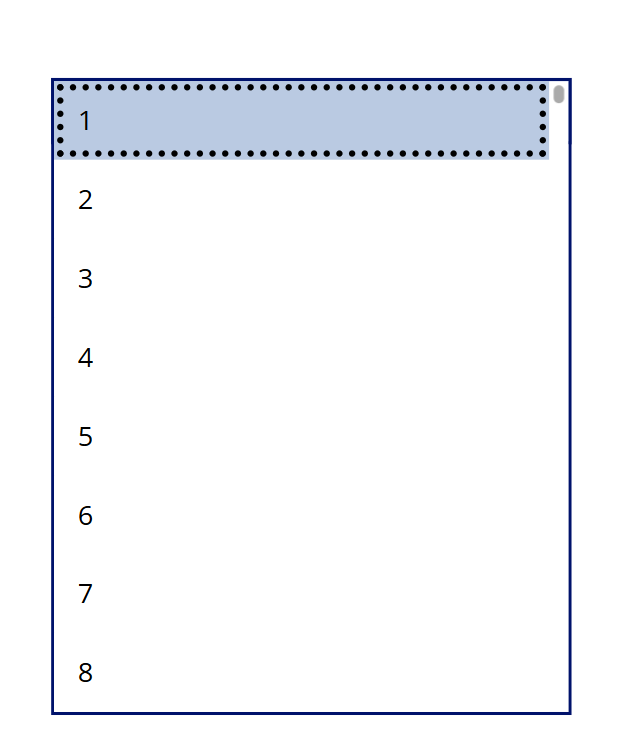
While the modern control shows as many items as fit on the screen. This is personal preference as to what is better.
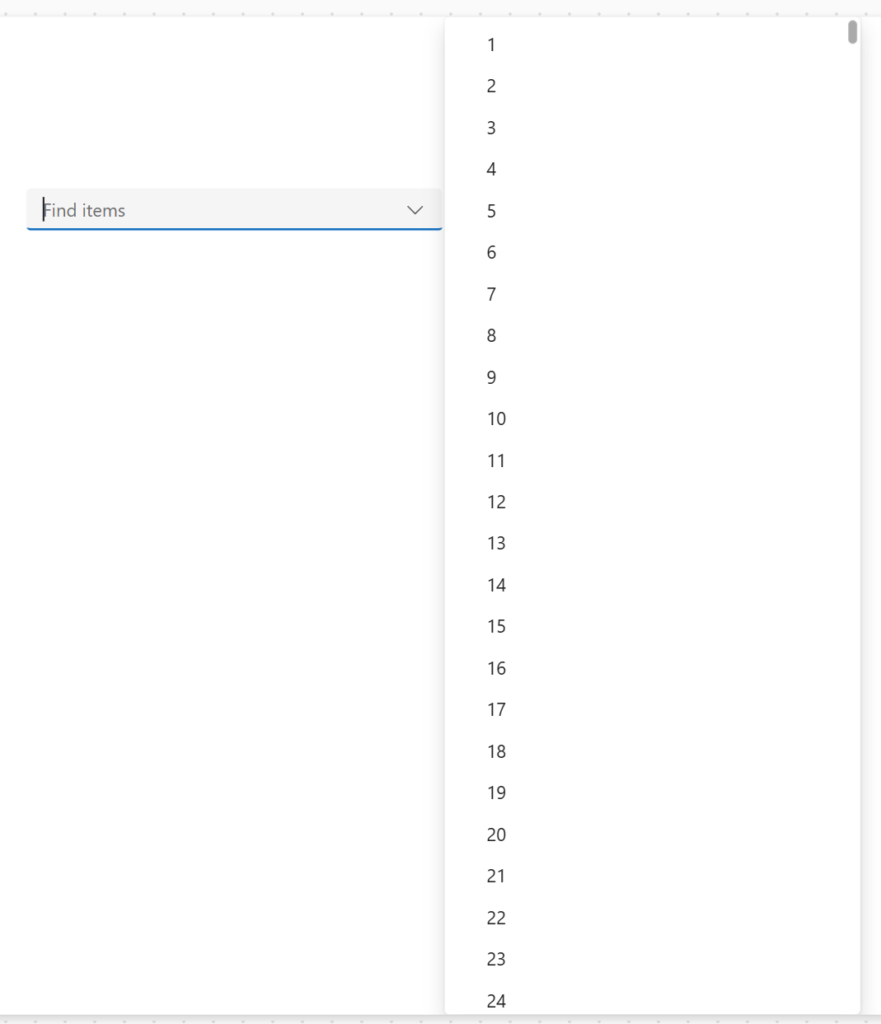
But if we scroll down the list we will see that there is a bigger difference to be aware of. The classic Combo box shows all 10000 items.
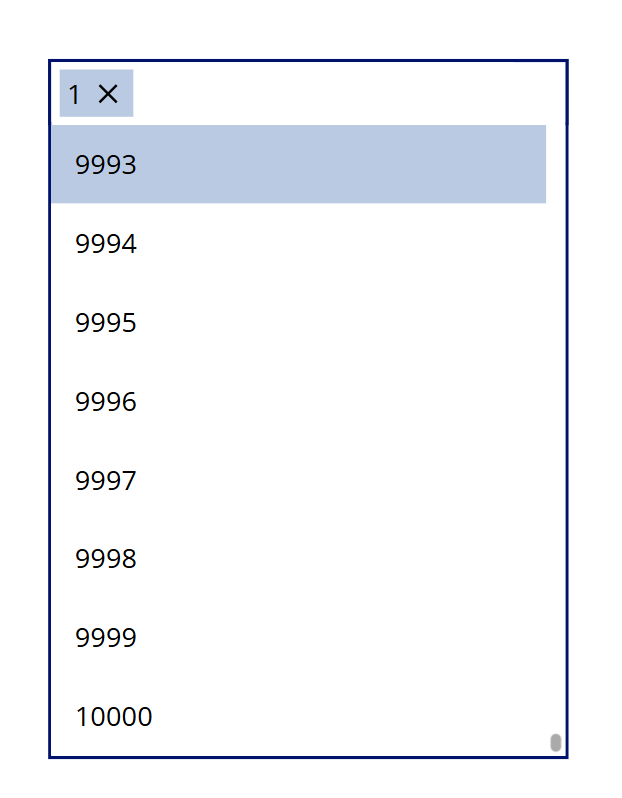
However the modern Combo box control shows only the first 800 items.
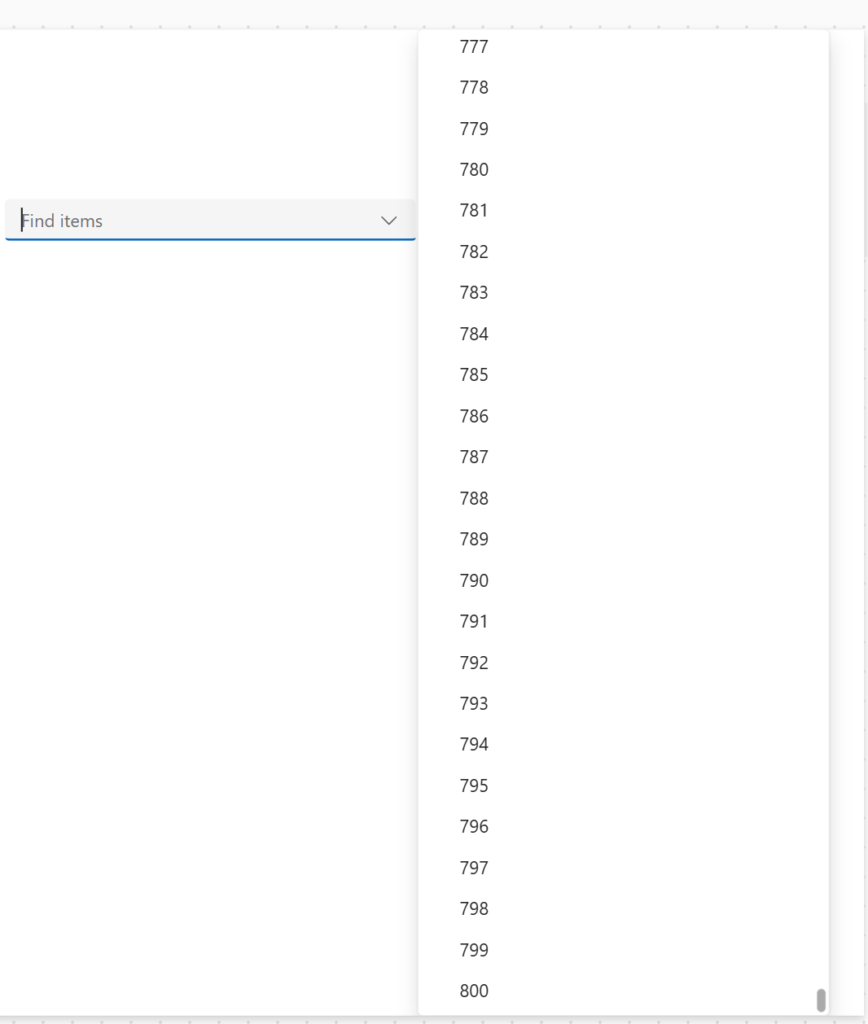
And as we can see from the following example the items past the first 800 are just ignored even though they do exist.
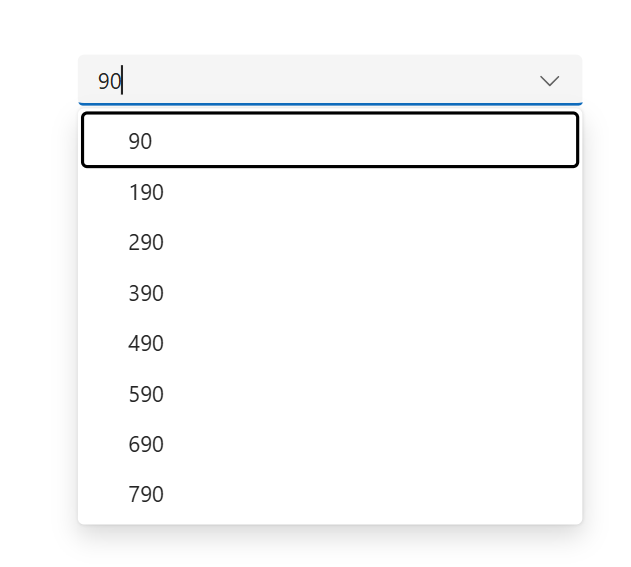
So when you have Combo boxes with many items you may want to have a look at the classic control instead.
Pieter Veenstra

Is your business still running on paper trails, sprawling Excel files, or ageing Access databases? There's a better way — and I can show you exactly what it looks like. I'm the Technical Director of Vantage 365, a Microsoft solutions consultancy working with clients across the UK, the Netherlands, and worldwide. For over 30 years I've been turning messy, manual business processes into clean, automated systems that save time, reduce errors, and give teams the visibility they need to make better decisions. SharePains is not just any blog run by a Microsoft MVP. Have you ever used Try-Catch in Power Automate? The original post about Try-Catch in Power Automate can still be found on this site, https://sharepains.com/2018/02/07/try-catch-finally-in-power-automate-flow/ Or have you ever used the Pieter’s method to avoid variables and speed up your flows? https://sharepains.com/2020/03/11/pieters-method-for-advanced-in-flows/ You can contact me using contact@sharepains.com

