
Today, Microsoft announced their new Bulk edit SharePoint metadata feature that will be rolled out to SharePoint Online.
4 easy steps to update multiple items within the modern experience lists. Is it time to drop this ‘modern experience’ yet? Why don’t we just call the old experience traditional experience and assume the modern experience as default.
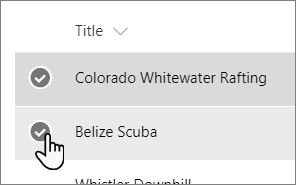
Step 1 select the items
You will first need to select the items that you want to edit.
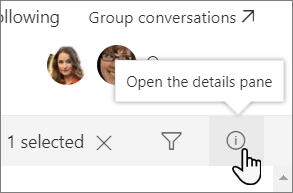
Step 2 open the details pane
Then click on the the i-icon to open the details pane
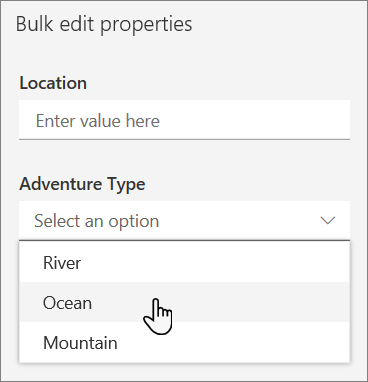
Step 3. Edit
Now edit the properties that you want to edit
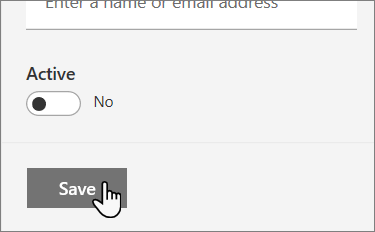
Step 4 save
Then finally press the save button and all your items are updated.
Ok, that is all easy!
Pieter Veenstra

Is your business still running on paper trails, sprawling Excel files, or ageing Access databases? There's a better way — and I can show you exactly what it looks like. I'm the Technical Director of Vantage 365, a Microsoft solutions consultancy working with clients across the UK, the Netherlands, and worldwide. For over 30 years I've been turning messy, manual business processes into clean, automated systems that save time, reduce errors, and give teams the visibility they need to make better decisions. SharePains is not just any blog run by a Microsoft MVP. Have you ever used Try-Catch in Power Automate? The original post about Try-Catch in Power Automate can still be found on this site, https://sharepains.com/2018/02/07/try-catch-finally-in-power-automate-flow/ Or have you ever used the Pieter’s method to avoid variables and speed up your flows? https://sharepains.com/2020/03/11/pieters-method-for-advanced-in-flows/ You can contact me using contact@sharepains.com


Be aware that there is a bug in this feature which makes it useless if you have boolean columns in your list. For bulk edit to work properly SP has to detect WHICH columns you are editing – which columns should have their value modified for every item selected. But boolean columns only have 2 values and SP doesn’t recognize the difference between a boolean field which was untouched (and therefore “no”) and a boolean field which was intentionally set to “no” – SO IT ALWAYS SETS ALL BOOLEAN FIELDS TO WHATEVER VALUE IS IN YOUR BULK EDIT FORM – there is no way to leave boolean columns untouched.
Hi Peter,
Thanks you for your comment. I noticed that the problem too.
Did you notice that when you create a new Yes/No column through the modern you have to supply a default value. In which case the problems doesn’t exist.
However when you create a new column through the list settings you don’t have to supply a default value.
I’ve experienced the same issue even when I’ve specified a default value for the boolean column. When batch editing through the details pane, all items will have the boolean column reset to its default value, even if it was previously set to the non-default value.