Earlier this week I was asked on the chat how to handle scheduled flows that need to lock an app in Power Apps while the flow is running.
Scheduled flows
First of all it is important to realize that scheduled flows are not connected to the app in any kind of way. Therefore there isn’t a way to chat back to the app from the scheduled flow.
In this case the problem to solve was the disabling of a button, while the scheduled flow is running.
So for example, this scheduled flow could import some data into your tables, during this process you don’t any of your users to update any records. Then you will need to find a way to lock those users temporarily out of the app.
Creating the lock table
We will first need a data source that can control the lock for us. I’m going to create a table in Dataverse. But you could probably try the same with SharePoint lists or other data sources. However, If you use SharePoint you might find that throttling issues will occur.
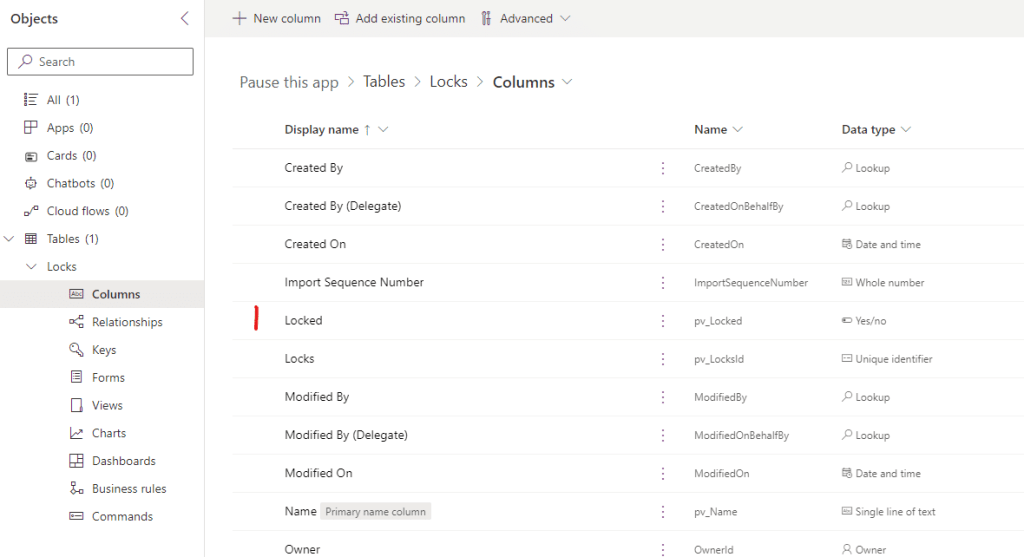
I created a locks table and added a column Locked. This column is a Yes/No column. When it is set to Yes, then the app will be locked otherwise the app will be unlocked.
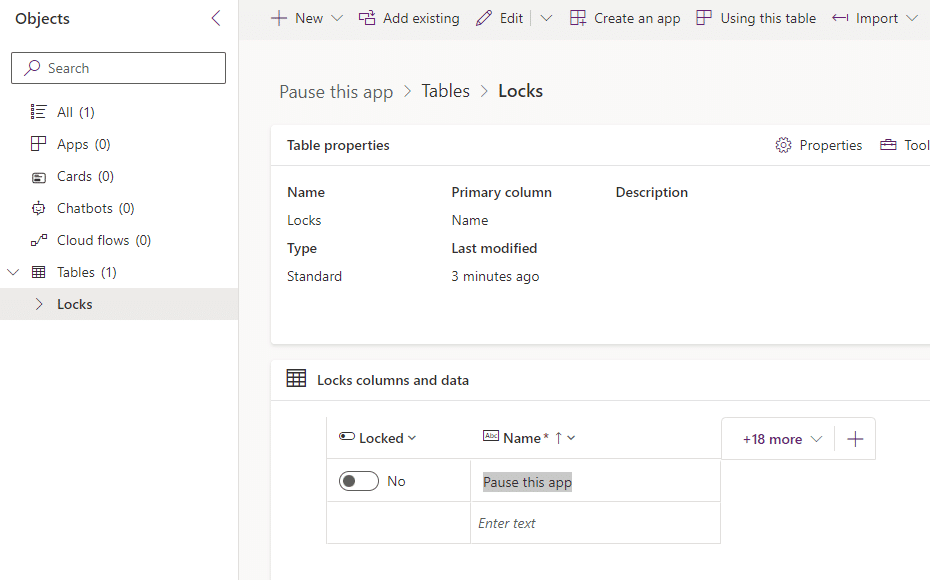
Once the table is available, I created one record. Set the Name to Pause This app and the Locked value to No.
Creating an app
Time to create the app.
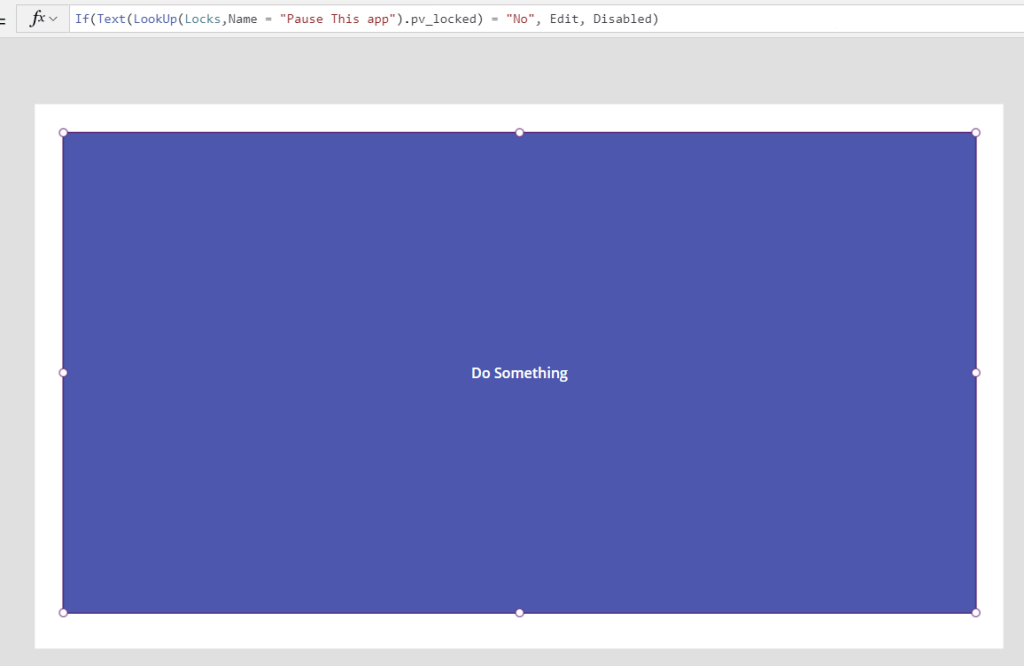
I’ve added a giant button that does something and then I set the display mode to
If(
    Text(
        LookUp(
            Locks,
            Name = "Pause This app"
        ).pv_locked
    ) = "No",
    DisplayMode.Edit,
    DisplayMode.Disabled
)
Creating the scheduled flow
My flow just has 5 steps, but the Delay action can be replaced by anything that you need the flow to do of course.
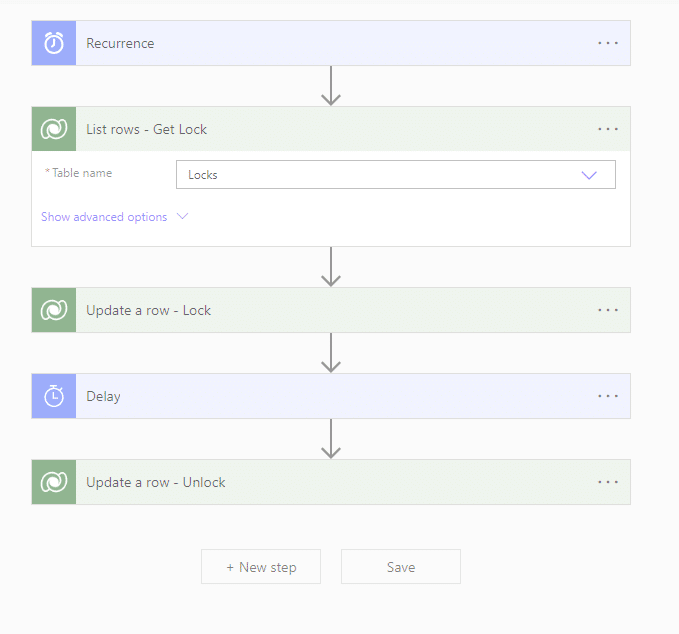
In the Update a row – Lock action I’m setting Locked to Yes, sot that my app will lock.
However the app will never lock. To make the app lock we could add a Timer that is scheduled to run every 1 second. Running the following line of code.
Refresh(Locks)This will now lock my app.

Named Formulas
Would the same solution with named formulas be any better? Well named formulas still don’t refresh the data sources either. It would be nice if Power Apps could trigger a data refresh (or preferably a data merge) when a table is updated, but unfortunately that isn’t an option yet.
Some final thoughts
If you have an app that is used by many people and it is used all the time, then there could be some performance issues if you created many locks. The solution here reads the lock every second. So that means reading the locks 60 times per minutes for every user that is logged in.
Pieter Veenstra

Is your business still running on paper trails, sprawling Excel files, or ageing Access databases? There's a better way — and I can show you exactly what it looks like. I'm the Technical Director of Vantage 365, a Microsoft solutions consultancy working with clients across the UK, the Netherlands, and worldwide. For over 30 years I've been turning messy, manual business processes into clean, automated systems that save time, reduce errors, and give teams the visibility they need to make better decisions. SharePains is not just any blog run by a Microsoft MVP. Have you ever used Try-Catch in Power Automate? The original post about Try-Catch in Power Automate can still be found on this site, https://sharepains.com/2018/02/07/try-catch-finally-in-power-automate-flow/ Or have you ever used the Pieter’s method to avoid variables and speed up your flows? https://sharepains.com/2020/03/11/pieters-method-for-advanced-in-flows/ You can contact me using contact@sharepains.com