
In this post I’m going through the steps to configure Logic apps to use Managed Identities to access SharePoint sites using Microsoft Graph.
Managed Identities
Within Logic Apps you will see Managed Identities popping up in various places. You can find them in Azure Runbooks within Azure Automation where they are often used to run PowerShell. They also exist within Azure Logic Apps.
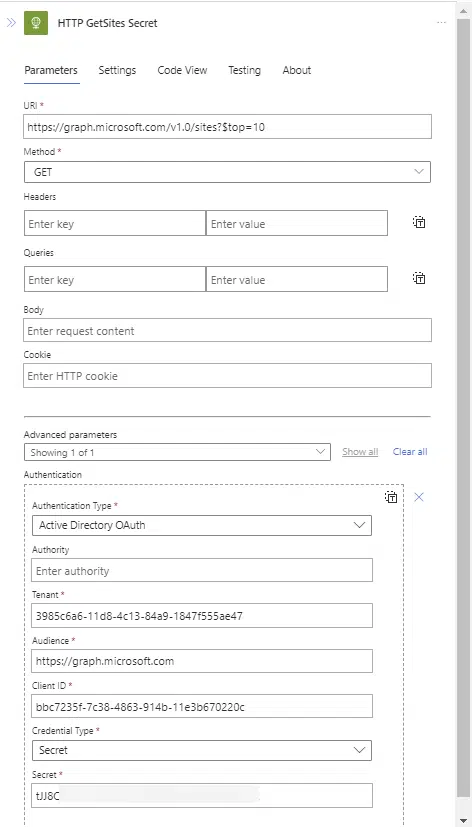
If you tried to configure Logic Apps to get 10 sites from SharePoint using Microsoft Graph then you would probably configure an HTTP request like this, if you were to use a client/secret method.
However, if you were to use Managed Identities you would get the following configuration.
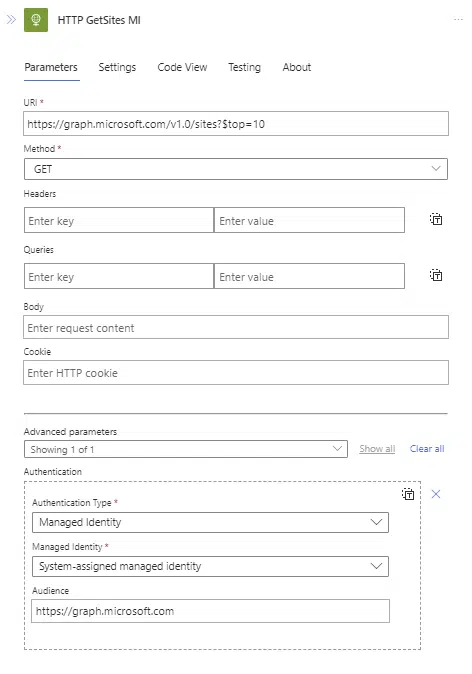
So one of the big benefits here is that we don’t need to include any of the security information inside the Logic Apps or Power Automate flow.
Do make sure that you supply the Audience, as you would get the following error if you don’t
Access token validation failure. Invalid audience
Setup Managed Identities
Well there isn’t much to do here.
In your logic app configuration you will find your Object Id under the section Identities.

Take a copy of that id because we will need that later to supply the permissions the Enterprise app for our logic app.
The above Object ID you can use to find an Enterprise Application. You should find that the Managed Identity will have the same name as the Logic App .

So far still nothing to setup.
Setup permissions for Managed Identities
The next step is to give our managed Identity permissions to read SharePoint files. We have to use PowerShell to do this.
Where in the past we would have added the Scope Sites.ReadWrite.All to the app registration, our PowerShell will add this to our Managed Identity’s Enterprise Application registration.
$ObjectId = "4a91ffe7-xxxx-xxxx-xxxx-268f0fe8b2da"

$graphScope = "Sites.ReadWrite.All"

Connect-MgGraph -Scope AppRoleAssignment.ReadWrite.All

$graph = Get-MgServicePrincipal -Filter "AppId eq '00000003-0000-0000-c000-000000000000'"


$graphAppRole = $graph.AppRoles | ? Value -eq $graphScope


$appRoleAssignment = @{
    "principalId" = $ObjectId
    "resourceId"  = $graph.Id
    "appRoleId"   = $graphAppRole.Id
}

New-MgServicePrincipalAppRoleAssignment -ServicePrincipalId $ObjectID -BodyParameter $appRoleAssignment | Format-List

Disconnect-Graph
Once the above steps are completed the Logic App will be able to run the HTTP request and the list of 10 sites is received successfully.
Pieter Veenstra

Is your business still running on paper trails, sprawling Excel files, or ageing Access databases? There's a better way — and I can show you exactly what it looks like. I'm the Technical Director of Vantage 365, a Microsoft solutions consultancy working with clients across the UK, the Netherlands, and worldwide. For over 30 years I've been turning messy, manual business processes into clean, automated systems that save time, reduce errors, and give teams the visibility they need to make better decisions. SharePains is not just any blog run by a Microsoft MVP. Have you ever used Try-Catch in Power Automate? The original post about Try-Catch in Power Automate can still be found on this site, https://sharepains.com/2018/02/07/try-catch-finally-in-power-automate-flow/ Or have you ever used the Pieter’s method to avoid variables and speed up your flows? https://sharepains.com/2020/03/11/pieters-method-for-advanced-in-flows/ You can contact me using contact@sharepains.com