Last week I was asked about handling paginated REST API calls in Power BI. The REST API end point would only return 200 records while a lot more records should be returned.
Example Paginated REST API calls
In this case we were using the signinapp found at signinapp.com and looking at the API documentation we could find records at the following end point
https://backend.signinapp.com/client-api/v1/sites/47892/history?date_from=2023-11-23&date_to=2023-11-25Using the above end point we will get records back between the set dates.
If we take this a step further we can get a page with a maximum of 200 records.
https://backend.signinapp.com/client-api/v1/sites/47892/history?date_from=2023-11-23&date_to=2023-11-25&page=1If we want to get the 2nd page back we simply replace the page=1 with page=2. We can continue to collect all the pages as we need more pages.
Collect a page using Power BI
Within Power BI we can now get the first page returned using the following code:
= Json.Document(Web.Contents("https://backend.signinapp.com/client-api/v1/sites/47892/history?date_from=2023-11-23&date_to=2023-11-25&page=1"))
Once we have done a bit of reshaping and formatting we end up with he following Query:
let
    Source = Json.Document(Web.Contents("https://backend.signinapp.com/client-api/v1/sites/47892/history?date_from=2023-11-23&date_to=2023-11-25&page=1")),
    #"Converted to Table" = Table.FromRecords({Source}),
    #"Expanded data" = Table.ExpandListColumn(#"Converted to Table", "data"),
    #"Expanded links" = Table.ExpandRecordColumn(#"Expanded data", "links", {"first", "last", "prev", "next"}, {"links.first", "links.last", "links.prev", "links.next"}),
    #"Expanded meta" = Table.ExpandRecordColumn(#"Expanded links", "meta", {"current_page", "from", "path", "per_page", "to"}, {"meta.current_page", "meta.from", "meta.path", "meta.per_page", "meta.to"}),
    #"Changed Type" = Table.TransformColumnTypes(#"Expanded meta",{{"data", type any}, {"links.first", type text}, {"links.last", type any}, {"links.prev", type any}, {"links.next", type any}, {"meta.current_page", Int64.Type}, {"meta.from", type any}, {"meta.path", type text}, {"meta.per_page", Int64.Type}, {"meta.to", type any}})
in
    #"Changed Type"
And we have the first page of our data ready.

We could now of course create many queries, each covering a page but that is not what we want to do.
How do we create a single query returning us multiple pages?
Create a function in Power BI
All we have to do is add
= (page as text) =>and then add page to the end of the end point that we are calling (replacing the 1). This should then result in something like this:
= (page as text) =>
let
    Source = Json.Document(Web.Contents("https://backend.signinapp.com/client-api/v1/sites/47892/history?date_from=2023-11-23&date_to=2023-11-25&page=" & page)),
    #"Converted to Table" = ...,
    #"Expanded data" = ...,
    #"Expanded links" = ...,
    #"Expanded meta" = ...,
    #"Changed Type" = ...
in
    #"Changed Type"
Now we can test this function and enter the page number that we want to receive
So, the next question. How can we run this function for each page that is available. In our case there isn’t a way to get the maximum number of pages available.
Creating a PageQuery
In my case I want to get up to 10 pages returned. So I’m going to create a List with 10 rows in it.

This list I will convert to a table either by using the Power BI UI …
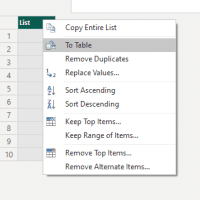
… or I use the by m me preferred code editor. Also don’t forget to set the format of the Column containing the page numbers to Text.
let
    PagesList = {1..10},
    #"Converted to Table" = Table.FromList(PagesList, Splitter.SplitByNothing(), null, null, ExtraValues.Error),
    #"Changed Type" = Table.TransformColumnTypes(#"Converted to Table",{{"Column1", type text}})
in
    #"Changed Type"
Invoking our function
We now have our helper table ready. And we can now invoke our function.

And then we just select the Column containing the page numbers and we will get 10 tables back.

In the below result just click on the expanding icon in the top right.

And now you can start using the table within Power BI.
Pieter Veenstra

Is your business still running on paper trails, sprawling Excel files, or ageing Access databases? There's a better way — and I can show you exactly what it looks like. I'm the Technical Director of Vantage 365, a Microsoft solutions consultancy working with clients across the UK, the Netherlands, and worldwide. For over 30 years I've been turning messy, manual business processes into clean, automated systems that save time, reduce errors, and give teams the visibility they need to make better decisions. SharePains is not just any blog run by a Microsoft MVP. Have you ever used Try-Catch in Power Automate? The original post about Try-Catch in Power Automate can still be found on this site, https://sharepains.com/2018/02/07/try-catch-finally-in-power-automate-flow/ Or have you ever used the Pieter’s method to avoid variables and speed up your flows? https://sharepains.com/2020/03/11/pieters-method-for-advanced-in-flows/ You can contact me using contact@sharepains.com