

It is important that each control on your screen fits and that nothing overlaps. Auto Height and Containers can help you be with flexible font sizes.
Flexible font sizes
Have you ever tried adjusting the default font size on your mobile or Windows device? Then when you try to use your app, text doesn’t fit in the areas that are supposed to fit in. Some apps become really unusable.
An app that should look like this.

Might actually look like this when you increase the font size.

We have to consider all sorts of different fonts that may be used. And of course different letters will use a different amount of space. Calculating the size of the box without knowing the content is very difficult. Or even impossible!
So how do we avoid this in Power Apps.
Auto Height in Power Apps
Within Power Apps, we can set the Auto Height property. I’m really not sure why this isn’t just always set by default. As you can see in the below example my text now fits within the boxes however the boxes don’t fit anymore. As we can see the label controls are moving on top of each other.

Now there are two approaches. The first approach is to calculate the X and Y positions so that every control appears next and underneath each other.
Adding Containers
Now the next step is Containers. As the font size is varied using my slider the containers are resizing as they need to.

But even when we use containers we will still find issues with text not fitting.

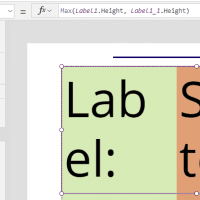
The trick here is to make sure that the Horizontal containers inside my top level vertical containers need to have flexible height switched off.

And in addition to the flexible height setting, the Height property also needs to be calculated finding the tallest element within the Container.
Pieter Veenstra

Is your business still running on paper trails, sprawling Excel files, or ageing Access databases? There's a better way — and I can show you exactly what it looks like. I'm the Technical Director of Vantage 365, a Microsoft solutions consultancy working with clients across the UK, the Netherlands, and worldwide. For over 30 years I've been turning messy, manual business processes into clean, automated systems that save time, reduce errors, and give teams the visibility they need to make better decisions. SharePains is not just any blog run by a Microsoft MVP. Have you ever used Try-Catch in Power Automate? The original post about Try-Catch in Power Automate can still be found on this site, https://sharepains.com/2018/02/07/try-catch-finally-in-power-automate-flow/ Or have you ever used the Pieter’s method to avoid variables and speed up your flows? https://sharepains.com/2020/03/11/pieters-method-for-advanced-in-flows/ You can contact me using contact@sharepains.com


Very nice scalable !!
My fear is that this will boost the quantity of components on a screen. And MS warns makers about possible performance issues on that part.
Just something to keep in mind.