
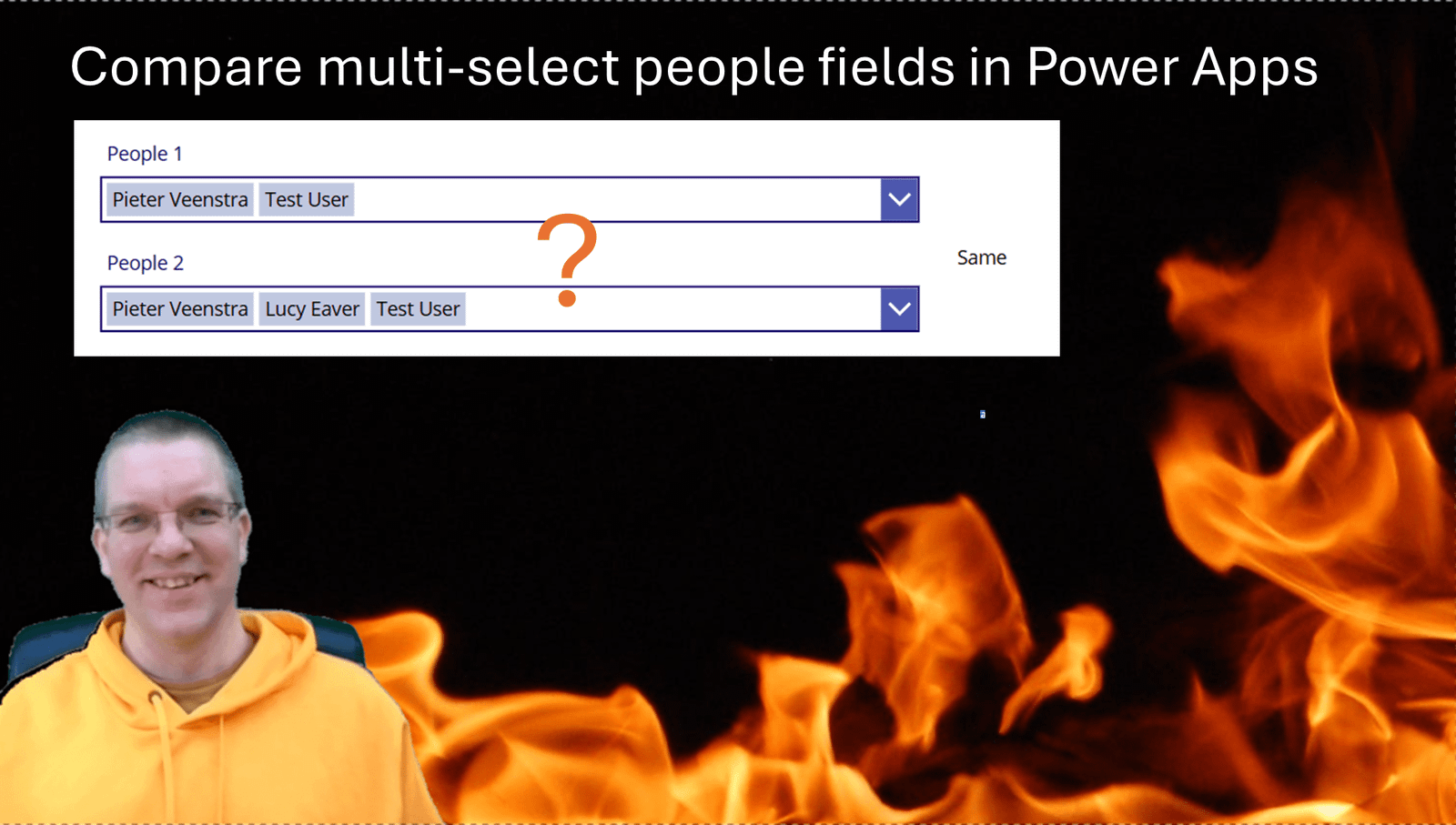
Yesterday, I needed to compare the values of two collections with people records. In this posts the details on how to compare multi-select people fields.
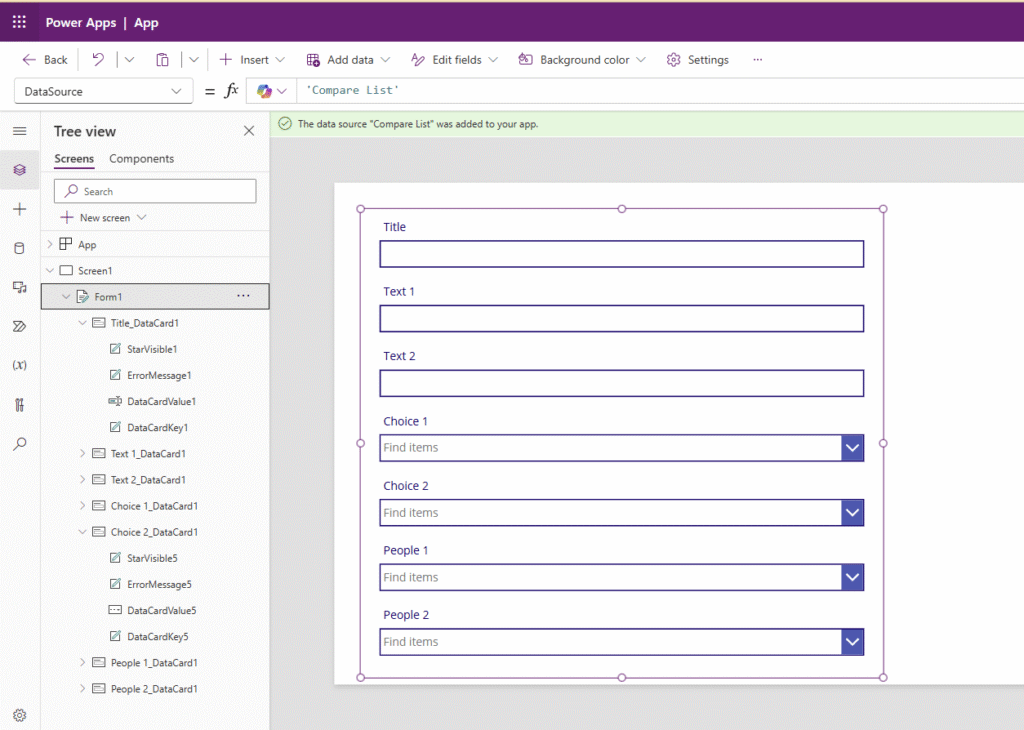
The example app
I created a SharePoint list that has two text fields, 2 choice fields and two multi-select people fields.
Now I want to compare the values in the Text fields then compare the choice field values and finally compare the multi-select people fields.
Compare two text fields
The easiest field comparison is two text fields in a form. While my Text 1 and Text 2 fields are using DataCardValue2 and DataCardValue3 the following code sets a label to either the Same or Different depending on the values in the fields matching.
If(DataCardValue2.Text = DataCardValue3.Text, "Same", "Different")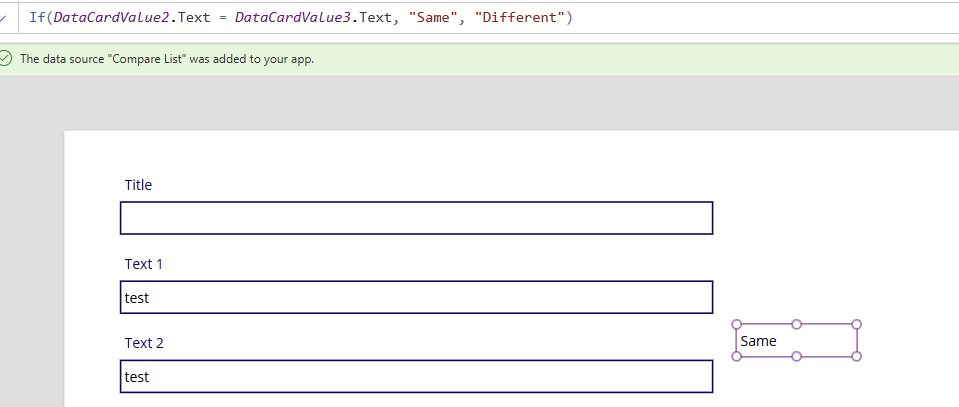
Then when we play the app we can see the Label presenting us with the right response.
I did say that this is the easiest type of data to compare. Now we will have a look at the Choice columns.
Comparing Choice Columns
In my second example in which I’m comparing choice columns, you might think that the following code would work:
If(DataCardValue4.SelectedItems = DataCardValue5.SelectedItems, "Same", "Different")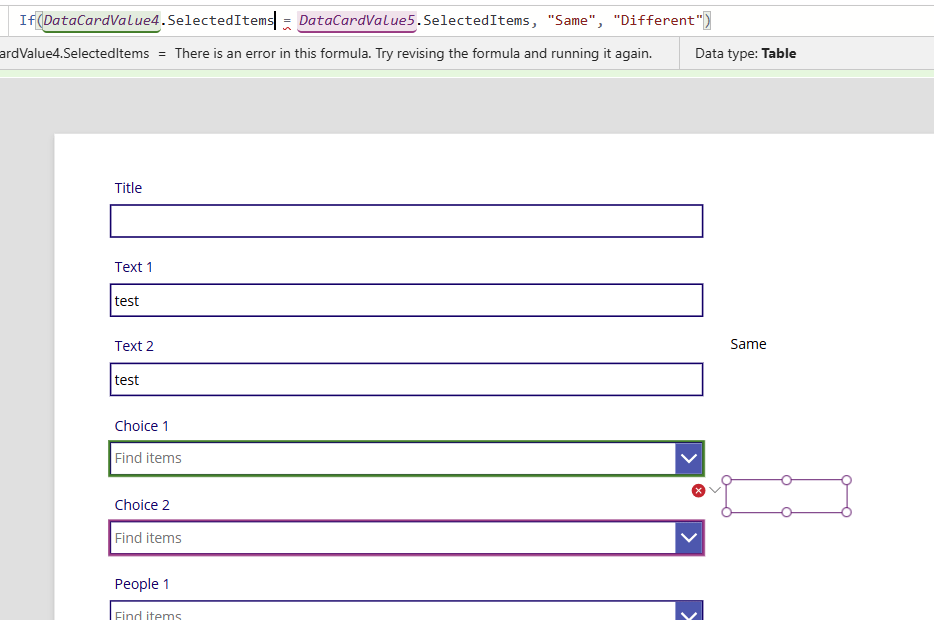
But, the above code will not work. As we are using a single choice, choice field, the right way of doing the comparison is to use the following code:
If(DataCardValue4.Selected.Value = DataCardValue5.Selected.Value, "Same", "Different")This is still quite easy to implement.
Now in the above example we only had a single select choice. In my next example I’m going to look at multi-select people columns.
Compare multi-select people fields
This is going to be the most complicated column type that I’m going to look at today. Now there are quite a few ways to do this the wrong way that I came across.
For my two multi-select people fields, I considered this:
If(DataCardValue6.Selected.Email = DataCardValue7.Selected.Email, "Same", "Different")But the Selected property contains the most recently selected user only. So the comparison doesn’t work like this:
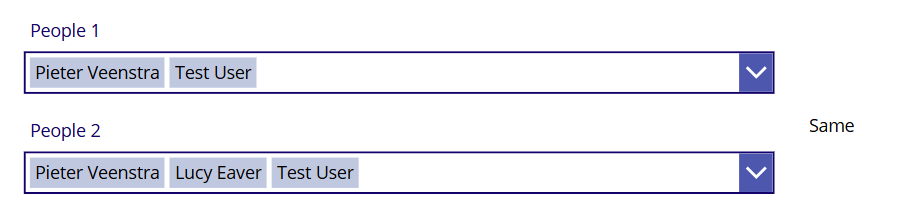
For multi-select people fields the SelectedItems holds a collection of people records. However the following expressions will not work:
If(DataCardValue6.SelectedItems.Email = DataCardValue7.SelectedItems.Email, "Same", "Different")The above will result in an Incompatible types for comparison. These types can’t be compared: Table, Table

So we have two tables with both only an Email property and we can’t compare them.
Now when we update the above code to include the use of the Concat function we will be able to compare our multi-select people fields.
If(Concat(DataCardValue6.SelectedItems.Email,”;”) = Concat(DataCardValue7.SelectedItems.Email,”;”), “Same”, “Different”)
The above expression will collect all the email addresses of the selected users and then create a text with all email addresses separated by a semicolon before comparing the same for the other people field.
Pieter Veenstra

Is your business still running on paper trails, sprawling Excel files, or ageing Access databases? There's a better way — and I can show you exactly what it looks like. I'm the Technical Director of Vantage 365, a Microsoft solutions consultancy working with clients across the UK, the Netherlands, and worldwide. For over 30 years I've been turning messy, manual business processes into clean, automated systems that save time, reduce errors, and give teams the visibility they need to make better decisions. SharePains is not just any blog run by a Microsoft MVP. Have you ever used Try-Catch in Power Automate? The original post about Try-Catch in Power Automate can still be found on this site, https://sharepains.com/2018/02/07/try-catch-finally-in-power-automate-flow/ Or have you ever used the Pieter’s method to avoid variables and speed up your flows? https://sharepains.com/2020/03/11/pieters-method-for-advanced-in-flows/ You can contact me using contact@sharepains.com


Thanks. This is a neat solution to an annoying problem!