Do you know how to set Context variables in Power Apps? I thought, I did as well. But I had forgotten that there are two ways to set context variables. In this post further details.
Global Variables, Collections, Tables and Context Variables
Power Apps has a number of in memory data structures that every Power apps Developer should be aware of.
- Global Variables
- Collections
- Tables
- Context Variables
- Named Formulas
In this post I will ignore the named formulas. Please follow this linked post to learn more.
In the examples below I will be using the functions available to create my variables but of course there are other ways to set data. Quite often your data will come from various data sources available within Power Apps.
Global Variables
Global Variables are are variables that are available throughout the app. Setting a variable can be done using the Set() function.
An example of this is
Set(myVar, "Any Value")From within Any Screen the myVar variable can be used.
Collections
Collections can be created using either the ClearCollect or the Collect functions. ClearCollect will clear the collection before the collection is set to the collection or object provided as the second parameter. Whereas the Collect function will add an object to the collection.
Examples of Clear Collect and Collect are
ClearCollect(MyCollection, {Data: "My First Object"});

Collect(MyCollection, {Data: "My Second Object"})
Like with variables collections are globally available on every screen.
Tables
Tables are like Collections, but they are not tables.
Set(MyTable, [ "My First Text", "My Second Text", "My Third Text" ])Once again Tables are also available globally.
So far so good. It is time to look at Context variables, the subject of this post.
Context Variables
Now that I’ve introduced the other types of variables and data structures, I’ll have a look at Context variables.
Context Variables are only available on the screen where they are set (or are they???)
The following shows you a context variable in Screen 1 that is set using the UpdateContext function.
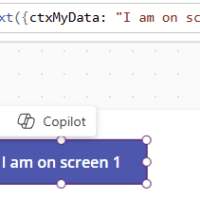
Most Power Apps developers are familiar with setting context variables like this. In general, it is a good idea to use context variables where the variables are only used on a single screen.
Keep recently visited screens in memory
Now I always thought that context variables were somehow part of a screen. Well they are not.
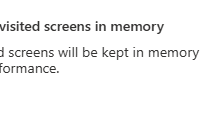
When the Keep recently visited screens in memory has been disabled, and you set a context variable you might expect that when you navigate back that the value in the variable would be gone. Well, it is not. This makes me wonder if Context variables are indeed more efficient from a memory usage or not.
It can of course still be a good idea to scope your data to a screen.
So what else is there?
Well, there is another function that allows you to set context variables.
The Navigate function
The navigate function allows you to set context variable on another screen. Using the Navigate function, we can select which screen we want to navigate to and which transition we want to use.
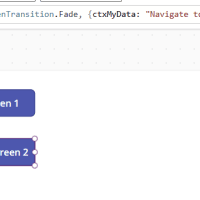
The 3rd parameter in the Navigate function allows us to set the context for the screen that we navigate to. This now means that if we had data that we want to pass from screen to screen, we could send this to the next screen while we navigate over to the next screen.
I must admit that I had completely forgotten about this option, but this
Navigate(Screen2, ScreenTransition.Fade, {ctxMyData: "Navigate to screen 2"})might be better code than a Navigate followed by an UpdateContext or Set on the next screen.
Pieter Veenstra

Is your business still running on paper trails, sprawling Excel files, or ageing Access databases? There's a better way — and I can show you exactly what it looks like. I'm the Technical Director of Vantage 365, a Microsoft solutions consultancy working with clients across the UK, the Netherlands, and worldwide. For over 30 years I've been turning messy, manual business processes into clean, automated systems that save time, reduce errors, and give teams the visibility they need to make better decisions. SharePains is not just any blog run by a Microsoft MVP. Have you ever used Try-Catch in Power Automate? The original post about Try-Catch in Power Automate can still be found on this site, https://sharepains.com/2018/02/07/try-catch-finally-in-power-automate-flow/ Or have you ever used the Pieter’s method to avoid variables and speed up your flows? https://sharepains.com/2020/03/11/pieters-method-for-advanced-in-flows/ You can contact me using contact@sharepains.com