
Note: There is now a new way of debugging your power apps. Please read my updated post about debugging Power Apps with Monitor.
One of the major complaints about PowerApps Development that I hear is the difficulties of debugging an app in PowerApps. In this post I’m going through a simple approach for debugging your PowerApps apps.

Now I also rename the Screen1 to DebugScreen as I don’t like the default names where controls are simply numbered.

Then I add a few more labels on my DebugScreen so that my variable values are displayed.
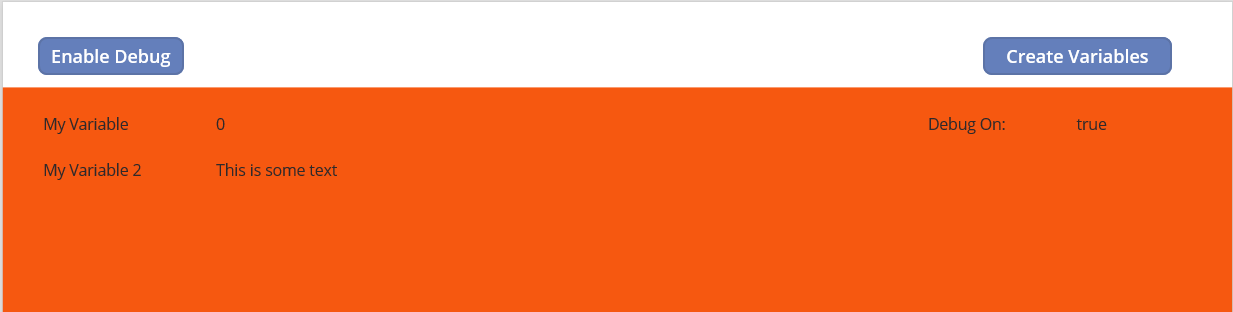
Huh, why would I want to do that? Within the PowerApps app I can display my variables.
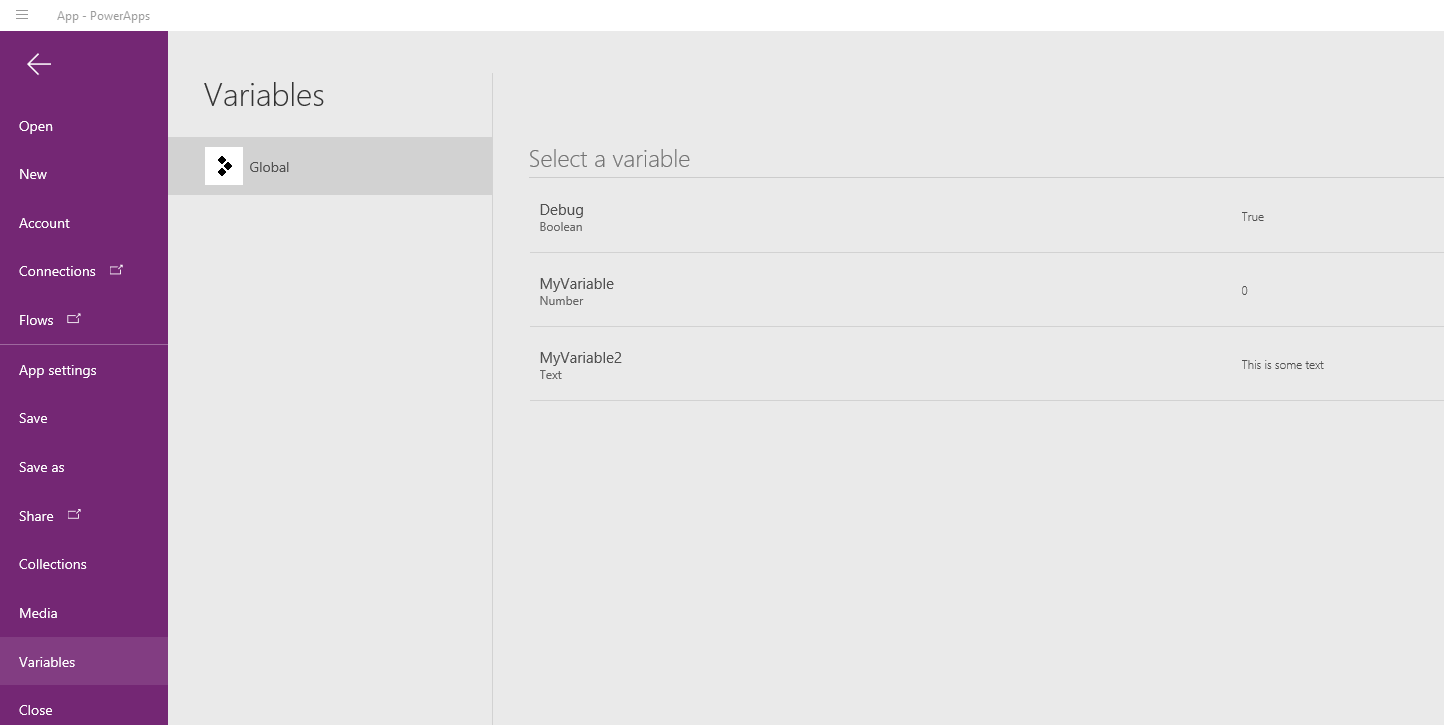
Yes indeed you can do that, but now I’m going to take things to the next step. What if you want to debug non variable values?

Or what if you want to debug while you are running the app? Leaving the app and going to the Variables overview is quite a few clicks away.
You can now simply add a debug button to your application that displays all the debug values that you are interested in.

This Debug button will navigate to my Debug Screen with the following navigate function
[code lang=text]
Navigate(ScreenDebug,ScreenTransition.Cover)
[/code]
Now we are nearly there. We just need to make the button invisible when the debug variable has been set to false:
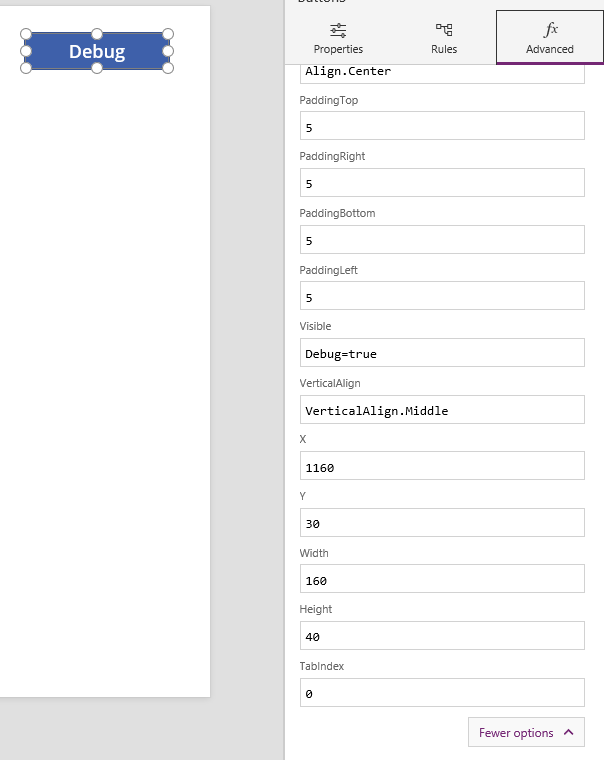
All we need to do is set the visible field to Debug=true or just Debug would work as well of course and now we have our debug buttons available and we can inspect the app without leaving the app.
Pieter Veenstra

Is your business still running on paper trails, sprawling Excel files, or ageing Access databases? There's a better way — and I can show you exactly what it looks like. I'm the Technical Director of Vantage 365, a Microsoft solutions consultancy working with clients across the UK, the Netherlands, and worldwide. For over 30 years I've been turning messy, manual business processes into clean, automated systems that save time, reduce errors, and give teams the visibility they need to make better decisions. SharePains is not just any blog run by a Microsoft MVP. Have you ever used Try-Catch in Power Automate? The original post about Try-Catch in Power Automate can still be found on this site, https://sharepains.com/2018/02/07/try-catch-finally-in-power-automate-flow/ Or have you ever used the Pieter’s method to avoid variables and speed up your flows? https://sharepains.com/2020/03/11/pieters-method-for-advanced-in-flows/ You can contact me using contact@sharepains.com
That is indeed helpful. My apps always have a debug and a developer screen 🙂 What we really need is a step-by-step walkthrough the code or the installation of breakpoints to check variables at certain points in the program.