Today, I was asked about how to Calculate work in progress on a task list in SharePoint using Power Automate
The requirements
Imagine that each task goes through 5 phases and we now want to get a percentage complete column filled.
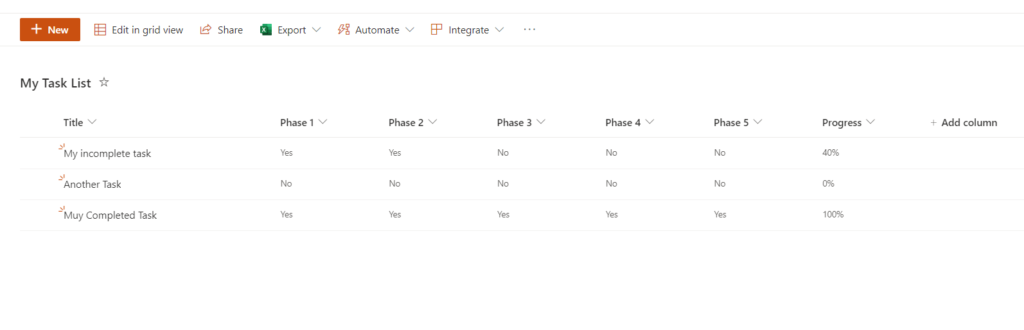
My first thought of course was to use calculated columns, but in this case there were actually nearly 30 phases to go through. Calculated columns might be an options but getting an expression written for that would be too complicated for me.
So, could we use Power Automate to do this job?
Time for a bit of a trick here.
First of all I’m going to make sure that my Phase 1 – Phase 5 are choice columns rather than Yes/No columns. This is to ensure that I’m actually going to get Yes/No values rather than true false values.

We also want to make sure that none of the other fields on my items contain the letters ‘Yes’. So no field using the word Yes and no values with the word Yes.
Creating the Progress flow
Within my flow I’m going to start by adding a trigger When an item is created or modified.
Then I’m adding a few compose boxes. One for Number of Yes values. Then a second compose for the percentage complete.
The finally I will update my list items when the percentage has changed. This will give us a flow like this:

Time to look at that into a bit more detail.
Ok, the trigger is simple. Just select the site and the list and we are good.
The first compose box does a large part of the trick here.
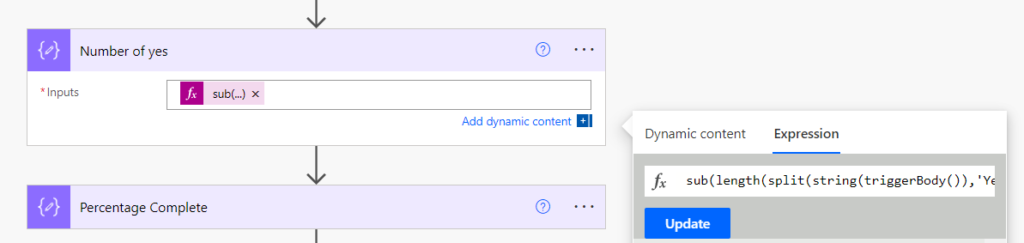
We just need the following expression to find out the number of Yes values within the item that was just created or modified.
sub(length(split(string(triggerBody()),'Yes')),1)So we’re converting it to text. Then splitting it by the word Yes and then we can count the number of items in the array given to us.
Calculate work in progress
Now that we have the number of Yes values and we have the number of phases in total we can calculate the percentage marked complete

div(outputs('Number_of_Yes'),float(5))Note that we have to convert either the Number of Yes values or the total number of phases to a float. Without doing this Power Automate is really handy and rounding the result to the nearest whole number.
Updating the item
Now the final step of the solution, updating the item. Before updating the item we will need to compare the current value of the Progress field with the new value of the Progress field. This is to ensure that we don’t keep triggering the flow while now update to the phases is made.

Pieter Veenstra

Is your business still running on paper trails, sprawling Excel files, or ageing Access databases? There's a better way — and I can show you exactly what it looks like. I'm the Technical Director of Vantage 365, a Microsoft solutions consultancy working with clients across the UK, the Netherlands, and worldwide. For over 30 years I've been turning messy, manual business processes into clean, automated systems that save time, reduce errors, and give teams the visibility they need to make better decisions. SharePains is not just any blog run by a Microsoft MVP. Have you ever used Try-Catch in Power Automate? The original post about Try-Catch in Power Automate can still be found on this site, https://sharepains.com/2018/02/07/try-catch-finally-in-power-automate-flow/ Or have you ever used the Pieter’s method to avoid variables and speed up your flows? https://sharepains.com/2020/03/11/pieters-method-for-advanced-in-flows/ You can contact me using contact@sharepains.com